
If you want to manage default applications on Ubuntu 26.04, you have several options available through both the graphical desktop environment and the command line. Whether you need to change the default web browser, set a preferred text editor, or list every default application configured on your system, Ubuntu 26.04 provides straightforward tools for managing these preferences.
Table of Contents
In this tutorial you will learn:
- How to change default applications using the GNOME Settings GUI
- How to manage default apps from the command line with
xdg-mimeandxdg-settings - How to list all configured default applications
- How MIME type associations work on Ubuntu 26.04
Software Requirements
| Category | Requirements, Conventions or Software Version Used |
|---|---|
| System | Ubuntu 26.04 Resolute Raccoon Download |
| Software | GNOME desktop environment (default), xdg-utils (pre-installed) |
| Other | Privileged access to your Linux system as root or via the sudo command. |
| Conventions | # – requires given linux commands to be executed with root privileges either directly as a root user or by use of sudo command$ – requires given linux commands to be executed as a regular non-privileged user |
| Step | Command/Action |
|---|---|
| 1. Change default browser (CLI) | $ xdg-settings set default-web-browser google-chrome.desktop |
| 2. Set default app for a file type | $ xdg-mime default org.gnome.TextEditor.desktop text/plain |
| 3. List all default MIME associations | $ cat ~/.config/mimeapps.list |
Manage Default Applications via GUI on Ubuntu 26.04
The simplest way to manage default applications on Ubuntu 26.04 is through the GNOME Settings panel. This method covers the most common categories such as web browser, email client, music, video, and photo applications.
- Open Default Applications settings: Navigate to Settings > Default Applications. You can also search for “Default Applications” in the Activities overview.
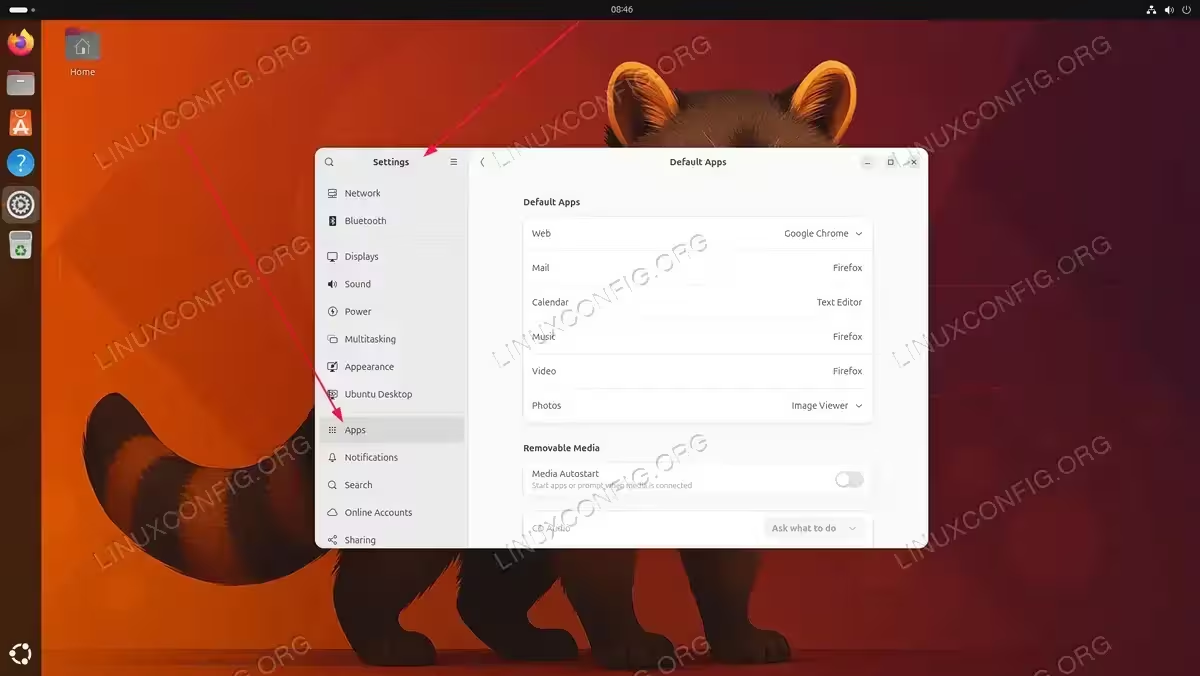
Navigating to Settings > Apps > Default Apps to manage default applications on Ubuntu 26.04 - Change an application category: Click the dropdown next to each category (Web, Mail, Calendar, Music, Video, Photos) and select your preferred application from the list of installed alternatives.
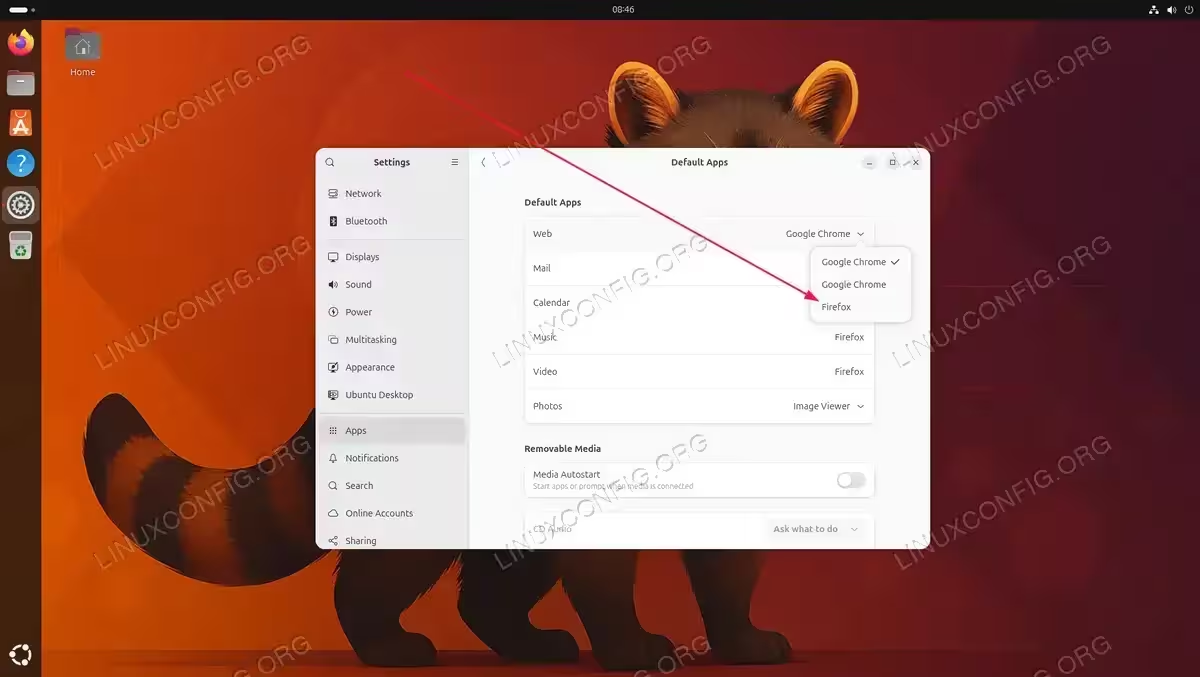
Selecting a default web browser from the dropdown menu in GNOME Default Apps settings on Ubuntu 26.04
IMPORTANT
The GNOME Settings panel only exposes a limited set of categories. For full control over every file type association, use the command line methods described below.
Additionally, you can right-click any file in the GNOME Files file manager, select Properties, and then under the Open With tab, choose a different application and set it as the default for that file type.
Manage Default Applications via CLI on Ubuntu 26.04
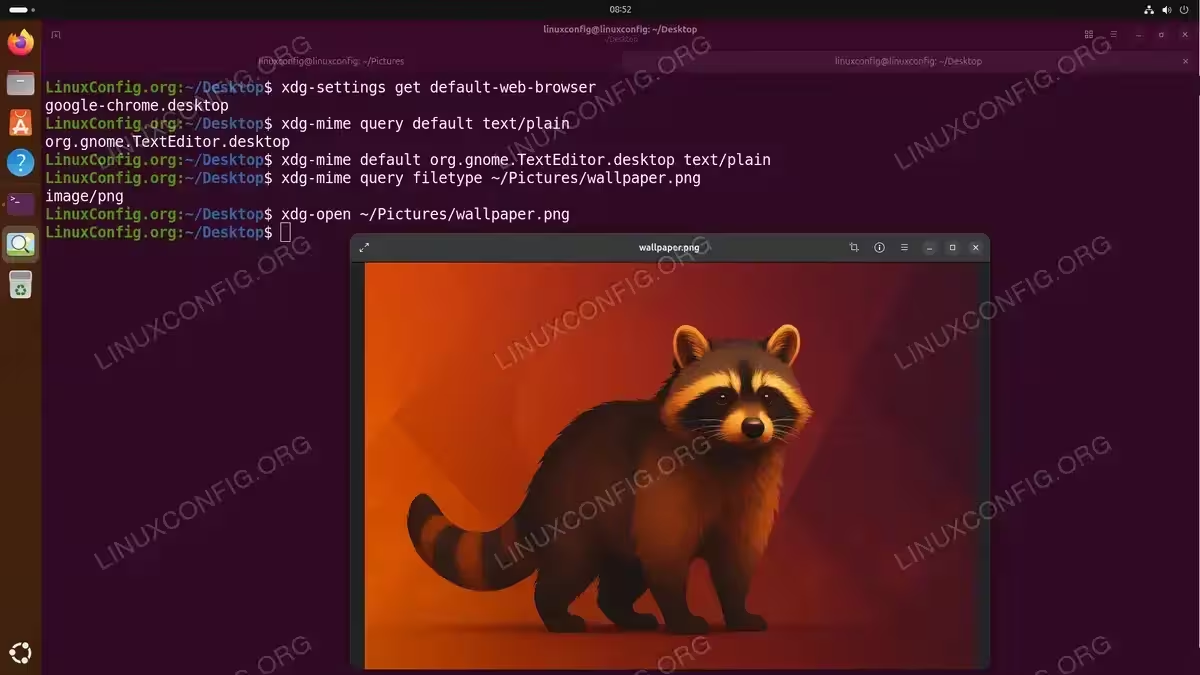
The command line provides more granular control when you need to manage default applications on Ubuntu 26.04. The two primary tools are xdg-settings and xdg-mime, both part of the xdg-utils package which is pre-installed.
Using xdg-settings
The xdg-settings command handles high-level defaults such as the web browser and URL scheme handlers.
Check the current default web browser:
$ xdg-settings get default-web-browser
Set a new default web browser:
$ xdg-settings set default-web-browser google-chrome.desktop
Using xdg-mime
The xdg-mime command works with specific MIME types, giving you precise control over which application opens each file type.
Query the default application for a MIME type:
$ xdg-mime query default text/plain
Set a new default application for a MIME type:
$ xdg-mime default org.gnome.TextEditor.desktop text/plain
Determine the MIME type of a specific file:
$ xdg-mime query filetype ~/Pictures/wallpaper.png
Open a file with its default application:
$ xdg-open ~/Pictures/wallpaper.png
INSTALLATION TIPS
The .desktop file name must match exactly. List available desktop files with: ls /usr/share/applications/ or ls ~/.local/share/applications/. Note that Snap applications use a different naming convention, for example the Firefox snap uses firefox_firefox.desktop rather than firefox.desktop.
Using gio
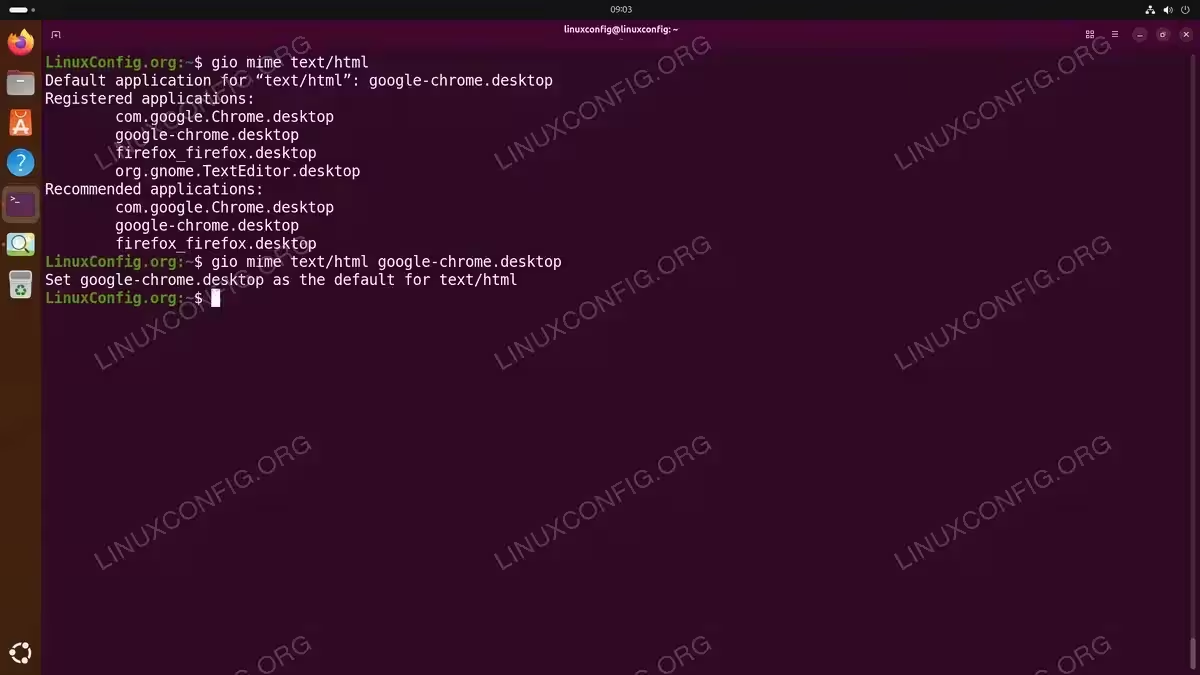
The gio command (part of GLib) provides another method to query and set MIME handlers:
Query the default handler for a MIME type:
$ gio mime text/html
Set a new default handler:
$ gio mime text/html google-chrome.desktop
List All Default Applications on Ubuntu 26.04
There are several ways to list all configured default applications on your Ubuntu 26.04 system, depending on whether you want user-specific or system-wide defaults.
User-specific defaults
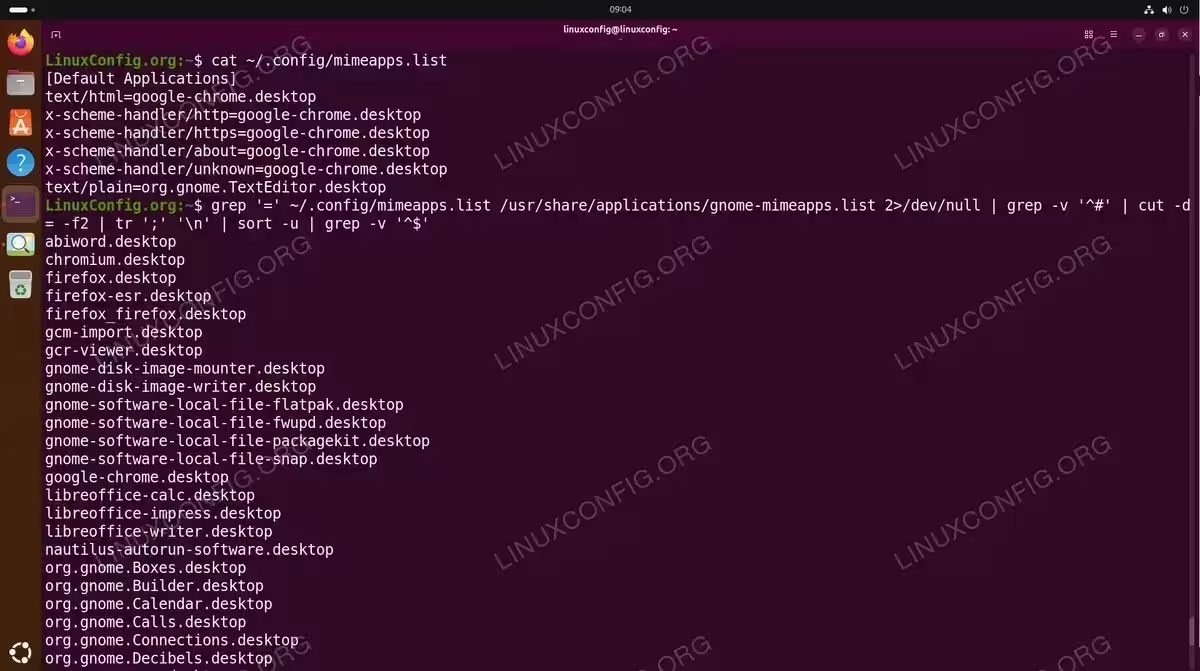
Your personal MIME type associations are stored in ~/.config/mimeapps.list. View the full list:
$ cat ~/.config/mimeapps.list
This file contains two sections: [Default Applications] which lists your chosen defaults, and optionally [Added Associations] which lists additional application choices per MIME type.
System-wide defaults
System defaults on Ubuntu 26.04 are defined in the GNOME-specific MIME applications list:
$ cat /usr/share/applications/gnome-mimeapps.list
List all default Ubuntu 26.04 applications at once
To list only the unique application .desktop files that serve as defaults across both user and system configuration:
$ grep '=' ~/.config/mimeapps.list /usr/share/applications/gnome-mimeapps.list 2>/dev/null | grep -v '^#' | cut -d= -f2 | tr ';' '\n' | sort -u | grep -v '^$'
Understanding MIME Types on Ubuntu 26.04
MIME (Multipurpose Internet Mail Extensions) types are the mechanism Ubuntu uses to associate files with applications. Each file type is identified by a MIME type string such as text/plain, image/png, or application/pdf. Consequently, when you change a default application, you are updating the MIME type association for that particular content type.
The MIME type database on Ubuntu 26.04 is maintained by the shared-mime-info package. You can browse all known MIME types on your system:
$ ls /usr/share/mime/
To look up which MIME type a particular file extension maps to:
$ xdg-mime query filetype example.csv
Moreover, if you need to set defaults for multiple related MIME types at once (for example, all image formats), you can create a simple script:
$ for type in image/png image/jpeg image/gif image/webp image/svg+xml; do
    xdg-mime default org.gnome.Loupe.desktop "$type"
done
This approach is particularly useful when you install a new image viewer or media player and want it to handle all related file types.
Conclusion
In this tutorial, we explored multiple methods to manage default applications on Ubuntu 26.04. The GNOME Settings GUI offers a quick way to configure the most common defaults such as browser, email, and media apps. For more granular control, the xdg-mime and xdg-settings command line tools allow you to configure defaults for any MIME type on the system. Additionally, understanding the mimeapps.list configuration files gives you full visibility into how your system resolves which application opens each file type.
Frequently Asked Questions
- How do I reset all default applications to Ubuntu 26.04 defaults? Remove your user-specific overrides by deleting or renaming the file
~/.config/mimeapps.list. After logging out and back in, the system will fall back to the GNOME defaults defined in/usr/share/applications/gnome-mimeapps.list. - Why does my default application change not take effect? Ensure you are using the exact
.desktopfile name (case-sensitive). Verify the file exists in/usr/share/applications/or~/.local/share/applications/. Some Snap and Flatpak applications use different naming conventions. Additionally, log out and back in if the change is not reflected immediately. - How do I set a default application for a custom file extension? First, determine the MIME type with
xdg-mime query filetype yourfile.ext. If it returns a generic type likeapplication/octet-stream, you may need to create a custom MIME type definition in~/.local/share/mime/packages/and then runupdate-mime-database ~/.local/share/mimebefore setting the association. - What is the difference between xdg-mime and gio mime? Both tools accomplish the same task of setting MIME type associations. The
xdg-mimecommand is part ofxdg-utilsand is desktop-agnostic, whilegio mimeis part of the GLib/GIO stack used by GNOME. On Ubuntu 26.04 with GNOME, both write to the same~/.config/mimeapps.listfile, so either tool will work.