
Installing Java on Ubuntu 26.04 is one of the first steps for many developers and system administrators. Java remains a foundational technology for countless applications, from enterprise servers to development tools like Apache Spark, Maven, and Gradle. In this tutorial, you will learn how to install Java on Ubuntu 26.04 using the default OpenJDK packages, verify your installation, and configure your environment for development.
Table of Contents
In this tutorial you will learn:
- How to install the default Java Runtime Environment (JRE) on Ubuntu 26.04
- How to install the Java Development Kit (JDK) for compiling and developing Java applications
- How to set the
JAVA_HOMEenvironment variable - How to verify that Java is correctly installed and working
- The difference between JRE and JDK and which one to choose
Software Requirements
| Category | Requirements, Conventions or Software Version Used |
|---|---|
| System | Ubuntu 26.04 Resolute Raccoon |
| Software | OpenJDK (default-jre, default-jdk) |
| Other | Privileged access to your Linux system as root or via the sudo command. |
| Conventions | # – requires given linux commands to be executed with root privileges either directly as a root user or by use of sudo command$ – requires given linux commands to be executed as a regular non-privileged user |
default-jdk package for development or default-jre if you only need to run Java applications.
| Step | Command/Action |
|---|---|
| 1. Update package index | $ sudo apt update |
| 2. Install JDK (or JRE) | $ sudo apt install default-jdk |
| 3. Verify installation | $ java -version |
JRE vs JDK: Which Do You Need?
Before you install Java on Ubuntu 26.04, it is important to understand the difference between the two main packages available. The Java Runtime Environment (JRE) contains only the components needed to run Java applications. If you simply need to execute Java-based software, the JRE is sufficient and has a smaller footprint.
The Java Development Kit (JDK), on the other hand, includes everything in the JRE plus the compiler (javac), debugger, and other development tools. Therefore, if you plan to compile Java code or use development tools such as Maven, Gradle, or Apache Spark, the JDK is the correct choice.
On Ubuntu 26.04, the default-jre and default-jdk metapackages point to the latest supported OpenJDK version in the official repositories.
IMPORTANT
If you are unsure which package to install, go with default-jdk. It includes the JRE, so you get everything in one package.
Install Java Runtime Environment (JRE) on Ubuntu 26.04
If you only need to run Java applications, installing the JRE is the lightest option. Follow these steps to install Java JRE on Ubuntu 26.04:
- Update the package index: Start by refreshing your local package database to ensure you are installing the latest available version.
$ sudo apt update
- Install the default JRE: Use the
default-jremetapackage to install the Java Runtime Environment.$ sudo apt install default-jre
This will install OpenJDK and all required dependencies automatically.
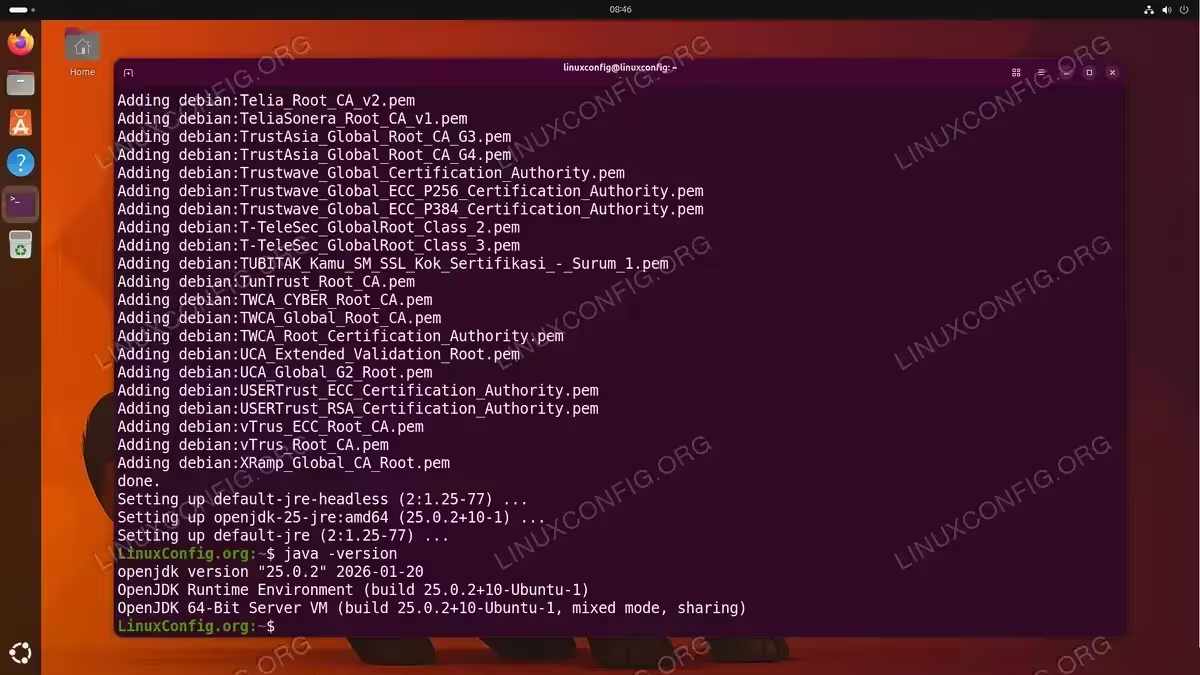
- Confirm the installation: Verify that the JRE is correctly installed by checking the Java version.
$ java -version
Install Java Development Kit (JDK) on Ubuntu 26.04
For development purposes, or if you need to compile Java source code, you should install the full JDK. Consequently, the JDK is the recommended choice for most users who work with Java-dependent tools.
- Update the package index: As always, refresh the package list before installing new software.
$ sudo apt update
- Install the default JDK: The
default-jdkpackage includes the JRE along with the Java compiler and development libraries.$ sudo apt install default-jdk
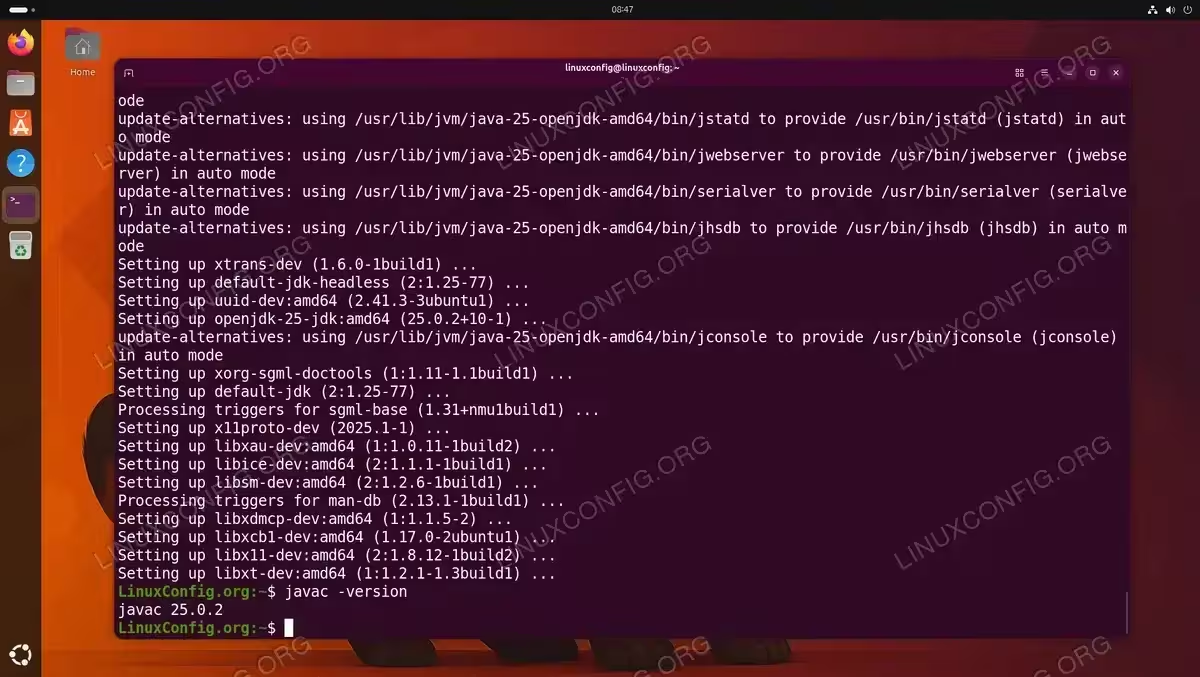
- Verify the Java compiler: In addition to the
javacommand, confirm that the Java compiler is available.$ javac -version
Set JAVA_HOME Environment Variable on Ubuntu 26.04
Many Java-based applications and build tools require the JAVA_HOME environment variable to be set. This variable points to the root directory of your Java installation. Without it, tools like Maven, Gradle, and Apache Spark may fail to start.
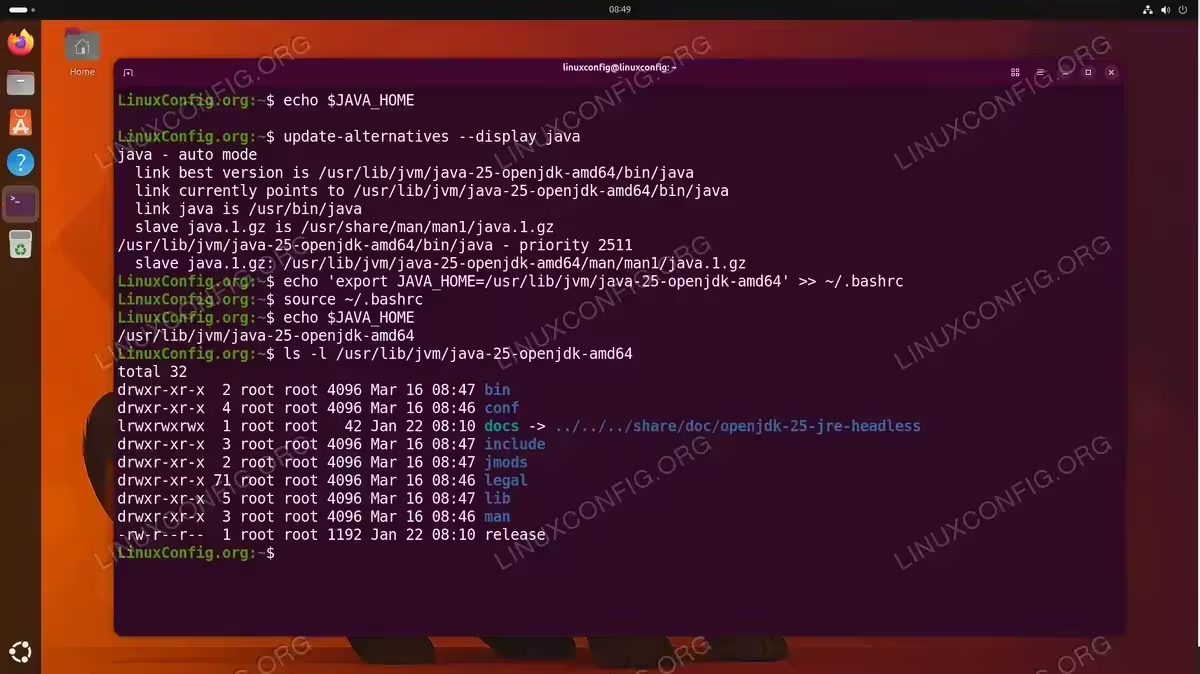
- Find the Java installation path: Use the
update-alternativescommand to identify where Java is installed.$ update-alternatives --display java
Look for the path in the output. It will typically be something like
/usr/lib/jvm/java-XX-openjdk-amd64. - Set JAVA_HOME for your user: Add the variable to your
~/.bashrcfile so it persists across sessions. Replace the path with the actual directory from the previous step.$ echo 'export JAVA_HOME=/usr/lib/jvm/java-XX-openjdk-amd64' >> ~/.bashrc $ source ~/.bashrc
- Verify JAVA_HOME: Confirm that the variable is set correctly.
$ echo $JAVA_HOME
The output should display the path you configured.
INSTALLATION TIPS
If you need JAVA_HOME set system-wide for all users, add the export line to /etc/environment instead of ~/.bashrc.
Verify Java Installation on Ubuntu 26.04
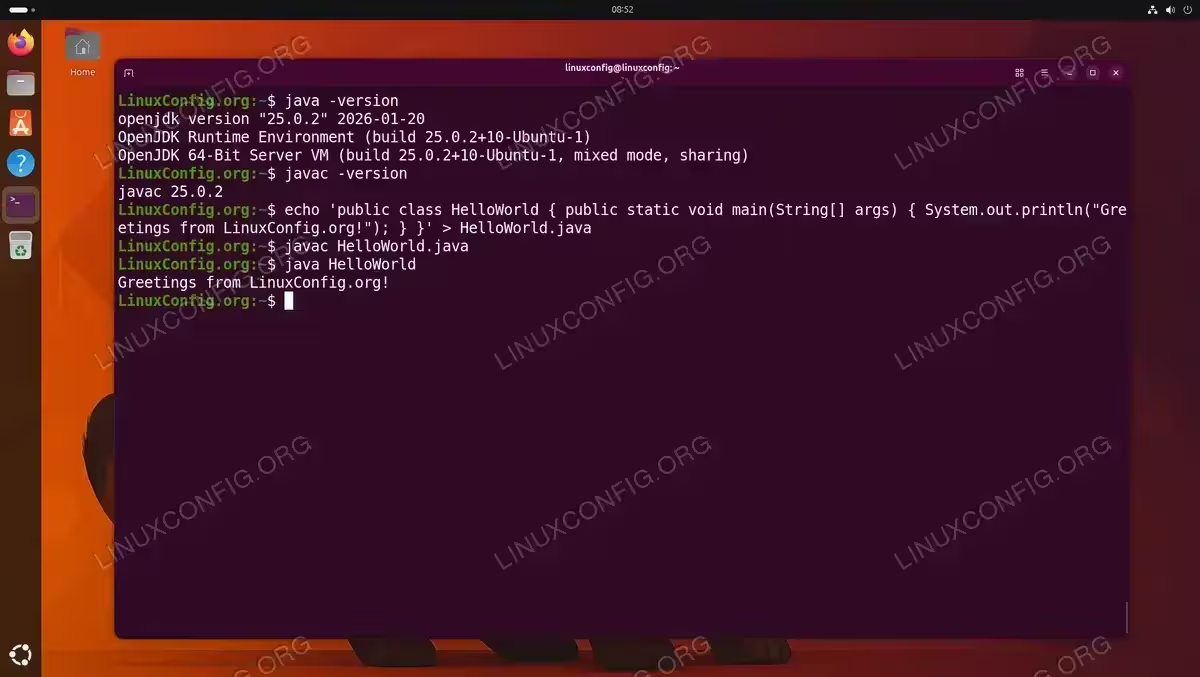
After completing the installation, it is good practice to run a quick test to confirm everything works. The following steps verify both the runtime and, if installed, the compiler.
- Check the Java runtime version:
$ java -version
- Check the Java compiler version (JDK only):
$ javac -version
- Run a quick test program: Create a simple Java file and compile it to ensure the toolchain is fully functional.
$ echo 'public class HelloWorld { public static void main(String[] args) { System.out.println("Greetings from LinuxConfig.org!"); } }' > HelloWorld.java
$ javac HelloWorld.java
$ java HelloWorld
You should see the output:
Greetings from LinuxConfig.org!
Conclusion
You have successfully learned how to install Java on Ubuntu 26.04 using the default OpenJDK packages from the official repositories. Whether you chose the lightweight JRE for running applications or the full JDK for development, your system is now ready for Java-based workloads. Additionally, with the JAVA_HOME variable configured, tools like Maven, Gradle, and Apache Spark will be able to locate your Java installation automatically.
If you need to run a specific Java version on Ubuntu 26.04, such as OpenJDK 8, 11, or 17, and switch between multiple installed versions, refer to our dedicated guide.
For more information about OpenJDK packages available in Ubuntu, consult the official Ubuntu Java documentation.
Frequently Asked Questions
- What version of Java does Ubuntu 26.04 install by default? The
default-jdkanddefault-jremetapackages on Ubuntu 26.04 install the latest OpenJDK version available in the official repositories. The exact version depends on what Ubuntu has packaged for this release cycle. - Can I install both JRE and JDK on the same system? Yes, and in fact, installing the JDK automatically includes the JRE. There is no conflict between the two packages, so you can safely install
default-jdkto get both. - How do I uninstall Java from Ubuntu 26.04? To remove the JDK, run
sudo apt remove default-jdk. To remove the JRE, usesudo apt remove default-jre. Follow up withsudo apt autoremoveto clean up unused dependencies. - Do I need to set JAVA_HOME? It depends on your use case. Many command-line tools and build systems such as Maven, Gradle, and Spark rely on
JAVA_HOMEto find the Java installation. If you plan to use any of these tools, setting it is strongly recommended. - Is OpenJDK the same as Oracle JDK? OpenJDK is the open-source reference implementation of the Java Platform. Oracle JDK is based on OpenJDK but includes some proprietary components and has different licensing terms. For most users and workloads, OpenJDK is fully sufficient and is the recommended choice on Ubuntu.