
AppArmor is a mandatory access control (MAC) security framework that comes pre-installed and enabled on Ubuntu 26.04. While AppArmor provides an essential security layer by restricting program capabilities, there are situations where you may need to disable it temporarily or permanently. This guide shows you how to disable AppArmor on Ubuntu 26.04, covering both temporary and permanent methods, along with the security implications and steps to re-enable it when needed.
- What AppArmor is and why it matters for system security
- How to check the current AppArmor status on your system
- How to temporarily disable AppArmor on Ubuntu 26.04
- How to permanently disable AppArmor and prevent it from starting
- Steps to re-enable AppArmor when needed

Software Requirements
| Category | Requirements, Conventions or Software Version Used |
|---|---|
| System | Ubuntu 26.04 Resolute Raccoon |
| Software | AppArmor (pre-installed), apparmor-utils |
| Other | Privileged access to your Linux system as root or via the sudo command. |
| Conventions | # – requires given linux commands to be executed with root privileges either directly as a root user or by use of sudo command$ – requires given linux commands to be executed as a regular non-privileged user |
aa-teardown to unload all profiles from the kernel. Stopping the systemd service alone does not unload active profiles.
| Step | Command/Action |
|---|---|
| 1. Check current status | sudo aa-status |
| 2. Unload all profiles | sudo aa-teardown |
| 3. Disable at boot (permanent) | sudo systemctl disable apparmor |
Understanding AppArmor on Ubuntu 26.04
AppArmor (Application Armor) is a Linux kernel security module that restricts programs’ capabilities using per-program profiles. Unlike traditional discretionary access control (DAC), AppArmor provides mandatory access control (MAC) that confines applications to a limited set of resources. Ubuntu 26.04 ships with AppArmor enabled by default, protecting critical system services and applications.
Each AppArmor profile defines what files a program can access, what network operations it can perform, and what system capabilities it can use. When a profile is in enforce mode, AppArmor actively blocks unauthorized actions and logs the violations.
SECURITY ALERT
Disabling AppArmor removes an important security layer from your system. Only disable AppArmor when absolutely necessary, such as for debugging application issues or in isolated test environments. Production systems should always run with AppArmor enabled.
Common reasons for disabling AppArmor include troubleshooting application permission errors, testing software in development environments, or resolving conflicts with certain containerized workloads.
Check AppArmor Status on Ubuntu 26.04
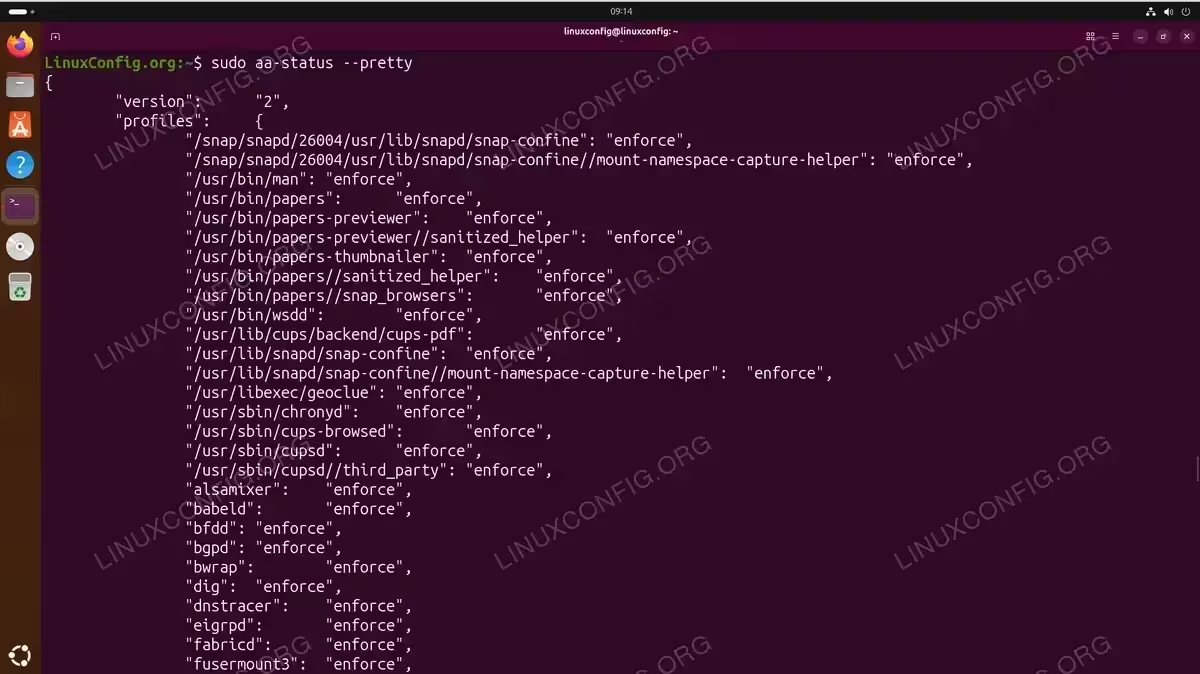
Before making any changes, verify the current AppArmor status on your Ubuntu 26.04 system. This helps you understand what profiles are active and confirms whether AppArmor is currently enforcing policies.
- Check if AppArmor is enabled: Run the following command to see the current AppArmor status:
$ sudo aa-status --pretty
This command displays the number of loaded profiles, profiles in enforce mode, and the processes currently confined by AppArmor.
- View the systemd service status: Check the AppArmor service status using systemctl:
$ systemctl status apparmor
The output shows whether the service is active (running) or inactive, along with recent log entries.
Disable AppArmor Temporarily on Ubuntu 26.04
Temporary methods allow you to disable AppArmor for testing purposes without making permanent changes. This approach is ideal when troubleshooting application issues or testing configurations.
Method 1: Unload All Profiles with aa-teardown
The `aa-teardown` command unloads all AppArmor profiles from the kernel, effectively disabling protection until the next reboot. This is the correct way to temporarily disable AppArmor at runtime.
IMPORTANT
Simply stopping the AppArmor service with systemctl stop apparmor does not unload profiles already loaded into the kernel. You must use aa-teardown to actually disable AppArmor protection.
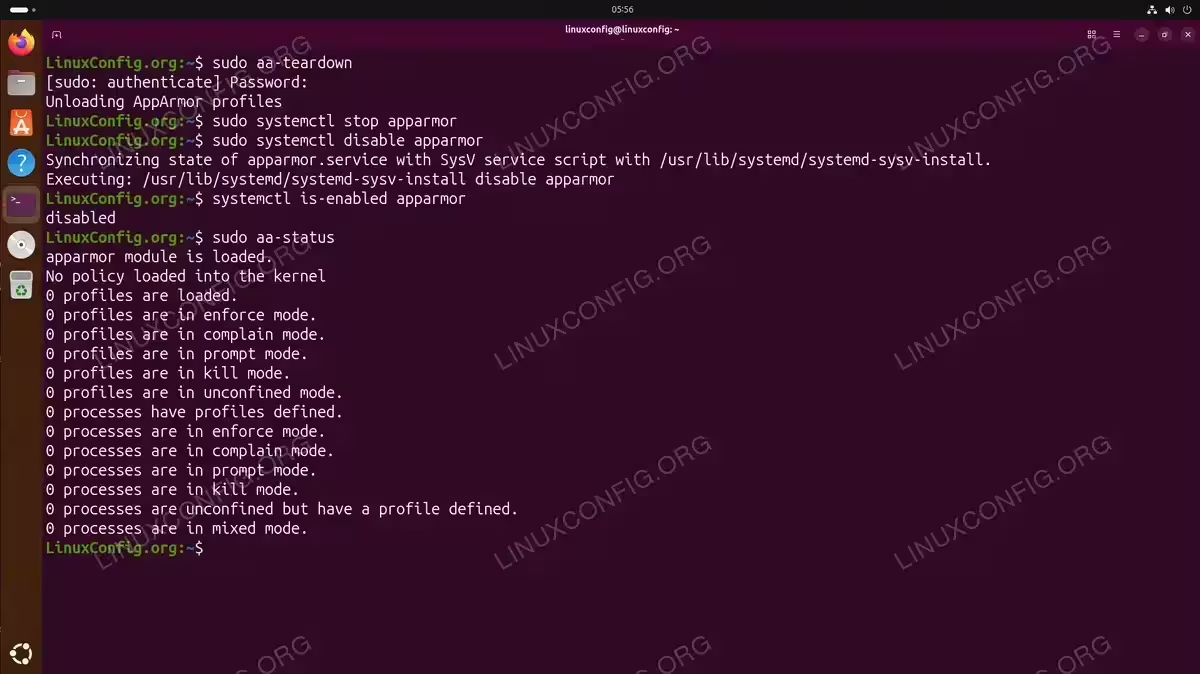
- Unload all AppArmor profiles: Execute the following command to unload all profiles from the kernel:
$ sudo aa-teardown
You will see the message:
Unloading AppArmor profiles - Verify AppArmor is disabled: Confirm no profiles are loaded:
$ sudo aa-status
The output should show:
apparmor module is loaded.
0 profiles are loaded.
0 profiles are in enforce mode.
Note that the AppArmor kernel module remains loaded, but no policies are active.
IMPORTANT
After a system reboot, AppArmor profiles will be loaded again automatically. This makes aa-teardown a safe option for temporary testing without permanent changes.
Method 2: Disable AppArmor at Boot (Single Boot)
You can disable AppArmor for a single boot session by adding a kernel parameter. This method is useful when you cannot access the system normally due to AppArmor issues.
- Access GRUB menu: Reboot your system and hold
Shift(BIOS) or pressEsc(UEFI) to access the GRUB menu. - Edit boot parameters: Select your Ubuntu entry and press
eto edit. Find the line starting withlinuxand add the following parameter at the end:apparmor=0
- Boot with changes: Press
Ctrl+XorF10to boot with the modified parameters. AppArmor will be disabled for this session only.
Disable AppArmor Permanently on Ubuntu 26.04
If you need to permanently disable AppArmor on Ubuntu 26.04, you must both stop the service and prevent it from starting at boot. This section covers the complete process.
SECURITY ALERT
Permanently disabling AppArmor significantly reduces your system’s security posture. Ensure you understand the implications and have alternative security measures in place before proceeding.
- Unload all AppArmor profiles: First, unload all active profiles from the kernel:
$ sudo aa-teardown
- Stop the AppArmor service: Stop the systemd service:
$ sudo systemctl stop apparmor
- Disable AppArmor at boot: Prevent AppArmor from starting automatically:
$ sudo systemctl disable apparmor
This creates a symlink that prevents the service from starting during boot.
- Verify the configuration: Confirm AppArmor is disabled:
$ systemctl is-enabled apparmor
The output should show
disabled.
Alternative: Disable via GRUB (Kernel Parameter)
For a more thorough approach, you can disable AppArmor at the kernel level by modifying GRUB configuration.
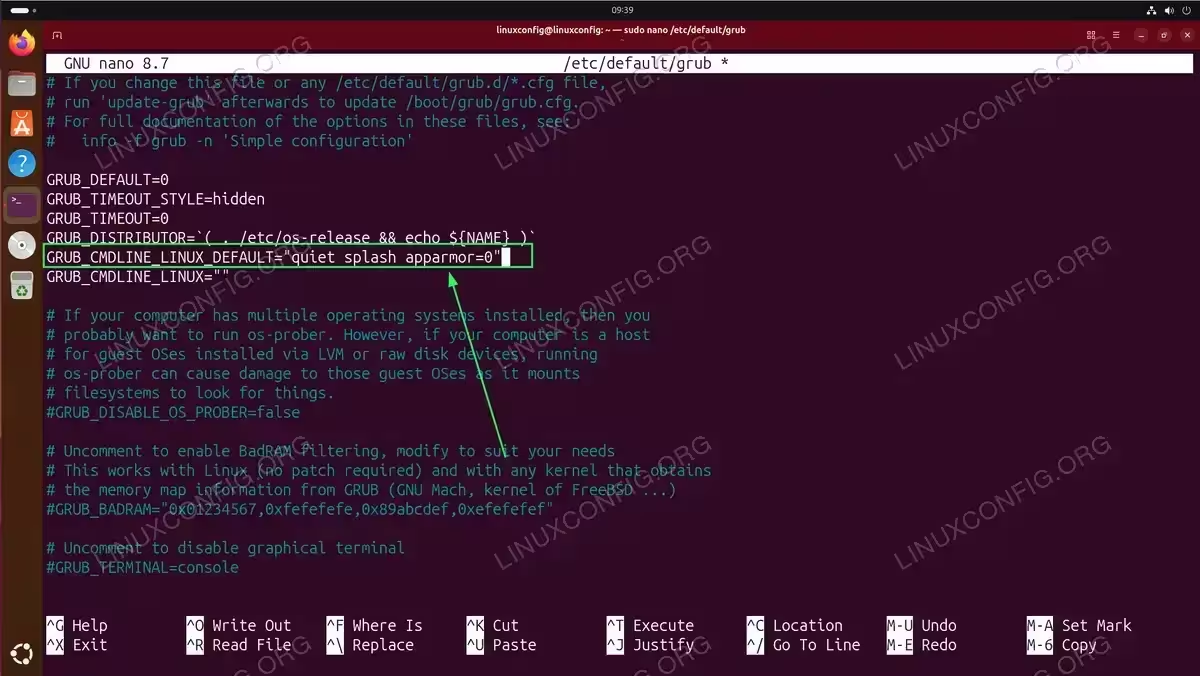
- Edit GRUB configuration: Open the GRUB default configuration file:
$ sudo nano /etc/default/grub
- Modify the GRUB_CMDLINE_LINUX_DEFAULT line: Find the line starting with
GRUB_CMDLINE_LINUX_DEFAULTand addapparmor=0:GRUB_CMDLINE_LINUX_DEFAULT="quiet splash apparmor=0"
- Update GRUB: Apply the changes by updating GRUB:
$ sudo update-grub
- Reboot the system: Restart your computer to apply the kernel parameter:
$ sudo reboot
Re-enable AppArmor on Ubuntu 26.04
When you need to restore AppArmor protection, follow these steps to re-enable the security framework on your Ubuntu 26.04 system.
- Enable the AppArmor service: Re-enable automatic startup:
$ sudo systemctl enable apparmor
- Start AppArmor: Start the service immediately:
$ sudo systemctl start apparmor
- Verify profiles are loaded: Confirm AppArmor is running with profiles:
$ sudo aa-status
You should see the number of loaded profiles and processes currently confined.
If you disabled AppArmor via GRUB, you must also remove the kernel parameter:
- Edit GRUB configuration: Open the configuration file:
$ sudo nano /etc/default/grub
- Remove the apparmor=0 parameter: Edit the
GRUB_CMDLINE_LINUX_DEFAULTline to removeapparmor=0. - Update GRUB and reboot: Apply changes and restart:
$ sudo update-grub
$ sudo reboot
COMPLETED
After re-enabling AppArmor, all default profiles will be loaded and enforced. Your system is now protected by mandatory access control policies.
Conclusion
You now know how to disable AppArmor on Ubuntu 26.04 using both temporary and permanent methods. The key command is aa-teardown, which unloads all profiles from the kernel. For permanent changes, combine this with disabling the systemd service or adding kernel parameters. Remember that AppArmor provides an important security layer, so always re-enable it once your testing or troubleshooting is complete. For more information about AppArmor profiles and configuration, consult the official Ubuntu AppArmor documentation.
Frequently Asked Questions
- What happens when I disable AppArmor on Ubuntu 26.04? When you disable AppArmor, all mandatory access control policies are removed from your system. Applications that were previously confined by AppArmor profiles will have unrestricted access to system resources, limited only by traditional Unix permissions. This increases the potential impact of security vulnerabilities in those applications.
- Is it safe to disable AppArmor permanently? Disabling AppArmor permanently is not recommended for production systems or computers connected to networks. AppArmor provides defense-in-depth security that limits damage from compromised applications. If you must disable AppArmor, ensure you have other security measures in place and understand the increased risk to your system.
- How do I disable AppArmor for a specific application only? Instead of disabling AppArmor entirely, you can disable individual profiles. Use
sudo aa-disable /etc/apparmor.d/profile.nameto disable a specific profile. This approach maintains protection for other applications while addressing issues with a specific program. - Will disabling AppArmor improve system performance? The performance overhead of AppArmor is minimal on modern systems. Disabling AppArmor for performance reasons is generally not justified, as the security benefits far outweigh the negligible processing cost. If you experience performance issues, they are more likely caused by other factors than AppArmor.
- How can I check if AppArmor is causing problems with my application? Check the system logs for AppArmor denial messages using
sudo dmesg | grep apparmororsudo journalctl | grep apparmor. These logs show which operations AppArmor blocked and for which applications, helping you identify exactly what access the application needs.