
Changing a username on Ubuntu 26.04 is a straightforward task when you know the right commands. Whether you need to rename an account for organizational reasons or to correct a typo made during installation, Ubuntu 26.04 provides reliable command-line tools to user change ubuntu 26.04 safely. This tutorial walks you through every required step, including renaming the home directory and updating the primary group, so the account remains fully functional after the change.
Table of Contents
In this tutorial you will learn:
- Why the target account must be logged out before renaming
- How to rename a user account with
usermod -l - How to rename the home directory to match the new username
- How to rename the primary group with
groupmod -n - How to update the home directory path recorded in
/etc/passwd - How to verify all changes applied correctly
Software Requirements
| Category | Requirements, Conventions or Software Version Used |
|---|---|
| System | Ubuntu 26.04 Resolute Raccoon |
| Software | shadow-utils (usermod, groupmod – included by default) |
| Other | Privileged access to your Linux system as root or via the sudo command. The account being renamed must not be currently logged in. |
| Conventions | # – requires given linux commands to be executed with root privileges either directly as a root user or by use of sudo command$ – requires given linux commands to be executed as a regular non-privileged user |
TL;DR
oldname and newname accordingly.
| Step | Command/Action |
|---|---|
| 1. Rename the user account | sudo usermod -l newname oldname |
| 2. Rename the home directory | sudo mv /home/oldname /home/newname |
| 3. Update the home path | sudo usermod -d /home/newname newname |
| 4. Rename the primary group | sudo groupmod -n newname oldname |
Before You Begin
Before attempting a user change on Ubuntu 26.04, there is one critical requirement: you cannot rename an account that is currently logged in. The usermod command will refuse to proceed if the target user has active processes running. Therefore, you must perform all steps from a separate administrator account.
If your system only has one user account, you have two options. First, you can create a temporary administrator account, log out of the main account, log in as the temporary user, perform the rename, then delete the temporary account afterward. Second, you can boot into recovery mode which provides a root shell.
Additionally, list users on your system beforehand to confirm the exact current username, since a mismatch will cause the commands to fail.
IMPORTANT
All commands in this tutorial assume you are logged in as a different user with sudo privileges, not as the account you intend to rename.
Change the Username with usermod on Ubuntu 26.04
The primary tool for performing a user change on Ubuntu 26.04 is usermod, which modifies user account properties. The -l flag (lowercase L) specifies the new login name.
- Confirm the current username exists: Before making changes, verify the account is present in the system database.
$ getent passwd oldname
The command queries
/etc/passwdand returns a line with the user’s UID, GID, home directory, and shell. If no output appears, the username does not exist and you should recheck the spelling. - Rename the login name: Use
usermod -lto assign the new username. Replacelinuxconfigwith your actual old username andlinuxconfig-newwith the desired new name.$ sudo usermod -l linuxconfig-new linuxconfig
This command updates the login name field in
/etc/passwdbut does not rename the home directory or the primary group. Those steps follow separately.

sudo usermod -l to change the login name, verified with getent passwd before and after
IMPORTANT
If you see the error usermod: user linuxconfig is currently logged in, log out of that account completely, including terminating any background sessions, before retrying.
Rename the Home Directory
After the login name change, the home directory still carries the old name. Consequently, when the user logs in, their shell environment may reference an incorrect path. Therefore, rename the directory to match the new username.
- Move the home directory: The
mvcommand renames the directory in place without copying data, making it instantaneous regardless of directory size.$ sudo mv /home/linuxconfig /home/linuxconfig-new
- Update the recorded home path: The path stored in
/etc/passwdstill points to the old location. Useusermod -dto update it.$ sudo usermod -d /home/linuxconfig-new linuxconfig-new
The
-dflag sets the new home directory path. Note that the username argument is now the new name since the previous step already completed the rename.
Using sudo mvandsudo usermod -dto rename the home directory and update its path in/etc/passwd

Rename the Primary Group
Ubuntu 26.04 creates a private primary group for each user account with the same name as the username. After a user change on Ubuntu 26.04, this group still holds the old name, which can cause confusion and inconsistency. Use groupmod -n to synchronize the group name.
- Rename the primary group: The
-nflag specifies the new group name, followed by the current (old) group name.$ sudo groupmod -n linuxconfig-new linuxconfig
This updates
/etc/groupand/etc/gshadowatomically. Additionally, any files owned by the GID retain their ownership since the GID number itself does not change, only the name.
Moreover, if the user belongs to supplementary groups, those memberships are unaffected by the username or primary group rename. You can confirm supplementary group membership with the groups command after the process is complete. You may also want to add the user to a group if additional permissions are required.
Verify /etc/passwd Is Consistent
At this point, all the individual changes have been applied. However, it is good practice to inspect /etc/passwd directly to confirm every field reflects the new username and home directory path before the user attempts to log in.
- Inspect the passwd entry: Query the updated record for the new username.
$ getent passwd linuxconfig-new
Expected output:
linuxconfig-new:x:1000:1000:,,,:/home/linuxconfig-new:/bin/bash
Confirm that the first field (login name) and the sixth field (home directory) both reflect the new name. The UID (third field) and GID (fourth field) remain unchanged.

getent passwd linuxconfig-new confirming the consistent account entry after all rename stepsVerify the Username Change on Ubuntu 26.04
With all steps complete, perform a final verification to ensure the user change on Ubuntu 26.04 was fully successful.
- Check the group rename: Confirm the primary group name matches the new username.
$ getent group linuxconfig-new
The output should list the group name, GID, and group members.
- Confirm the home directory exists: Verify the renamed directory is accessible.
$ ls -ld /home/linuxconfig-new
The directory should be owned by the correct UID and GID.
- Test login: Switch to the renamed account using
suto confirm the environment loads correctly.# su - linuxconfig-new
Run
whoamiandecho $HOMEinside the session to confirm both return the expected new values.$ whoami linuxconfig-new $ echo $HOME /home/linuxconfig-new
COMPLETED
The username has been successfully changed. The login name, home directory, and primary group are now consistent. The user can log in normally with the new credentials.
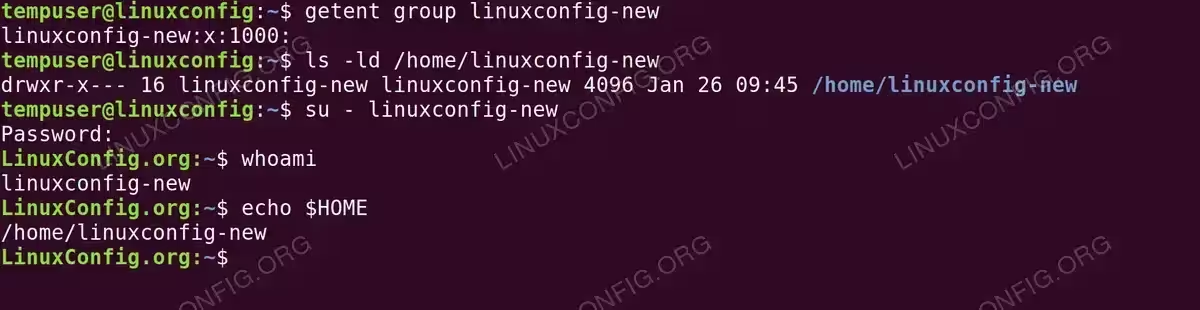
linuxconfig-new all confirm the rename is completeFor additional reference on username and group management, consult the official Ubuntu usermod manual page.
Conclusion
Performing a user change on Ubuntu 26.04 involves four coordinated steps: renaming the login name with usermod -l, renaming the home directory with mv, updating the home path with usermod -d, and renaming the primary group with groupmod -n. Each step targets a different system file, and consequently all four must be completed to ensure a consistent and fully functional account. By following this tutorial, you have changed the username cleanly without affecting the user’s UID, GID, file ownership, or supplementary group memberships.
Frequently Asked Questions
- Can I change my own username while logged in? No. Ubuntu 26.04 prevents
usermodfrom modifying an account that has active processes. You must log in as a different administrator account or use a root recovery shell to perform the rename. - Will changing the username affect file ownership? No. File ownership on Linux is tracked by UID and GID numbers, not by name. Since
usermod -ldoes not change the UID, all files owned by the account remain correctly owned after the rename. Only the display name inls -loutput changes once the system resolves the new name. - Do I need to update any configuration files after changing the username? Possibly. Applications that store the username as a literal string in their configuration files (such as some SSH authorized_keys paths or cron jobs referencing
/home/oldname) will need manual updates. Additionally, if the user has a custom sudoers entry referencing the old username, update/etc/sudoerswithvisudoaccordingly. - What is the difference between
usermod -land creating a new account? Theusermod -lapproach preserves the existing UID, GID, home directory contents, group memberships, and password hash. Creating a new account generates a new UID and requires manually migrating files and permissions, which is significantly more disruptive. Therefore,usermod -lis always preferred when you simply need to rename an existing account.