
Changing your keyboard layout on Ubuntu 26.04 is essential when working with multiple languages or when your physical keyboard doesn’t match the default system configuration. Whether you prefer the graphical interface or command line tools, Ubuntu 26.04 provides straightforward methods to keyboard change settings and switch between different layouts. This guide covers both GUI and CLI approaches, ensuring your preferred layout persists across reboots.
Table of Contents
In this tutorial you will learn:
- How to change keyboard layout using GNOME Settings
- How to temporarily change keyboard layout on server console
- How to permanently configure keyboard layout via configuration file
- How to add and switch between multiple keyboard layouts
- How to verify your current keyboard configuration
Software Requirements
| Category | Requirements, Conventions or Software Version Used |
|---|---|
| System | Ubuntu 26.04 Resolute Raccoon |
| Software | GNOME Settings (desktop), loadkeys, setupcon (server) |
| Other | Privileged access to your Linux system as root or via the sudo command. |
| Conventions | # – requires given linux commands to be executed with root privileges either directly as a root user or by use of sudo command$ – requires given linux commands to be executed as a regular non-privileged user |
/etc/default/keyboard on server.
| Step | Command/Action |
|---|---|
| 1. Check current layout | localectl status |
| 2. Set layout (temporary) | sudo loadkeys us |
| 3. Set layout (permanent) | Edit /etc/default/keyboard then sudo setupcon |
Change Keyboard Layout on Ubuntu 26.04 via GUI
The graphical method provides the most intuitive way to keyboard change configuration on Ubuntu 26.04. GNOME Settings offers a comprehensive interface for adding, removing, and reordering keyboard layouts.
- Open Settings: Click the system menu in the top-right corner of your screen and select the gear icon, or search for “Settings” in the Activities overview.
- Navigate to Keyboard settings: In the Settings window, scroll down the left sidebar and click on “Keyboard”. This opens the keyboard configuration panel where you can manage input sources.
- Add a new keyboard layout: Under the “Input Sources” section, click the “+” button to add a new layout. Browse or search for your desired language and keyboard variant, then click “Add”.
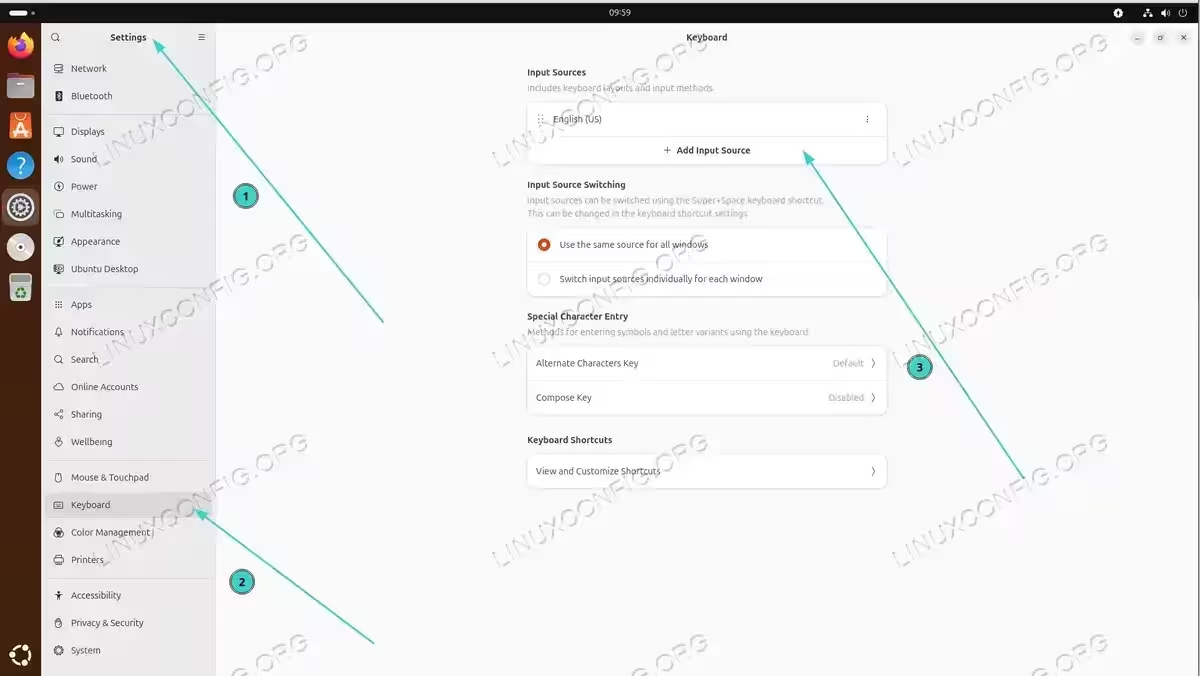
Navigate to Settings > Keyboard to manage input sources and add new keyboard layouts - Remove unwanted layouts: To remove a layout, select it from the list and click the “Remove” button (trash icon). You must keep at least one input source configured.
- Reorder layouts: Drag and drop layouts in the list to change their order. The first layout in the list becomes your default keyboard layout.
IMPORTANT
Changes made through GNOME Settings apply immediately and persist across reboots. The configuration is stored per-user in your GNOME settings database.
Change Keyboard Layout on Ubuntu 26.04 Server
For server environments accessed via remote console (VNC, IPMI, or physical terminal), Ubuntu 26.04 provides command line tools to keyboard change settings. This section covers both temporary and permanent configuration methods.
List Available Keyboard Layouts
Before changing your layout, view the available options:
$ localectl list-x11-keymap-layouts
This displays all supported keyboard layouts. For a specific layout’s variants (such as Dvorak for US):
$ localectl list-x11-keymap-variants us
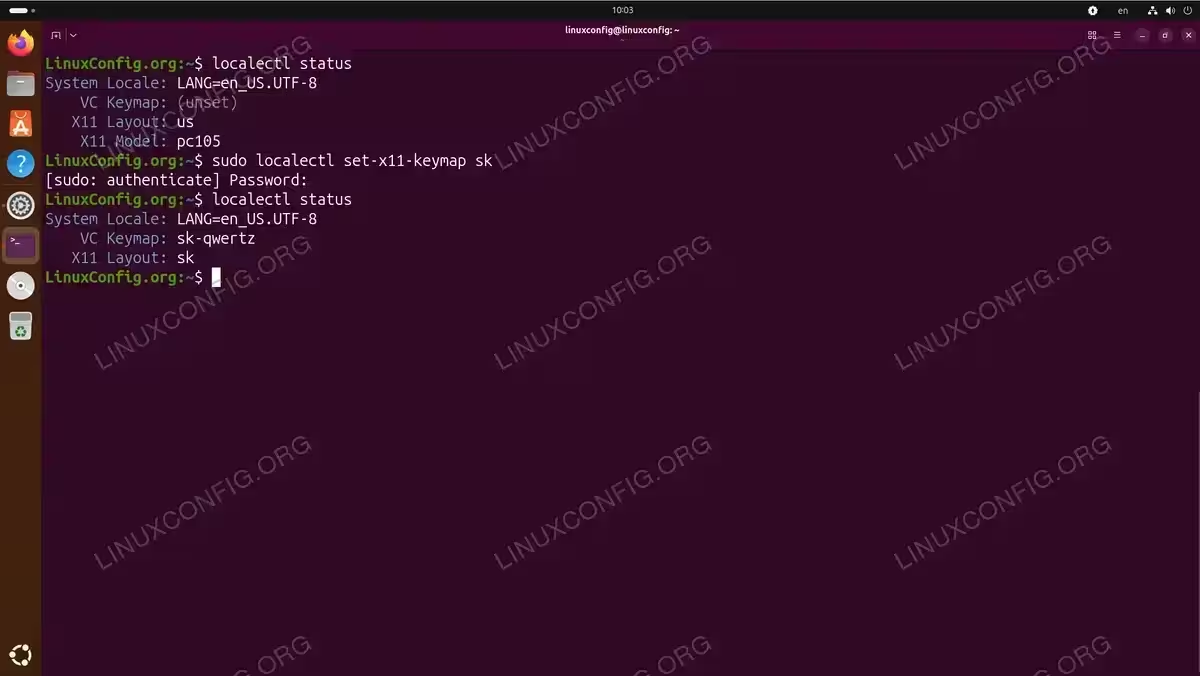
To set a specific keyboard eg. “sk” run:
$ sudo localectl set-x11-keymap sk
Temporary Keyboard Layout Change
The loadkeys command changes the console keymap immediately without modifying system configuration. This is useful when you need quick access with a different layout during a remote console session.
$ sudo loadkeys de
Replace de with your desired layout code (e.g., us, fr, sk). The change takes effect immediately on the current console but does not persist after reboot.
IMPORTANT
The loadkeys command only works on virtual consoles and remote console sessions (VNC, IPMI). It has no effect on SSH sessions, which use your local machine’s keyboard layout.
Permanent Keyboard Layout Change
To permanently change the keyboard layout on Ubuntu 26.04 server, edit the keyboard configuration file directly.
- Edit the keyboard configuration file: Open the configuration file in a text editor:
$ sudo nano /etc/default/keyboard
Locate the
XKBLAYOUTline and change it to your desired layout:XKBMODEL="pc105" XKBLAYOUT="us" XKBVARIANT="" XKBOPTIONS=""
For example, to set German layout, change to
XKBLAYOUT="de". Save and exit the editor. - Apply the configuration: Apply the new keyboard layout without rebooting:
$ sudo setupcon
The new layout is now active and will persist across reboots.
Verify Keyboard Configuration
Check your current keyboard configuration:
$ localectl status
Expected output:
System Locale: LANG=en_US.UTF-8
    VC Keymap: (unset)
   X11 Layout: us
    X11 Model: pc105
The X11 Layout field shows your configured keyboard layout.
Switch Between Multiple Keyboard Layouts
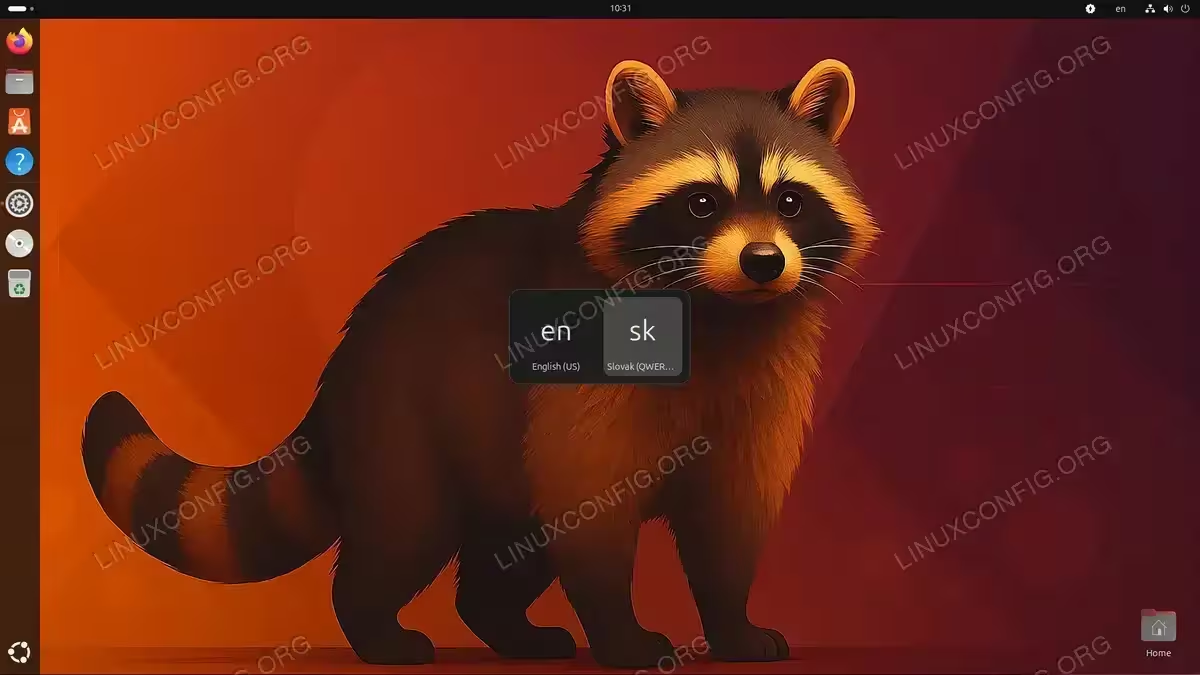
Ubuntu 26.04 desktop supports multiple keyboard layouts with easy switching, which is particularly useful for multilingual users. In GNOME Settings under Keyboard, add multiple input sources as described earlier. Once you have more than one layout configured, you can switch between them using:
- Super+Space: Opens the input source switcher overlay
- Input indicator: Click the keyboard layout indicator in the top panel to select a different layout
Conclusion
Configuring keyboard layout on Ubuntu 26.04 is straightforward using either the graphical GNOME Settings interface or command line tools like localectl. The GUI method suits desktop users who prefer visual configuration, while the CLI approach works well for servers and automation. Remember that localectl changes are permanent and system-wide, whereas setxkbmap affects only the current session. For multilingual workflows, configure multiple layouts with a convenient switching shortcut to boost your productivity. Similar to how you might set timezone or configure timezone settings for your locale, keyboard layout is a fundamental system configuration that ensures comfortable daily use.
Frequently Asked Questions
- How do I change keyboard layout on Ubuntu 26.04 server without GUI? For temporary changes during a console session, use
sudo loadkeys LAYOUT(e.g.,sudo loadkeys de). For permanent changes, edit/etc/default/keyboardand setXKBLAYOUT="your_layout", then runsudo setupconto apply. Note thatloadkeysonly works on virtual consoles and remote console sessions, not SSH. - Why does my keyboard layout reset after reboot? If you used
loadkeysto change your layout, those changes are session-only and do not survive reboots. Edit/etc/default/keyboardand runsudo setupconfor permanent configuration. On desktop, changes made through GNOME Settings persist automatically. - How can I quickly switch between multiple keyboard layouts? On desktop, add multiple input sources in GNOME Settings, then use Super+Space to toggle between them. The keyboard indicator in the top panel also allows clicking to switch layouts.
- Where are keyboard layout settings stored in Ubuntu 26.04? System-wide settings are stored in
/etc/default/keyboard. GNOME desktop settings are stored in the dconf database under/org/gnome/desktop/input-sources/. You can view GNOME settings withgsettings get org.gnome.desktop.input-sources sources. Uselocalectl statusto check the current system configuration.