
A keyboard has to be the most essential peripheral of any computer system. In order to make sure it works as intended, the correct keyboard layout must be loaded on the Linux operating system, so that the keys on your keyboard will correspond to the letters or symbols that are being typed on screen. This is why it is so important to personalize the keyboard layout of your system to work with your keyboard model. In addition, we can configure custom keyboard settings which makes life a little easier.
In this tutorial, we will cover keyboard personalization and customization on a Linux system. This will include choosing the correct language for your keyboard, as well as custom key mappings in case you want to take full control of your keyboard layout and customize the keys as you see fit. Let’s see how to do it below!
In this tutorial you will learn:
- How to select keyboard language with setxkbmap, dpkg-reconfigure, and GUI
- How to configure custom key mappings with setxkbmap and xmodmap

| Category | Requirements, Conventions or Software Version Used |
|---|---|
| System | Any Linux distro |
| Software | N/A |
| Other | Privileged access to your Linux system as root or via the sudo command. |
| Conventions |
# – requires given linux commands to be executed with root privileges either directly as a root user or by use of sudo command$ – requires given linux commands to be executed as a regular non-privileged user |
Changing Keyboard Layout for Different Languages
First, let’s see how to choose the right language that corresponds to our keyboard layout. Keyboards that have been programmed for various languages may have fewer or more keys than another keyboard. They may also have some keys that are in different positions. Your Linux system needs to know what kind of keyboard hardware you are using, so that it knows how to map each key stroke to the correct character as you type.
Using setxkbmap
One of the most universal and recommended ways to apply this kind of configuration is with the setxkbmap command. This supersedes the older xmodmap, and will change the keyboard layout for both the command line interface and GUI. Its only drawback is that it works exclusively with the X Window System. If your Linux system is using a different window manager, then applying configurations with the setxkbmap command may not work for you. In such a case, you will have to use a different tool that works with your specific window manager.
Let’s see some example commands on how we can use the setxkbmap for changing keyboard layouts below:
- We should start with listing the available keyboard layouts on our system. These are abbreviated to standard country codes, so, for example,
Germanwould bede. Type the following command in terminal to see a full list of available language layouts:$ localectl list-x11-keymap-layouts
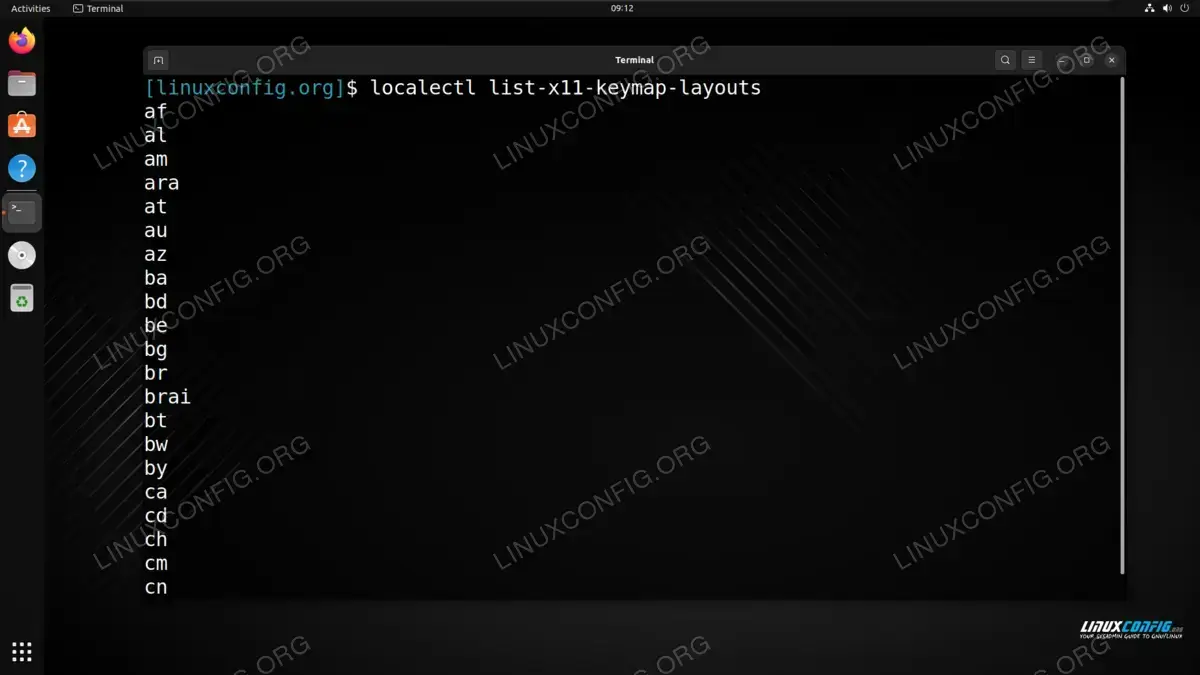
Listing all keyboard layouts available in different languages - Next, we use the following command syntax to choose the keyboard language we need. In this case, we will pick
de, which corresponds to the German keyboard layout:$ setxkbmap de
Using dpkg-reconfigure on Debian-based Systems
If you are using a Debian based Linux system, such as Debian itself or Ubuntu Linux, then using the dpkg-reconfigure command is a great way to reconfigure your keyboard layout and select the correct language. This method is more permanent than some others, since your settings will be retained across different sessions and system reboots, and it will change the layout for both terminal and GUI.
- Execute the following command with root permissions:
$ sudo dpkg-reconfigure keyboard-configuration
- Choose the keyboard model that best represents your hardware. If in doubt, use one of the generic options from the list.
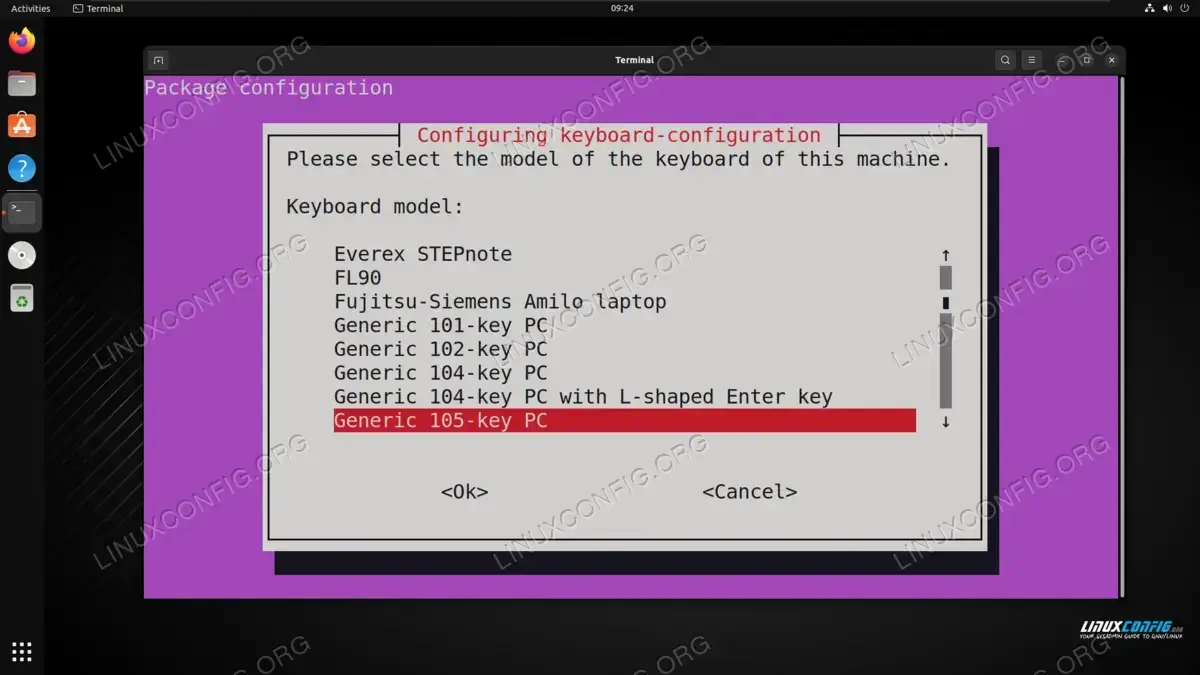
Choosing keyboard model - Then, to make sure the keys get mapped correctly, choose the keyboard language. Make sure you also choose the corresponding region correctly.
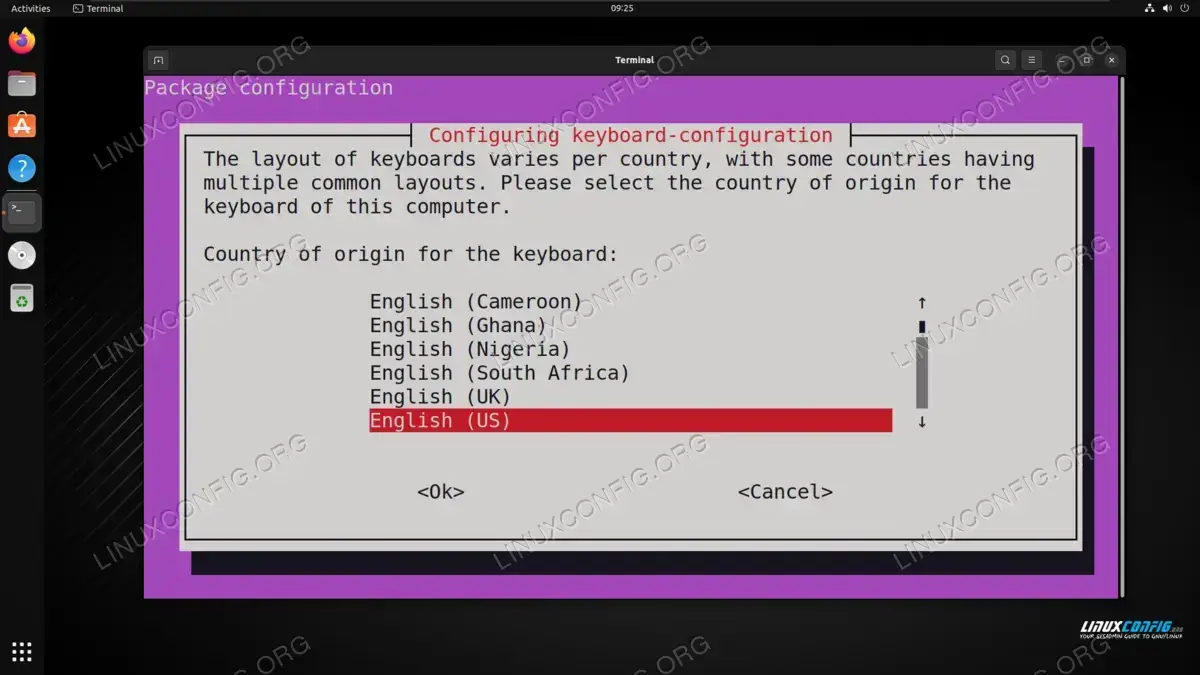
Choosing keyboard language - Next, we get to choose the keyboard layout that best corresponds to our language and dialect:
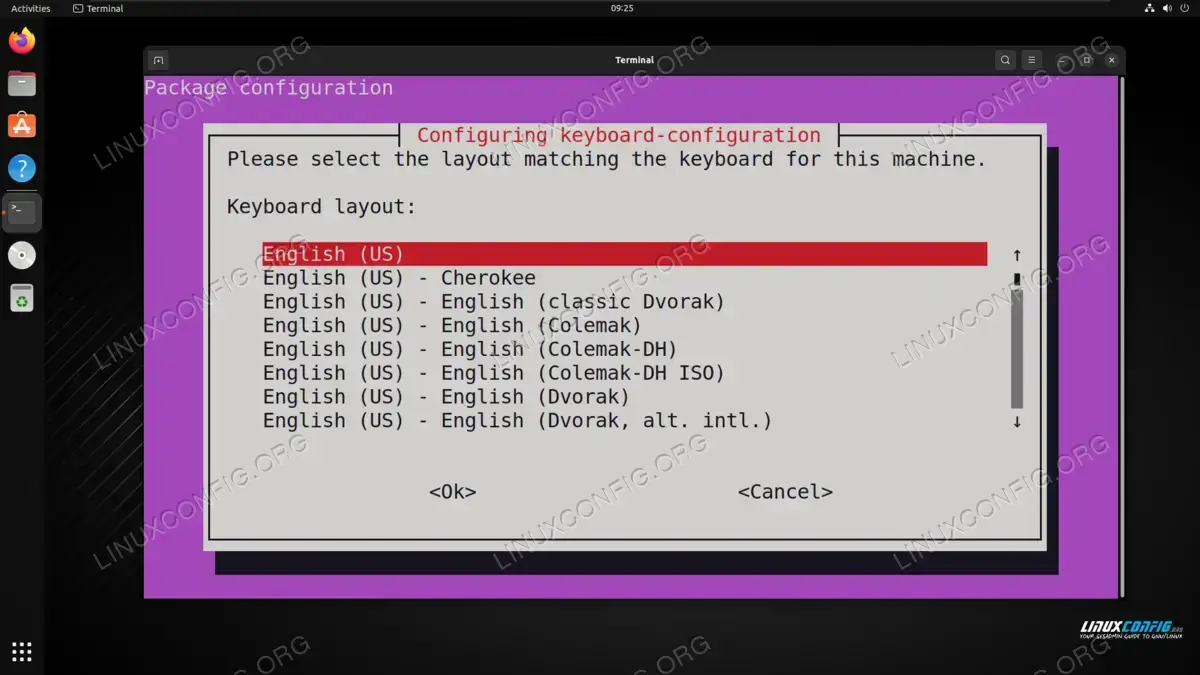
Selecting keyboard layout - Lastly, there are a few more prompts that ask us about custom behavior for certain key press combinations. Configure as you see fit:
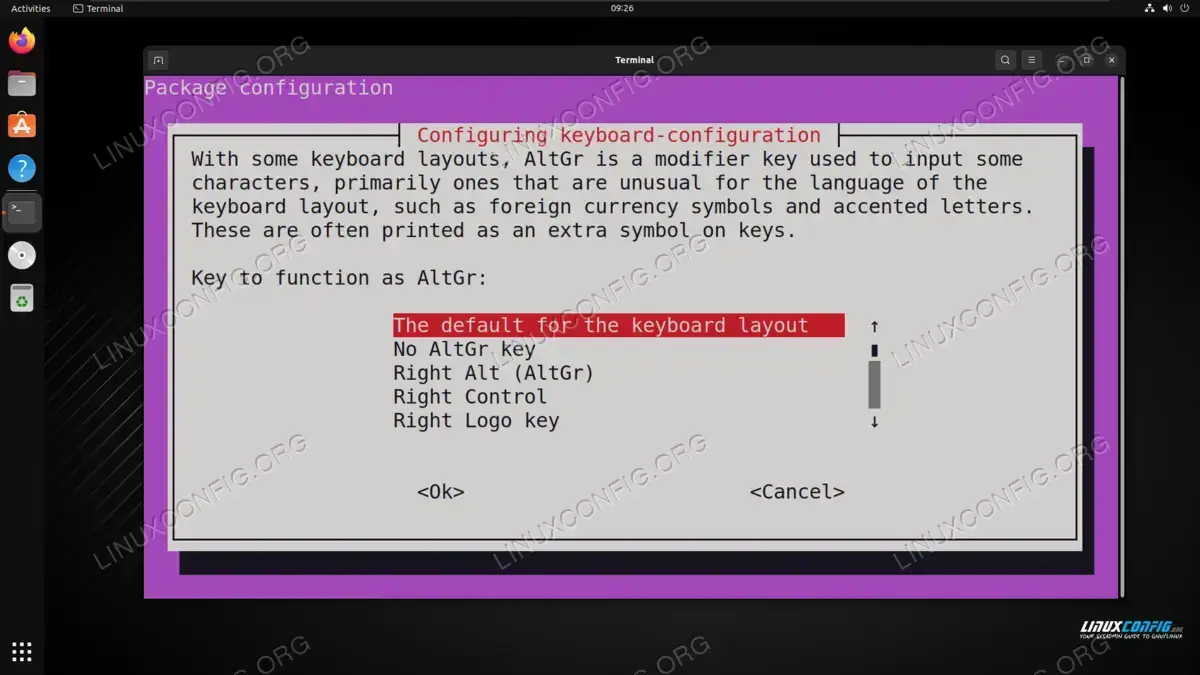
Choosing custom keyboard combos
Using GUI
If you have a GUI installed on your system, then it is also possible to choose a keyboard layout from there. These instructions will vary depending on which Linux distribution and desktop environment that you have installed, but we are using GNOME on Ubuntu in the following steps:
- First, open the applications launcher and open the
Settingsmenu. You can locate it quickly by just typingSettingsinto the search bar.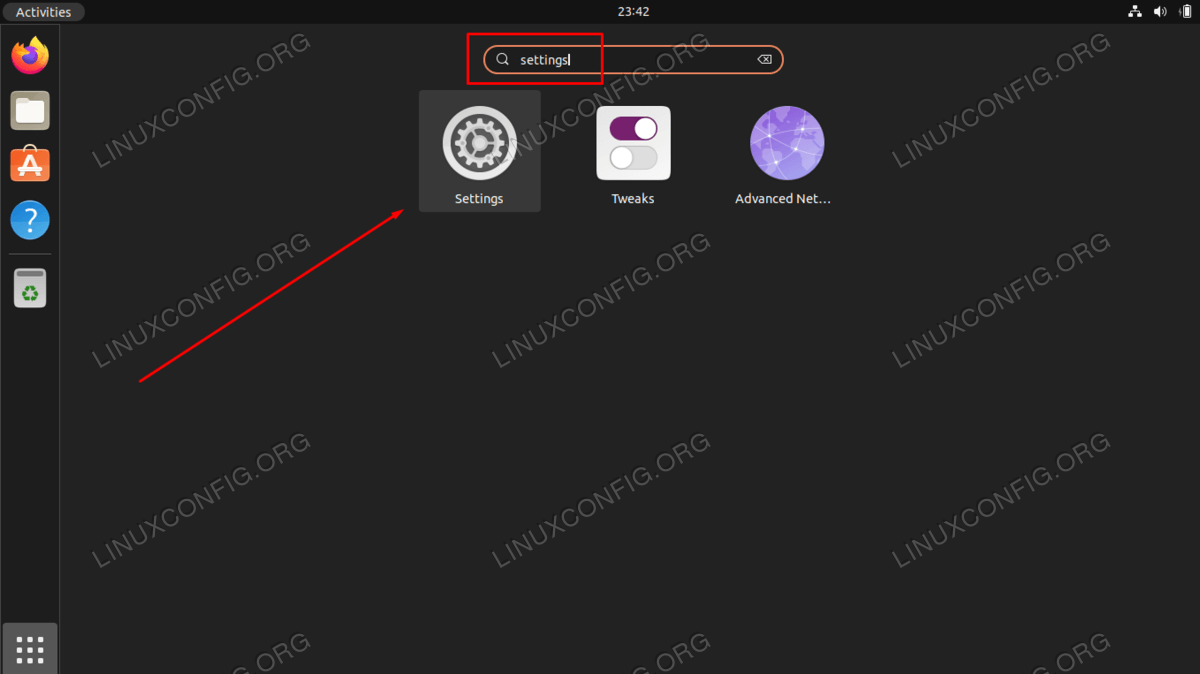
Open the settings menu
- Now that the settings menu is open, find the
Keyboardsection along the left side, and click it.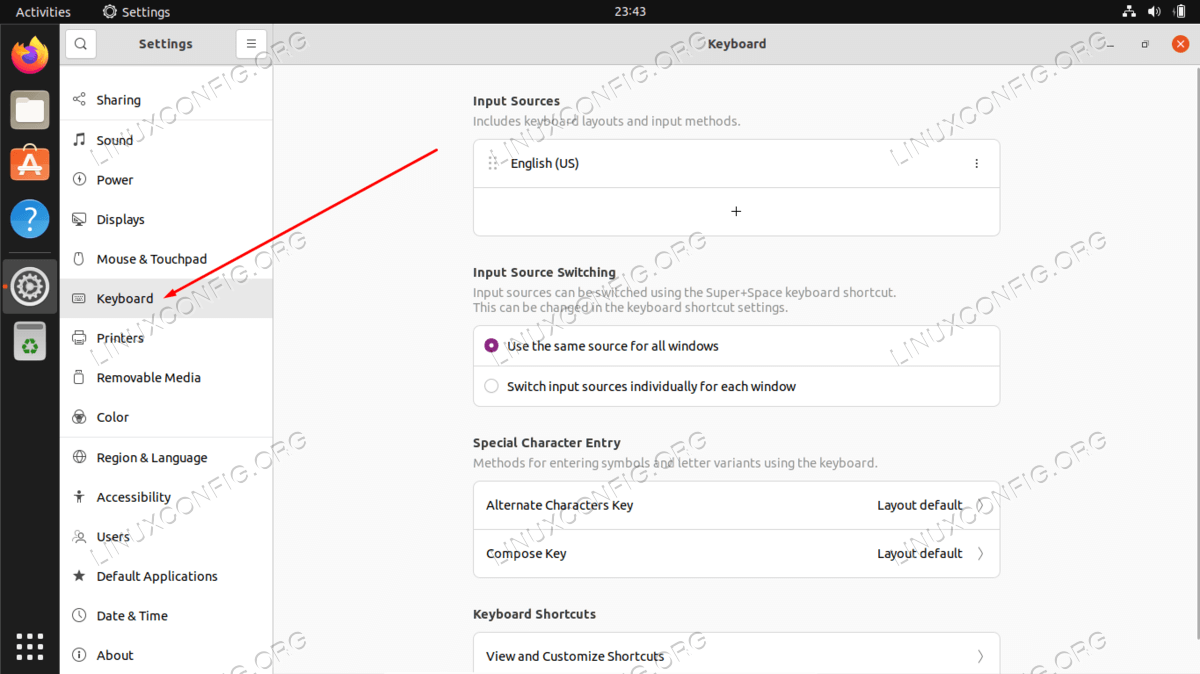
Select Keyboard tab on the left side pane - Click on the
+plus sign to add a new keyboard layout. And then, to see the full selection of languages, expand the choices by clicking on the three dots.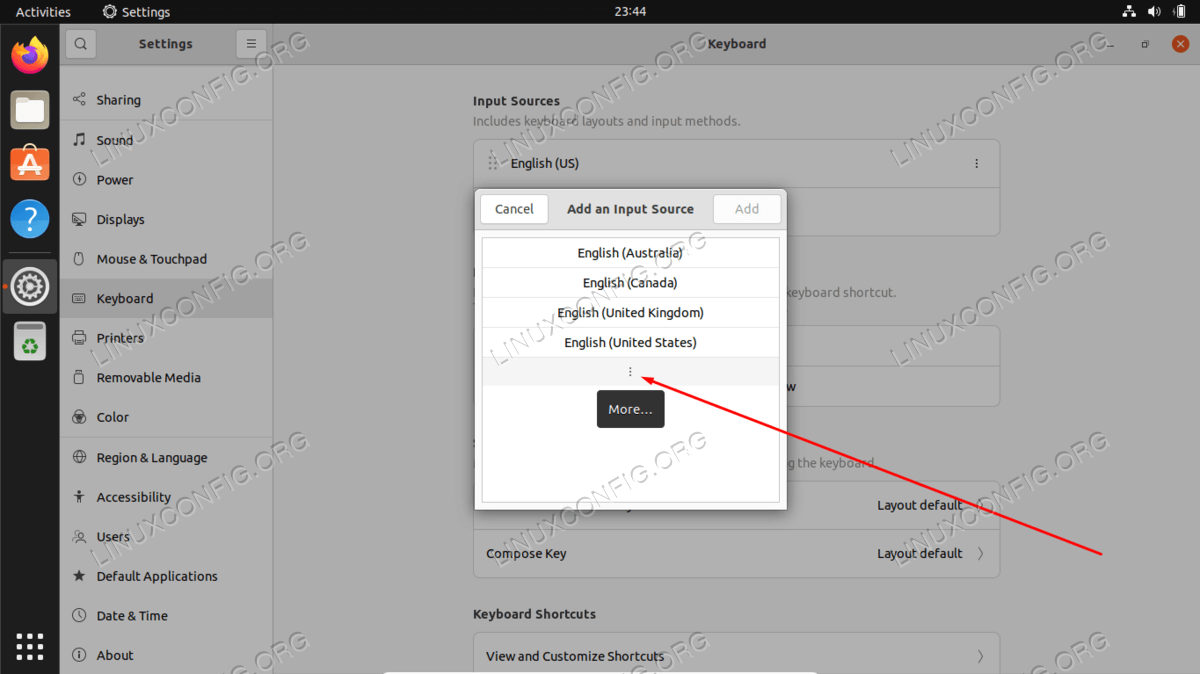
Click the three dots to find more languages - If you do not see your desired language listed here, click on
Otherat the bottom of theAdd an input sourcewindow. It is probably fastest to just type the language you are looking for. In this example, we are adding a Portuguese keyboard layout: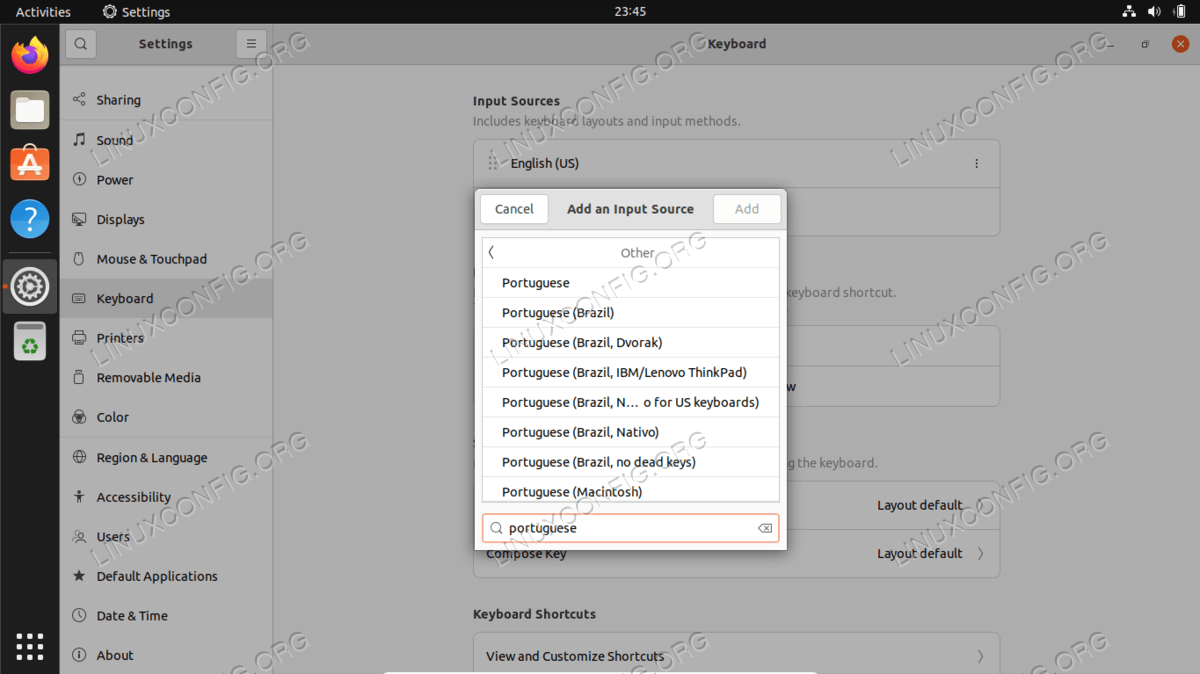
Click other and then type the language you want - Select the keyboard you would like to add and click the
Addbutton.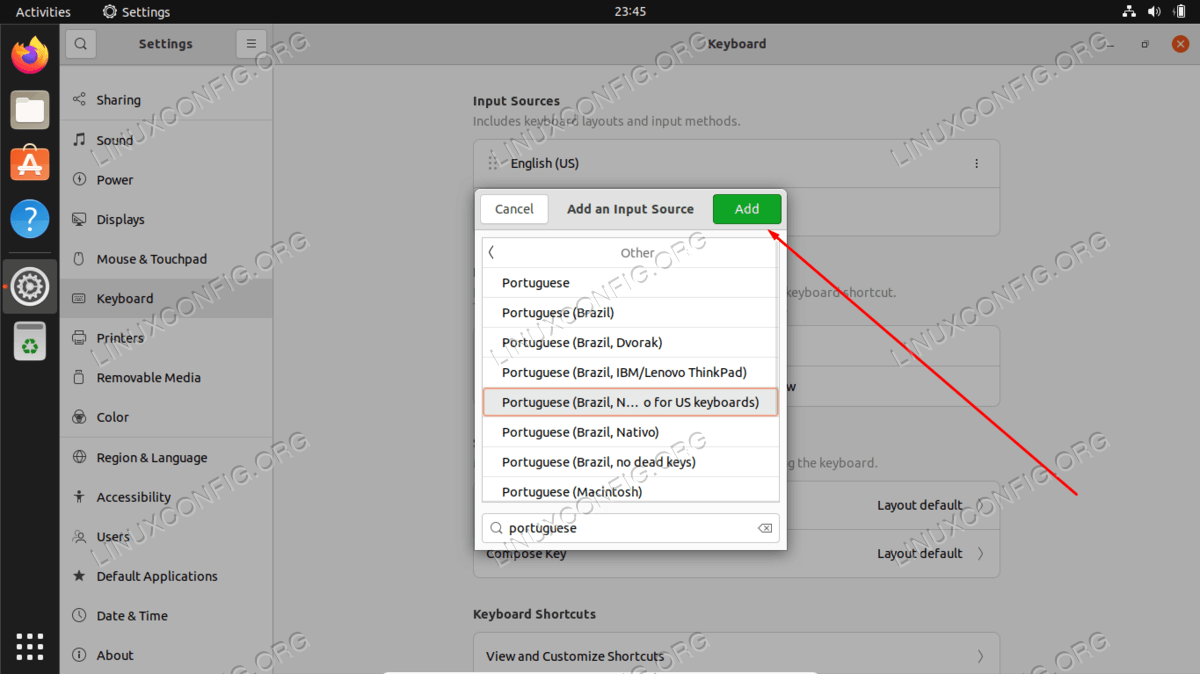
Highlight the desired language and click add - You should now see that your selected keyboard layout has been added. Before exiting the settings window, you can add more additional keyboards if you would like, or delete existing ones by clicking on the trash bin icon next to each layout in the list.
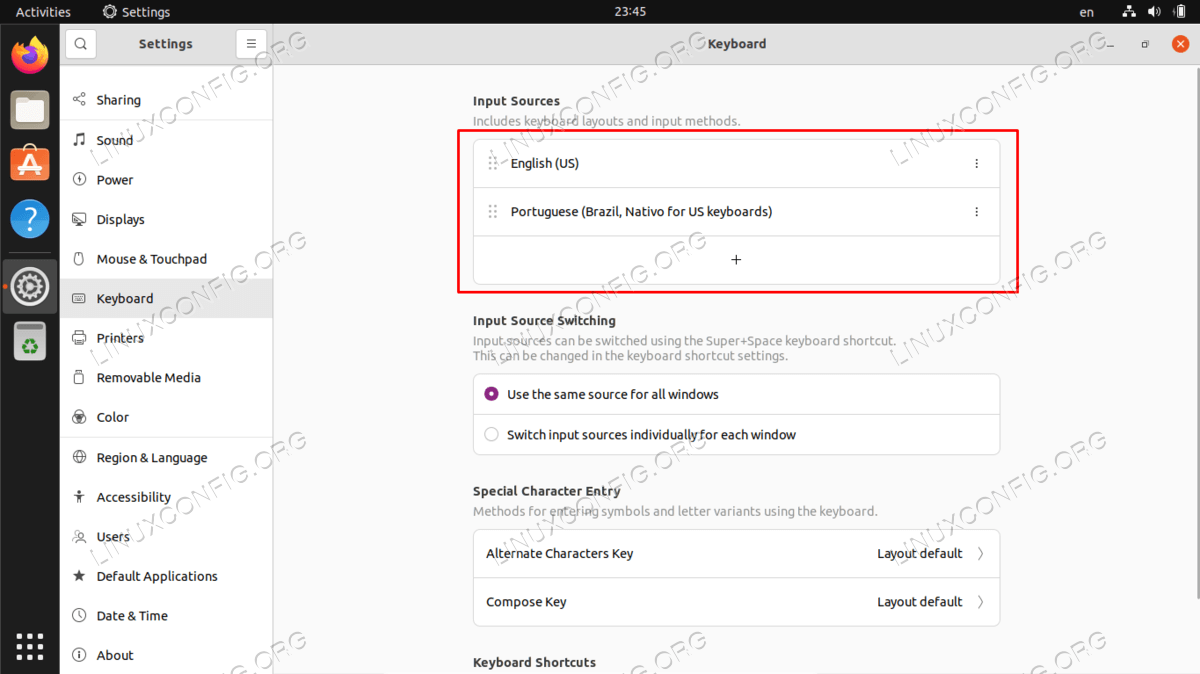
List of installed keyboard layouts
Configuring Custom Keys
There are at least two different ways that we can program custom key mappings. One is with the
setxkbmap, which we also used above for choosing a keyboard language. The other is with the xmodmap command.
The setxkbmap method is more modern, but requires more knowledge on programming custom keys. The xmodmap command is older, but a lot easier to use. Both commands allow us to use a text file in order to configure our custom keyboard mappings, and then load that text file into the system to get our layout.
We will show a brief rundown of how to use either command to do the job below.
Method 1: setxkbmap
- First, we execute the following command to get a text file of the currently configured keyboard layout:
$ xkbcomp -a :0 currentkb.xk
- Then, use a text editor to edit the file. You will need to read the corresponding
xkbcompdocumentation in order to understand the file syntax well enough. Edit the file and set your custom configurations:$ nano currentkb.xk
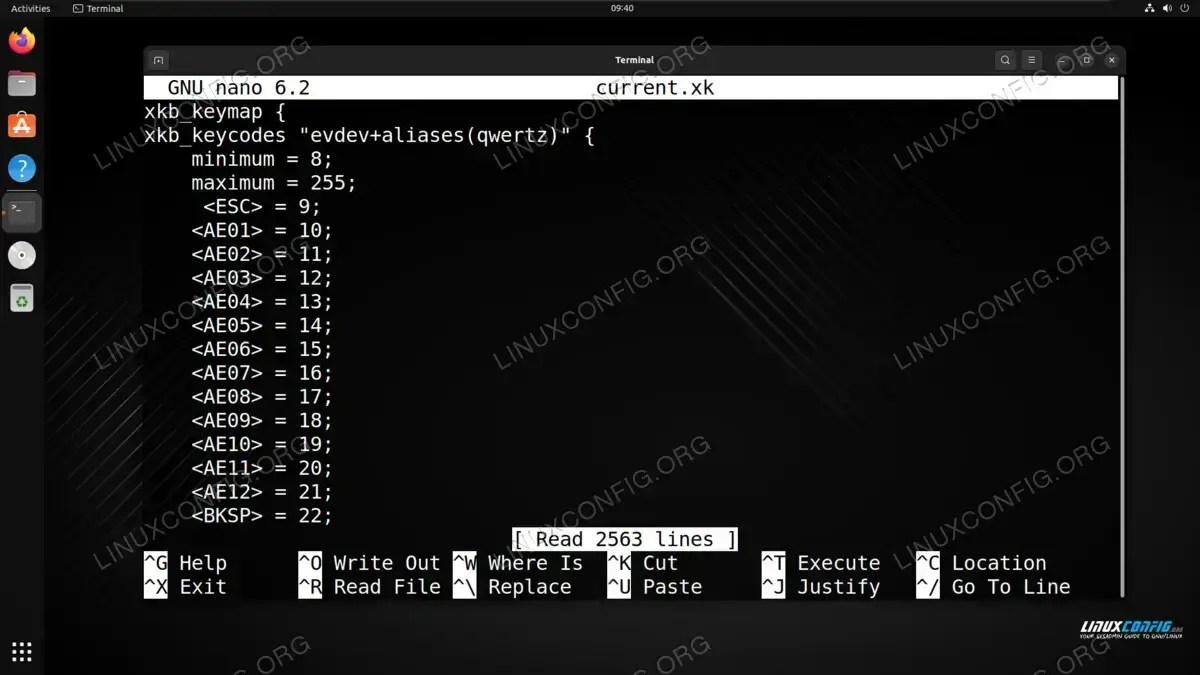
Editing a keyboard layout for xkbcomp - After you have made your changes, load the file with the command:
$ setxkbmap mykb.xk
Be sure to replace
mykb.xkwith whatever file name you used for naming your custom keyboard layout.
Method 2: setxkbmap
- Start by making a copy of the current mappings and storing the file in your
$HOMEdirectory.$ xmodmap -pke > ~/.Xmodmap
- Now, using nano or your favorite terminal or GUI file editor, open this file to make your desired changes.
$ nano ~/.Xmodmap
Exit the file and save changes when done.
- For the changes to take effect, execute the following command to load the configuration into
xmodmap.$ xmodmap ~/.Xmodmap
- For good measure, you should add that line to the bottom of the
$HOME/.bashrcfile so it gets executed whenever a new terminal or shell is opened.$ echo xmodmap ~/.Xmodmap >> ~/.bashrc
Closing Thoughts
In this tutorial, we saw how to personalize a keyboard layout on a Linux system. The most important configuration that pertains to your keyboard will be selecting the right language. Once you have that set, the keys you press on your physical keyboard should correspond to the characters being entered on screen. For additional personalization, we can set custom keyboard mappings with the commands shown previously.
