
Ubuntu 26.04 uses UFW (Uncomplicated Firewall) as its default firewall management tool. Understanding the firewall default configuration on Ubuntu 26.04 helps administrators assess system security and make informed decisions about network protection. This guide covers the default state, policies, and application profiles that ship with a fresh Ubuntu installation.
- What firewall Ubuntu 26.04 uses by default
- The default enabled/disabled state of UFW
- Default firewall policies for incoming and outgoing traffic
- Pre-configured application profiles available on Ubuntu
- How to enable UFW and restore default settings
Software Requirements
| Category | Requirements, Conventions or Software Version Used |
|---|---|
| System | Ubuntu 26.04 Resolute Raccoon |
| Software | UFW (pre-installed) |
| Other | Privileged access to your Linux system as root or via the sudo command. |
| Conventions | # – requires given linux commands to be executed with root privileges either directly as a root user or by use of sudo command$ – requires given linux commands to be executed as a regular non-privileged user |
| Item | Default Value |
|---|---|
| Default firewall tool | UFW (Uncomplicated Firewall) |
| Default state | Disabled (inactive) |
| Default incoming policy | Deny |
| Default outgoing policy | Allow |
What is the Default Firewall on Ubuntu 26.04?
Ubuntu 26.04 ships with UFW (Uncomplicated Firewall) as its default firewall management tool. UFW provides a user-friendly interface for managing iptables firewall rules without requiring knowledge of complex iptables syntax. The tool comes pre-installed on both Ubuntu Desktop and Ubuntu Server editions.
To verify UFW is installed on your system, run:
$ which ufw
/usr/sbin/ufw
If UFW is missing from your system, you can install it using sudo apt install ufw. However, this situation is rare on standard Ubuntu installations. For troubleshooting missing UFW, see our guide on fixing UFW command not found errors.
Is UFW Enabled or Disabled by Default?
On a fresh Ubuntu 26.04 installation, UFW is disabled by default. This means no firewall rules are actively filtering network traffic until you explicitly enable UFW.
Check the current firewall status with:
$ sudo ufw status
Status: inactive

The “inactive” status confirms UFW is installed but not enforcing any rules. This default behavior allows new users to set up services without connectivity issues, though it also means the system has no firewall protection until UFW is enabled. For detailed status information, see how to check UFW firewall status.
Default UFW Policies and Rules
When UFW is enabled, it applies the following default policies:
| Traffic Direction | Default Policy | Effect |
|---|---|---|
| Incoming | Deny | Blocks all incoming connections unless explicitly allowed |
| Outgoing | Allow | Permits all outgoing connections |
| Routed | Disabled | Forwarding between interfaces is disabled |
These default policies follow the principle of least privilege for incoming traffic while maintaining full outbound connectivity. View the current default policies with:
$ sudo ufw status verbose
When UFW is enabled with no custom rules, the verbose output displays:
Status: active
Logging: on (low)
Default: deny (incoming), allow (outgoing), disabled (routed)
New profiles: skip
IMPORTANT
Enabling UFW with default settings blocks all incoming connections, including SSH. If you are connected remotely, allow SSH first with sudo ufw allow OpenSSH before enabling the firewall.
For information on allowing specific ports, refer to our guide on allowing ports with UFW.
Default Application Profiles
Ubuntu 26.04 includes pre-configured application profiles that simplify firewall rule creation. These profiles are stored in /etc/ufw/applications.d/ and are installed by various packages.
List available application profiles:
$ sudo ufw app list
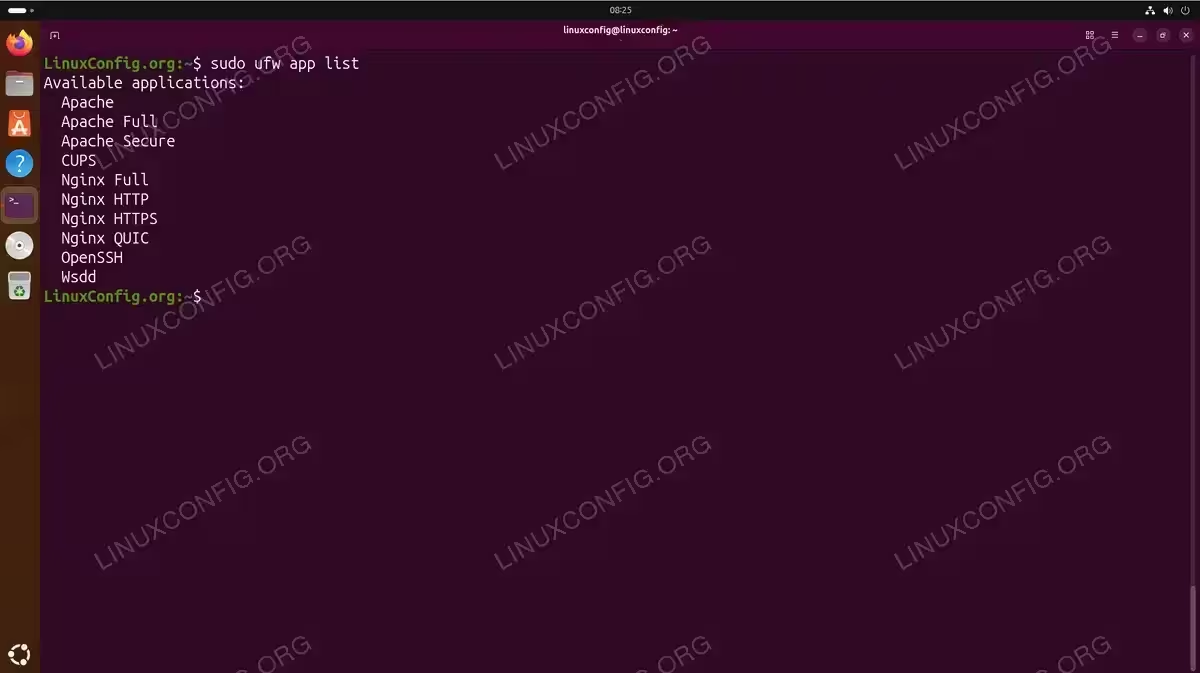
The available profiles depend on which packages are installed. A minimal server installation typically shows only OpenSSH, while systems with web servers display additional profiles like Apache and Nginx.
View details of any profile using:
$ sudo ufw app info OpenSSH
Profile: OpenSSH
Title: Secure Shell server, an rshd replacement
Description: OpenSSH is a free implementation of the Secure Shell protocol.

Port:
  22/tcp
For comprehensive firewall configuration options, see our firewall settings guide.
Enabling UFW with Default Settings
To activate the firewall default configuration on Ubuntu 26.04, enable UFW with:
$ sudo ufw enable
Firewall is active and enabled on system startup
This command activates UFW immediately and configures it to start automatically at boot. Once enabled, UFW enforces the default policies: denying incoming traffic and allowing outgoing traffic.
Verify the firewall is active:
$ sudo ufw status
Status: active
SECURITY ALERT
Enabling UFW on a remote server without first allowing SSH will lock you out. Always run sudo ufw allow OpenSSH before enabling the firewall when connected via SSH.
To check what rules will be applied, refer to our guide on checking firewall rules.
Restoring UFW to Default Settings
If you have modified UFW rules and want to restore the firewall default configuration, use the reset command:
$ sudo ufw reset
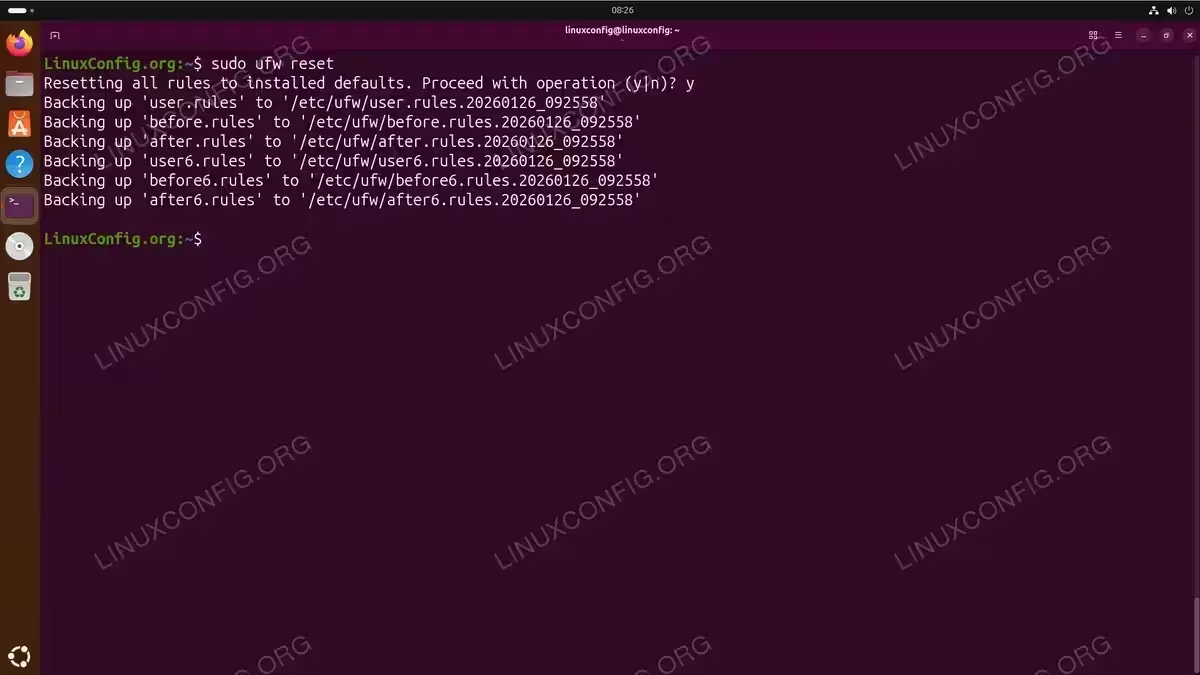
The reset command performs three actions: backs up current rules to timestamped files, removes all user-defined rules, and disables UFW. After resetting, you must re-enable UFW with sudo ufw enable to activate the default policies.
Backup files are stored in /etc/ufw/ with timestamps, allowing you to restore previous configurations if needed.
Conclusion
Ubuntu 26.04 uses UFW as its default firewall, which comes pre-installed but disabled. The default configuration denies incoming connections while allowing outgoing traffic, providing a secure baseline once enabled. Pre-configured application profiles simplify rule creation for common services. For ongoing firewall management, consider reviewing our comprehensive Ubuntu firewall documentation for advanced configuration options.
Frequently Asked Questions
- Why is the Ubuntu firewall disabled by default? Ubuntu ships with UFW disabled to ensure new users can install and configure services without connectivity issues. This approach prevents situations where users cannot access their newly installed web server or SSH service because firewall rules are blocking traffic. The expectation is that administrators will enable and configure the firewall according to their security requirements.
- What ports are open by default when UFW is enabled? When UFW is enabled with default settings, no ports are open for incoming connections. The default policy denies all incoming traffic. You must explicitly allow services using commands like
sudo ufw allow OpenSSHorsudo ufw allow 80/tcpto permit incoming connections on specific ports. - How do I check if UFW is the active firewall on my system? Run
sudo ufw statusto check if UFW is active. The output shows either “Status: active” or “Status: inactive”. For more detailed information including current policies and rules, usesudo ufw status verbose. You can also verify UFW is installed withwhich ufwordpkg -l ufw.