
If you are looking for an alternative to Snap packages, learning how to install Flatpak on Ubuntu 26.04 gives you access to thousands of sandboxed applications through the Flathub repository. Flatpak is a universal packaging system that works across Linux distributions, providing desktop applications in isolated environments with their own dependencies. In this tutorial, we will walk through the complete process to install Flatpak on Ubuntu 26.04, configure the Flathub repository, and demonstrate basic usage with practical examples.
Table of Contents
In this tutorial you will learn:
- How to install Flatpak on Ubuntu 26.04
- How to add the Flathub repository
- How to integrate Flatpak with GNOME Software
- How to search, install, run, and update Flatpak applications
- How to remove Flatpak applications and clean up unused runtimes
Software Requirements
| Category | Requirements, Conventions or Software Version Used |
|---|---|
| System | Ubuntu 26.04 Resolute Raccoon |
| Software | Flatpak |
| Other | Privileged access to your Linux system as root or via the sudo command. |
| Conventions | # – requires given linux commands to be executed with root privileges either directly as a root user or by use of sudo command$ – requires given linux commands to be executed as a regular non-privileged user |
| Step | Command/Action |
|---|---|
| 1. Install Flatpak | $ sudo apt install flatpak |
| 2. Add Flathub repository | $ flatpak remote-add --if-not-exists flathub https://flathub.org/repo/flathub.flatpakrepo |
| 3. Reboot your system | $ sudo reboot |
| 4. Install an application | $ flatpak install flathub org.gimp.GIMP |
Install Flatpak on Ubuntu 26.04
Flatpak is available directly from the Ubuntu 26.04 default repositories, which makes the installation straightforward. Before proceeding, update your package index to ensure you are pulling the latest available version.
- Update the package index: Start by refreshing the APT package cache:
$ sudo apt update
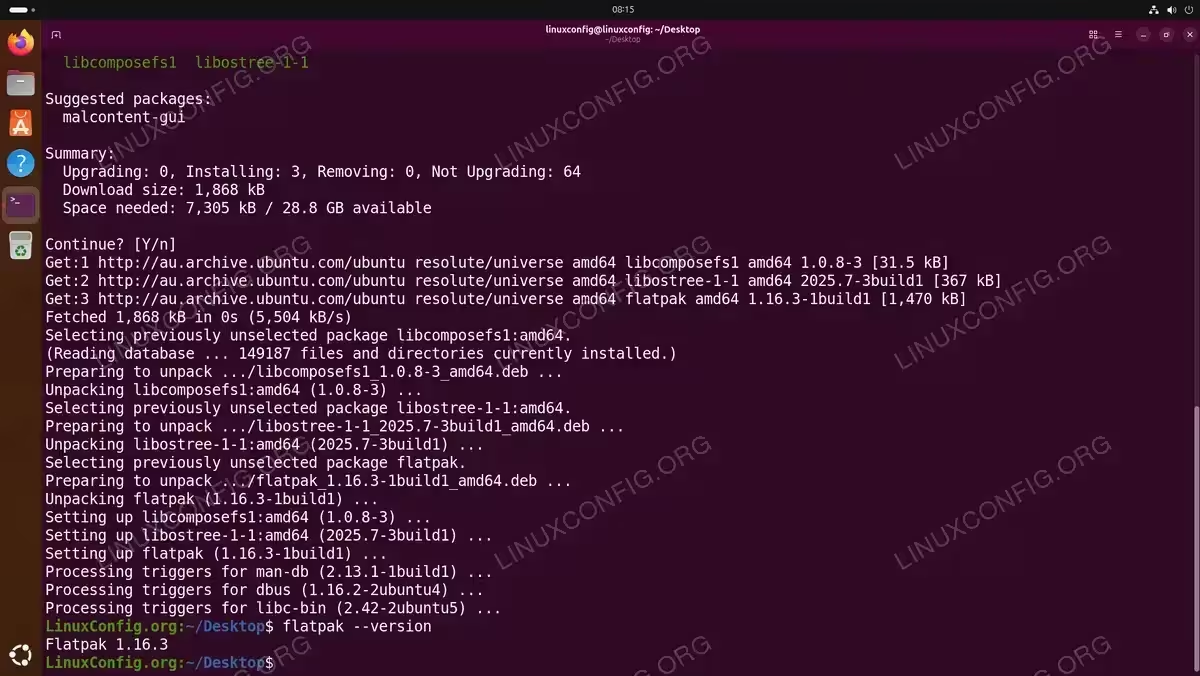
- Install Flatpak: Use the following command to install Flatpak on Ubuntu 26.04:
$ sudo apt install flatpak
- Verify the installation: Confirm that Flatpak was installed successfully by checking its version:
$ flatpak --version
Add the Flathub Repository
Flathub is the primary repository for Flatpak applications, hosting thousands of desktop applications. Consequently, adding Flathub is essential to make the most of your Flatpak installation. Without it, you would have very few applications available.
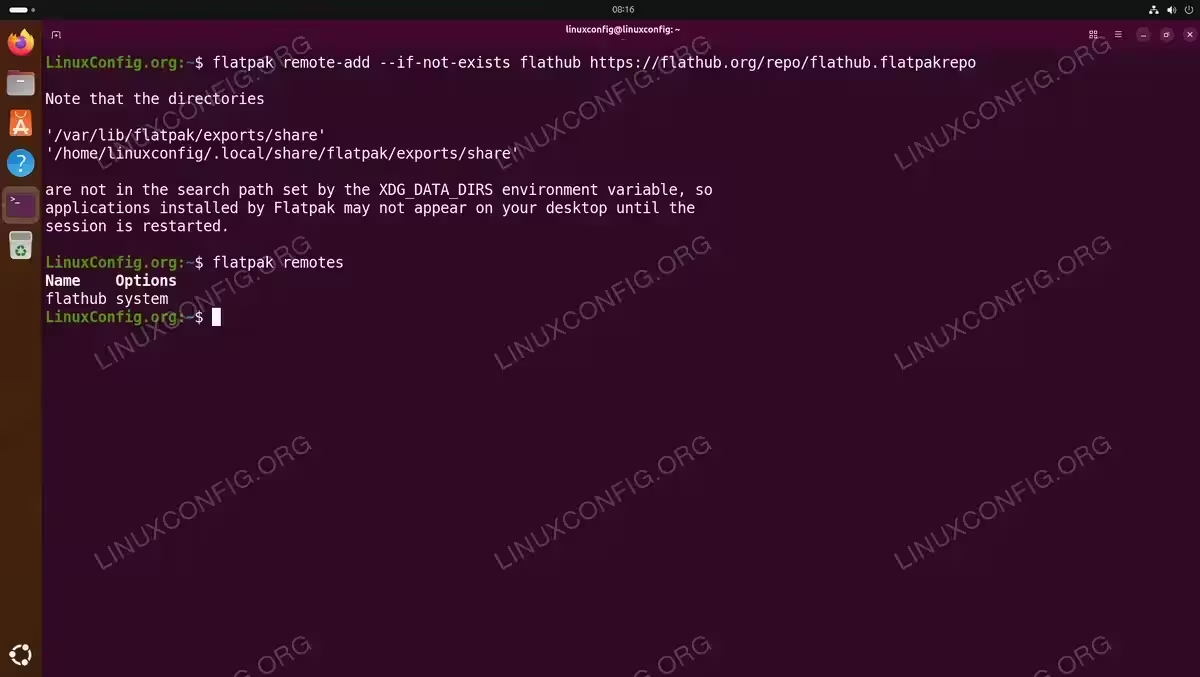
- Add Flathub: Run the following command to register the Flathub repository with your Flatpak installation:
$ flatpak remote-add --if-not-exists flathub https://flathub.org/repo/flathub.flatpakrepo
The
--if-not-existsflag prevents errors if the repository has already been added. - Reboot your system: A reboot is required for Flatpak to fully integrate with your desktop environment, particularly for application launchers to recognize newly installed Flatpak apps:
$ sudo reboot
- Verify the remote: After rebooting, confirm the Flathub repository is properly configured:
$ flatpak remotes
You should see
flathublisted in the output.
GNOME Software Integration
If you are running the default Ubuntu 26.04 GNOME desktop, you can optionally install the Flatpak plugin for GNOME Software. This allows you to browse and install Flatpak applications through the graphical software center alongside traditional packages. To enable this integration, install the following plugin:
$ sudo apt install gnome-software-plugin-flatpak
After installing the plugin, restart GNOME Software or log out and log back in. You will then be able to see Flatpak applications within the GNOME Software center. This is especially useful if you prefer a graphical approach to managing your applications. Moreover, you can use GNOME extensions alongside your Flatpak-installed applications for a customized desktop experience.
IMPORTANT
The GNOME Software plugin is optional. You can fully manage Flatpak applications using the command line without it.
Basic Flatpak Usage Examples on Ubuntu 26.04
Now that Flatpak is installed and Flathub is configured, let us walk through practical examples of searching for and installing applications. Each Flatpak application is identified by a unique application ID in reverse DNS format (e.g., org.gimp.GIMP).
Search for Applications
To find available applications, use the flatpak search command:
$ flatpak search gimp
This returns matching applications with their application ID, description, and remote source. You can also browse applications at flathub.org to find application IDs.
Install an Application
The following examples demonstrate installing popular applications from Flathub:
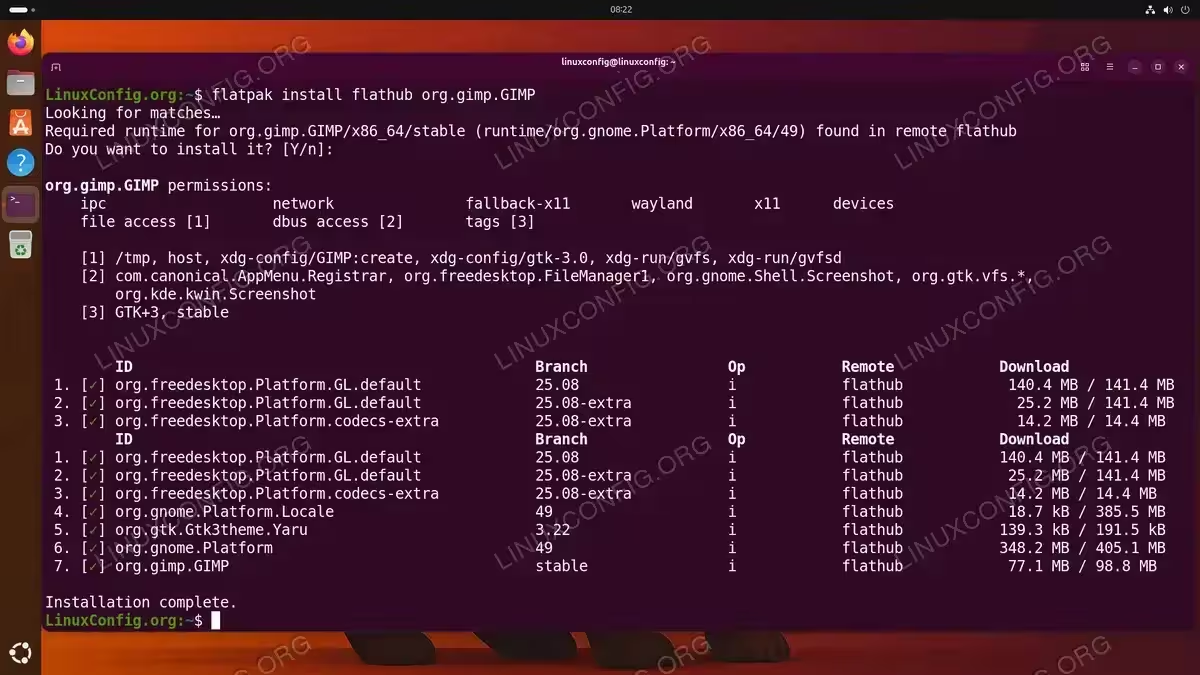
- Install GIMP (image editor):
$ flatpak install flathub org.gimp.GIMP
Confirm the installation when prompted. Flatpak will download the application and any required runtimes automatically.
- Install VLC (media player):
$ flatpak install flathub org.videolan.VLC
- Install LibreOffice:
$ flatpak install flathub org.libreoffice.LibreOffice
Run a Flatpak Application
You can launch Flatpak applications from your desktop application menu or from the terminal using the flatpak run command:
$ flatpak run org.gimp.GIMP
Additionally, Flatpak applications appear in your desktop’s application launcher after installation, so you can start them just like any other application.
Managing Flatpak Applications
Effective management of your Flatpak applications involves listing, updating, and removing installed packages. Furthermore, cleaning up unused runtimes helps reclaim disk space. If you have previously removed Snapd from your system, Flatpak serves as an excellent replacement for sandboxed application management. Similarly, if you chose to install Firefox without Snap, you may consider using the Flatpak version of Firefox as an alternative.
List Installed Applications
To view all installed Flatpak applications:
$ flatpak list --app
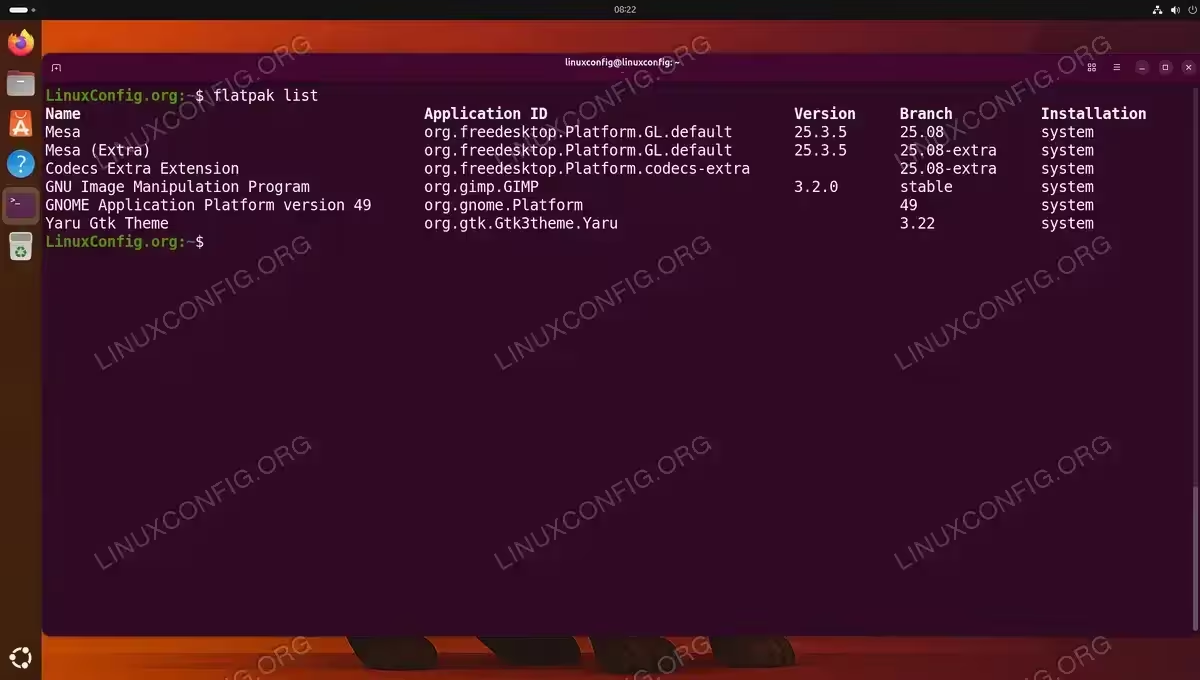
The --app flag filters out runtimes and shows only user-installed applications. To see everything including runtimes, omit the flag:
$ flatpak list
Update Applications
To update all installed Flatpak applications and runtimes to their latest versions:
$ flatpak update
You can also update a specific application by providing its application ID:
$ flatpak update org.gimp.GIMP
Remove an Application
To uninstall a Flatpak application:
$ flatpak uninstall org.gimp.GIMP
Clean Up Unused Runtimes
Over time, unused runtimes from previously removed applications may accumulate. To remove all unused runtimes and free up disk space:
$ flatpak uninstall --unused
Troubleshooting
Below are common issues you may encounter when working with Flatpak on Ubuntu 26.04 and their solutions.
Applications Not Appearing in Menu
If a newly installed Flatpak application does not appear in your application launcher, try logging out and logging back in, or reboot your system. Desktop environments cache application entries, and a session restart refreshes this cache.
Permission Issues
Flatpak applications run in a sandboxed environment with limited access to your system. If an application cannot access specific directories or devices, you can override permissions using the flatpak override command. For example, to grant filesystem access:
$ flatpak override --user --filesystem=/path/to/directory org.example.App
Alternatively, install Flatseal, a graphical tool for managing Flatpak permissions:
$ flatpak install flathub com.github.tchx84.Flatseal
Slow First Launch
The first time you run a Flatpak application, it may take longer to start as Flatpak sets up the sandbox environment. Subsequent launches will be considerably faster.
INSTALLATION TIPS
Flatpak applications consume more disk space than native packages because each application bundles its own dependencies. Monitor your disk usage accordingly, especially on systems with limited storage.
Conclusion
In this tutorial, we covered how to install Flatpak on Ubuntu 26.04, add the Flathub repository, and integrate Flatpak with the GNOME Software center. We also demonstrated practical examples of searching, installing, running, updating, and removing Flatpak applications. Flatpak provides a reliable and distribution-agnostic way to install desktop applications in sandboxed environments, making it a valuable tool for any Ubuntu 26.04 user.
Frequently Asked Questions
- What is the difference between Flatpak and Snap on Ubuntu 26.04? Both Flatpak and Snap are universal packaging formats that sandbox applications. Snap is developed by Canonical and comes pre-installed on Ubuntu, while Flatpak is a community-driven project. Flatpak uses the Flathub repository, whereas Snap uses the Snap Store. Flatpak is often preferred for its open repository model and desktop application focus.
- Can I use Flatpak and Snap at the same time on Ubuntu 26.04? Yes, Flatpak and Snap can coexist on the same system without conflicts. They use separate infrastructure, so you can install some applications via Flatpak and others via Snap based on your preference.
- How do I find the application ID for a Flatpak app? You can use the
flatpak searchcommand followed by a keyword, or browse the Flathub website at flathub.org. The application ID uses reverse DNS notation, such asorg.gimp.GIMPfor the GIMP image editor. - Why do Flatpak applications take more disk space than native packages? Flatpak applications bundle their own dependencies and runtime libraries to ensure consistent behavior across different Linux distributions. While this increases disk usage, it also means applications are not affected by system library updates and are less likely to break after system upgrades.
- How do I update all Flatpak applications at once on Ubuntu 26.04? Run
flatpak updatein the terminal. This command updates all installed Flatpak applications and their runtimes to the latest available versions from the configured repositories.