
Finding your IP address on Ubuntu can be crucial for various networking tasks, such as setting up a server, troubleshooting connectivity issues, or simply ensuring your network’s security. Ubuntu, with its powerful command-line interface and graphical user interface options, offers multiple methods to discover your machine’s IP address. Whether you’re a seasoned system administrator or a curious novice, understanding how to locate your IP address is a valuable skill in the digital age. Keep in mind that your internal IP address is different from your system’s external IP.
- How to use simple command-line tools to find your IP address
- The method to check your IP via Ubuntu’s graphical user interface (for desktop users)
- Where to locate your IP address in system configuration files (for static IP configurations)

Software Requirements
| Category | Requirements, Conventions or Software Version Used |
|---|---|
| System | Any recent version of Ubuntu Desktop or Server: 16.04,18.04,20.04,22.04,24.04 |
| Software | Standard Ubuntu installation |
| Other | Terminal access for command-line methods, GUI access for desktop method |
| Conventions | # – requires given linux commands to be executed with root privileges either directly as a root user or by use of sudo command$ – requires given linux commands to be executed as a regular non-privileged user |
ip a command in the terminal. This displays all network interfaces and their assigned IP addresses. For a simpler output, use hostname -I to list only IP addresses.
| Step | Command/Action |
|---|---|
| 1. Open terminal | Press Ctrl+Alt+T |
| 2. Display all network interfaces | ip a |
| 3. Or show only IP addresses | hostname -I |
| 4. For detailed network info | nmcli device show |
Discovering Your IP Address on Ubuntu
While most Linux administrators are well-versed with networking commands, they may not fully appreciate the advanced capabilities of the
ip command from the iproute2 package that has superseded ifconfig in Ubuntu and other modern distributions. This robust suite of tools offers a breadth of features like multiple routing tables for complex network configurations, policy-based routing, and nuanced manipulation of IP addresses, multicast, and routing tables. The ip command’s consistent syntax facilitates intricate scripting and automation, catering to sophisticated network setups such as load balancing and fault tolerance, making it an indispensable tool for the contemporary demands of network administration.There are several ways to get your IP address on Ubuntu. Depending on whether you are using a desktop or server version, you might prefer a graphical or command-line method. Below are the most common and straightforward ways to check your Ubuntu IP address.
- Using the ip Command: A quick way to get your IP address
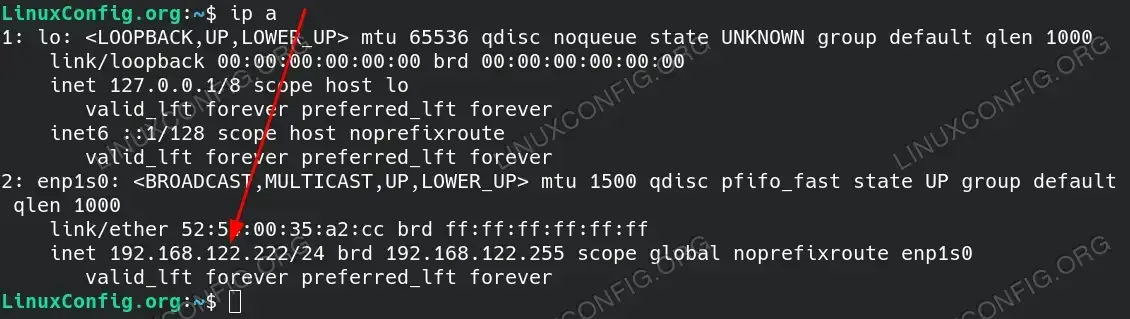
$ ip a
Using the
ip acommand in Ubuntu’s terminal provides a detailed enumeration of all available network interfaces on your system, along with their corresponding IP addresses. When you execute this command, it will present a list, where each entry represents a different network interface. For wired connections, the relevant interface is often labeled asenp1s0oreth0, whereas for wireless connections, it is typically identified aswlan0. In the output, alongside the interface name, you’ll find theinetline, which includes the IP address assigned to that interface.This address is what enables your machine to communicate with other devices on the network or the internet. For more advanced network configurations, there may also be secondary addresses, virtual interfaces, or tunnel interfaces listed. Each of these will be accompanied by their own IP addresses under their respective sections in the command’s output.

The result of the ip a command on a Linux system, indicating the local IP address for the network interface. - Querying Network Manager: Get detailed network information
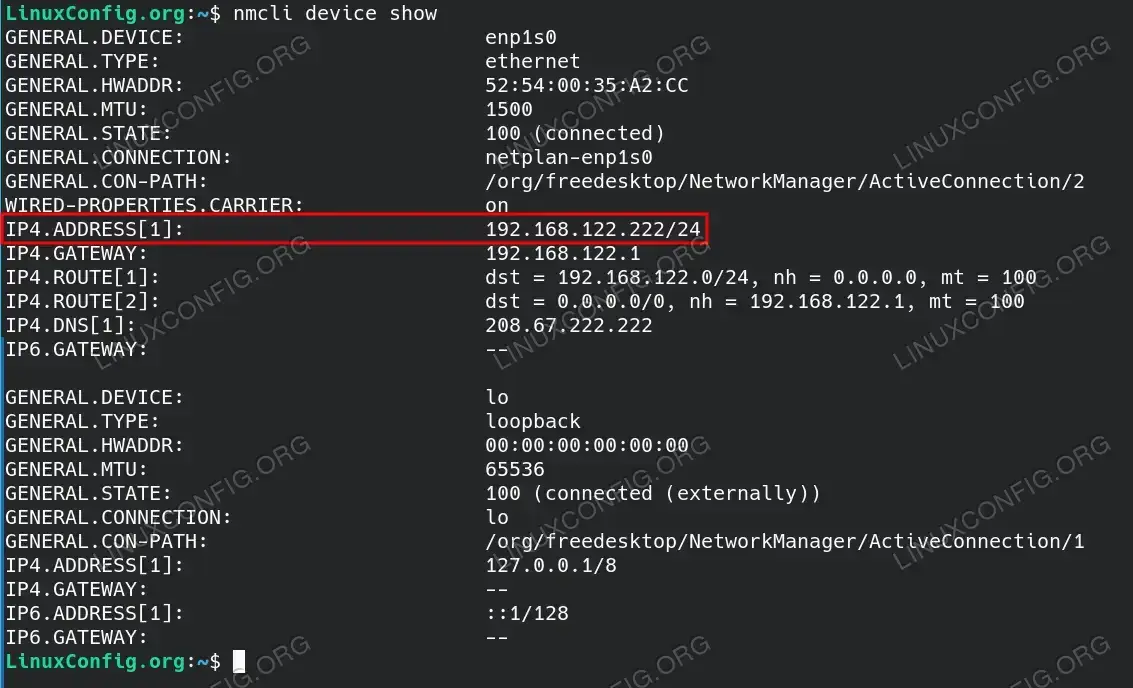
$ nmcli device show
This command not only reveals the IP addresses but also provides extensive network configuration details, such as the gateway and DNS servers for each interface. It even offers insight into IPv6 configurations when they are set up, making it a comprehensive tool for network management and diagnostics. The
nmclicommand is part of the NetworkManager suite, which handles network connections on modern Ubuntu systems.
The output of the nmcli device show command, highlighting the local IP address, gateway, and DNS server for an IPv4 network configuration and placeholders for IPv6 if configured. - Checking Hostname: A simple command to list your IP address
$ hostname -I
This command outputs all the network IP addresses associated with your machine. The
hostname -Icommand is one of the fastest ways to get your Ubuntu IP address without additional output clutter, making it ideal for scripts or quick checks.
The hostname -I showing my local IP address - Inspecting Configuration Files: For static IP configurations, check the relevant network configuration file.In modern Ubuntu versions, network settings are managed with
netplan, located in/etc/netplan/. Here, you may encounter files like01-netcfg.yaml,50-cloud-init.yamlor00-installer-config.yaml, which are used to define network interfaces in a user-friendly YAML format. This system allows for the implementation of advanced network configurations and seamlessly integrates with Ubuntu’s network management services.Conversely, older Ubuntu systems rely on the/etc/network/interfacesfile for network configuration. It’s a more traditional and less intuitive method, where you’d typically find settings for static IP addresses and network interfaces namedeth0,wlan0, and so on. This method is familiar to those accustomed to Unix and Linux networking practices, and knowledge of it is useful for managing legacy systems. For detailed guidance on configuring static IP addresses, you can explore our comprehensive tutorial. - Using networkctl: Another method for systemd users
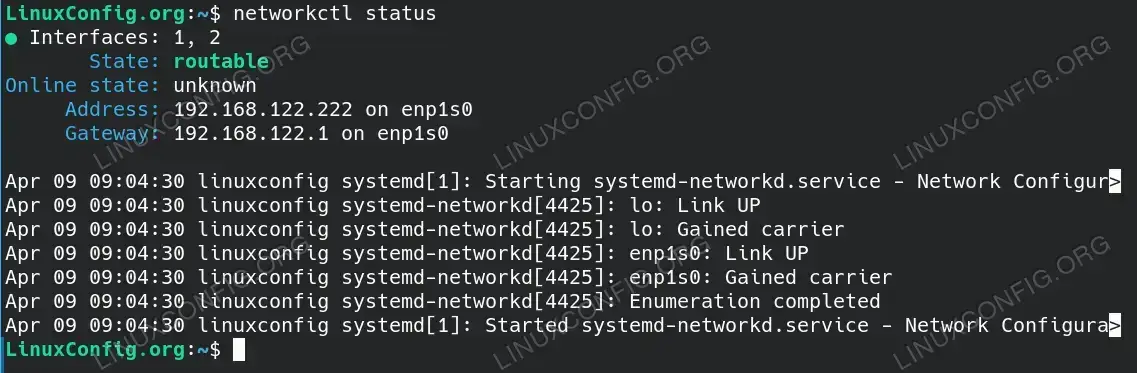
$ networkctl status
This command outputs a comprehensive status report of network interfaces, detailing their operational state as routable or otherwise. It also specifies the local IP address assigned to each active interface, along with the default gateway, offering a quick overview of the network configuration directly from the command line.

The networkctl status command output on a Linux system, indicating the state of the network interfaces and the local IP address along with the gateway on interface enp1s0. - Installing iftop: For real-time IP address monitoring
$ iftop
This method involves the
iftoppackage, which you must install on your Ubuntu machine. Once installed, executing theiftopcommand withsudoallows for real-time network traffic monitoring. This tool gives you visibility into the flow of data packets, showing the IP addresses that your computer is communicating with at any given moment. Withsudoprivileges,iftopoffers an elevated level of detail in the traffic analysis, presenting a dynamic, constantly updating display of network connections and bandwidth usage.
The iftop command output, showing the IP and MAC addresses for a network interface. - Utilizing ifconfig: An older method, requires installing net-tools
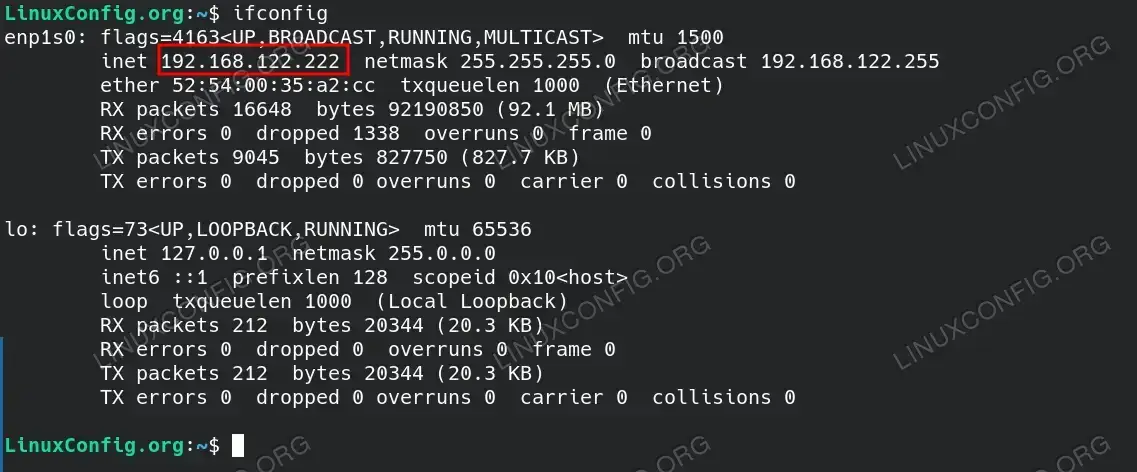
$ ifconfig
This method, leveraging the
ifconfigcommand, remains prevalent in older systems and with users who have a longstanding familiarity with it from other Unix-like operating systems. It is a testament to the enduring utility of traditional tools in networking that provide essential information such as IP addresses, network masks, and MAC addresses, as well as traffic statistics that can be crucial for network troubleshooting and configuration. Despite the availability of newer tools,ifconfigcontinues to be a cornerstone utility for many due to its simplicity and comprehensive output.
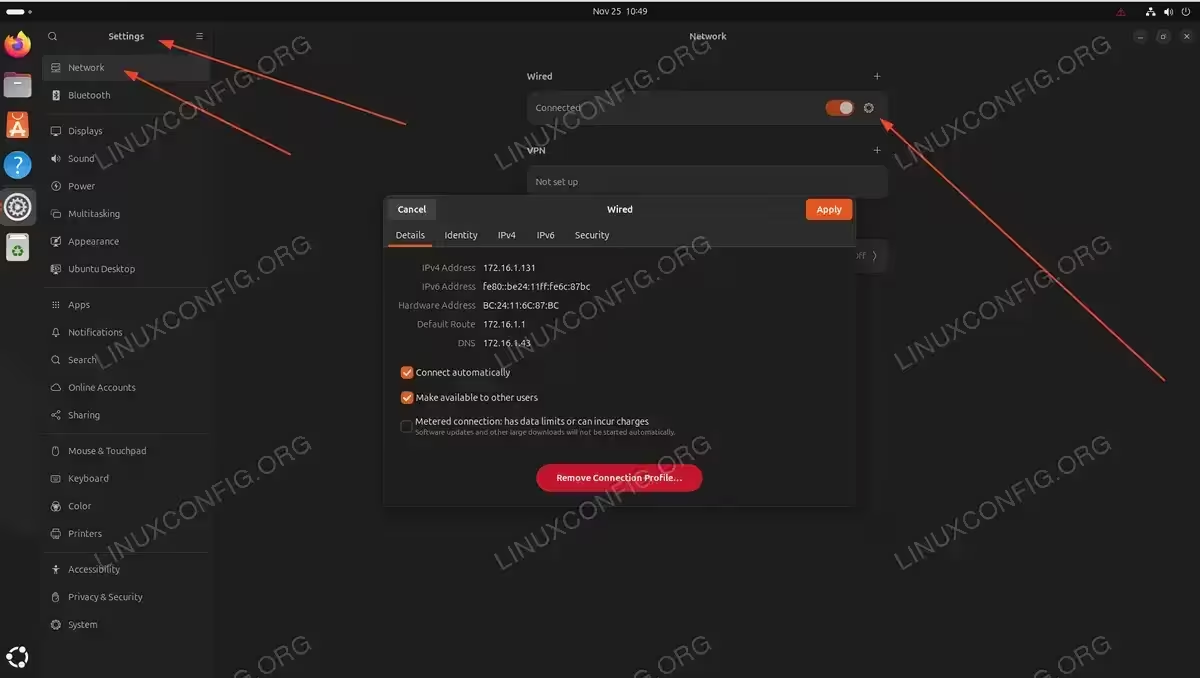
The image showcases the ifconfig command output, listing network interface details such as the IP address, netmask, broadcast address, and the MAC address, alongside statistics on transmitted and received data packets. - Through the GUI (For Desktop Users): Access your IP address via SettingsIn Ubuntu’s desktop environment, you can effortlessly find your IP address without using the command line. Begin by navigating to the Settings through the system menu. Within the settings, select Network to view your active connections. Here, click on the gear icon adjacent to the network you are connected to, such as your wired or wireless connection.Upon clicking, a detailed settings window will appear, providing various network details.Within the Details tab of this window, you will find your current IP address, along with other valuable information such as the hardware (MAC) address, the gateway your system is using to connect to the internet, and the DNS settings that resolve domain names into IP addresses. This graphical approach provides a user-friendly way to access your network configurations.

Ubuntu Network Settings displaying wired connection details including IPv4 address, gateway, and DNS configuration


Additional Information: How to Find Your External IP Address
Discovering your external (public) IP address in Ubuntu can be useful for various networking tasks, such as remote access or troubleshooting external connectivity issues. Unlike local (private) IP addresses, your external IP is assigned by your internet service provider and is how the internet sees your device. To find it, you can use a command-line tool like curl to fetch your IP from an external service. Execute the following command in your terminal:
$ curl ifconfig.me
or
$ wget -qO- ifconfig.me
This command contacts the ifconfig.me website, which responds with your public IP address. It’s a quick and straightforward method to know how your Ubuntu system appears to the outside world.
Conclusion
Whether you prefer the simplicity of the command line or the visual approach of the GUI, Ubuntu offers various ways to get your IP address. By familiarizing yourself with these methods, you can efficiently manage and troubleshoot your network connections, ensuring a smooth and secure online experience on Ubuntu. The ip a and hostname -I commands remain the most efficient ways to quickly retrieve your Ubuntu IP address from the terminal.
Frequently Asked Questions
- What is the fastest way to get my IP address on Ubuntu? The quickest method is using the
hostname -Icommand in the terminal, which displays only your IP addresses without additional network information. Alternatively, you can useip afor more detailed network interface information. Both commands work on all Ubuntu versions and require no additional software installation. - Why do I see multiple IP addresses when I check my Ubuntu IP address? Multiple IP addresses appear because Ubuntu assigns different addresses to each network interface. You may see addresses for your physical Ethernet connection (eth0 or enp1s0), wireless connection (wlan0), loopback interface (127.0.0.1), and potentially virtual interfaces like Docker or VPN connections. Each active network interface receives its own IP address for proper network communication.
- How do I find my IP address if the ip command doesn’t work on Ubuntu? If the
ipcommand is unavailable, you can usehostname -Ior install the traditionalnet-toolspackage withsudo apt install net-tools, which provides theifconfigcommand. For GUI users, navigate to Settings > Network and click the gear icon next to your active connection to view network details including your IP address. - What’s the difference between the IP address shown by “ip a” and my external IP address? The
ip acommand shows your local (private) IP address, which identifies your device within your home or office network (typically 192.168.x.x or 10.x.x.x). Your external (public) IP address is assigned by your internet service provider and represents how your network appears to the internet. To find your external IP, usecurl ifconfig.meor visit a service like whatismyip.com. - Does Ubuntu get IP address automatically or do I need to configure it manually? By default, Ubuntu obtains IP addresses automatically through DHCP (Dynamic Host Configuration Protocol) from your router or network server. This is suitable for most home and office networks. However, for servers or specific network requirements, you can configure a static IP address using Netplan configuration files in
/etc/netplan/or through the Network Manager GUI in Ubuntu desktop environments.