
Wayland is a communication protocol that specifies the communication between a display server and its clients. On Ubuntu, users can choose to enable or disable Wayland according to their needs. By default, Ubuntu’s desktop environment runs on Wayland, but it is also possible to switch to the Xorg display server. This tutorial will demonstrate how to enable and disable Wayland on the Ubuntu desktop.
Reasons for using Xorg instead of Wayland are if you are encountering graphical errors or performance issues while using Wayland. Wayland does not always play nicely with every kind of software. Xorg is the safe fall back choice whenever you are having problems with Wayland. Since both are included on Ubuntu and installed by default, it is relatively easy to switch back and forth between them.
- How to enable Wayland
- How to disable Wayland
- How to verify which display server is active

| Category | Requirements, Conventions or Software Version Used |
|---|---|
| System | Ubuntu 18.04, 20.04, 22.04, 24.04 Desktop |
| Software | GNOME desktop environment, Wayland |
| Other | Privileged access to your Linux system as root or via the sudo command. |
| Conventions | # – requires given linux commands to be executed with root privileges either directly as a root user or by use of sudo command$ – requires given linux commands to be executed as a regular non-privileged user |
/etc/gdm3/custom.conf and setting WaylandEnable=true or WaylandEnable=false.
| Step | Command/Action |
|---|---|
| 1. Edit GDM3 configuration | sudo nano /etc/gdm3/custom.conf |
| 2. Set Wayland option | WaylandEnable=true or WaylandEnable=false |
| 3. Restart display manager | sudo systemctl restart gdm3 OR sudo reboot |
| 4. Verify active display server | echo $XDG_SESSION_TYPE |
How to enable/disable wayland on Ubuntu Desktop step by step instructions
Users may want to enable or disable Wayland due to application compatibility. Some applications still lack support for Wayland, so Ubuntu gives users the option to enable X display server to resolve these types of issues.
- Edit the GDM3 configuration file: The default display manager for the GNOME desktop environment is GDM3. Therefore, we will edit the
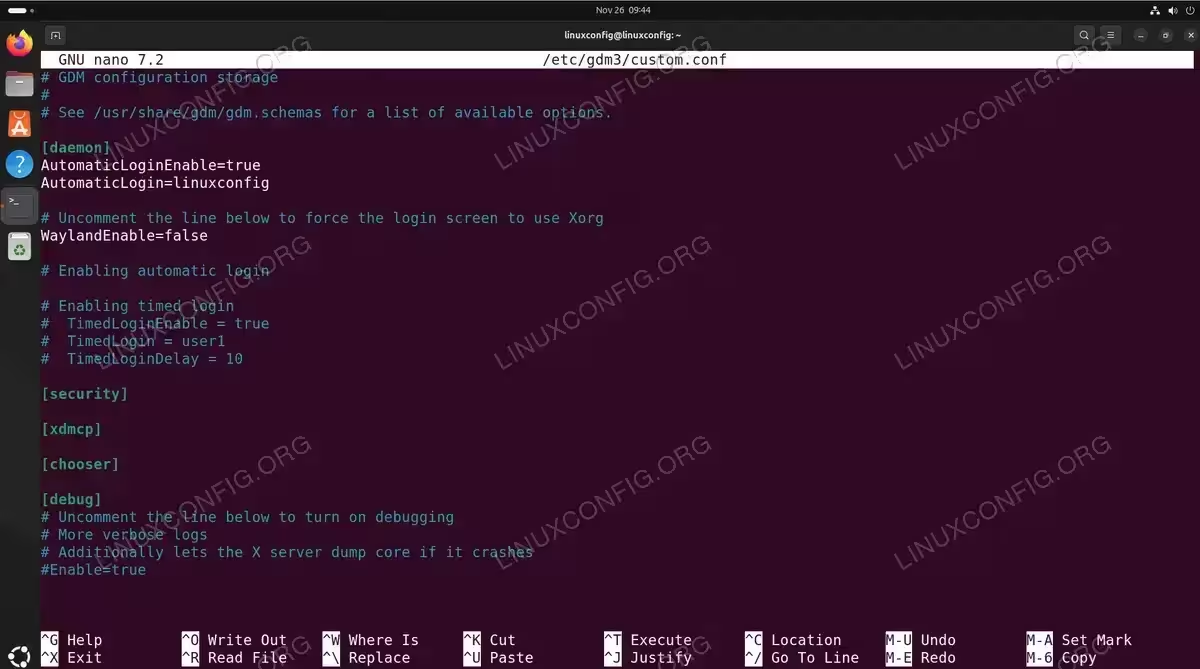
/etc/gdm3/custom.conffile to either disable or enable Wayland. Open a command line terminal and use nano or your favorite text editor to open this file with root permissions.$ sudo nano /etc/gdm3/custom.conf
- Configure Wayland settings: Within this file, look for the line that says
#WaylandEnable=false. You can uncomment this line and either set it to true or false, depending on whether you want Wayland enabled or not.Enable Wayland:WaylandEnable=true
Or disable Wayland:
WaylandEnable=false
X11 STABILITY NOTE
In my testing, some Ubuntu 24.04 systems experience intermittent black screen issues when using X11. Wayland is the recommended default display server for stability and performance on newer Ubuntu versions. Avoid using X11 if possible, as the situation may worsen with future Ubuntu releases..
GDM3 custom.conf file opened in nano editor showing WaylandEnable=false setting to force X11 display server - Restart the display manager: After you have made the desired changes, save this file and exit it. You will need to restart GDM3 or reboot your Ubuntu desktop for the changes to take effect.
$ sudo systemctl restart gdm3
- Verify the active display server: Confirm which display server you are currently using with the following command:
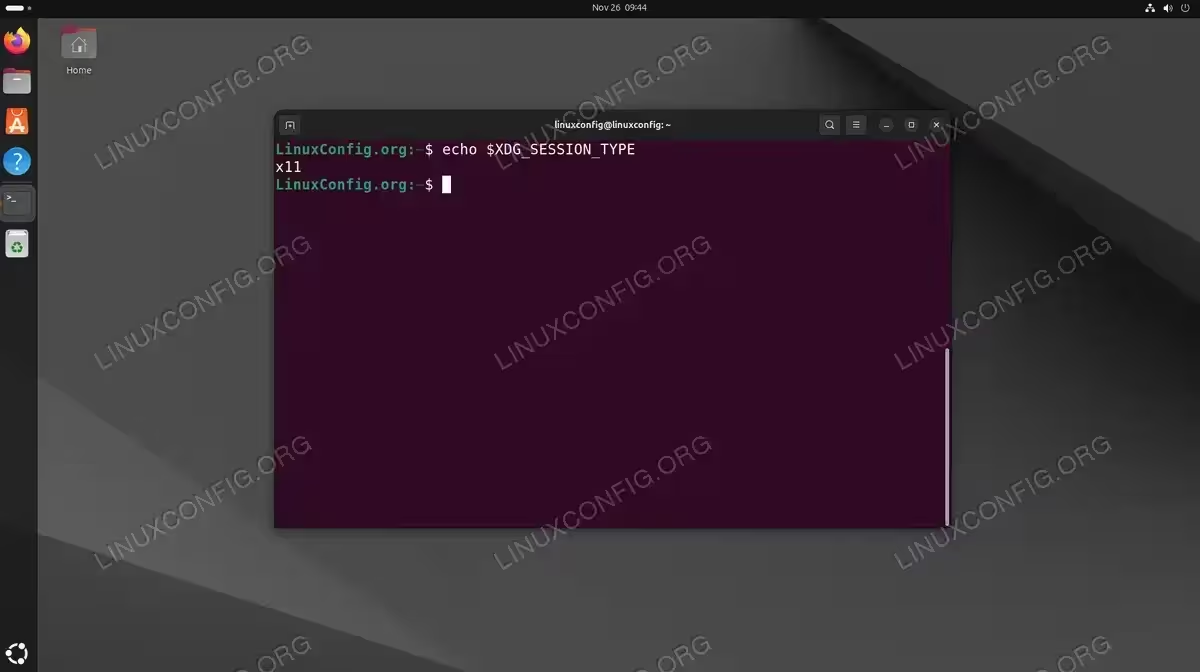
$ echo $XDG_SESSION_TYPE
This will output either
waylandorx11, confirming which display server is active. You can run this command before making changes to check your current setup, and again after restarting GDM3 to verify the switch was successful.
Terminal output showing x11 as the active display server after checking XDG_SESSION_TYPE variable - Select display server at login: To login to Ubuntu Desktop using Wayland, click on the gear button and select
Ubuntuoption before you login. If you have disabled the Wayland display server, you will only see the Xorg option appear, or the gear button doesn’t show up at all.UBUNTU WAYLAND VS X11
Ubuntu supports two display server protocols: Xorg and Wayland. Xorg is the older, traditional server known for broad compatibility but is less secure and efficient compared to modern standards. Wayland, introduced as the default in Ubuntu 17.10, simplifies this model by handling rendering through clients, enhancing performance, reducing latency, and improving security by isolating applications. However, Wayland can face compatibility issues with older software, necessitating occasional fallbacks to Xorg. This transition highlights Ubuntu’s move towards a more secure and robust user experience while maintaining support for a wide range of applications.
Login to Ubuntu using Wayland display server

Conclusion
In this tutorial, we saw how to enable or disable the Wayland communication protocol in Ubuntu Desktop Linux. Having more than one option is a good thing for Linux users, as they all have their pros and cons and one may work better with a certain configuration than another. By offering both Xorg and Wayland, Ubuntu ensures that users can choose the most suitable environment based on their specific hardware and software needs. This flexibility not only enhances user satisfaction but also broadens Ubuntu’s appeal as a versatile and adaptable operating system. Whether prioritizing performance and security with Wayland or ensuring maximum compatibility with Xorg, users can tailor their setup to provide the optimal desktop experience.
Frequently Asked Questions
- How do I check if I’m currently using Wayland or X11 on Ubuntu? You can verify your active display server by running the command
echo $XDG_SESSION_TYPEin the terminal. This will return eitherwaylandorx11, indicating which display server is currently in use. This command works on all recent Ubuntu versions including 24.04. - Do I need to reboot Ubuntu after enabling or disabling Wayland? No, a full system reboot is not required. After editing the
/etc/gdm3/custom.conffile, you only need to restart the GDM3 display manager withsudo systemctl restart gdm3. This will log you out and apply the changes immediately. However, rebooting your system will also work if you prefer that option. - Why would I want to disable Wayland on Ubuntu? There are several reasons to disable Wayland and use Xorg instead. Some applications, particularly older software or certain screen recording tools, may not work properly with Wayland. You may also experience compatibility issues with specific graphics drivers, remote desktop applications, or screen sharing software. If you encounter graphical glitches, performance problems, or application crashes on Wayland, switching to Xorg is the recommended troubleshooting step.
- What is the difference between Wayland and Xorg on Ubuntu? Wayland is the newer display server protocol that offers improved security, better performance, and reduced input latency compared to Xorg. Wayland isolates applications from each other, preventing them from capturing screen content without permission. However, Xorg has broader application compatibility since it has been around much longer. Ubuntu defaults to Wayland on systems with compatible hardware, but includes Xorg as a fallback option for maximum compatibility.