
VNC (Virtual Network Computing) is a powerful tool that allows you to remotely access and control a computer’s desktop environment. This can be incredibly useful for managing servers, providing technical support, or simply accessing your system from a different location. In this tutorial, we will guide you through the process of setting up a VNC server and client on a Debian Linux system, providing you with a graphical interface for remote management.
In this tutorial you will learn:
- How to set up a VNC server on Debian Linux
- How to configure and connect to the VNC server from a client
| Category | Requirements, Conventions or Software Version Used |
|---|---|
| System | Debian Linux 12 or higher |
| Software | TigerVNC server and viewer |
| Other | Desktop Environment of your choice (GNOME, KDE Plasma, XFCE, etc.) |
| Conventions | # – requires given linux commands to be executed with root privileges either directly as a root user or by use of sudo command$ – requires given linux commands to be executed as a regular non-privileged user |
Setting Up VNC Server and Client on Debian Linux
Before diving into the step-by-step process, it’s essential to understand that setting up a VNC server involves preparing your system to allow remote desktop access. This requires installing a desktop environment, configuring the X session, and setting up the VNC server software. The following steps will guide you through the process of setting up the VNC server on your Debian Linux system and connecting to it from a client.
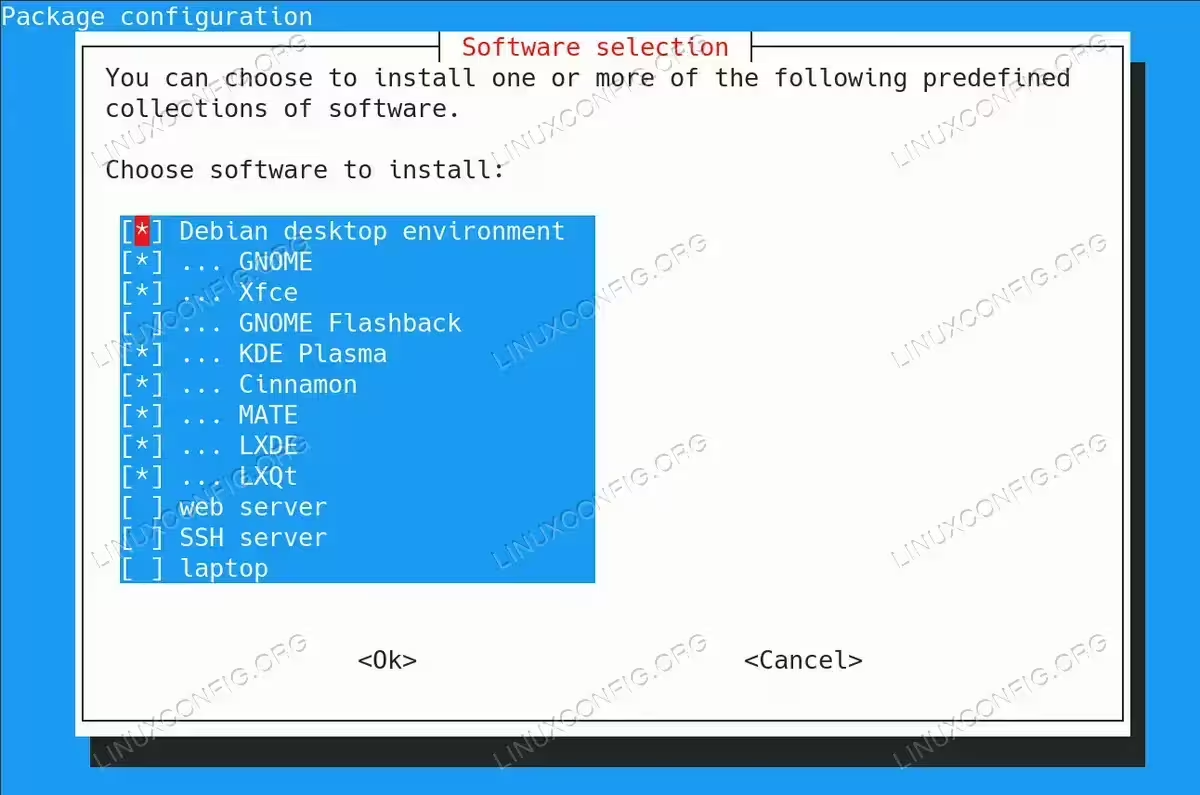
- Install a Desktop Environment: Before configuring a VNC server, you need to have a Desktop Environment (DE) installed on your Debian machine. The DE is what your VNC server will share remotely. Use the
taskselcommand to install the DE you want.$ sudo tasksel
The
taskseltool provides a menu interface that allows you to select and install the Desktop Environment of your choice (such as GNOME, KDE, XFCE, etc.). Choose your preferred DE and proceed with the installation.
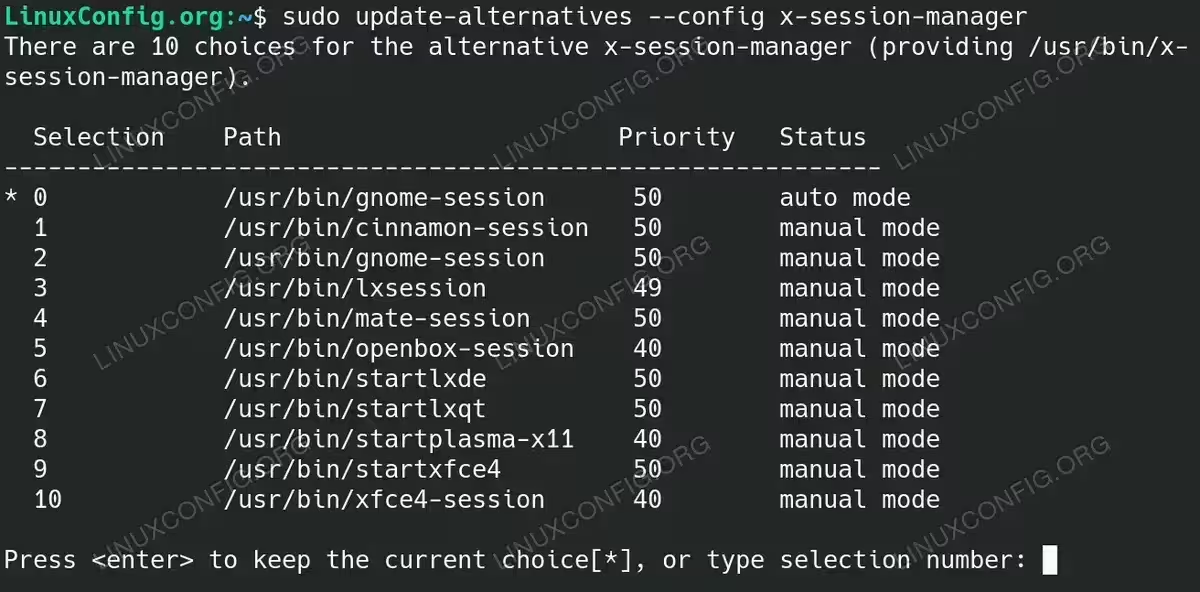
Using tasksel to install Desktop Environment - Set the Default X Session: It is essential to set your default X session to ensure the Desktop Environment you want is launched correctly during the VNC session. Use the following command to change/set the default X session for your system.
$ sudo update-alternatives --config x-session-manager
You will see a list of available sessions. Choose the number that corresponds to the Desktop Environment you want as the default.

Set the Default X Session you wish to use with your VNC server client connection - Install the VNC Server: Once your Desktop Environment is set, you need to install a VNC server. The TigerVNC server is a popular option. Use the command below to install it.
$ sudo apt install tigervnc-standalone-server
TigerVNC is known for its performance and compatibility with various desktop environments, making it a reliable choice for Debian Linux systems.
- Start the VNC Server Session: After installing the VNC server, start a new VNC session using the following command:
$ vncserver -localhost no :1
The
-localhost nooption allows the VNC server to be accessible from remote systems, and:1indicates the display number. Typically, this creates a VNC session on port 5901 (display number + 5900).NOTE
Contrary to many past configurations, there is no further configuration needed, such as defining~/.vnc/xstartupor session files. The VNC server works by default with all Desktop Environments. The configuration directory~/.vnc/of a working VNC server on Debian contains only:linuxconfig:1.log linuxconfig:1.pid passwd. -
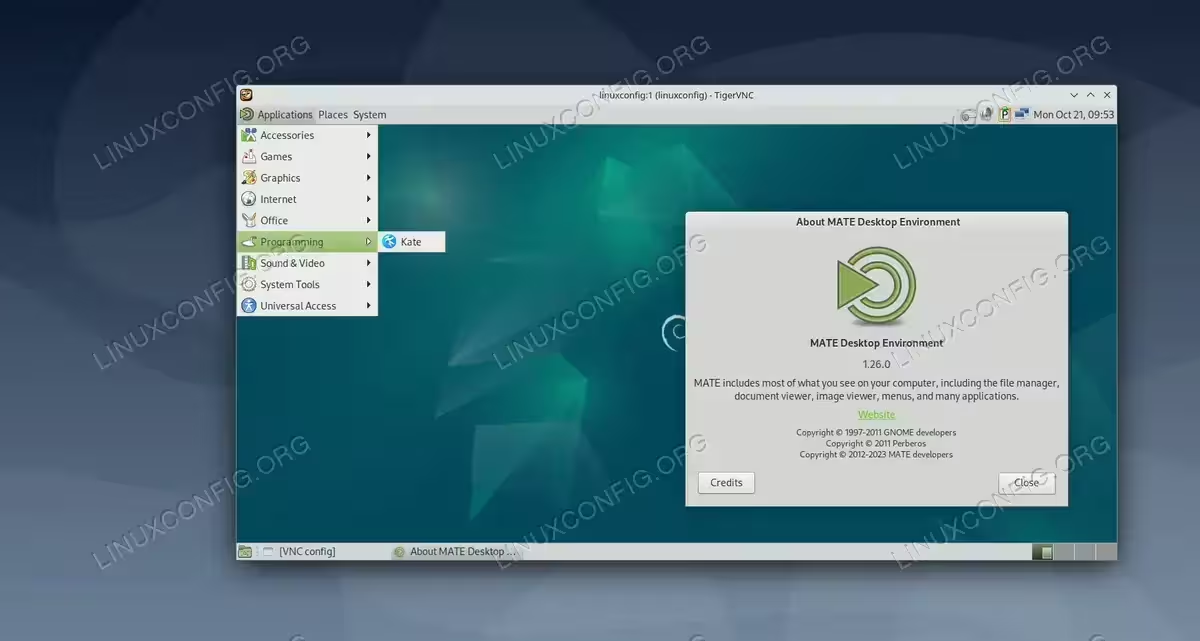
: To connect to the VNC server from a client machine, you can use
xtigervncvieweror other VNC clients such asRealVNC ViewerorRemmina. Below are some examples for connecting:xtigervncviewer vncserver:5901
OR
vncviewer vncserver:5901
Replace
vncserverwith the IP address or hostname of your VNC server. This command will open a window displaying the remote desktop, allowing you to interact with your Debian system’s GUI. If you are usingRealVNC ViewerorRemmina, simply enter the server’s IP address along with the port number (e.g.,vncserver:5901) in the connection field to connect.
Connect to the VNC Server Using a Client – VNC session running MATE desktop as an example
Changing the Desktop Environment (DE)
If you need to change the Desktop Environment for your VNC session, follow these steps:
- Kill the Current VNC Session: First, stop the running VNC session using the following command:
$ vncserver -kill :1
This command will terminate the current VNC session running on display
:1. - Change the Default X Session: Use the following command to change the default X session manager:
$ sudo update-alternatives --config x-session-manager
Select the Desktop Environment you want to use as the default from the list of available options.
- Restart the VNC Server: After changing the default X session, start the VNC server again with the following command:
$ vncserver -localhost no :1
This command will start the VNC server with the newly selected Desktop Environment.
Conclusion
This article has provided a detailed walkthrough of setting up a VNC server and client on a Debian Linux system. With the steps outlined above, you can easily share a graphical desktop environment from a Debian server and connect to it remotely from a client machine. TigerVNC offers reliable and responsive performance for managing your remote desktop needs.
Frequently Asked Questions (FAQ)
- How do I install a VNC server on Debian?
Use the command$ sudo apt install tigervnc-standalone-serverto install the TigerVNC server on Debian. - What is the best VNC server for Debian?
TigerVNC and RealVNC are among the best VNC servers for Debian due to their compatibility and performance. - How do I configure VNC to use GNOME on Debian?
Set the default X session to GNOME using$ sudo update-alternatives --config x-session-manager, then start the VNC server. - How can I use Docker to run a VNC server on Debian?
You can use a Docker image that includes a VNC server to quickly deploy and run VNC within a container on Debian. - Why do I get a grey screen when connecting to Debian VNC server?
A grey screen often indicates that the window manager is not properly set. Ensure you have a Desktop Environment installed and configured. - What should I do if VNC shows “Connection Refused” on Debian?
Check if the VNC server is running, ensure the correct port is open, and verify firewall settings. - How do I install a VNC viewer on Debian?
Use$ sudo apt install tigervnc-vieweror download RealVNC Viewer from their official site. - How do I set up KDE Plasma with VNC on Debian?
Install KDE Plasma and configure it as the default X session using$ sudo update-alternatives --config x-session-manager, then restart the VNC server. - How do I fix a black screen when connecting to Debian VNC server?
Ensure the Desktop Environment is installed correctly, and try restarting the VNC server after reconfiguring the X session. - How do I allow VNC connections through the Debian firewall?
Usesudo ufw allow 5901/tcpto allow VNC connections through the firewall. - How do I autostart the VNC server on Debian boot?
Create a systemd service file to manage VNC as a system service and enable it to start on boot. - Is there a Linux alternative to VNC for remote desktop access?
Yes, alternatives include XRDP, TeamViewer, and NoMachine, which also provide remote desktop functionality. - Can I use VNC to access a Debian system from Android?
Yes, you can use VNC clients like RealVNC Viewer or bVNC on Android to connect to your Debian system. - How can I enable audio over VNC on Debian?
VNC does not natively support audio; however, you can use additional software like PulseAudio to stream audio. - What should I do if I see “Authentication Failure” when connecting via VNC?
Ensure the correct password is set for your VNC session and try resetting it using$ vncpasswd.