
Configuring a static IP address temporarily on a Linux system is a useful skill, especially for troubleshooting networking issues or for specific network setups where you don’t want to modify permanent settings. A temporary static IP can be assigned to the network interface, which will be active only until the system is rebooted. This tutorial will guide you through the process using Linux commands, focusing on both IPv4 and IPv6 configurations.
In this tutorial you will learn:
- How to configure a temporary static IPv4 address
- How to configure a temporary static IPv6 address

| Category | Requirements, Conventions or Software Version Used |
|---|---|
| System | Any Linux distribution (e.g., Ubuntu, CentOS, Debian, RHEL) |
| Software | ip command (part of iproute2 package) |
| Other | A network interface (e.g., eth0, enp3s0) |
| Conventions | # – requires given linux commands to be executed with root privileges either directly as a root user or by use of sudo command$ – requires given linux commands to be executed as a regular non-privileged user |
USING IPCONFIG/IFCONFIG VS. IP COMMAND
The ipconfig (on Windows) and ifconfig (on Linux) tools were traditionally used for managing network interfaces and IP addresses. However, ifconfig is now considered outdated and is being replaced by the more modern ip command in Linux. The ip command offers more features, better flexibility, and a more consistent syntax, making it more suitable for today’s complex networking needs. It is also maintained actively, while ifconfig is deprecated in many Linux distributions.
Setting a Temporary Static IP Address
When you assign a static IP address using Linux command line tools, it will only persist until the system is rebooted. For permanent changes, you would need to edit network configuration files. Below are the steps to assign a temporary static IP using the ip command.
- Configure a Temporary IPv4 Address: You can use the
ipcommand to assign a static IPv4 address to your network interface temporarily.# ip addr add 192.168.1.100/24 dev eth0
This command assigns the IP address
192.168.1.100with a subnet mask of255.255.255.0(represented as/24) to the network interfaceeth0. This change will remain only until you reboot your system.To determine the network interface name on your system, you can use the following command:
$ ip link show
This command will display a list of all network interfaces, along with their current state. Look for the interface name, typically something like
eth0,enp3s0, orwlan0for Ethernet or Wi-Fi, respectively.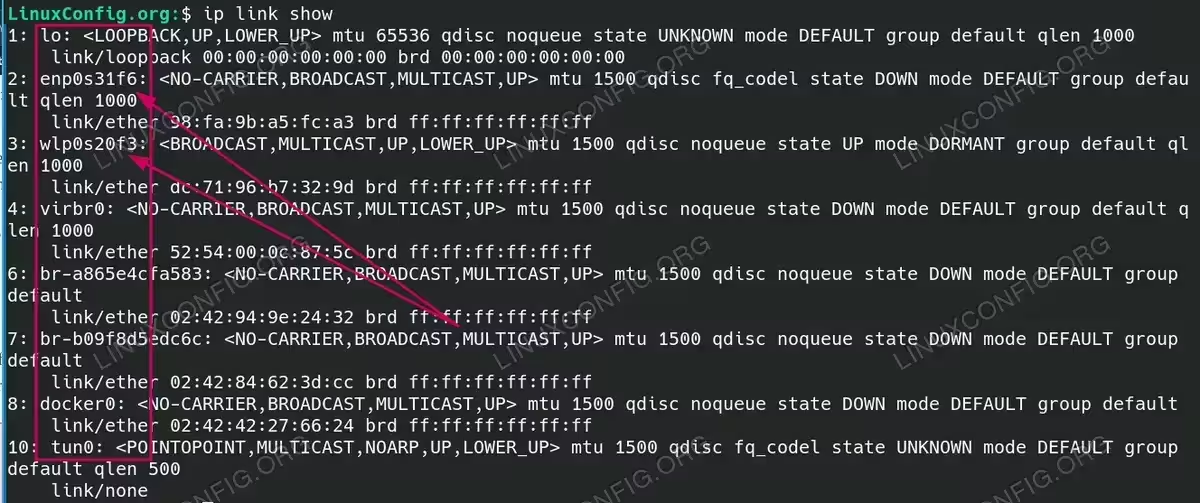
Check network interface name in order to set temporary IP address NETWORKING MANAGER INTERFERENCE
Users should note that when running a GUI, existing network managers (such as NetworkManager or other GUI-based networking tools) may interfere with temporary IP address settings made via the command line. These managers often override manual configurations. To prevent this, either disable the network manager temporarily or use the network manager’s GUI interface to configure the static IP directly, ensuring consistency in your settings. - Remove the Temporary IPv4 Address: To remove the IP address assigned earlier, you can use the following command:
# ip addr del 192.168.1.100/24 dev eth0
This will remove the temporary static IP assigned to the
eth0interface. - Configure a Temporary IPv6 Address: The
ipcommand can also be used to configure a temporary static IPv6 address.# ip addr add 2001:db8::100/64 dev eth0
This command assigns the IPv6 address
2001:db8::100with a/64subnet to theeth0interface. Like the IPv4 configuration, this will be temporary and will be lost after reboot. - Remove the Temporary IPv6 Address: To remove the previously assigned IPv6 address, use the following command:
# ip addr del 2001:db8::100/64 dev eth0
This will remove the IPv6 address assigned to the
eth0interface.
Verify the Assigned IP Address
After setting an IP address, you can verify it with the following command:
# ip addr show dev eth0
This command will display all IP addresses currently assigned to the eth0 interface, allowing you to check if the configuration was successful.
Conclusion
Temporarily configuring a static IP address on a Linux system is straightforward with the ip command. This approach is useful when you need to quickly change network settings without modifying system configuration files. However, remember that these changes will be lost after rebooting. For permanent changes, editing network configuration files is required.
