
Docker container images often contain security vulnerabilities inherited from their base operating system packages. Rather than rebuilding images from scratch, you can use Trivy to scan for vulnerabilities and Copa to patch them directly. This tutorial demonstrates how to identify and fix container vulnerabilities on Ubuntu, Debian, RHEL, CentOS, and Fedora systems using these two powerful open-source tools.
Table of Contents
In this tutorial you will learn:
- How to install Trivy vulnerability scanner on Ubuntu/Debian
- How to install Copa container patching tool
- How to scan Docker images for OS vulnerabilities
- How to automatically patch container vulnerabilities
- How to verify patched images are vulnerability-free
Software Requirements
| Category | Requirements, Conventions or Software Version Used |
|---|---|
| System | Ubuntu 22.04, Debian 12, RHEL 8/9, CentOS Stream, Fedora 38 or newer |
| Software | Docker, Trivy, Copa, BuildKit |
| Other | Docker installed and running, internet connection to download packages and container images |
| Conventions | # – requires given linux commands to be executed with root privileges either directly as a root user or by use of sudo command$ – requires given linux commands to be executed as a regular non-privileged user |
| Step | Command/Action |
|---|---|
| 1. Scan image | sudo trivy image --vuln-type os --ignore-unfixed IMAGE_NAME |
| 2. Export JSON report | trivy image --vuln-type os --ignore-unfixed -f json -o report.json IMAGE_NAME |
| 3. Start BuildKit | sudo docker run --detach --rm --privileged -p 127.0.0.1:8888:8888/tcp --name buildkitd --entrypoint buildkitd moby/buildkit:v0.11.4 --addr tcp://0.0.0.0:8888 |
| 4. Patch image | sudo copa patch -i IMAGE_NAME -r report.json -t patched -a tcp://0.0.0.0:8888 |
Step 1: Install Trivy Vulnerability Scanner
Trivy is an open-source vulnerability scanner developed by Aqua Security. It detects vulnerabilities in OS packages, application dependencies, and container images.
Ubuntu/Debian
- Install dependencies: First install wget and gnupg packages required for adding the repository:
$ sudo apt-get install wget gnupg -y
- Add Trivy GPG key: Download and add the Trivy repository signing key:
$ wget -qO - https://aquasecurity.github.io/trivy-repo/deb/public.key | gpg --dearmor | sudo tee /usr/share/keyrings/trivy.gpg > /dev/null
- Add Trivy repository: Add the official Trivy repository to your sources list:
$ echo "deb [signed-by=/usr/share/keyrings/trivy.gpg] https://aquasecurity.github.io/trivy-repo/deb generic main" | sudo tee -a /etc/apt/sources.list.d/trivy.list
- Install Trivy: Update package list and install Trivy:
$ sudo apt-get update
$ sudo apt-get install trivy -y
RHEL/CentOS/Fedora
- Add Trivy repository: Create the Trivy repo file:
# sudo tee /etc/yum.repos.d/trivy.repo << 'EOF'
[trivy]
name=Trivy repository
baseurl=https://aquasecurity.github.io/trivy-repo/rpm/releases/$basearch/
gpgcheck=1
enabled=1
gpgkey=https://aquasecurity.github.io/trivy-repo/rpm/public.key
EOF
- Install Trivy: Use dnf or yum to install:
# sudo dnf install trivy -y
Verify the installation by checking the version:
$ trivy --version
Step 2: Install Copa Patching Tool
Copa (Copacetic) is a CNCF sandbox project that patches container images directly without requiring a full rebuild. It uses vulnerability reports from scanners like Trivy to apply security updates. Copa is distributed as a single binary that works on all Linux distributions.
- Download Copa binary: Get the pre-built binary from the official Copa GitHub releases page:
$ wget https://github.com/project-copacetic/copacetic/releases/download/v0.9.0/copa_0.9.0_linux_amd64.tar.gz
- Extract the archive: Unpack the downloaded tarball:
$ tar -xzf copa_0.9.0_linux_amd64.tar.gz
- Install Copa: Move the binary to your system path:
$ sudo mv copa /usr/local/bin/
- Verify installation: Confirm Copa is installed correctly:
$ copa --version

Verifying Trivy and Copa installation on Ubuntu Linux
Step 3: Scan Container Image for Vulnerabilities
Before patching, you need to identify vulnerabilities in your container image. The following steps use linuxconfig/instantprivacy as an example – replace it with your own image name.
- Pull the container image: Download the image you want to scan:
$ sudo docker pull linuxconfig/instantprivacy
- Scan for vulnerabilities: Run Trivy to scan for OS-level vulnerabilities. The
--ignore-unfixedflag excludes vulnerabilities without available fixes:$ sudo trivy image --vuln-type os --ignore-unfixed linuxconfig/instantprivacy
- Export JSON report: Copa requires the scan results in JSON format:
$ trivy image --vuln-type os --ignore-unfixed -f json -o instantprivacy.json linuxconfig/instantprivacy
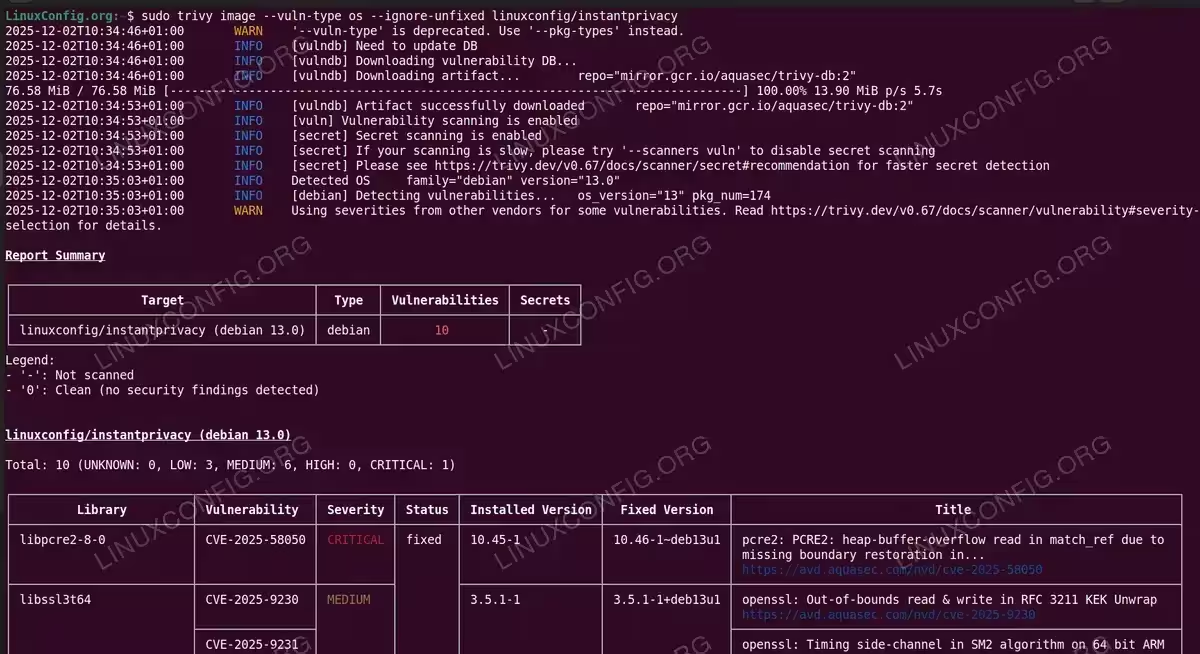
Trivy scan detecting 10 OS vulnerabilities in a Docker container image
Step 4: Patch Container Image with Copa
Copa uses BuildKit to apply patches to container images.
- Start BuildKit container: Launch BuildKit as a privileged container:
$ sudo docker run --detach --rm --privileged \
  -p 127.0.0.1:8888:8888/tcp \
  --name buildkitd \
  --entrypoint buildkitd \
  moby/buildkit:v0.11.4 \
  --addr tcp://0.0.0.0:8888
- Verify BuildKit is running: Confirm the container started successfully:
$ sudo docker ps
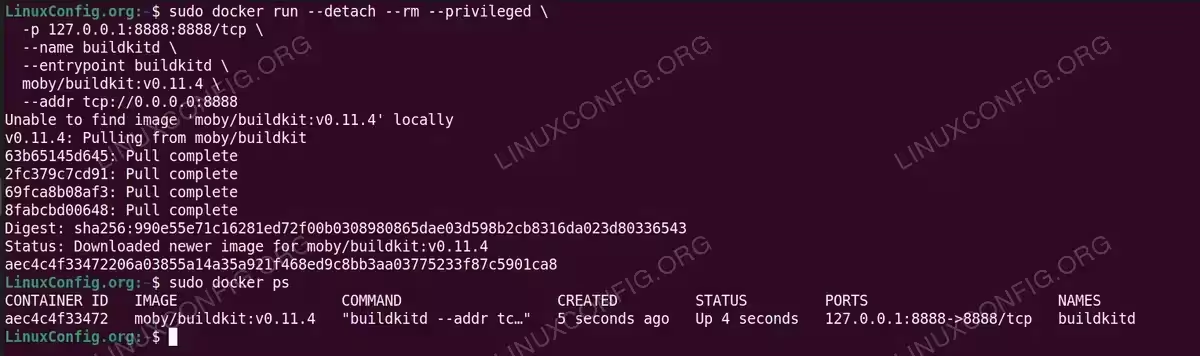
Launching BuildKit container required by Copa for image patching - Patch the container image: Use Copa to apply security patches. The
-tflag specifies the tag for the patched image:$ sudo copa patch \ -i docker.io/linuxconfig/instantprivacy \ -r instantprivacy.json \ -t patched \ -a tcp://0.0.0.0:8888
Copa downloads security updates and creates a new image layer with the patches applied. The patched image will be tagged as
linuxconfig/instantprivacy:patched.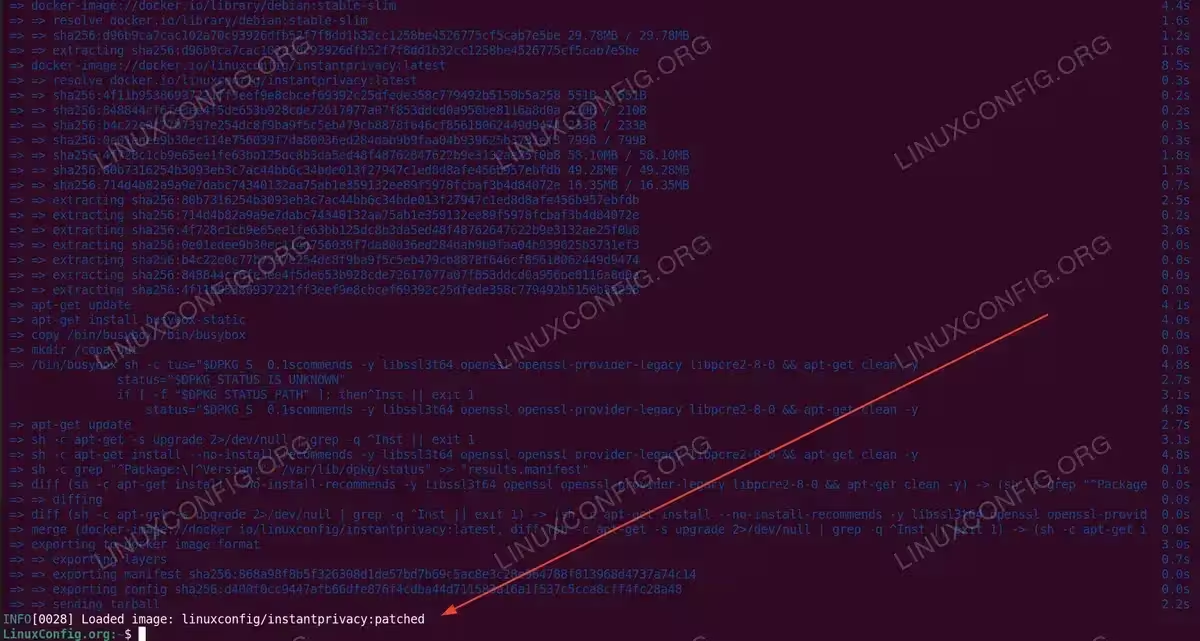
Copa successfully patching vulnerabilities in a Docker container image
Step 5: Verify Patched Image
- Scan the patched image: Confirm all vulnerabilities have been resolved:
$ sudo trivy image --vuln-type os --ignore-unfixed linuxconfig/instantprivacy:patched
- Test the patched image: Verify the patched image runs correctly:
$ sudo docker run --name=instantprivacy -d -p 8118:8118 linuxconfig/instantprivacy:patched
$ export http_proxy="http://localhost:8118"
$ curl api.ipify.org
45.84.107.174
- Cleanup: Stop the BuildKit container when finished:
$ sudo docker stop buildkitd
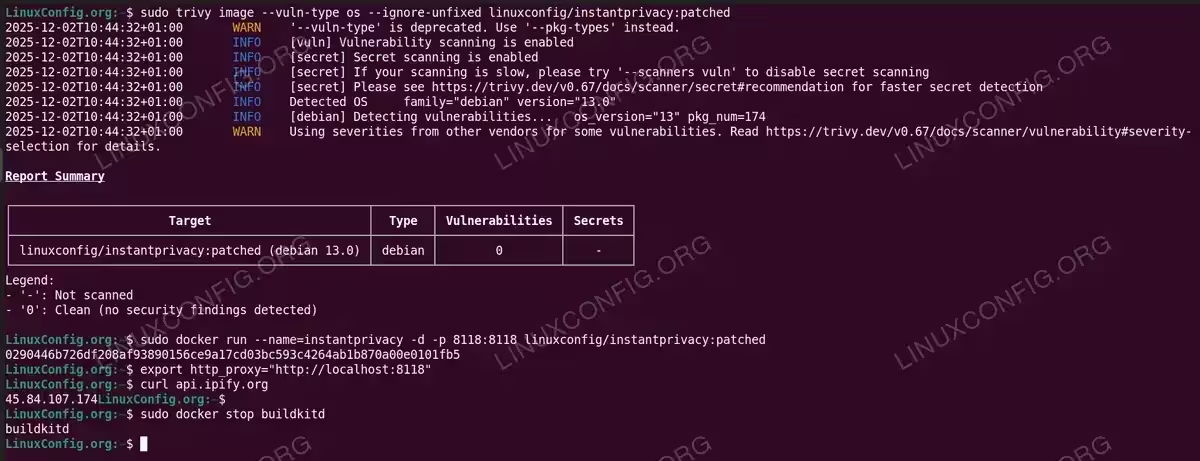
Patched image shows zero vulnerabilities and runs successfully
Conclusion
You have successfully scanned a Docker container image for security vulnerabilities using Trivy and patched them automatically with Copa. This approach is faster than rebuilding images from scratch and adds only a single patch layer, preserving the original image structure. For production environments, integrate these tools into your CI/CD pipeline to automatically scan and patch container images before deployment. For more information, refer to the official Trivy documentation and the Copa project website.
Frequently Asked Questions
- What types of vulnerabilities can Copa patch? Copa only patches OS-level package vulnerabilities (such as Debian, Ubuntu, Alpine, or RHEL packages). It cannot patch application-level dependencies like npm packages, Python pip modules, or Go modules. For those, you need to rebuild the application with updated dependencies.
- Why do I need BuildKit to run Copa? Copa uses BuildKit’s diff and merge capabilities to create a new image layer containing only the patched files. BuildKit runs as a privileged container that handles the low-level image manipulation. Without BuildKit, Copa cannot apply patches to the container filesystem.
- Can I patch images from private registries? Yes, Copa supports private registries. You need to authenticate with
docker loginbefore running the patch command. Copa uses your Docker credentials to pull the base image and push the patched result if needed. - What happens if Copa cannot patch all vulnerabilities? Some vulnerabilities may not have fixes available yet. The
--ignore-unfixedflag in Trivy excludes these from the report. Copa will patch everything that has an available fix. Run Trivy again without--ignore-unfixedto see all vulnerabilities including those awaiting patches. - How do I update Copa to the latest version? Download the latest release from the Copa GitHub releases page and replace the binary in
/usr/local/bin/. Check the current version withcopa --version.
