
Podman provides a daemonless container engine that runs containers without requiring root privileges. This guide covers how to podman install ubuntu 26.04 using the official Ubuntu repositories, verify the installation, and run your first container.
Table of Contents
In this tutorial you will learn:
- How to install Podman from Ubuntu repositories
- How to verify the Podman installation
- How to configure rootless container execution
- How to pull and run containers with Podman
Software Requirements
| Category | Requirements, Conventions or Software Version Used |
|---|---|
| System | Ubuntu 26.04 Resolute Raccoon |
| Software | Podman 4.x or later |
| Other | Privileged access to your Linux system as root or via the sudo command. |
| Conventions | # – requires given linux commands to be executed with root privileges either directly as a root user or by use of sudo command$ – requires given linux commands to be executed as a regular non-privileged user |
sudo apt install podman and verify with podman --version.
| Step | Command/Action |
|---|---|
| 1. Update package index | sudo apt update |
| 2. Install Podman | sudo apt install podman |
| 3. Verify installation | podman --version |
What is Podman
PODMAN OVERVIEW
Podman is a daemonless, rootless container engine developed by Red Hat. It provides Docker-compatible CLI commands, allowing you to run containers without a central daemon process. Podman integrates natively with systemd and supports pod management for Kubernetes workflows.
Install Podman on Ubuntu 26.04
Ubuntu 26.04 includes Podman in its official repositories, making the installation straightforward. Follow these steps to podman install ubuntu 26.04 from the standard package sources.
- Update the package index: Refresh your local package cache to ensure you get the latest available version.
$ sudo apt update
- Install Podman: Use apt to install the Podman package along with its dependencies.
$ sudo apt install podman
This command installs the Podman container engine, container networking tools, and the necessary runtime components.
Verify Podman Installation
After completing the podman install ubuntu 26.04 process, verify that everything works correctly by checking the version and running a test container.
- Check Podman version: Confirm the installation by displaying the installed version.
$ podman --version
podman version 4.9.3
- Display system information: View detailed information about your Podman installation and host system.
$ podman info
This command shows the storage driver, container runtime, and other configuration details.
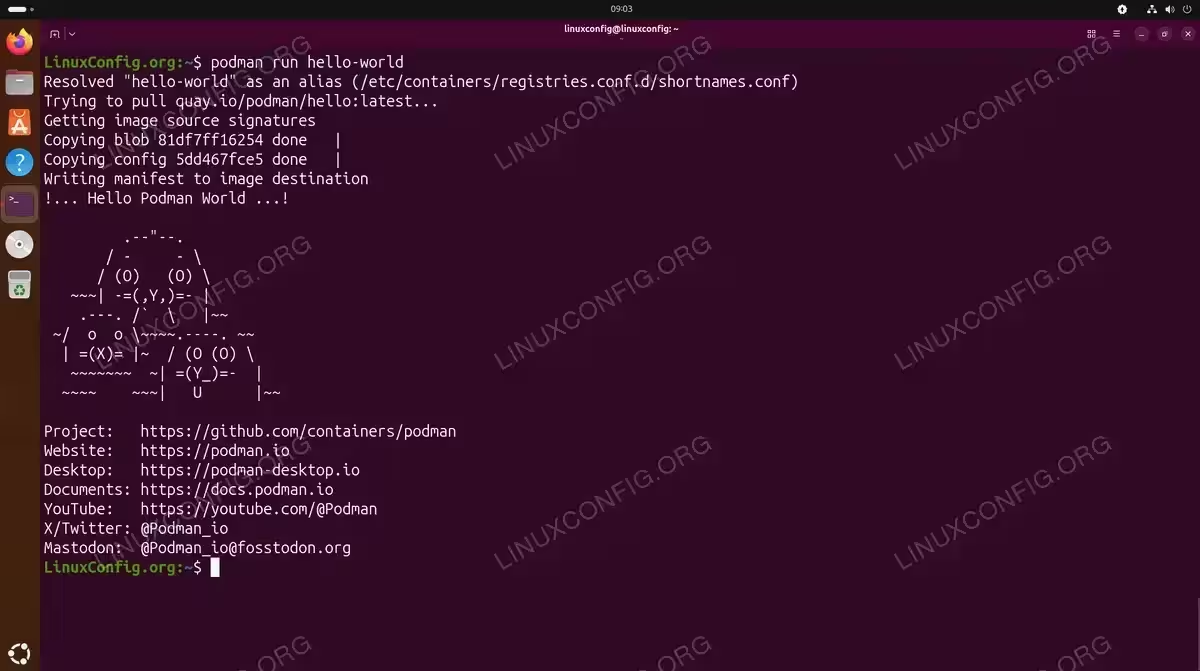
- Run a test container: Pull and run the hello-world container to verify that Podman can download images and execute containers.
$ podman run hello-world
If successful, you will see a welcome message confirming that Podman is working correctly.
Basic Podman Configuration
Podman runs rootless by default for regular users, which enhances security. However, you may need to configure a few settings for optimal performance.
Configure Container Registries
Podman searches multiple container registries when pulling images. The default configuration file is located at /etc/containers/registries.conf. You can also create a user-specific configuration at ~/.config/containers/registries.conf.
To add Docker Hub as a searchable registry, create or edit your user configuration:
$ mkdir -p ~/.config/containers
$ cat <<EOF > ~/.config/containers/registries.conf
unqualified-search-registries = ["docker.io", "quay.io"]
EOF
This configuration allows you to pull images using short names like nginx instead of the full path docker.io/library/nginx.
Enable Lingering for User Services
If you plan to run containers as systemd services under your user account, enable lingering to keep user services running after logout:
$ sudo loginctl enable-linger $USER
For more information on managing containers, see the official Podman documentation.
Running Your First Container
Now that you have completed the podman install ubuntu 26.04 setup, you can start running containers. The following example demonstrates pulling and running an Nginx web server.
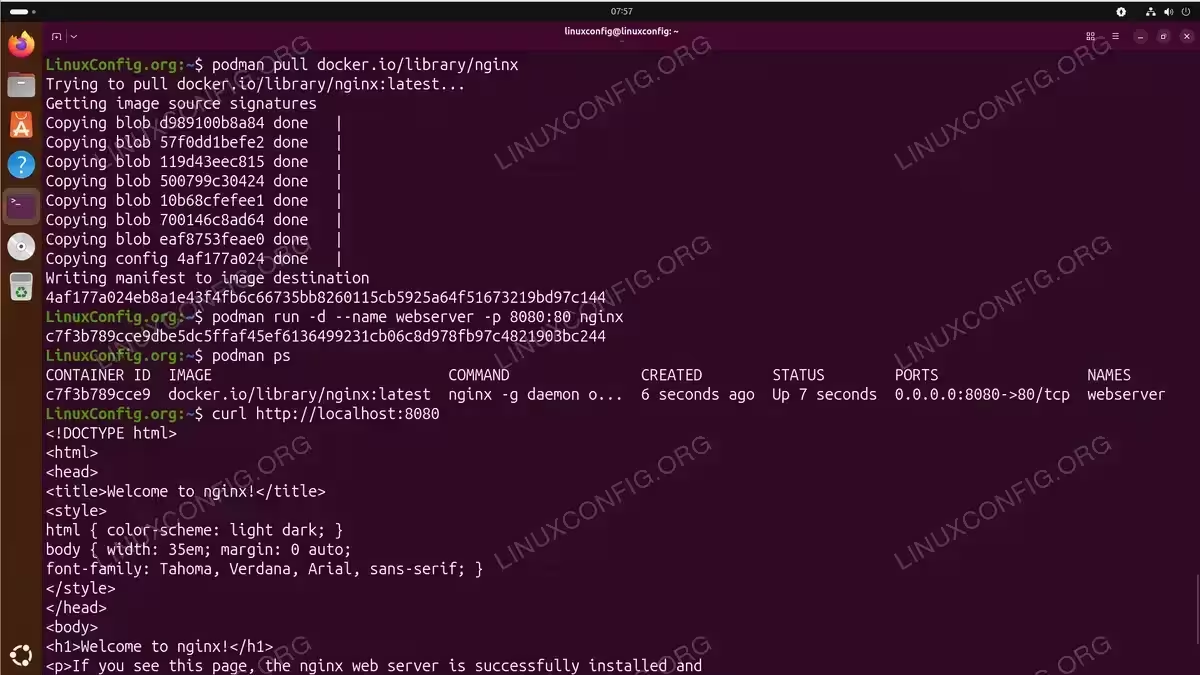
- Pull the Nginx image: Download the official Nginx image from Docker Hub.
$ podman pull docker.io/library/nginx
- Run the container: Start Nginx in detached mode with port mapping.
$ podman run -d --name webserver -p 8080:80 nginx
This command starts Nginx in the background, maps port 8080 on your host to port 80 in the container, and names the container “webserver”.
- Verify the container is running: List active containers to confirm Nginx started successfully.
$ podman ps
CONTAINER ID  IMAGE                           COMMAND               CREATED        STATUS        PORTS                 NAMES
a1b2c3d4e5f6  docker.io/library/nginx:latest  nginx -g daemon o...  5 seconds ago  Up 5 seconds  0.0.0.0:8080->80/tcp  webserver
- Test the web server: Access the Nginx welcome page using curl or a web browser.
$ curl http://localhost:8080
You should see the default Nginx welcome page HTML.
- Stop and remove the container: When finished, stop and remove the container.
$ podman stop webserver
$ podman rm webserver
To learn more about container management, see our guide on how to use Podman containers.
DOCKER COMPATIBILITY
Podman accepts most Docker CLI commands. You can create an alias with alias docker=podman to use existing Docker workflows without modification.
Conclusion
You have successfully completed the podman install ubuntu 26.04 process and learned how to verify the installation, configure registries, and run containers. Podman provides a secure, daemonless alternative to Docker that integrates well with systemd and supports rootless operation by default. You can now use Podman to manage containers for development, testing, or production workloads on your Ubuntu 26.04 system.
Frequently Asked Questions
- Can I use Docker images with Podman? Yes, Podman is fully compatible with OCI-compliant container images, including those from Docker Hub. You can pull and run Docker images without any modifications.
- What is the difference between rootless and rootful Podman? Rootless Podman runs containers entirely within your user namespace without requiring root privileges, which improves security. Rootful Podman runs as root and provides access to privileged operations like binding to ports below 1024.
- How do I uninstall Podman from Ubuntu 26.04? Remove Podman with
sudo apt remove podman. To also remove configuration files and dependencies, usesudo apt purge podmanfollowed bysudo apt autoremove.