
Pip is the standard package manager for Python, and installing pip on Ubuntu 26.04 is one of the first steps you’ll take when setting up a Python development environment. Whether you need to install third-party libraries, manage project dependencies, or work with virtual environments, pip is the essential tool that makes it all possible. In this tutorial, we’ll walk through how to pip install on Ubuntu 26.04, covering installation, verification, and basic usage.
Table of Contents
In this tutorial you will learn:
- How to install pip for Python 3 on Ubuntu 26.04
- How to verify your pip installation
- Basic pip commands for managing packages
- How to use pip with virtual environments
Software Requirements
| Category | Requirements, Conventions or Software Version Used |
|---|---|
| System | Ubuntu 26.04 Resolute Raccoon |
| Software | Python 3, pip3 (python3-pip) |
| Other | Privileged access to your Linux system as root or via the sudo command. |
| Conventions | # – requires given linux commands to be executed with root privileges either directly as a root user or by use of sudo command$ – requires given linux commands to be executed as a regular non-privileged user |
apt to install the python3-pip package.
| Step | Command/Action |
|---|---|
| 1. Update package index | $ sudo apt update |
| 2. Install pip for Python 3 | $ sudo apt install python3-pip |
| 3. Verify installation | $ pip3 --version |
Prerequisites
Before you install pip on Ubuntu 26.04, make sure that Python is already present on your system. Ubuntu 26.04 ships with Python 3 pre-installed, but it’s a good idea to confirm. You can check your Python version by running:
$ python3 --version
You should see output showing Python 3.x. Additionally, ensure your package index is up to date before proceeding:
$ sudo apt update
Install Pip for Python 3 on Ubuntu 26.04
The most straightforward method to pip install on Ubuntu 26.04 is through the APT package manager. The python3-pip package is available directly from the official Ubuntu repositories, so no additional configuration is needed.
- Install pip3 using APT: Run the following command to install pip for Python 3:
$ sudo apt install python3-pip
This installs pip along with all required dependencies. The APT package manager handles everything automatically, which is why this is the recommended approach for most users.
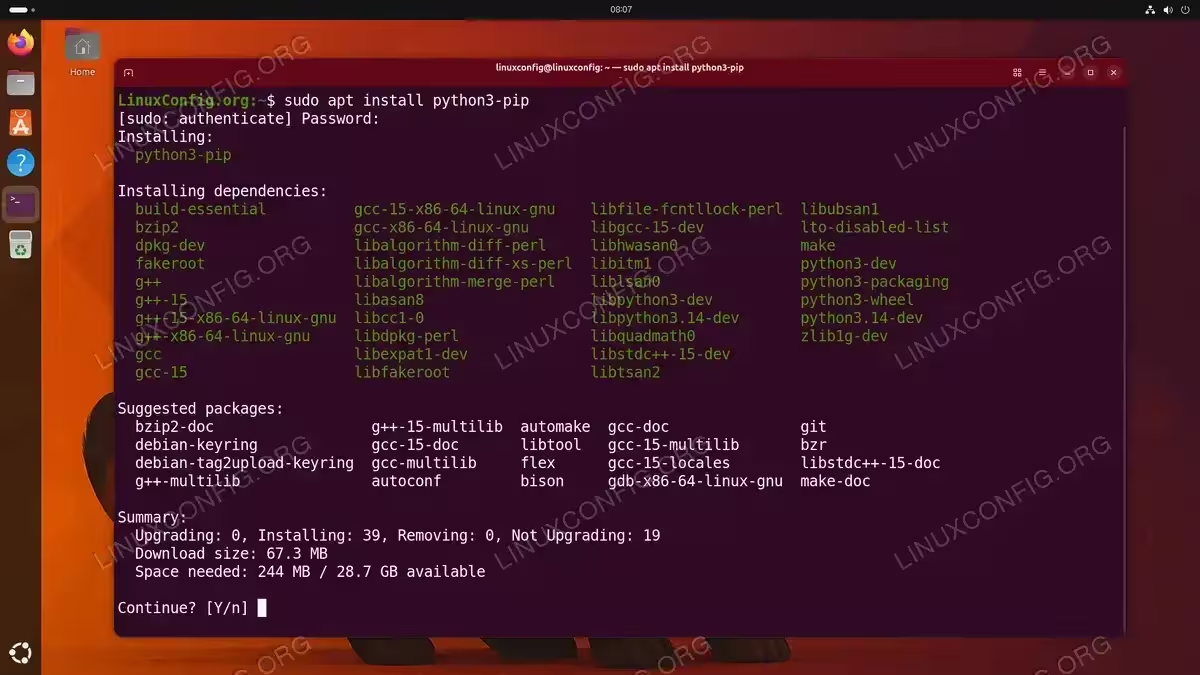
Installing pip for Python 3 using the APT package manager on Ubuntu 26.04 - Confirm the installation: Once the installation completes, verify that pip3 is available:
$ pip3 --version
The output should display the installed pip version and the associated Python version.
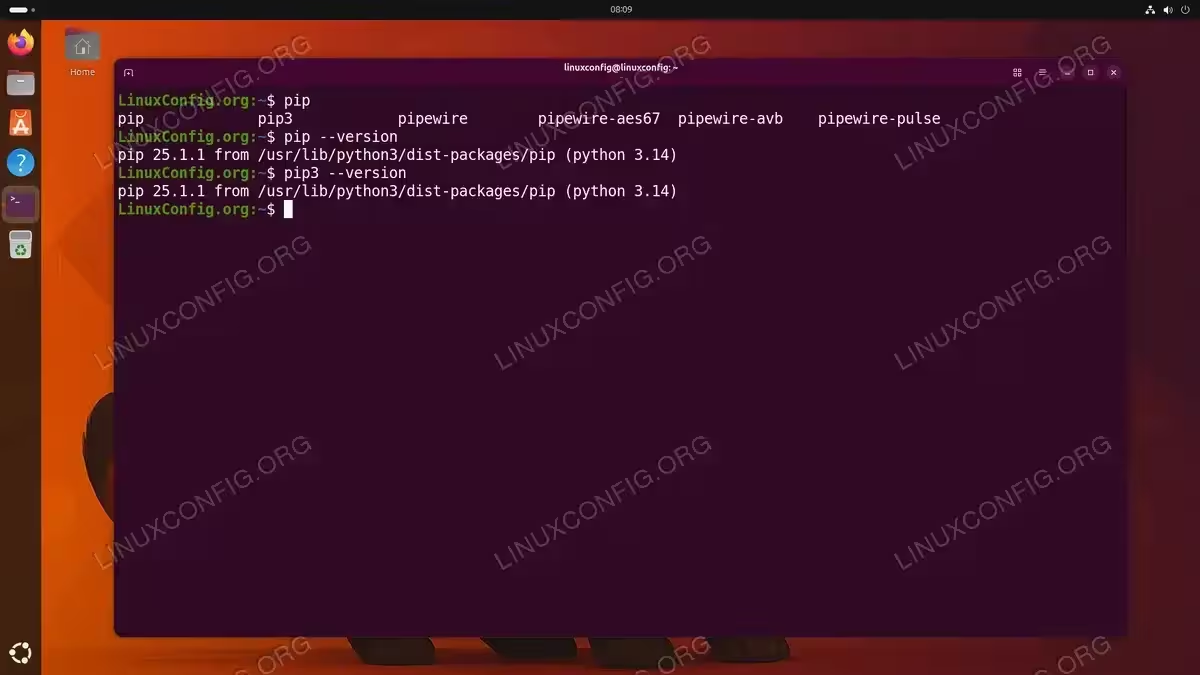
Verifying the pip installation with pip –version and pip3 –version on Ubuntu 26.04
IMPORTANT
On Ubuntu 26.04, the pip command may not be available by default even after installing python3-pip. Use pip3 explicitly, or install the python-is-python3 package to make pip point to pip3.
IMPORTANT
If you need pip for Python 2, Ubuntu 26.04 does not include Python 2 in its repositories. Visit our guide on how to install Python 2 on Ubuntu 26.04, which also covers pip2 installation.
Verify Pip Installation on Ubuntu 26.04
After installation, it is important to verify that pip is functioning correctly. There are several ways to confirm that your pip install on Ubuntu 26.04 was successful.
- Check pip version: Display the installed version of pip:
$ pip3 --version
Expected output will include the pip version number, the Python version, and the installation path.
- List installed packages: Use pip to list all currently installed Python packages:
$ pip3 list
This confirms pip can communicate with the package index and read your local environment.
- Test a package search: Try installing a small, commonly used package as a test:
$ pip3 install --user requests
If the package installs without errors, pip is fully operational.
Basic Pip Usage on Ubuntu 26.04
With pip installed, you can now manage Python packages on your Ubuntu 26.04 system. Let’s walk through the most common operations using the popular requests library as an example.
- Install a package: To install the
requestslibrary from the Python Package Index (PyPI):$ pip3 install --user requests
- Install a specific version: If your project requires a particular version of
requests:$ pip3 install --user requests==2.31.0
- Upgrade a package: To update
requeststo the latest available version:$ pip3 install --user --upgrade requests
- Show package details: To view information about the installed
requestspackage:$ pip3 show requests
- Uninstall a package: Remove
requestswhen you no longer need it:$ pip3 uninstall requests
The following table provides a quick reference of the most commonly used pip commands:
| Command | Description |
|---|---|
pip3 install package |
Install a package from PyPI |
pip3 install package==1.2.3 |
Install a specific version |
pip3 install --upgrade package |
Upgrade a package to the latest version |
pip3 uninstall package |
Remove an installed package |
pip3 list |
List all installed packages |
pip3 show package |
Show details about a package |
pip3 freeze > requirements.txt |
Export installed packages to a file |
pip3 install -r requirements.txt |
Install packages from a requirements file |
pip3 search package |
Search PyPI for a package (deprecated, use pypi.org) |
IMPORTANT
When installing packages system-wide on Ubuntu 26.04, pip may refuse with an “externally-managed-environment” error. This is by design to protect the system Python. Use the --user flag to install into your home directory, or better yet, use a virtual environment as described below.
Using Pip with Virtual Environments
The recommended way to use pip on Ubuntu 26.04 is within a Python virtual environment. Virtual environments create isolated spaces for your project dependencies, preventing conflicts between different projects and with system packages.
- Install the venv module: The
venvmodule may require a separate package:$ sudo apt install python3-venv
- Create a virtual environment: Navigate to your project directory and create a new environment:
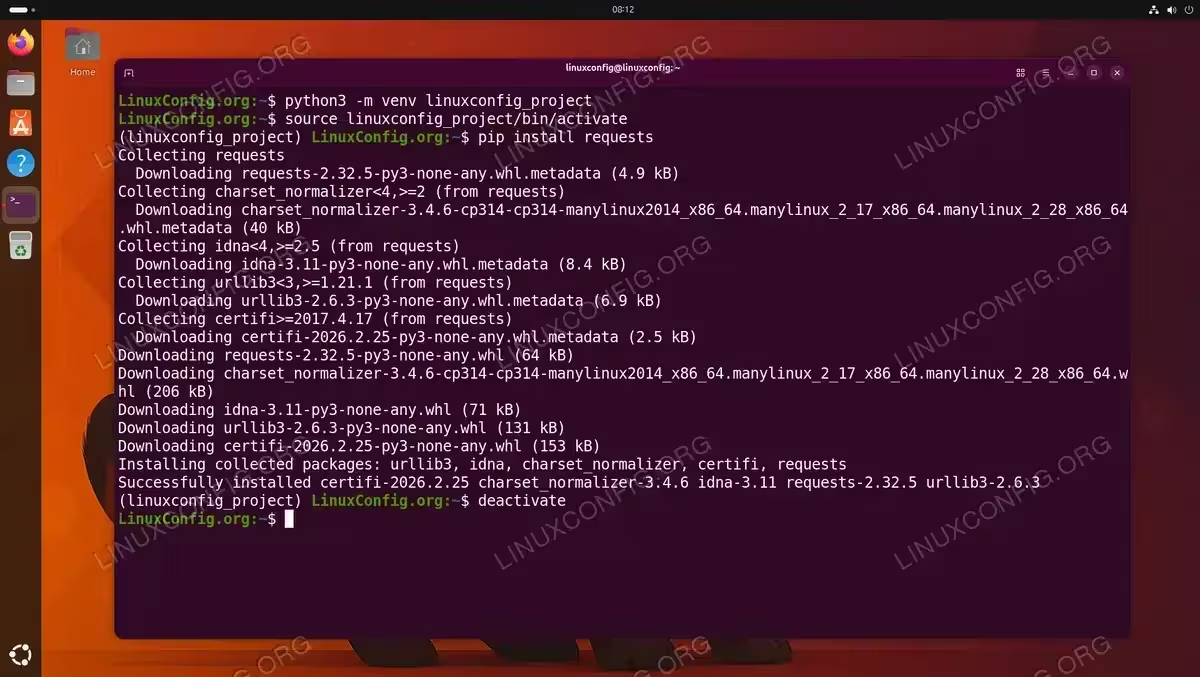
$ python3 -m venv linuxconfig_project
- Activate the environment: Activate the virtual environment to begin using it:
$ source linuxconfig_project/bin/activate
Your terminal prompt will change to indicate the active environment.
- Use pip freely: Inside the virtual environment, you can use
pip(orpip3) without restrictions:$ pip install requests
All packages install into the virtual environment’s directory, keeping your system clean.
- Deactivate when finished: To exit the virtual environment and return to the system Python:
$ deactivate
Conclusion
You have successfully completed the pip install on Ubuntu 26.04. With the straightforward APT method, pip is now ready to manage your Python packages. For day-to-day development, remember to use virtual environments to keep your projects isolated and your system Python clean. With pip and virtual environments configured, you have a solid foundation for Python development on Ubuntu 26.04.
Frequently Asked Questions
- How do I fix the “externally-managed-environment” error when using pip on Ubuntu 26.04? This error occurs because Ubuntu 26.04 uses PEP 668 to protect the system Python environment. The recommended solution is to use a virtual environment (
python3 -m venv) and install packages inside it. Alternatively, you can use the--userflag to install packages into your home directory, or use--break-system-packagesif you understand the risks. - What is the difference between pip and pip3 on Ubuntu 26.04? On Ubuntu 26.04,
pip3is the pip command explicitly linked to Python 3. Thepipcommand may not exist by default. If you wantpipto work as an alias forpip3, install thepython-is-python3package usingsudo apt install python-is-python3. - Can I upgrade pip itself on Ubuntu 26.04? Yes, you can upgrade pip to the latest version using
pip3 install --upgrade pip. However, it is best to do this inside a virtual environment. Upgrading the system pip outside a virtual environment can cause conflicts with the APT-managed version. - Where does pip install packages on Ubuntu 26.04? System-wide packages install to
/usr/lib/python3/dist-packages/. User-level packages (installed with--user) go to~/.local/lib/python3.x/site-packages/. Virtual environment packages are stored within the environment’s ownlibdirectory.