
Installing the right NVIDIA drivers on your Arch Linux system is crucial for optimizing your graphics card’s performance. Whether you’re gaming, designing, or using graphic-intensive applications, the proper driver can make a significant difference. This guide covers the standard method to install NVIDIA drivers using pacman, ensuring compatibility and enhancing your system’s graphics capabilities.
- How to identify your NVIDIA graphics card
- Steps to install NVIDIA drivers via pacman
- How to verify and configure your installation
- Available driver options for different GPU generations
| Category | Requirements, Conventions or Software Version Used |
|---|---|
| System | Arch Linux |
| Hardware | NVIDIA Graphics Card |
| Other | Internet connection for downloading drivers |
| Conventions | # – requires given linux commands to be executed with root privileges either directly as a root user or by use of sudo command$ – requires given linux commands to be executed as a regular non-privileged user |
Installing NVIDIA Drivers via Pacman
- Check Your GPU Model: Before installing drivers, identify your NVIDIA graphics card model. Execute:
$ lspci | grep -i nvidia
00:10.0 VGA compatible controller: NVIDIA Corporation GA102 [GeForce RTX 3080] (rev a1)
This information determines which driver package you need to install.
- Install the Driver Package: Install the NVIDIA driver and utilities using pacman:
$ sudo pacman -S nvidia nvidia-utils nvidia-settings
This installs:
nvidia– The proprietary NVIDIA kernel modules for the standard linux kernelnvidia-utils– NVIDIA userspace utilities and librariesnvidia-settings– GUI configuration tool for NVIDIA graphics
Note: If you’re using the linux-lts kernel, replace
nvidiawithnvidia-lts:LINUX LTS KERNEL
Arch Linux offers both the standard rolling-release kernel (linux) and a Long Term Support kernel (linux-lts) for users who prefer stability over cutting-edge features. To check which kernel you’re currently using, run:uname -r. If the output contains “lts” (e.g., 6.6.x-lts), you’re using the LTS kernel and should install nvidia-lts instead of nvidia.$ sudo pacman -S nvidia-lts nvidia-utils nvidia-settings
This method works for most modern NVIDIA graphics cards (Maxwell generation and newer, roughly GTX 900 series and above).
Alternative Driver Options: Depending on your GPU generation, you may need different driver packages:
nvidia-openornvidia-open-lts– Open-source kernel modules for Turing and newer GPUs (RTX 2000 series and above)nvidia-470xx-dkms– For older Kepler GPUs (GTX 600-900 series)nvidia-390xx-dkms– For even older Fermi GPUs (GTX 400-500 series)
For most users with current hardware, the standard
nvidiapackage is the recommended choice. - Reboot Your System: After installation, reboot to load the new driver:
$ sudo reboot
This ensures the NVIDIA kernel modules are properly loaded and active.
- Verify Installation: After rebooting, verify the driver is working correctly:
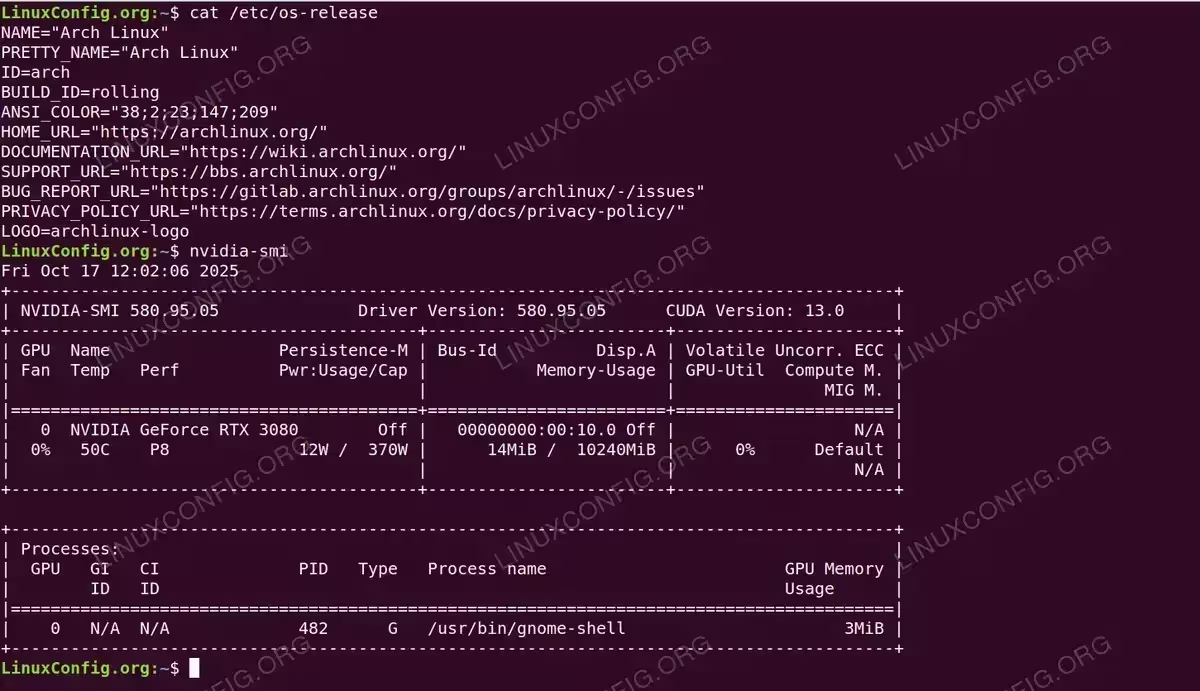
$ nvidia-smi
This output displays your GPU information, driver version, temperature, and memory usage, confirming successful installation.

Terminal output showing successful NVIDIA driver installation on Arch Linux with nvidia-smi displaying GeForce RTX 3080 GPU information, driver version 580.95.05, and system details - Configure NVIDIA Settings: Launch the NVIDIA Settings GUI to adjust your graphics configuration:
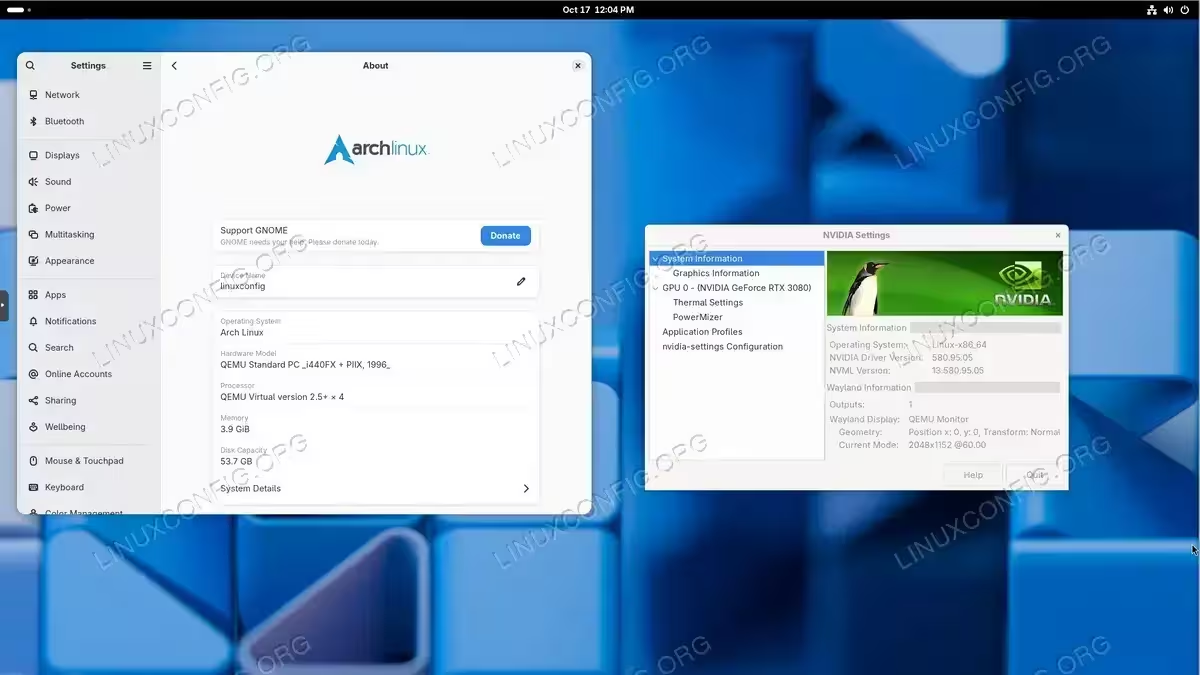
$ nvidia-settings
This tool allows you to monitor GPU temperature, adjust clock speeds, configure multiple displays, manage power settings, and access advanced features. You can launch it from your application menu or directly from the terminal.

Configure NVIDIA X Server Settings on Arch Linux using the nvidia-settings GUI application
Additional Configuration Tips
- Early KMS: For better boot experience and Wayland support, enable early kernel mode setting. Edit your bootloader configuration and add
nvidia_drm.modeset=1to your kernel parameters. For GRUB users, edit/etc/default/gruband add it toGRUB_CMDLINE_LINUX_DEFAULT, then runsudo grub-mkconfig -o /boot/grub/grub.cfg. For systemd-boot users, add it to your loader entry in/boot/loader/entries/ - Automatic Updates: The nvidia package includes a pacman hook located at
/usr/share/libalpm/hooks/nvidia.hookthat automatically rebuilds initramfs when the driver updates, ensuring smooth kernel updates. No manual configuration is needed
Troubleshooting
- Error: Module nvidia not found in directory:
modprobe: FATAL: Module nvidia not found in directory /lib/modules/6.x.x-arch1-1
Solution: This occurs when the kernel and nvidia driver versions are mismatched, usually after a partial system update. Run a full system upgrade to ensure both kernel and nvidia packages are synchronized:
$ sudo pacman -Syu
Then reboot your system. The nvidia module must match your currently running kernel version.
- Error: NVIDIA-SMI has failed because it couldn’t communicate with the NVIDIA driver:
NVIDIA-SMI has failed because it couldn't communicate with the NVIDIA driver.
Make sure that the latest NVIDIA driver is installed and running.
Solution: This typically means the nvidia kernel module is not loaded. First, check if the module is loaded:
$ lsmod | grep nvidia
If empty, try loading it manually:
$ sudo modprobe nvidia
If this fails, check if you’re using a custom or different kernel (like linux-lts) and ensure you have the matching nvidia package (nvidia-lts). For custom kernels, use nvidia-dkms instead and install the appropriate kernel headers:
$ sudo pacman -S nvidia-dkms linux-headers
- Error: Kernel driver in use: nouveau:
$ lspci -k | grep -A 2 -E "(VGA|3D)"
01:00.0 3D controller: NVIDIA Corporation GA106 [GeForce RTX 3060]
Kernel driver in use: nouveau
Solution: The open-source nouveau driver is still being used instead of nvidia. The nvidia package should automatically blacklist nouveau, but you may need to regenerate your initramfs:
$ sudo mkinitcpio -P
$ sudo reboot
If the issue persists, manually blacklist nouveau by creating
/etc/modprobe.d/blacklist-nouveau.confwith the content:blacklist nouveau
Then regenerate initramfs and reboot.
- Error: Failed to allocate primary buffer or Signal 11 crash:
ERROR: Failed to allocate primary buffer: out of memory
Solution: Add the
nopatkernel parameter to your bootloader configuration. For GRUB users, edit/etc/default/gruband addnopattoGRUB_CMDLINE_LINUX_DEFAULT, then run:$ sudo grub-mkconfig -o /boot/grub/grub.cfg
- Error: System freeze or black screen after kernel update:Solution: If your system freezes or shows a black screen after a kernel update, boot into a TTY (Ctrl+Alt+F2) and check the system journal:
$ sudo journalctl -b -1
Often this is caused by a kernel-driver version mismatch. Ensure both are updated together:
$ sudo pacman -Syu
If using a custom kernel or the issue persists, switch to nvidia-dkms which automatically recompiles for each kernel:
$ sudo pacman -S nvidia-dkms linux-headers
$ sudo mkinitcpio -P
Conclusion
Installing NVIDIA drivers on Arch Linux is straightforward using the official repositories and pacman. The standard installation method works for most modern NVIDIA graphics cards, providing optimal performance for gaming, professional work, and general computing. The rolling-release nature of Arch ensures you always have access to the latest driver versions, keeping your graphics performance at its peak. For more detailed information Arch Linux and Nvidia visit Arch’s official documentation.
