
Installing CentOS NVIDIA drivers is essential for your NVIDIA Graphics GPU to operate with optimal performance. The NVIDIA Driver serves as a communication bridge between your Linux operating system and your graphics hardware.
The NVIDIA drivers can be installed by executing the bash command after disabling the nouveau driver through GRUB boot menu modifications. This guide covers manual installation of CentOS NVIDIA drivers using the official package.
To install Nvidia driver on other Linux distributions, follow our Nvidia Linux Driver guide.
In this CentOS NVIDIA Drivers installation guide you will learn:
- How to install NVIDIA graphic driver manually using the official NVIDIA driver from nvidia.com.
- How to identify your NVIDIA graphic card model on your operating system.
- Where to download the NVIDIA driver package for CentOS.
- How to install prerequisites for successful Nvidia Driver compilation and installation on CentOS.
- How to disable the
nouveaudriver. - How to successfully install NVIDIA Drivers on your CentOS Linux operating system.

Software Requirements and Conventions Used
| Criteria | Requirements |
|---|---|
| Operating System | CentOS Linux |
| Software | Existing Desktop installation such as GNOME. |
| Other | Privileged access to your Linux system as root or via the sudo command. |
| Conventions | # – requires given linux commands to be executed with root privileges either directly as a root user or by use of sudo command$ – requires given linux commands to be executed as a regular non-privileged user |
How to install CentOS NVIDIA drivers step by step instructions
Install CentOS Nvidia Driver manually
- This guide will walk you through the manual installation of NVIDIA drivers on CentOS using the official driver package from NVIDIA’s website. This method ensures you get the latest driver version directly from the manufacturer.
- Launch the terminal and identify your Nvidia graphic card model by running:
$ lspci -vnn | grep VGA
06:10.0 VGA compatible controller [0300]: NVIDIA Corporation GA102 [GeForce RTX 3080] [10de:2206] (rev a1) (prog-if 00 [VGA controller])
- Perform a complete system update.
$ sudo dnf update
ATTENTION
Skipping a full system update may lead to a kernel version mismatch causing the: NVIDIA kernel module missing. Possible errors include: ERROR: Unable to find the kernel source tree for the currently running kernel. Please make sure you have installed the kernel source files for your kernel and that they are properly configured; on Red Hat Linux systems, for example, be sure you have the ‘kernel-source’ or ‘kernel-devel’ RPM installed. If you know the correct kernel source files are installed, you may specify the kernel source path with the ‘–kernel-source-path’ command line option. - Download the Nvidia driver package from nvidia.com by entering search criteria based on your Nvidia card model and the Linux operating system.

Navigate to the NVIDIA driver download page and select the correct driver for your graphics card model Experienced users can download the driver directly from the Nvidia Linux driver list. After downloading, you should have a file similar to the one below:
$ ls NVIDIA-Linux-x86_64-*
NVIDIA-Linux-x86_64-580.95.05.run
- Next, install package prerequisites required for successful Nvidia driver compilation and installation.
$ sudo dnf groupinstall "Development Tools"
$ sudo dnf install libglvnd-devel
- Permanently disable the
nouveaudriver through GRUB boot menu modification:sudo grubby --update-kernel=ALL --args="modprobe.blacklist=nouveau"
- Restart your CentOS Desktop:
$ sudo reboot
WARNING
Based on your Nvidia VGA model, your system behavior may vary. At this point, be prepared for potential issues. Following the reboot, you might lose GUI access completely. Ensure that you have the SSH Server enabled on your system for remote login capability, or useCTRL+ALT+F2to switch to TTY console and proceed with the installation. - Install the Nvidia driver by running the following command through TTY console or remote ssh login:
$ sudo bash NVIDIA-Linux-x86_64-*
LOW DISK SPACE DURING INSTALLATION
If installation fails with “No space left on device”, create ~/tmp and run: sudo TMPDIR=~/tmp bash NVIDIA-Linux-*.run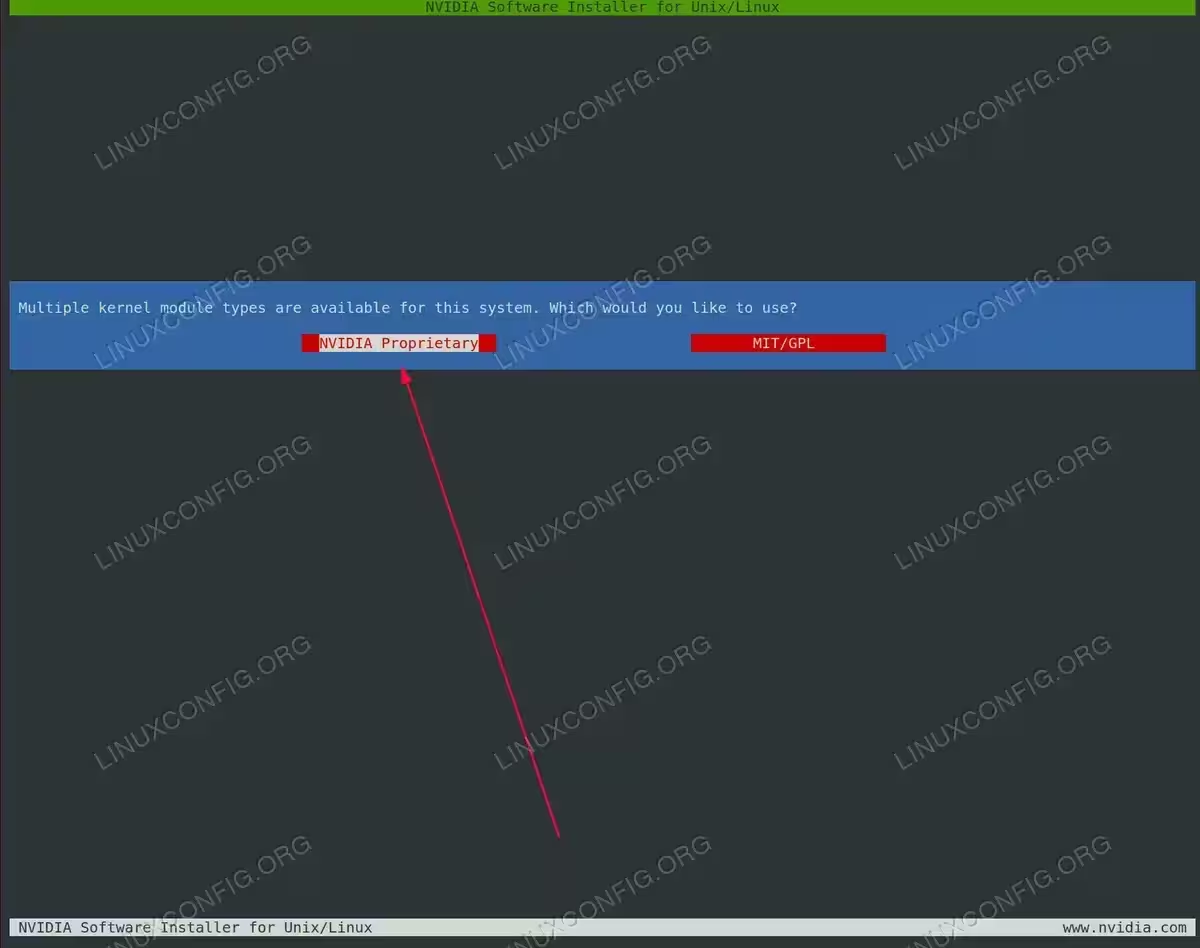
Choose NVIDIA Proprietary kernel module during the CentOS driver installation process 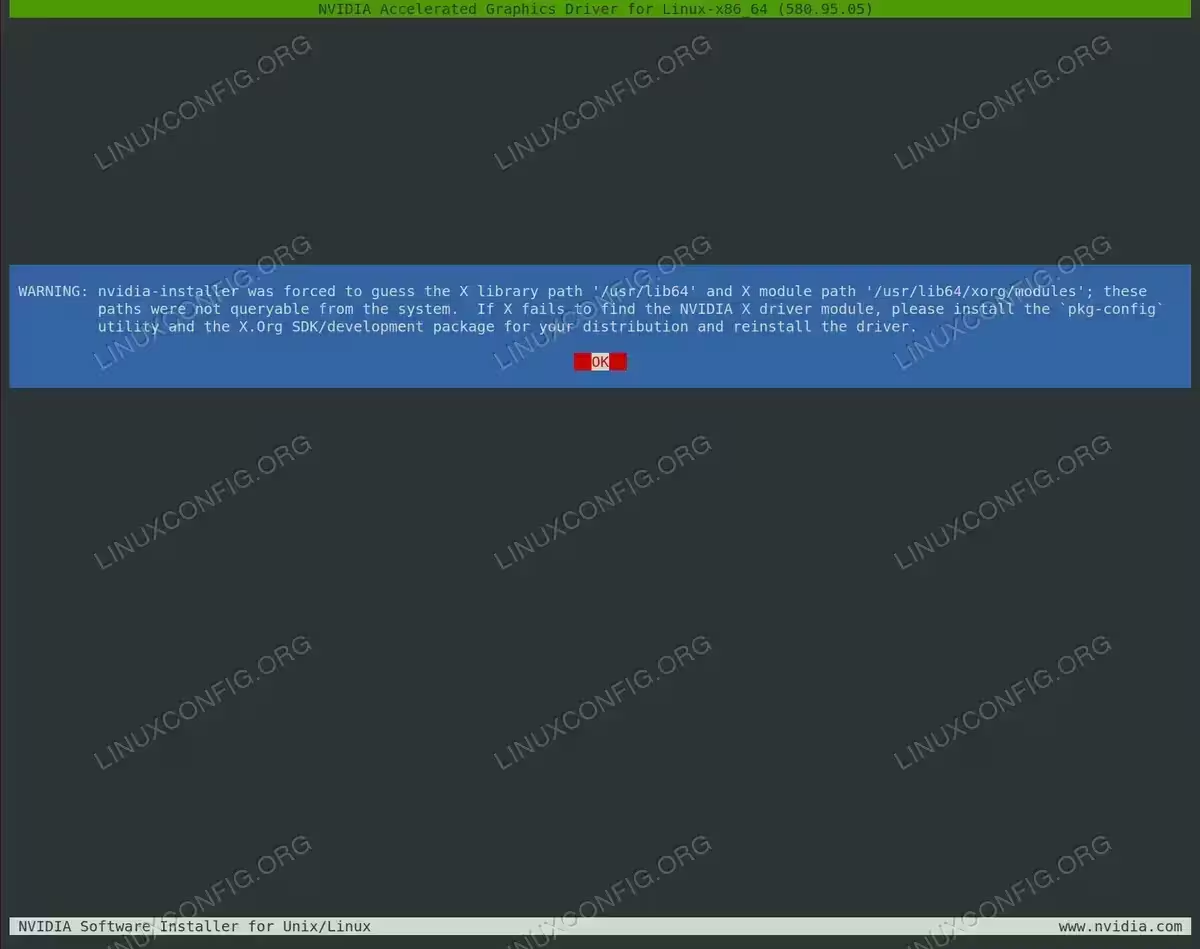
Select OK to acknowledge the X library path notification and proceed with the NVIDIA driver installation on CentOS 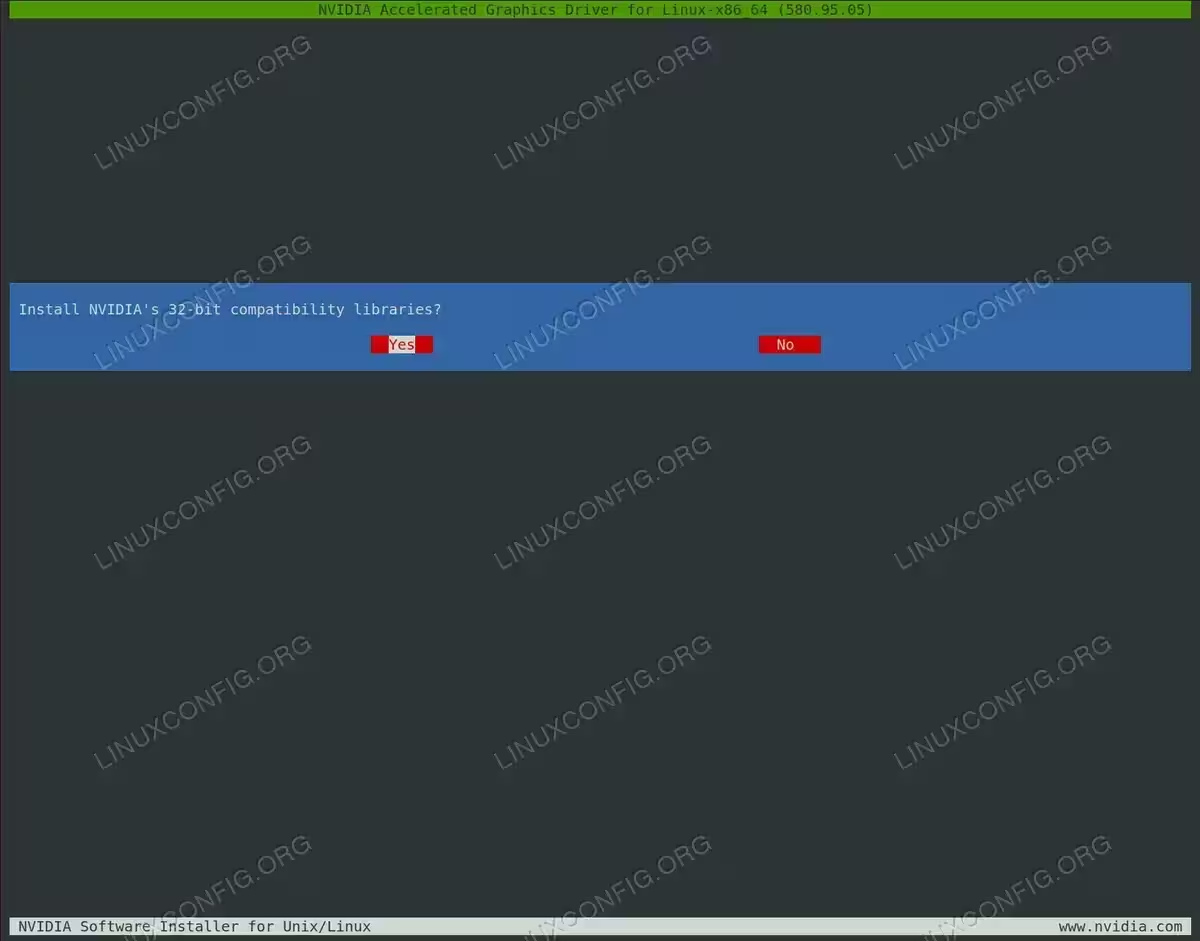
Choose Yes to install NVIDIA’s 32-bit compatibility libraries for enhanced application support, or No if only 64-bit driver support is needed on your CentOS system 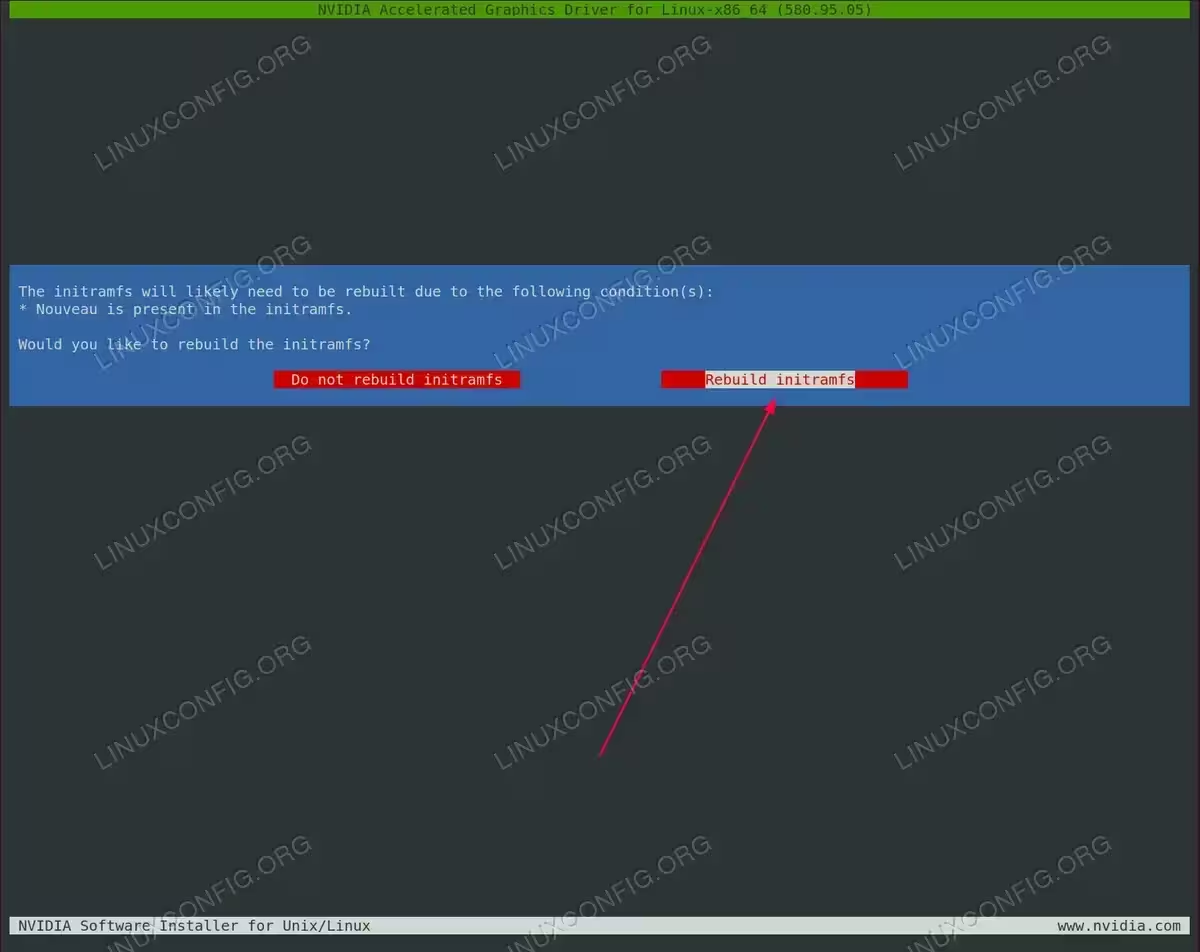
Choose “Rebuild initramfs” to enable the NVIDIA installer to reconstruct the initial RAM filesystem, required due to the nouveau driver being present in the current initramfs 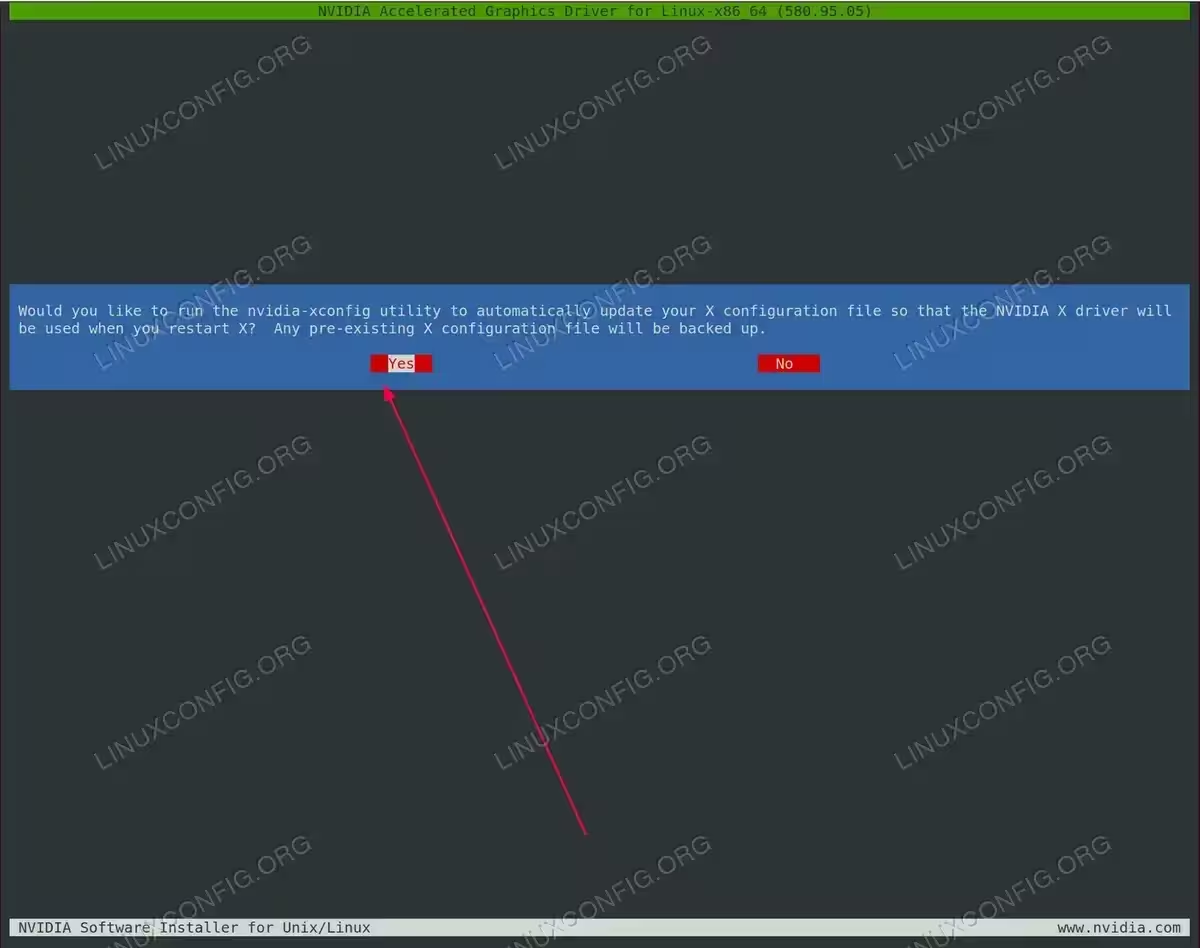
Choose “Yes” to permit nvidia-xconfig utility to automatically modify your X configuration file ensuring the NVIDIA driver will be utilized after reboot, with existing configuration backed up 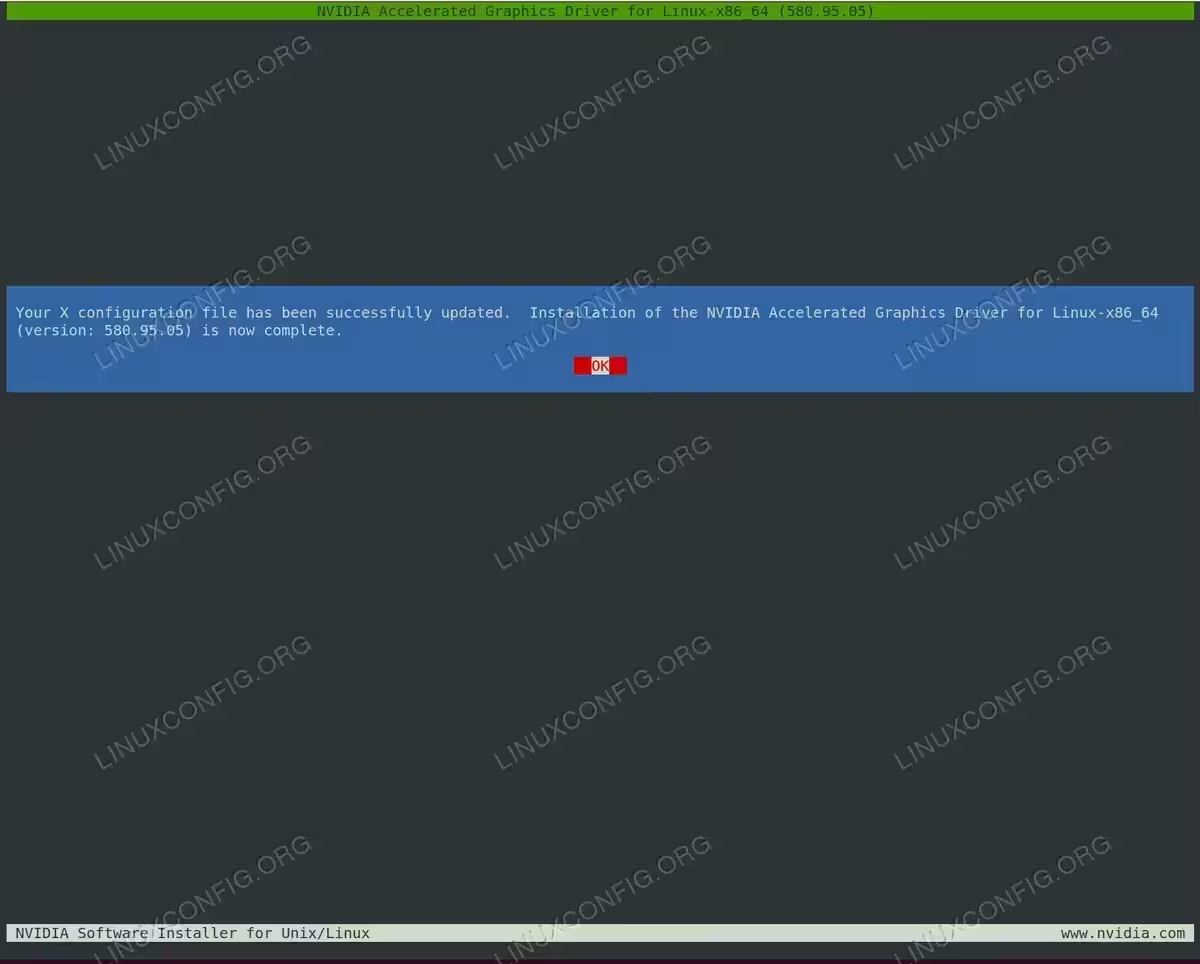
Select OK to complete the installation process – the X configuration file has been modified and NVIDIA driver installation is finished on your CentOS system NOTE
ERROR: Unable to find the kernel source tree for the currently running kernel
If you encounter the above error message when executing the command, follow the kernel source instructions on how to install kernel source on CentOS / RHEL Linux system. - Restart your system once more.
$ sudo reboot
Installation complete. The Nvidia driver should now be operational on your CentOS Desktop. Restart your system, login and execute
nvidia-settingsto further configure your Nvidia graphic card settings.
Installing CentOS NVIDIA Drivers – Conclusion
Installing CentOS NVIDIA drivers requires manual installation from NVIDIA’s official package. This approach provides access to the most recent driver versions directly from the manufacturer.
Before beginning the installation process, verify your system is completely updated to prevent kernel version mismatches. Remember to disable Secure Boot or properly configure MOK key enrollment if keeping it enabled is necessary. Following successful installation, confirm the CentOS NVIDIA drivers function correctly by executing nvidia-smi or nvidia-settings to verify your NVIDIA GPU is properly detected and operational.
CentOS NVIDIA Drivers Troubleshooting
Error: NVIDIA kernel module missing. Falling back to nouveau
Symptom: Following installation and reboot, the system shows an error message indicating “NVIDIA kernel module missing. Falling back to nouveau.”
Cause: This error generally occurs due to a kernel version mismatch between the active kernel and the kernel headers utilized during driver compilation.
Solution: Verify your system is completely updated before installing the NVIDIA driver:
$ sudo dnf update
$ sudo reboot
Following the reboot, reinstall the NVIDIA driver by following the installation steps in this guide.
Error: Unable to find the kernel source tree for the currently running kernel
Symptom: During manual installation, you face the error: “ERROR: Unable to find the kernel source tree for the currently running kernel.”
Cause: The kernel development files necessary for driver compilation are absent.
Solution: Install the kernel development packages:
$ sudo dnf install kernel-devel kernel-headers
$ sudo dnf install gcc make dkms
Verify the kernel-devel version matches your running kernel:
$ uname -r
$ rpm -qa kernel-devel
If versions are mismatched, update your system and reboot before attempting installation once more.
Black screen after user login with GDM
Symptom: GDM on Xorg server fails to start following user login and you encounter a black screen. The Xorg log (/var/log/Xorg.0.log) shows errors including “[dix] couldn’t enable device” messages.
Cause: The systemd-logind service may experience issues managing device access for the NVIDIA driver.
Solution: Restart the systemd-logind service:
$ sudo systemctl restart systemd-logind
If the problem continues after restart, attempt rebooting the system:
$ sudo reboot
X server fails to start after driver installation
Symptom: The graphical interface fails to start following NVIDIA driver installation, leaving you at a text console or login screen.
Cause: The X configuration may not be correctly configured for the NVIDIA driver, or the nouveau driver remains active.
Solution:
Initially, verify that nouveau is correctly disabled:
$ lsmod | grep nouveau
If nouveau shows in the output, ensure the blacklist is properly configured:
$ sudo grubby --update-kernel=ALL --args="modprobe.blacklist=nouveau"
$ sudo dracut --force
$ sudo reboot
If nouveau is disabled but X still fails to start, manually execute nvidia-xconfig:
$ sudo nvidia-xconfig
$ sudo reboot
No GUI after reboot following manual installation
Symptom: Following manual driver installation and reboot, the system boots to a text console rather than the graphical desktop.
Cause: The display manager may have failed to start, or the system remains in multi-user text mode.
Solution: Switch back to graphical mode:
$ sudo systemctl isolate graphical.target
To configure graphical mode as the default boot target:
$ sudo systemctl set-default graphical.target
Secure Boot preventing NVIDIA driver from loading
Symptom: System shows “NVIDIA kernel module missing. Falling back to nouveau” message despite successful driver installation. This frequently happens on systems with Secure Boot enabled.
Cause: Secure Boot mandates kernel modules to be signed with a trusted key. The NVIDIA driver module lacks proper signing or the MOK (Machine Owner Key) has not been enrolled.
Solution: For manual installations with Secure Boot, you need to sign the NVIDIA kernel module. The simplest approach is disabling Secure Boot in your BIOS/UEFI settings if it’s not mandatory for your use case.
Alternatively, you can manually sign the kernel module following MOK enrollment procedures, though this process is complex and beyond the scope of this guide.
Error: modinfo ERROR Module nvidia not found
Symptom: Executing modinfo -F version nvidia returns “modinfo: ERROR: Module nvidia not found.”
Cause: The NVIDIA kernel module was not correctly compiled or installed for the current kernel.
Solution: Reinstall the driver by following the manual installation steps from the beginning. Ensure all prerequisites are installed and the system is fully updated before attempting installation.
Driver reinstallation needed after kernel update
Symptom: Following a CentOS kernel update, the NVIDIA driver ceases working and the system reverts to nouveau.
Cause: Manual driver installations necessitate recompilation for each new kernel version.
Solution: You must reinstall the driver by following the manual installation steps again with the new kernel. This is a normal requirement for manually installed NVIDIA drivers on CentOS.
Before reinstalling, ensure your system is fully updated and then proceed with the installation process from step 7 onwards (after ensuring prerequisites are still installed).
Error: nvidia-settings could not find the registry key file
Symptom: Executing nvidia-settings displays error: “ERROR: nvidia-settings could not find the registry key file or the X server is not accessible.”
Cause: The NVIDIA driver is not correctly loaded or the X server is not running with the NVIDIA driver.
Solution: Confirm the NVIDIA driver is loaded:
$ lsmod | grep nvidia
$ nvidia-smi
If nvidia-smi functions but nvidia-settings doesn’t, ensure you’re executing it in a graphical session with the NVIDIA driver active. If the driver is not loaded, review earlier troubleshooting steps for driver installation issues.