
The tutorial will explain how to fedora enable ssh server and SSH client connections on fedora linux Workstation. By default the SSH server on Fedora Workstation may be installed but not enabled. This will cause a following error message when connecting via SSH client:
ssh: connect to host fedora-workstation port 22: Connection refused
In this tutorial you will learn:
- How to fedora enable ssh server
- How to enable ssh server
- How to start ssh server
- How to Connect to SSH server
Software Requirements and Conventions Used
| Category | Requirements, Conventions or Software Version Used |
|---|---|
| System | Fedora >= 30 |
| Software | OpenSSH |
| Other | Privileged access to your Linux system as root or via the sudo command. |
| Conventions | # – requires given linux commands to be executed with root privileges either directly as a root user or by use of sudo command$ – requires given linux commands to be executed as a regular non-privileged user |
Fedora Enable SSH Server Step by Step Instructions
- First step is to check whether the
openssh-serveris installed on your Fedora system. To do so execute the following command which in case the SSH server is install should produce a relevant output. Example:$ rpm -qa | grep openssh-server openssh-server-7.9p1-5.fc30.x86_64
In case the above command did not produced any output use the
dnfcommand install packageopenssh-server:$ sudo dnf install openssh-server
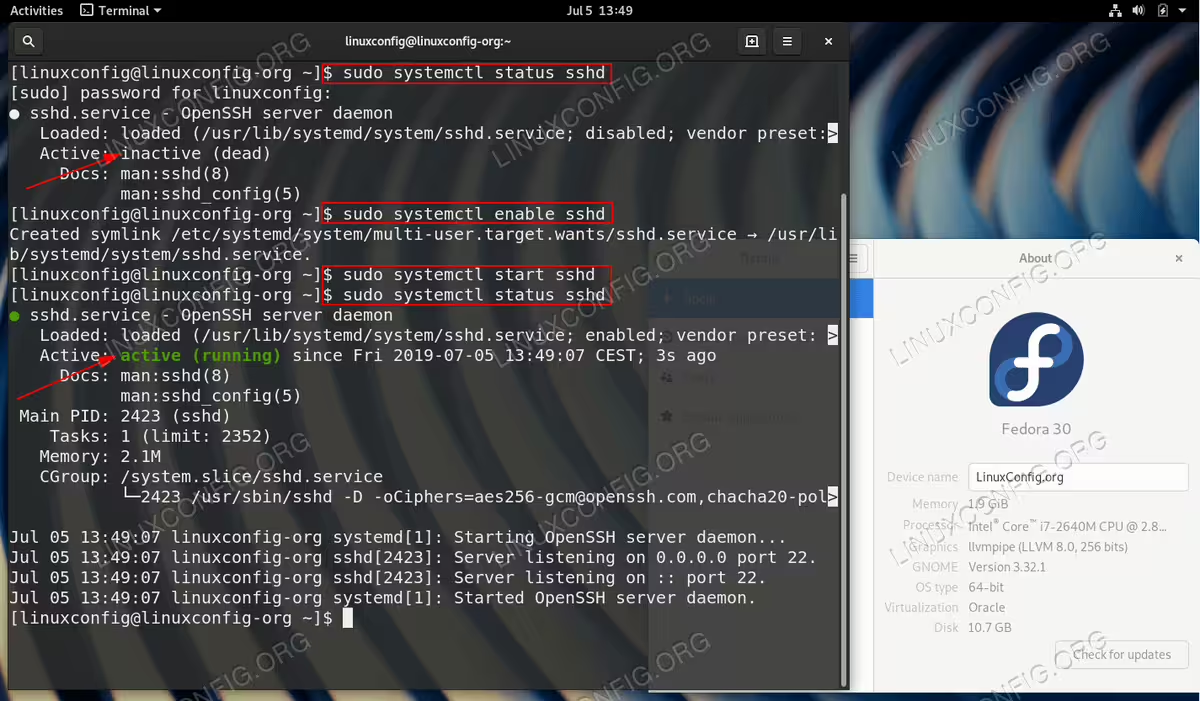
- Next step to fedora enable ssh is to enable systemd service
sshdto make sure that SSH daemon will start after the reboot. Use the following command to enable sshd:$ sudo systemctl enable sshd
- Once the sshd service is enable use once again the
systemcltcommand to start sshd:$ sudo systemctl start sshd
Once ready check the SSH server status using the following command:
$ sudo systemctl status sshd
Furthermore, you should now see the port
22open for a new incoming connections:$ sudo ss -lt
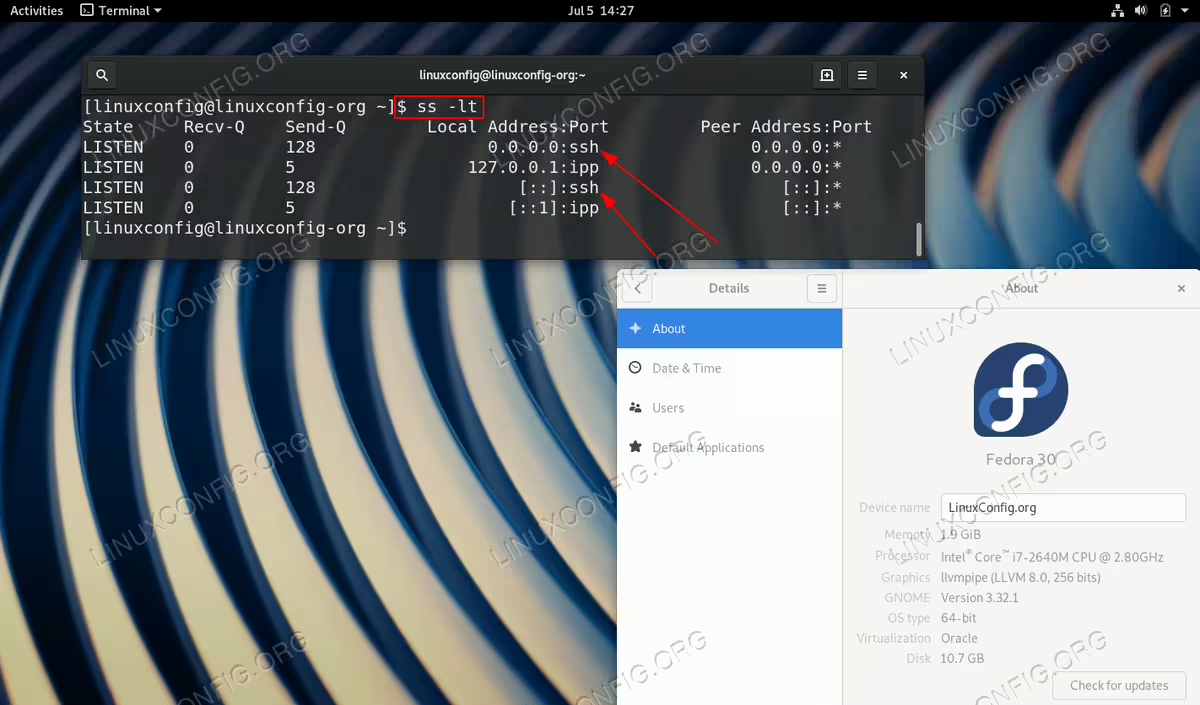 Check for SSH server opened port 22 using
sscommand.NOTE
In case you are running a firewall you might need to first open the SSH port. Otherwise your incoming SSH connection will be refused. - Now, we are ready to connect to the SSH server on the Fedora Workstation system. Example:
$ ssh username@fedora-ip-or-hostname
Conclusion
You have successfully learned how to fedora enable ssh server on Fedora Workstation. The SSH service is now configured to start automatically on boot, allowing you to connect remotely to your Fedora system. Remember to keep your SSH server updated and consider implementing additional security measures such as key-based authentication for production environments.
Troubleshooting
If you encounter issues while connecting to your Fedora SSH server, here are common problems and their solutions:
Fedora SSH Connection Refused
If you receive a “connection refused” error, the SSH service is not running or the port is blocked. Check the following:
- Verify the SSH service is running:
sudo systemctl status sshd - Ensure the firewall allows SSH traffic:
sudo firewall-cmd --list-all - Open port 22 if needed:
sudo firewall-cmd --permanent --add-service=ssh && sudo firewall-cmd --reload - Confirm SSH is listening on port 22:
sudo ss -tlnp | grep :22
Fedora SSH Permission Denied
If you receive a “permission denied” error, this is typically an authentication issue:
- Verify you’re using the correct username and password
- Check that password authentication is enabled in
/etc/ssh/sshd_config - Ensure your user account has the correct permissions
- Review SSH logs for details:
sudo journalctl -u sshd -n 50 - If using SSH keys, verify the key permissions are correct (600 for private key)