
Adding a user to sudoers on Ubuntu 26.04 grants that user the ability to execute commands with elevated root privileges using the sudo command. Whether you are setting up a new server, creating accounts for team members, or troubleshooting an access issue, knowing how to sudo add a user on Ubuntu 26.04 is an essential system administration skill. This guide covers every supported method, including the recommended group-based approach and direct sudoers file editing.
Table of Contents
In this tutorial you will learn:
- How to add a user to the sudo group on Ubuntu 26.04
- How to grant sudo privileges via the sudoers file using visudo
- How to create a drop-in sudoers configuration in /etc/sudoers.d/
- How to verify that sudo access is working correctly
- How to revoke sudo privileges when they are no longer needed
Software Requirements
| Category | Requirements, Conventions or Software Version Used |
|---|---|
| System | Ubuntu 26.04 Resolute Raccoon |
| Software | sudo 1.9.x (pre-installed), usermod (util-linux) |
| Other | Privileged access to your Linux system as root or via the sudo command. |
| Conventions | # – requires given linux commands to be executed with root privileges either directly as a root user or by use of sudo command$ – requires given linux commands to be executed as a regular non-privileged user |
TL;DR
sudo group with usermod.
| Step | Command/Action |
|---|---|
| 1. Add user to sudo group | sudo usermod -aG sudo linuxconfig |
| 2. Apply the new group membership | newgrp sudo (requires util-linux-extra) or log out and back in |
| 3. Verify sudo access | sudo whoami |
Add User to sudo Group on Ubuntu 26.04
The simplest and most recommended way to sudo add a user on Ubuntu 26.04 is to add them to the sudo group. Ubuntu pre-configures this group in /etc/sudoers with full administrative access, so any user who belongs to it automatically gains the ability to run commands as root.
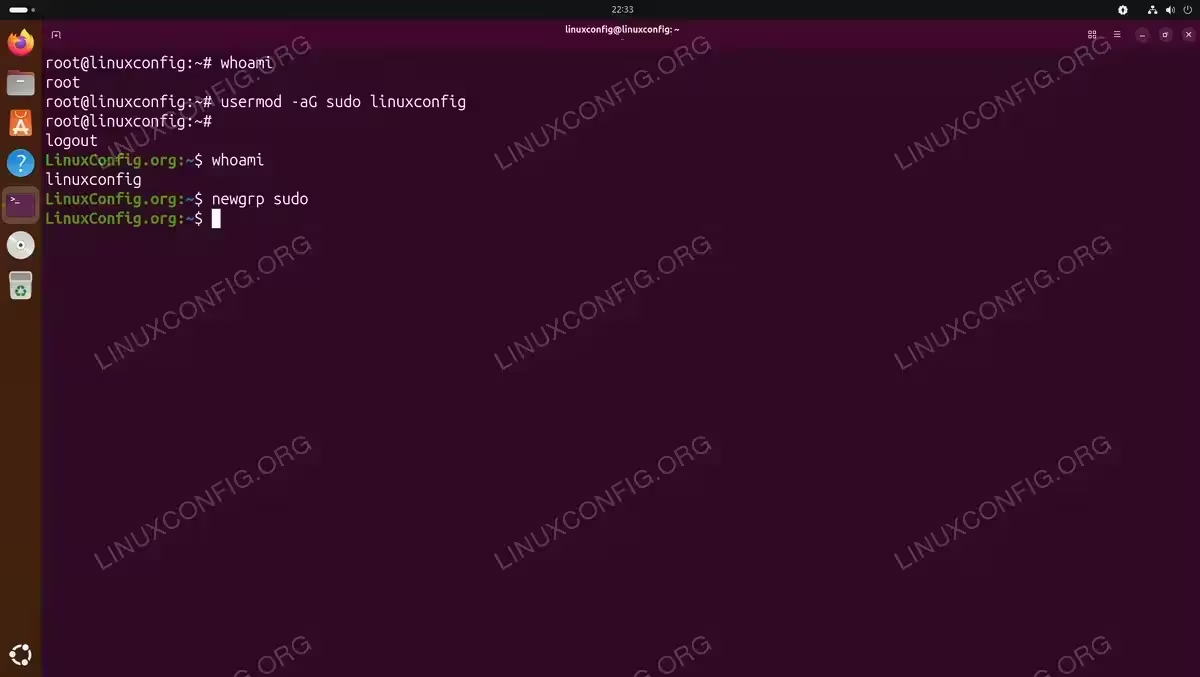
Use the usermod command with the -aG flags. The -a flag appends the user to the group without removing them from any existing groups, and -G specifies the target group:
- Add the user to the sudo group: Replace
linuxconfigwith the actual account name you want to grant privileges to.# usermod -aG sudo linuxconfig
This command modifies the user’s group membership in
/etc/group. The change takes effect at the user’s next login session.IMPORTANT
Theusermod -aG sudo linuxconfigcommand must be executed with root privileges. Run it either directly as the root user, or prefix it withsudofrom an account that has already been assigned to the sudo group:sudo usermod -aG sudo linuxconfig - Apply the group change immediately: To avoid logging out, the target user can run
newgrpin their existing session to activate the new group membership:$ newgrp sudo
Note that
newgrpis not installed by default on Ubuntu 26.04. Install it first withsudo apt install util-linux-extra. Alternatively, simply log out and log back in.
IMPORTANT
Always use the -a (append) flag with usermod -aG. Omitting -a will replace all of the user’s supplementary groups with only the specified group, potentially locking them out of other services.
Edit the sudoers File Directly with visudo
An alternative approach is to edit the /etc/sudoers file directly. You should never edit this file with a regular text editor because a syntax error can lock all users out of sudo on the entire system. Instead, always use visudo, which validates the file before saving.
- Open the sudoers file: Run visudo with root privileges.
# visudo
This opens
/etc/sudoersin your default editor (typicallynanoon Ubuntu 26.04). - Add a privilege line for the user: Scroll to the end of the file and add the following line, substituting the actual linuxconfig:
linuxconfig ALL=(ALL:ALL) ALL
This rule means the user can run any command as any user or group from any host. The format is:
user host=(runas_user:runas_group) commands. - Save and exit: In nano, press Ctrl+O then Enter to save, followed by Ctrl+X to exit.
visudowill validate the syntax before writing the file.
SECURITY ALERT
Granting a user ALL=(ALL:ALL) ALL gives them unrestricted root access. For most situations, adding the user to the sudo group is preferable because it is easier to audit and revoke. Use direct sudoers entries only when you need fine-grained command restrictions.
You can also restrict the user to specific commands. For example, to allow a user to only restart a specific service:
linuxconfig ALL=(ALL) /usr/bin/systemctl restart nginx
This is a much safer approach for service accounts or automation users. For a broader look at privilege configuration, the official Ubuntu Sudoers documentation provides an in-depth reference.
Add a Drop-in File to /etc/sudoers.d/
Ubuntu 26.04 includes the /etc/sudoers.d/ directory, which allows you to place individual sudo configuration files rather than editing the main /etc/sudoers file. This approach keeps configurations modular and easier to manage, especially when you want to grant privileges to specific users or groups independently.
- Create a new drop-in file with visudo: Use the
-fflag to specify a new file path. Replacelinuxconfigin the filename with the actual account name.# visudo -f /etc/sudoers.d/linuxconfig
- Add the privilege rule: In the editor, add the appropriate rule for the user.
linuxconfig ALL=(ALL:ALL) ALL
- Set correct permissions: The file must be owned by root and not world-writable.
visudohandles this automatically, but if you copy a file in manually, set permissions explicitly:# chmod 0440 /etc/sudoers.d/linuxconfig
IMPORTANT
Files in /etc/sudoers.d/ must not contain a dot (.) or end with a tilde (~) in their filename, or they will be silently ignored by sudo.
When adding users to groups for system administration tasks, the drop-in approach scales well because you can remove a user’s sudo access simply by deleting their file without touching the main configuration.
Verify sudo Access on Ubuntu 26.04
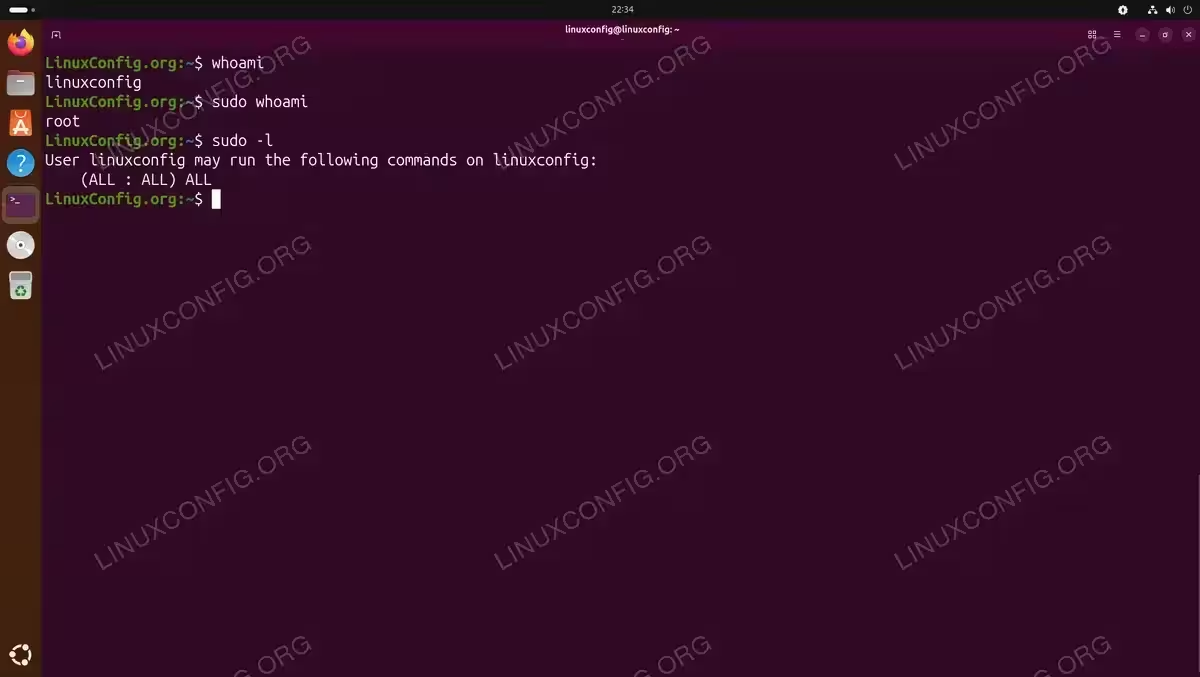
After you sudo add a user on Ubuntu 26.04 using any of the methods above, confirm that the change is working correctly. Switch to the target user account and run a command that requires root access:
$ sudo whoami
If sudo is configured correctly, the output will be:
root
You can also list the user’s effective sudo privileges with:
$ sudo -l
This displays all commands the current user is allowed to run, along with any restrictions. It is a useful diagnostic step when troubleshooting sudo issues.
If the user needs to run sudo commands without entering a password each time, you can configure sudo without a password for that account. Similarly, if you want to understand the full range of what the sudo command can do, reviewing its options is worthwhile.
Remove sudo Privileges from a User
Revoking sudo access is just as important as granting it. The method you use to remove privileges depends on how they were originally granted.
- Remove from sudo group: Use
deluserorgpasswdto remove the user from the sudo group.# gpasswd -d linuxconfig sudo
The change takes effect at the user’s next login.
- Remove a sudoers.d drop-in file: Simply delete the file you created earlier.
# rm /etc/sudoers.d/linuxconfig
This immediately removes the user’s custom sudo rules.
- Comment out a visudo entry: If the rule is in the main
/etc/sudoersfile, open it withvisudoand prefix the relevant line with a#to disable it.# linuxconfig ALL=(ALL:ALL) ALL
To verify the user no longer has sudo access, switch to their account and attempt a privileged command. They should see a permission denied error or be prompted to contact the system administrator.
For additional scenarios involving running sudo without a password, ensure those configurations are also reviewed when revoking access.
Conclusion
This guide covered the primary methods to sudo add a user on Ubuntu 26.04: using the sudo group via usermod, editing the sudoers file directly with visudo, and creating a modular drop-in configuration in /etc/sudoers.d/. For most use cases, the group-based method is the cleanest and easiest to maintain. Direct sudoers entries are best reserved for situations requiring command-specific restrictions. Always verify access after any change and revoke privileges promptly when they are no longer required.
Frequently Asked Questions
- What is the difference between adding a user to the sudo group vs. editing the sudoers file? Adding a user to the
sudogroup grants them full root access through Ubuntu’s pre-configured group rule in/etc/sudoers. Editing the sudoers file directly gives you more control, such as restricting which commands the user can run. For general administrative access, the group method is simpler and easier to manage. - Do I need to log out after adding a user to the sudo group on Ubuntu 26.04? Yes, group membership changes do not apply to existing sessions automatically. The user must log out and log back in, or use
newgrp sudoin their current terminal to activate the new group without a full logout. Note thatnewgrprequires theutil-linux-extrapackage, installable withsudo apt install util-linux-extra. - What happens if I edit /etc/sudoers without using visudo? Editing
/etc/sudoersdirectly with a standard text editor such as nano or vim bypasses syntax validation. A single typo can render sudo completely non-functional for all users, potentially locking you out of root access. Always usevisudo, which validates the file before saving and prevents you from writing a broken configuration. - How do I check which users have sudo privileges on Ubuntu 26.04? Run
grep -Po '^sudo.+:\K.*$' /etc/groupto see members of the sudo group. Additionally, review/etc/sudoersand all files in/etc/sudoers.d/for any user-specific entries that grant elevated access outside of the group.