
Docker provides a powerful platform for running containerized applications on Ubuntu 26.04. This guide walks you through how to install Docker on Ubuntu 26.04, configure your system for non-root access, and verify the installation works correctly.
Table of Contents
In this tutorial you will learn:
- How to install Docker from the Ubuntu repository
- How to configure non-root user access to Docker
- How to verify your Docker installation
- How to install Docker from Docker’s official repository (optional)
Software Requirements
| Category | Requirements, Conventions or Software Version Used |
|---|---|
| System | Ubuntu 26.04 Resolute Raccoon |
| Software | docker.io and util-linux-extra (or docker-ce from official repository) |
| Other | Privileged access to your Linux system as root or via the sudo command. |
| Conventions | # – requires given linux commands to be executed with root privileges either directly as a root user or by use of sudo command$ – requires given linux commands to be executed as a regular non-privileged user |
sudo apt install docker.io util-linux-extra. After installation, add your user to the docker group with sudo usermod -aG docker $USER to run containers without sudo.
| Step | Command/Action |
|---|---|
| 1. Update package index | sudo apt update |
| 2. Install Docker | sudo apt install docker.io util-linux-extra |
| 3. Add user to docker group | sudo usermod -aG docker $USER |
| 4. Verify installation | docker run hello-world |
Install Docker from Ubuntu Repository
The simplest way to install Docker on Ubuntu 26.04 is through the official Ubuntu repositories. This method provides a stable, tested version that integrates well with the system.
- Update the package index: Refresh your package lists to ensure you get the latest available version.
$ sudo apt update
- Install the docker.io package: This installs Docker along with all required dependencies. The
util-linux-extrapackage provides thenewgrpcommand needed for post-installation configuration.$ sudo apt install docker.io util-linux-extra
- Verify Docker service is running: Docker should start and enable automatically after installation. Run these commands to confirm or manually start the service if needed.
$ sudo systemctl start docker
$ sudo systemctl enable docker
The docker.io package is maintained by Ubuntu and provides a reliable Docker experience for most use cases.
Post-Installation Configuration
By default, Docker requires root privileges to run. To allow your regular user account to run Docker commands without sudo, add your user to the docker group.
- Add your user to the docker group: Replace
$USERwith your username if running as root.$ sudo usermod -aG docker $USER
- Apply the group membership: Log out and log back in for the changes to take effect, or run:
$ newgrp docker
SECURITY ALERT
Adding a user to the docker group grants root-equivalent privileges. Only add trusted users to this group.
Verify Docker Installation on Ubuntu 26.04
After installation, verify that Docker is working correctly using several methods.
Check Docker Version
Confirm Docker is installed and display the version number:
$ docker --version
Expected output:
Docker version 27.5.1, build 9f9e405
Check Docker Service Status
Verify the Docker daemon is running:
$ systemctl status docker
Look for “active (running)” in the output to confirm the service is operational.
Run a Test Container
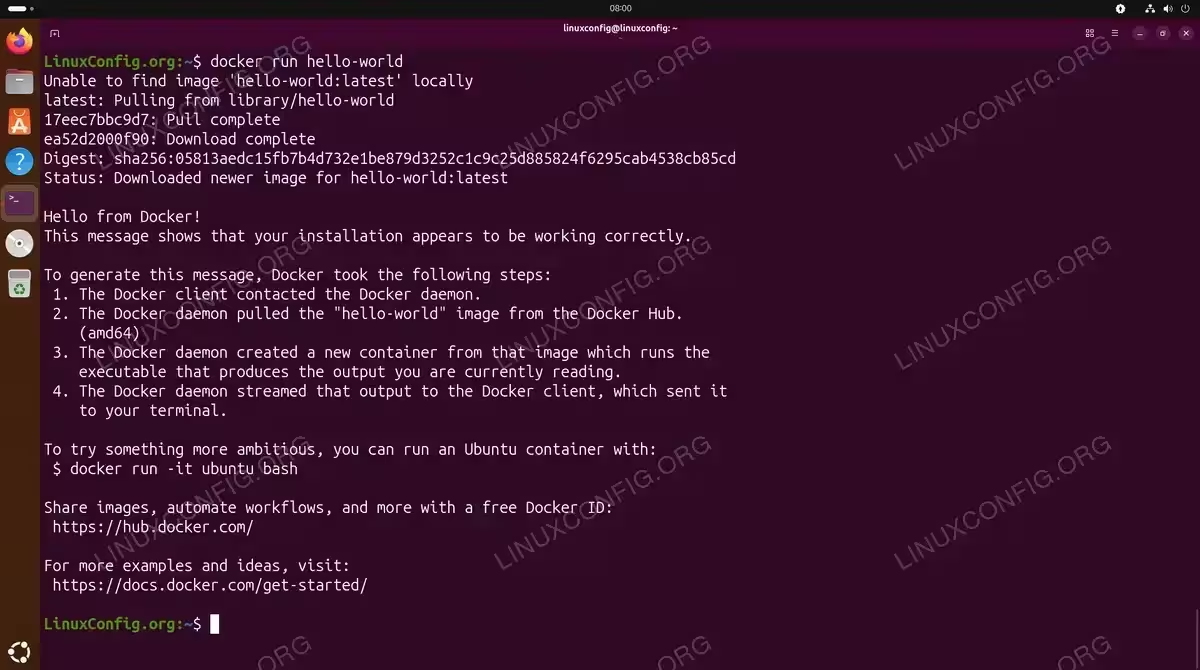
The hello-world container provides a simple way to verify Docker can pull images and run containers:
$ docker run hello-world
A successful run displays a message confirming Docker is installed correctly and explains the steps Docker took to run the container.
Install Docker from Official Repository (Optional)
For the latest Docker features and updates, you can install Docker CE (Community Edition) directly from Docker’s official repository. This method requires a few additional steps but ensures you have access to the newest releases.
IMPORTANT
Docker’s official repository for Ubuntu 26.04 will become available after the official release date in April 2026. Until then, use the Ubuntu repository method described above.
IMPORTANT
If you already installed docker.io using the method above, remove it first with sudo apt remove docker.io before proceeding to avoid conflicts.
- Install prerequisite packages: These packages allow apt to use repositories over HTTPS.
$ sudo apt install ca-certificates curl gnupg
- Add Docker’s official GPG key: This key verifies the authenticity of Docker packages.
$ sudo install -m 0755 -d /etc/apt/keyrings
$ sudo curl -fsSL https://download.docker.com/linux/ubuntu/gpg -o /etc/apt/keyrings/docker.asc
$ sudo chmod a+r /etc/apt/keyrings/docker.asc
- Add the Docker repository: Configure apt to use Docker’s official repository.
$ echo \ "deb [arch=$(dpkg --print-architecture) signed-by=/etc/apt/keyrings/docker.asc] https://download.docker.com/linux/ubuntu \ $(. /etc/os-release && echo "${UBUNTU_CODENAME:-$VERSION_CODENAME}") stable" | \ sudo tee /etc/apt/sources.list.d/docker.list > /dev/null - Update package index and install Docker: Install Docker CE along with additional components.
$ sudo apt update
$ sudo apt install docker-ce docker-ce-cli containerd.io docker-buildx-plugin docker-compose-plugin
Conclusion
You have successfully completed the Docker install on Ubuntu 26.04. Your system is now ready for containerization. You can now get started with Docker by exploring Docker images, pulling containers from Docker Hub, or learn how to restart Docker when needed. For a graphical interface, consider installing Docker Desktop on your Ubuntu 26.04 system.
Frequently Asked Questions
- What is the difference between docker.io and docker-ce? The
docker.iopackage is maintained by Ubuntu and available in the default repositories, providing a stable but potentially older version. Thedocker-ce(Community Edition) package comes directly from Docker’s official repository and offers the latest features and updates. Both are functionally equivalent for most use cases. - Why do I get “permission denied” when running docker commands? This error occurs when your user is not in the docker group. Run
sudo usermod -aG docker $USERand then log out and back in. Alternatively, usenewgrp dockerto apply the group membership immediately without logging out. - Can I install both docker.io and docker-ce on the same system? No, you should not install both packages simultaneously as they conflict with each other. Choose one method and remove the other if it exists. Use
sudo apt remove docker.iobefore installing docker-ce, or vice versa. - How do I check if Docker is already installed on my system? Run
docker --versionin the terminal. If Docker is installed, you will see the version number. If not, you will receive a “command not found” error. You can also check installed packages withdpkg -l | grep docker.