
Bash, the Bourne Again Shell, is a powerful command language interpreter that is widely used in Linux environments. Learning the syntax of Bash commands can help you perform a wide range of tasks, from basic file manipulation to advanced scripting. In this guide, we’ll explore essential Bash command syntax and cover 18 examples, moving from basic to intermediate levels. Whether you’re just starting or looking to build a foundation for more complex commands or wishing to write your first bash script, this tutorial will help you gain confidence in using Bash effectively.
In this tutorial you will learn:
- The basic structure of Bash commands
- How to use options and arguments effectively
- Practical examples of common Bash commands
| Category | Requirements, Conventions or Software Version Used |
|---|---|
| System | Linux (any distribution with Bash support) |
| Software | Bash 4.0 or higher |
| Other | Basic understanding of the terminal |
| Conventions | # – requires given linux commands to be executed with root privileges either directly as a root user or by use of sudo command$ – requires given linux commands to be executed as a regular non-privileged user |
Getting Started with Bash Command Syntax
Each Bash command follows a straightforward structure: the command name, followed by options (to modify command behavior), and arguments (to specify targets). Understanding this syntax is key to becoming proficient in the Linux command line. Let’s dive into 18 examples, starting with simple commands and building up to more advanced ones.
- Printing Text with echo: The
echocommand displays text in the terminal.$ echo "Hello, World!"
This example outputs “Hello, World!” to the terminal. The echo command is a fundamental way to print messages or variables in Bash scripts.

Printing Text with echo - Listing Files and Directories with ls: Use
lsto list files and directories in the current directory.$ ls
You’ll see a list of all files and directories. Add the
-loption for a detailed listing.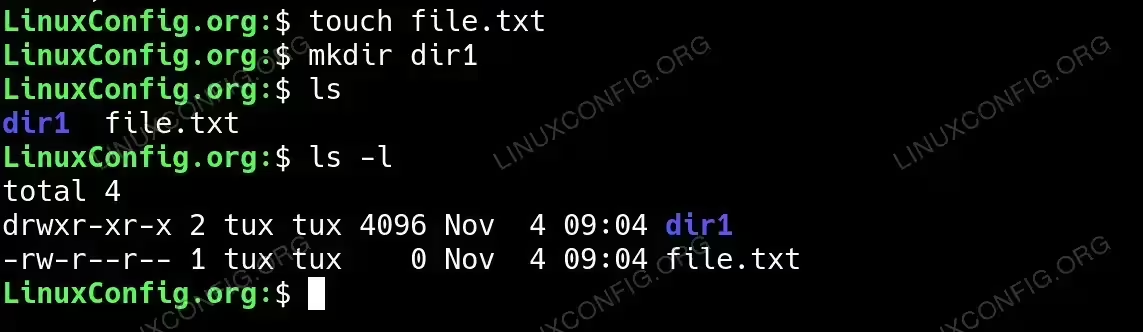
Listing Files and Directories with ls command - Creating a Directory with mkdir: The
mkdircommand creates new directories.$ mkdir new_directory
This command creates a directory named “new_directory”. Using
-pwithmkdirlets you create nested directories. - Changing Directory with cd: Use
cdto navigate directories.$ cd /path/to/directory
Change to the specified directory, making it the current working directory.
- Displaying the Current Directory with pwd: The
pwdcommand prints the current directory.$ pwd
This is helpful for tracking your location within the directory structure.
- Viewing File Content with cat: The
catcommand displays file content.$ cat filename.txt
This shows the content of “filename.txt” in the terminal. Add
moreorlessfor paginated viewing. - Copying Files with cp: The
cpcommand copies files or directories.$ cp source_file.txt destination.txt
This creates a copy of “source_file.txt” named “destination.txt” in the current directory.
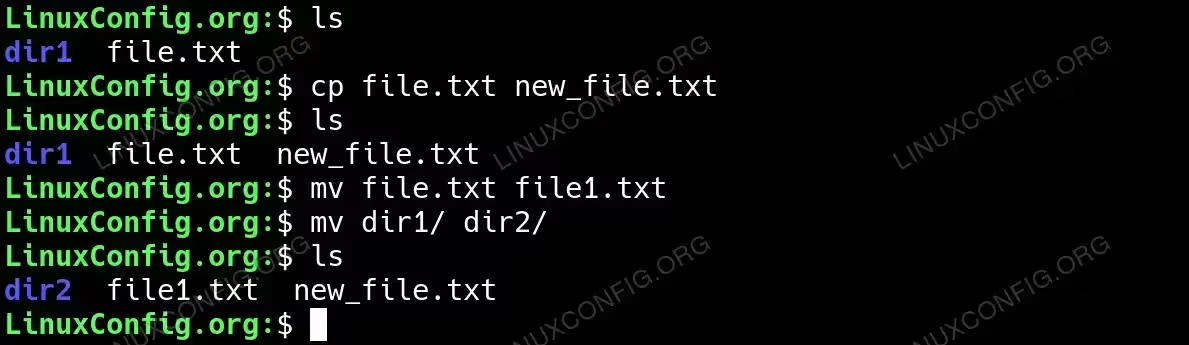
Copying Files with cp - Moving Files with mv: Use
mvto move or rename files.$ mv old_name.txt new_name.txt
This renames “old_name.txt” to “new_name.txt”. To move, specify a different directory path for the destination.
- Removing Files with rm: The
rmcommand deletes files.$ rm unwanted_file.txt
Use caution as deleted files are not easily recoverable. Add
-rto remove directories. - Finding Files with find:
findsearches for files and directories.$ find /path -name "filename"
Searches for “filename” in the specified path. You can use wildcards to expand search options.
- Counting Lines, Words, and Characters with wc:
wcprovides counts for text files.$ wc filename.txt
Displays the line, word, and character count of “filename.txt”. Use
-l,-w, or-cfor specific counts. - Searching Inside Files with grep: The
grepcommand searches for text patterns.$ grep "text" filename.txt
Finds lines containing “text” in “filename.txt”. Add
-ifor case-insensitive searching. - Checking Disk Usage with du: Use
duto check directory space usage.$ du -sh /path/to/directory
Displays the total size of the specified directory. The
-hoption provides human-readable output. - Monitoring Disk Space with df: The
dfcommand shows disk space usage.$ df -h
Lists all mounted filesystems and their usage. The
-hoption makes the output easier to read. - Displaying System Processes with ps: The
pscommand displays current processes.$ ps aux
Shows a comprehensive list of running processes with detailed information.
- Managing Processes with kill: The
killcommand stops processes.$ kill PID
Ends the process with the specified Process ID (PID). Use
psto find the PID. - Using History for Command Recall: The
historycommand lists previously run commands.$ history
Displays a list of past commands. Re-run commands using
!number. - Setting Permissions with chmod: The
chmodcommand modifies file permissions.$ chmod 755 filename.sh
Sets permissions so the owner can read, write, and execute the file, while others can only read and execute.
Conclusion
This guide has introduced you to essential Bash commands, covering basic file handling, process management, and file permissions. Mastering these commands will provide a strong foundation for more advanced tasks in Linux. Practice these commands and explore how you can combine them to automate tasks and streamline your workflow in the terminal.