
Ubuntu Server, by default, is designed to operate without a graphical user interface (GUI), allowing it to run more efficiently in resource-constrained or remote environments. However, if you’re new to Ubuntu or prefer a graphical interface, you can install a desktop environment on Ubuntu Server. This guide will walk you through each step in detail to install and configure a desktop on your server.
In this tutorial you will learn:
- How to install a desktop environment on Ubuntu Server using tasksel
- How to start the desktop environment automatically or manually
| Category | Requirements, Conventions, or Software Version Used |
|---|---|
| System | Ubuntu Server 24.04 or later |
| Software | tasksel, dialog, selected desktop environment (GNOME, KDE, etc.) |
| Other | Internet connection to download desktop packages |
| Conventions | # – requires given linux commands to be executed with root privileges either directly as a root user or by use of sudo command$ – requires given linux commands to be executed as a regular non-privileged user |
sudo apt update, install tasksel and dialog with sudo apt install tasksel dialog, run sudo tasksel to select your preferred desktop, then reboot or manually start the display manager.
| Step | Command/Action |
|---|---|
| 1. Update system packages | sudo apt update |
| 2. Install tasksel and dialog | sudo apt install tasksel dialog |
| 3. Launch tasksel interface | sudo tasksel |
| 4. Reboot or start GUI | sudo reboot or sudo systemctl start gdm3 |
DID YOU KNOW?
You can access a GUI desktop on Ubuntu Server without having it run directly on the server by setting up a VNC server on your Ubuntu system, which allows remote desktop access from another device.
How to Install a Desktop Environment on Ubuntu Server
Installing a desktop environment on Ubuntu Server can make it easier to manage applications and settings, especially for those who prefer GUI over command-line interfaces. Follow the steps below to install and configure a GUI on Ubuntu Server.
- Update Your System: Begin by ensuring that your server’s package lists are up to date. This command will refresh the list of available packages and updates.
$ sudo apt update
Updating your server ensures you have access to the latest versions of software and system libraries.
- Install Tasksel and Dialog: Tasksel is a tool that simplifies the installation of packages by providing groups or “tasks” that can be installed with a single selection. Dialog is a tool that enables graphical prompts in the terminal.
$ sudo apt install tasksel dialog
This step installs both tasksel and dialog, enabling you to install desktop environments with an easy-to-use selection menu. Tasksel is officially documented by Ubuntu as a reliable method for coordinated package installation. For those who prefer installing specific desktop environments directly, you can also explore alternative installation methods using apt.
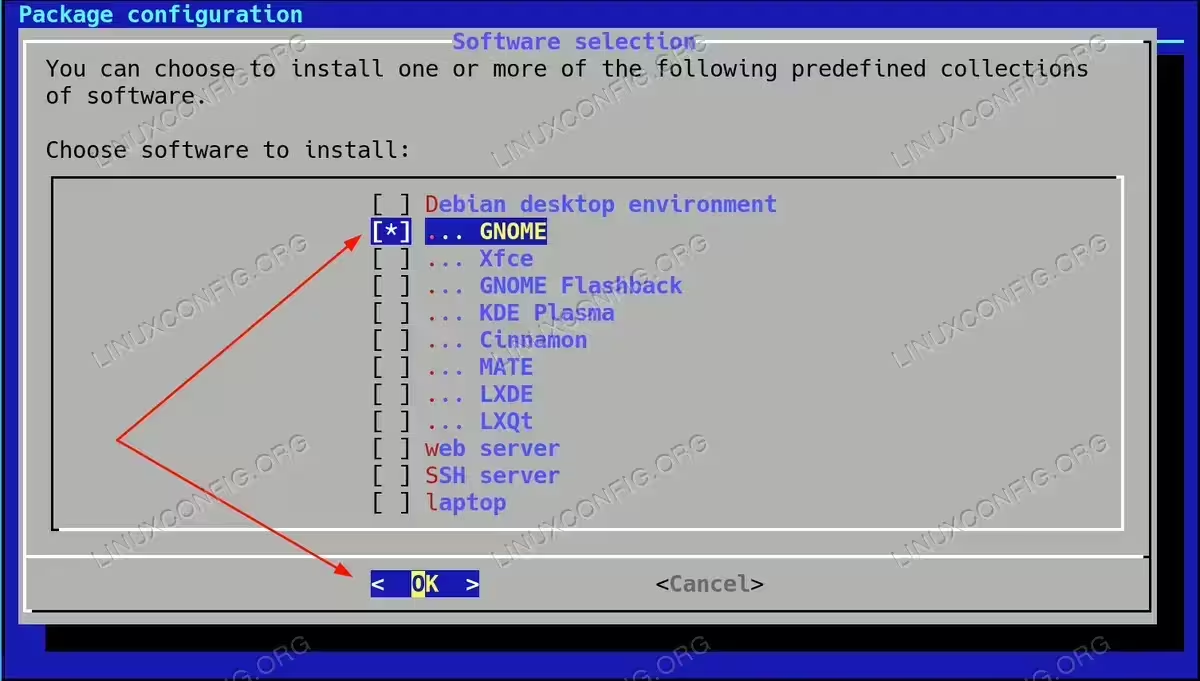
- Select and Install a Desktop Environment: Run the Tasksel command to launch an interface where you can select a desktop environment. You can choose from a range of options, including GNOME, KDE Plasma, Xfce, and others.
$ sudo tasksel
After launching tasksel, you’ll see a menu with options to install different desktop environments. Some of the available choices are:
- GNOME – The default Ubuntu desktop experience.
- KDE Plasma – A modern desktop environment with extensive customization options.
- Xfce – A lightweight desktop environment that performs well on older hardware.
- LXDE and LXQt – Both are lightweight and resource-friendly, ideal for low-powered systems.
For this example, select GNOME by pressing the space bar to mark it, then press Enter to proceed with the installation.
Select and Install a Desktop Environment - Reboot or Start the GUI Manually: Once the desktop environment installation is complete, reboot your system to start the GUI automatically. Alternatively, you can start the desktop session manually based on the installed desktop environment.
$ sudo reboot
If you do not wish to reboot immediately, you can start the GUI manually using systemctl commands. For detailed information about managing services with systemctl, see our guide on enabling services on boot in Ubuntu.
$ sudo systemctl start gdm3   # For GNOME
$ sudo systemctl start sddm   # For KDE Plasma
$ sudo systemctl start lightdm # For LXDE, Xfce, etc.
$ sudo systemctl start lxdm   # For LXDE
Conclusion
By following these steps, you’ve successfully installed a desktop environment on Ubuntu Server. Now you can enjoy a full graphical user interface, which can be beneficial for various applications and tasks. Alternatively, if your goal is to access the desktop remotely, consider setting up a VNC server on your Ubuntu Server, which allows you to manage the system remotely without a GUI running constantly on the server itself.
Troubleshooting Common Issues
If you encounter problems during the desktop environment installation, this section will help you diagnose and resolve common errors.
Tasksel Failed with “apt-get failed (100)” Error
If tasksel exits with the error message tasksel: apt-get failed (100), this indicates that the underlying package installation process encountered an error. To diagnose the specific issue, check the apt log file:
$ sudo cat /var/log/apt/term.log
Look at the bottom of the log file for recent error messages. Common issues include:
- Missing Dependencies: If the log shows missing packages or dependencies, try fixing broken dependencies:
$ sudo apt --fix-broken install
This issue can occur when required system packages are inadvertently removed during system cleanup operations.
- Package Conflicts: If the log shows conflicts between packages, try updating your package lists and fixing any broken dependencies:
$ sudo apt update
$ sudo apt --fix-broken install
- Disk Space Issues: Verify you have sufficient disk space for the desktop environment installation:
$ df -h
Desktop environments can require 4-8 GB of free disk space depending on which one you choose.
- Repository Issues: If packages cannot be downloaded, check your internet connection and verify that Ubuntu repositories are accessible:
$ sudo apt update
Look for any repository errors in the output.
After resolving the underlying issue revealed in the log file, retry the tasksel installation:
$ sudo tasksel
TROUBLESHOOTING TIP
Always check /var/log/apt/term.log when package installation fails. This log contains detailed error messages that reveal the actual cause of the failure, which tasksel’s generic error message doesn’t show.
Frequently Asked Questions
- What is the difference between tasksel and apt for installing desktop environments?Tasksel simplifies the installation process by grouping related packages into predefined tasks, automatically handling dependencies and configuration. While you can install desktop environments directly using apt commands like
sudo apt install ubuntu-desktop, tasksel provides a user-friendly interface that ensures all necessary components are installed together. For straightforward installations on Ubuntu Server, tasksel is the recommended approach as it reduces the chance of missing critical packages. - Can I switch between different desktop environments after installation?Yes, you can install multiple desktop environments on the same system and switch between them at the login screen. After installing an additional desktop environment using tasksel, log out of your current session. At the login screen, you’ll find a gear icon or session selector where you can choose which desktop environment to use. Each desktop environment maintains its own settings and configurations independently.
- How much disk space and RAM does a desktop environment require?Desktop environment requirements vary significantly. GNOME typically requires 4-8 GB of disk space and at least 2 GB of RAM for smooth operation. KDE Plasma has similar requirements, while lightweight options like Xfce, LXDE, or LXQt can run efficiently with 1-2 GB of RAM and 2-4 GB of disk space. Consider your server’s resources when choosing a desktop environment – lightweight options are better suited for servers with limited hardware or those primarily used for command-line tasks.
- Will installing a GUI affect my server’s performance?Installing a desktop environment will consume additional system resources, including CPU, RAM, and disk space. The impact depends on which desktop environment you choose and whether you configure it to start automatically. If you’re running resource-intensive services, consider using lightweight desktop environments or configuring the GUI to start manually only when needed using the systemctl commands provided in step 4.
- How do I remove a desktop environment if I no longer need it?To remove a desktop environment, you can use tasksel to deselect it or use apt to remove specific packages. For example, to remove GNOME desktop, run:
$ sudo apt remove ubuntu-desktop
$ sudo apt autoremove
However, be cautious when removing desktop environments as some packages may be shared with other system components. It’s recommended to review which packages will be removed before confirming the operation. After removal, you may need to reconfigure your display manager or reboot the system.