
The ntpdate command has been deprecated and removed from modern Linux distributions. If you encounter the “ntpdate command not found” error on Debian, Ubuntu Linux systems, this guide shows you how to synchronize your system time using the modern replacements: systemd-timesyncd and chrony.
$ ntpdate
bash: ntpdate: command not found
You may also see the following error when trying to enable NTP synchronization:
$ timedatectl set-ntp true
Failed to set ntp: NTP not supported
Table of Contents
In this tutorial you will learn:
- Why ntpdate was deprecated and removed
- How to use systemd-timesyncd for automatic time sync
- How to use chrony as an ntpdate alternative
- How to perform one-time manual time synchronization
Software Requirements
| Category | Requirements, Conventions or Software Version Used |
|---|---|
| System | Debian 13 (Trixie) or newer, Ubuntu 24.04 or newer |
| Software | systemd-timesyncd or chrony |
| Other | Network connectivity to NTP servers |
| Conventions | # – requires given linux commands to be executed with root privileges either directly as a root user or by use of sudo command$ – requires given linux commands to be executed as a regular non-privileged user |
ntpdate command is no longer available on Debian 13+ and Ubuntu 24.04+. Use systemd-timesyncd or chrony instead.
| Step | Command/Action |
|---|---|
| 1. Install timesyncd (Debian 13) | sudo apt install systemd-timesyncd |
| 2. Enable NTP sync | sudo timedatectl set-ntp true |
| 3. Check sync status | systemctl status systemd-timesyncd |
Why Was ntpdate Removed?
DID YOU KNOW?
The ntpdate command was deprecated by the NTP Project years ago and has now been completely removed from Debian 13 (Trixie) and is only available as a transitional package on Ubuntu 24.04. The main reasons for its removal include: one-shot design (ntpdate only sets the time once and exits, rather than continuously maintaining accurate time), no drift correction (it cannot compensate for clock drift between syncs), conflict with daemons (ntpdate conflicts with running NTP daemons like ntpd), and better alternatives exist (systemd-timesyncd and chrony provide superior functionality).
Check What NTP Packages Are Installed
Before proceeding, check if systemd-timesyncd or chrony is already installed on your system:
$ dpkg -l | grep -E "systemd-timesyncd|chrony"
If neither package is listed in the output, you will need to install one of them. Use systemd-timesyncd for a lightweight solution suitable for most systems, or chrony for more advanced features and better handling of unreliable network connections.
Using systemd-timesyncd
The systemd-timesyncd service provides automatic time synchronization. It is a lightweight NTP client suitable for most systems.
- Install systemd-timesyncd: Install the package if it is not already present on your system.
$ sudo apt install systemd-timesyncd
- Enable NTP synchronization: Enable automatic time synchronization.
$ sudo timedatectl set-ntp true
- Verify synchronization status: Check that the time sync service is running and connected to NTP servers.
$ systemctl status systemd-timesyncd
Look for “active (running)” and the “Status” line showing the contacted NTP server.
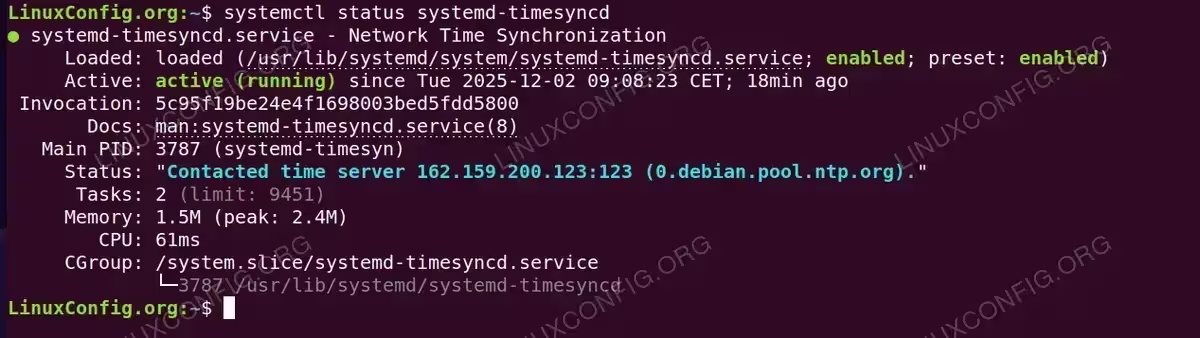
The systemd-timesyncd service active and synchronized with the Debian NTP pool - Force immediate synchronization: If you need to sync time immediately, restart the timesyncd service.
$ sudo systemctl restart systemd-timesyncd
DEBIAN USERS
On Debian systems without sudo configured, use su - to become root before running privileged commands, or prepend commands with su -c "command".
Using Chrony
If you need more advanced NTP features, chrony is an excellent alternative. It handles intermittent network connections better and can also act as an NTP server.
- Install chrony: Install the chrony package using your package manager.
$ sudo apt install chrony
- Start and enable the service: Ensure chrony starts automatically on boot.
$ sudo systemctl enable --now chrony
- Check synchronization sources: Verify that chrony is connected to NTP servers.
$ chronyc sources -v
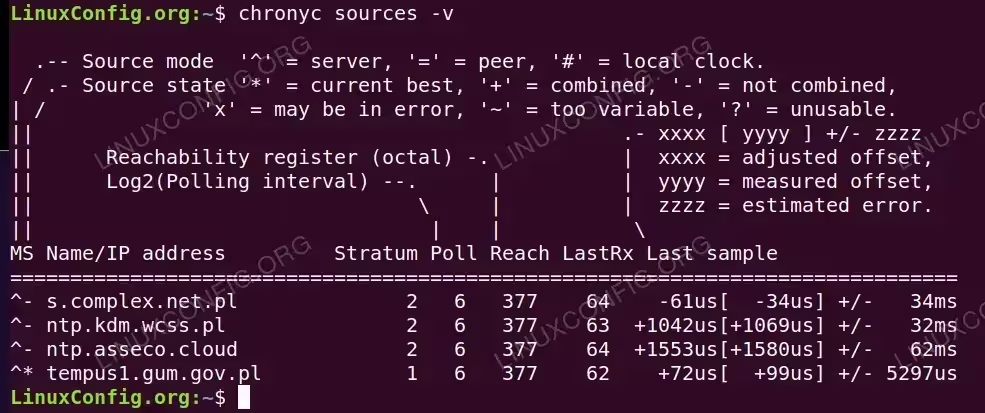
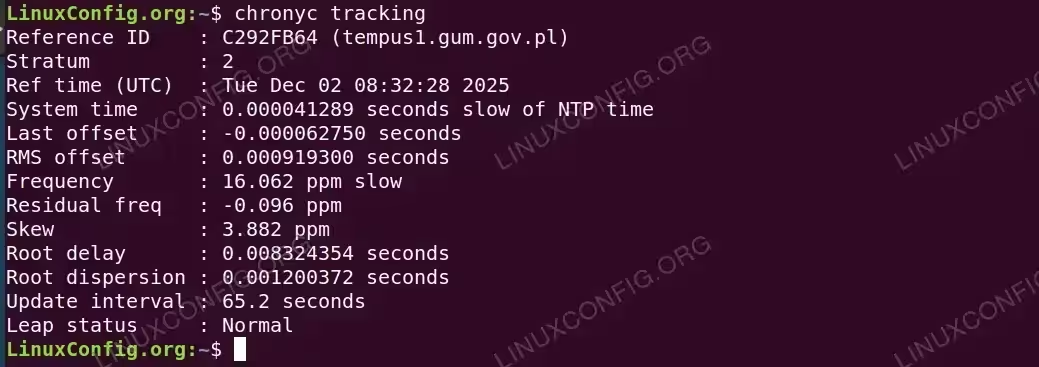
Output of chronyc sources -v displaying multiple NTP servers with stratum and offset information - Check tracking status: View detailed synchronization information.
$ chronyc tracking
INSTALLATION TIPS
Installing chrony will automatically disable systemd-timesyncd to prevent conflicts between the two time synchronization services.
One-Time Manual Sync
If you need to perform a one-time synchronization similar to what ntpdate provided, you have two options:
Using chronyd with -q flag
This method queries NTP servers and sets the time once, then exits, similar to ntpdate behavior. Note that you must stop the chrony service first if it is running:
$ sudo systemctl stop chrony
$ sudo chronyd -q 'server pool.ntp.org iburst'

Using systemd-timesyncd
Force an immediate sync by restarting the service:
$ sudo systemctl restart systemd-timesyncd
$ systemctl status systemd-timesyncd
Troubleshooting
Unit systemd-timesyncd.service could not be found
If you see this error when checking the service status, systemd-timesyncd is not installed:
$ systemctl status systemd-timesyncd
Unit systemd-timesyncd.service could not be found.
Install the package to resolve this:
$ sudo apt install systemd-timesyncd
Failed to query server: The name org.freedesktop.timesync1 was not provided
This error appears when trying to check time sync status without systemd-timesyncd installed:
$ timedatectl timesync-status
Failed to query server: The name org.freedesktop.timesync1 was not provided by any .service files
Install and enable systemd-timesyncd:
$ sudo apt install systemd-timesyncd
$ sudo systemctl enable --now systemd-timesyncd
Failed to set ntp: NTP not supported
This error occurs when no NTP client service is installed or running:
$ sudo timedatectl set-ntp true
Failed to set ntp: NTP not supported
Install and enable systemd-timesyncd to resolve this:
$ sudo apt install systemd-timesyncd
$ sudo systemctl enable --now systemd-timesyncd
Then retry enabling NTP synchronization.
Time still not syncing
Verify network connectivity to NTP servers and check firewall settings. NTP uses UDP port 123:
$ sudo ufw allow 123/udp
Failed to enable unit: Refusing to operate on linked unit file chronyd.service
This error occurs when trying to enable the chrony service using chronyd instead of chrony:
$ sudo systemctl enable --now chronyd
Failed to enable unit: Refusing to operate on linked unit file chronyd.service
Use chrony as the service name instead:
$ sudo systemctl enable --now chrony
Another chronyd may already be running
This error occurs when trying to run a one-time sync with chronyd -q while the chrony service is already running:
$ sudo chronyd -q 'server pool.ntp.org iburst'
Fatal error : Another chronyd may already be running (pid=3630), check /run/chrony/chronyd.pid
Stop the chrony service first before running the one-time sync:
$ sudo systemctl stop chrony
$ sudo chronyd -q 'server pool.ntp.org iburst'
Conclusion
The “ntpdate command not found” error is expected on modern Debian and Ubuntu systems since ntpdate has been deprecated and removed. The recommended replacements are systemd-timesyncd for desktop systems and chrony for servers or systems with intermittent network connectivity. Both alternatives provide superior time synchronization compared to the legacy ntpdate command.
For more information on NTP and time synchronization, refer to the official Chrony documentation.
Frequently Asked Questions
- Can I still install ntpdate on Debian 13 or Ubuntu 24.04? On Debian 13 (Trixie), the ntpdate package has been completely removed from the repositories and is not available for installation. On Ubuntu 24.04, a transitional package exists but it simply redirects to ntpsec-ntpdate. It is recommended to use
systemd-timesyncdorchronyinstead. - What is the difference between systemd-timesyncd and chrony? The
systemd-timesyncdis a lightweight SNTP client suitable for most desktop systems. Chrony is a full NTP implementation that handles network interruptions better, provides more accurate timekeeping, and can act as an NTP server. Use chrony for servers or systems requiring high precision. - How do I check if my system time is synchronized? Run
systemctl status systemd-timesyncdand look for “active (running)” in the output. The “Status” line will show which NTP server has been contacted. You can also runtimedatectl statusand check for “System clock synchronized: yes”. - Why does timedatectl set-ntp true fail with “NTP not supported”? This error occurs when no NTP client service is installed or running. Install systemd-timesyncd with
sudo apt install systemd-timesyncd, then enable it withsudo systemctl enable --now systemd-timesyncdbefore running the timedatectl command again.
