
In this comprehensive tutorial, we will discuss how to implement pam_faillock account lockout ubuntu policies after failed login attempts on Debian and Ubuntu systems. The pam_faillock module allows for automatic user account locking after a specified number of failed authentication attempts. This provides protection against brute-force login attacks. This article will also discuss configuration settings and security implications for implementing this protection.
Account lockout mechanisms are essential security measures. They help protect Linux systems from brute-force attacks where attackers repeatedly attempt to guess user passwords. By automatically locking pam_faillock account lockout ubuntu accounts after multiple failed login attempts, system administrators can significantly reduce unauthorized access risk. Additionally, this maintains system usability for legitimate users.
In this tutorial you will learn:
- How to configure pam_faillock to automatically lock accounts after failed logins
- Setting up unlock timers and failure count thresholds
- Modifying PAM authentication stack for faillock integration
- Testing and troubleshooting account lockout functionality

| Category | Requirements, Conventions or Software Version Used |
|---|---|
| System | Debian 13 (Trixie), Ubuntu 24.04 LTS and higher with PAM support |
| Software | pam_faillock module (part of libpam-modules package), nano or vim editor |
| Other | Privileged access to your Linux system as root or via the sudo command. |
| Conventions | # – requires given linux commands to be executed with root privileges either directly as a root user or by use of sudo command$ – requires given linux commands to be executed as a regular non-privileged user |
Understanding pam_faillock
The pam_faillock module was introduced as part of the Linux-PAM project to provide account lockout functionality based on failed authentication attempts. This module maintains a database of failed login attempts and can automatically lock user accounts when the failure threshold is exceeded. The faillock mechanism works by tracking authentication failures across different login methods including GUI logins, SSH connections, and TTY console access, making it an effective defense against various attack vectors.
SECURITY CONSIDERATION
This configuration protects against casual brute-force attempts but does not prevent physical access through recovery mode or live USB systems. For complete security, combine this with BIOS/UEFI passwords and disk encryption.
CRITICAL SAFETY WARNING - MUST READ
Before making any PAM configuration changes, ALWAYS keep an open root shell session in another terminal window. If you make an error and cannot login, this backup session will allow you to revert changes. Test this configuration in a virtual machine first before applying to production systems.
Account Lockout Configuration Instructions
- Configure faillock parameters: Create or edit the faillock configuration file to define lockout behavior
$ sudo nano /etc/security/faillock.conf
Add the following configuration settings to control account lockout behavior:
deny = 5
unlock_time = 300
fail_interval = 900
The deny parameter sets the number of failed attempts before locking (5 attempts), unlock_time specifies the lockout duration in seconds (300 seconds = 5 minutes), and fail_interval defines the time window for counting failures (900 seconds = 15 minutes).
- Backup original configuration: Create a safety backup before making changes
$ sudo cp /etc/pam.d/common-auth /etc/pam.d/common-auth.backup
This backup allows you to quickly restore the original configuration if something goes wrong:
$ sudo cp /etc/pam.d/common-auth.backup /etc/pam.d/common-auth
- Modify PAM authentication stack: Edit the common authentication configuration to integrate faillock
$ sudo nano /etc/pam.d/common-auth
First, examine your current configuration to understand the original structure. The default Debian 13/Ubuntu 24.04 configuration should look like this:
auth    [success=1 default=ignore]      pam_unix.so nullok
auth    requisite                       pam_deny.so
auth    required                        pam_permit.so
Now modify the configuration by adding the faillock modules and adjusting the success count. Replace the auth section with:
auth    requisite                       pam_faillock.so preauth silent
auth    [success=4 default=ignore]      pam_unix.so nullok
auth    [default=die]                   pam_faillock.so authfail
auth    sufficient                      pam_faillock.so authsucc
auth    requisite                       pam_deny.so
auth    required                        pam_permit.so
The success count changes from
[success=1to[success=4because we added three additional auth modules (preauth, authfail, authsucc) that must be skipped when authentication succeeds. Thesilentparameter prevents preauth from interfering with normal authentication flow.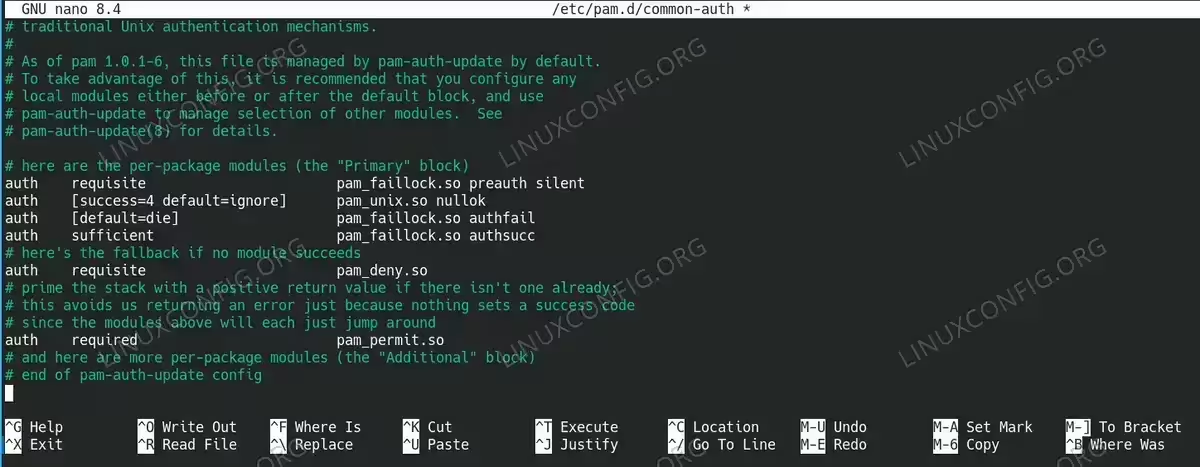
/etc/pam.d/common-auth configuration example to lock logins after 5 attempts - Test the configuration: Verify that account lockout is working correctly
$ su - linuxconfig
Intentionally enter incorrect passwords five times to trigger the lockout mechanism. On the sixth attempt, the account should be locked and prevent further login attempts for the configured duration.
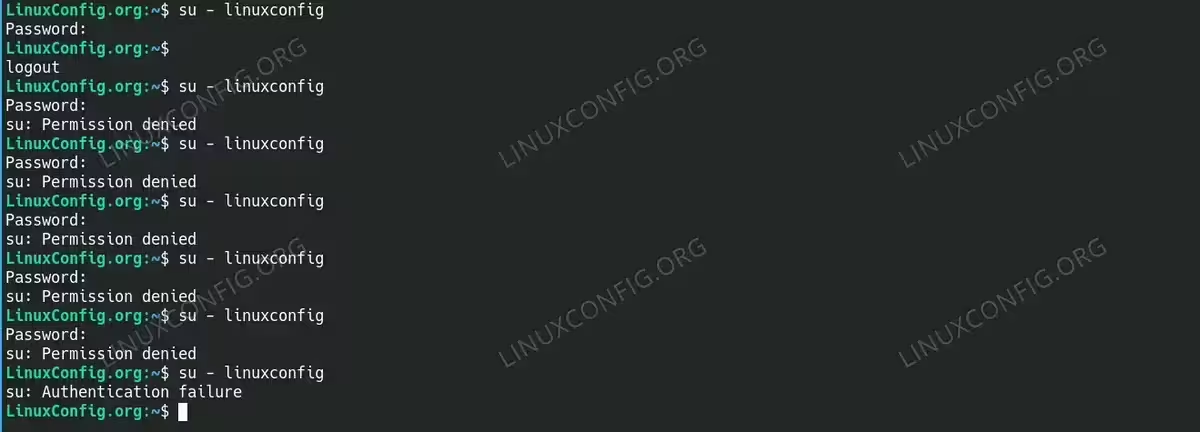
Testing the configuration. User is lock out after five unsuccessful attempts. $ faillock --user linuxconfig
This command displays the current lockout status and failure count for the specified user account.
Advanced Faillock Configuration Examples
Customized Lockout Settings
For environments requiring stricter security policies, you can adjust the faillock parameters to be more restrictive:
deny = 3
unlock_time = 1800
fail_interval = 600
local_users_only
This configuration locks accounts after 3 failed attempts for 30 minutes, counts failures over 10 minutes, and only applies to local users (not network authentication).
Administrative Override Configuration
To prevent lockout of administrative accounts while maintaining protection for regular users:
deny = 5
unlock_time = 300
fail_interval = 900
admin_group = wheel
Users in the wheel group will be exempt from automatic lockout, allowing administrators to maintain system access during security incidents.
Troubleshooting Common Issues
Account Management Issues
Common faillock problems include:
- Persistent lockouts – Use
$ sudo faillock --user username --resetto manually clear lockout status - Configuration not applying – Verify PAM module order. Furthermore, restart authentication services with
$ sudo systemctl restart gdm3 - Root account lockout – Root user is typically exempt from faillock by default, but verify configuration if issues occur
Testing and Monitoring
Always verify your configuration is working properly:
$ faillock --user yourusername
This command shows the current failure count, lockout status, and remaining lockout time. Look for entries showing failed attempts and active lockout periods to confirm proper operation.
TESTING RECOMMENDATION
Always test pam_faillock configuration in a virtual machine environment before deploying to production systems. This allows you to verify the lockout behavior and unlock procedures without risk to critical systems.
Additional Authentication Security Resources
For additional PAM authentication and security topics, check out these comprehensive guides that complement this tutorial:
- USB Authentication on Linux with PAM Setup – Comprehensive guide to implementing two-factor authentication using USB devices and PAM modules
- Allow Short Passwords in Linux via PAM Setup – Learn how to modify PAM password policies and adjust minimum length requirements for specific environments
For the most up-to-date information and advanced configuration options, refer to the official documentation:
- pam_faillock Manual Page – Official documentation covering all configuration parameters and advanced usage scenarios
- Red Hat PAM Configuration Guide – Enterprise-level authentication configuration practices and security recommendations
Conclusion
In this tutorial, you learned how to implement automatic pam_faillock account lockout ubuntu after failed login attempts using pam_faillock on Debian and Ubuntu systems. We covered configuration file setup, PAM stack modification, and testing procedures. Therefore, users with different security requirements can implement appropriate protection levels effectively.
Your pam_faillock account lockout ubuntu configuration will persist after reboots. Additionally, you will need to manually reset lockouts using the faillock command or wait for the automatic unlock timer to expire. Moreover, the key takeaways from this guide include:
- Use pam_faillock instead of deprecated pam_tally2 for modern systems
- Configure appropriate failure thresholds that balance security with usability
- Understanding the difference between preauth and authfail module placement
- Always maintain administrative access during configuration changes
- Regular testing ensures lockout policies function as expected
These best practices ensure your account lockout configuration remains compatible with current and future system releases. Remember to always test configuration changes in a safe environment and maintain emergency access methods for system recovery.
RESTORATION INSTRUCTIONS
To completely remove faillock protection, delete the added lines from /etc/pam.d/common-auth and comment out or remove the /etc/security/faillock.conf configuration file. Test thoroughly after making changes.
