
Correctly setting the timezone on Ubuntu 26.04 ensures accurate timestamps for logs, scheduled tasks, and system events. This guide covers practical methods to timezone set Ubuntu 26.04 using both command line tools and graphical interfaces, with working examples and verification steps.
Table of Contents
In this tutorial you will learn:
- How to check your current timezone configuration
- How to list all available timezones on Ubuntu
- How to set timezone using timedatectl command
- How to configure timezone through GNOME Settings
- How to verify timezone changes took effect
Software Requirements
| Category | Requirements, Conventions or Software Version Used |
|---|---|
| System | Ubuntu 26.04 Resolute Raccoon |
| Software | systemd (timedatectl), GNOME Settings (optional for GUI method) |
| Other | Privileged access to your Linux system as root or via the sudo command. |
| Conventions | # – requires given linux commands to be executed with root privileges either directly as a root user or by use of sudo command$ – requires given linux commands to be executed as a regular non-privileged user |
timedatectl set-timezone TIMEZONE to set timezone on Ubuntu 26.04. Replace TIMEZONE with your desired timezone identifier such as America/New_York or Europe/London.
| Step | Command/Action |
|---|---|
| 1. Check current timezone | timedatectl |
| 2. List available timezones | timedatectl list-timezones |
| 3. Set new timezone | $ sudo timedatectl set-timezone Europe/Bratislava |
Check Current Timezone
Before making any changes, verify your current timezone configuration. The timedatectl command displays comprehensive time and date information including the active timezone on your Ubuntu 26.04 system.
- Display current time settings: Run the following command to view your system’s current timezone and time configuration:
$ timedatectl
This command outputs the local time, universal time (UTC), RTC time, timezone identifier, and NTP synchronization status. The “Time zone” line shows your current setting in Region/City format.
Alternatively, you can check just the timezone by examining the /etc/timezone file:
$ cat /etc/timezone
This file contains only the timezone identifier, making it useful for scripting purposes.
List Available Timezones on Ubuntu 26.04
Ubuntu 26.04 includes hundreds of timezone definitions organized by region. You can browse or search this list to find your correct timezone identifier before setting it.
- List all timezones: Display the complete list of available timezones:
$ timedatectl list-timezones
The output shows timezones in Region/City format (e.g.,
America/Chicago,Europe/Paris,Asia/Tokyo). Pressqto exit the pager. - Search for a specific region: Filter the list using grep to find timezones in your region:
$ timedatectl list-timezones | grep America
Replace “America” with your continent or country to narrow results. This approach helps quickly locate the correct identifier.
IMPORTANT
Timezone identifiers are case-sensitive. Use exact spelling from the list, such as America/New_York rather than america/new_york.
Set Timezone with timedatectl on Ubuntu 26.04
The timedatectl command provides the recommended method to timezone set Ubuntu 26.04. This approach updates the system configuration immediately and persists across reboots.
- Set your desired timezone: Use the
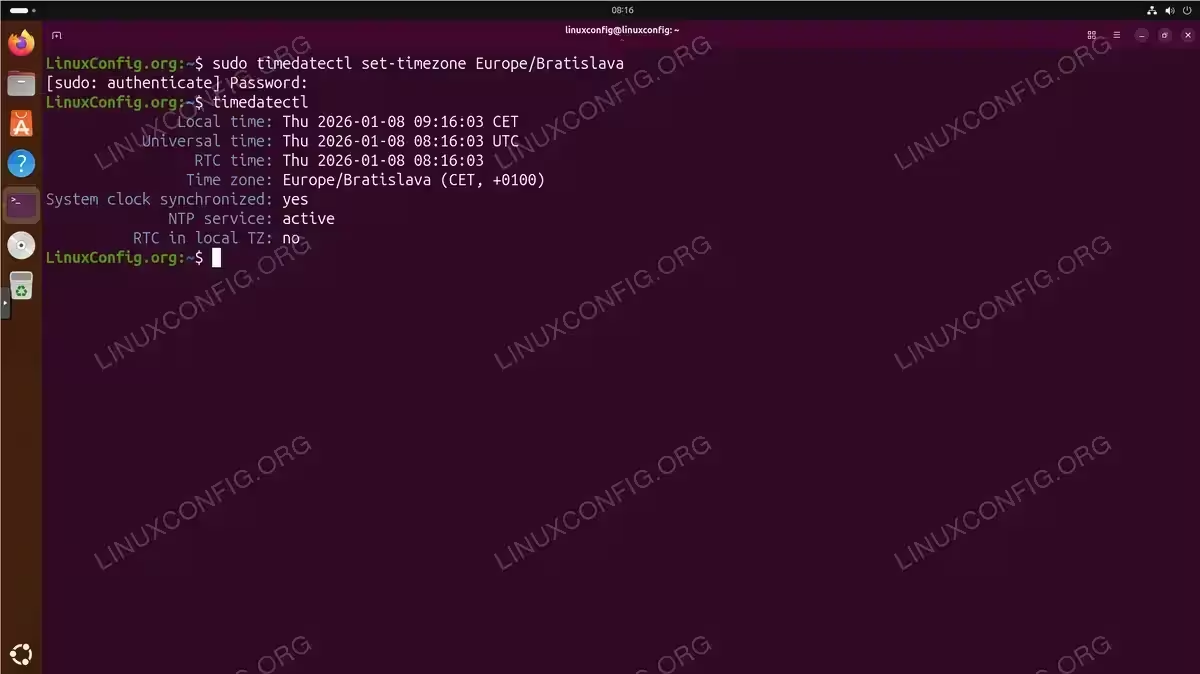
set-timezonesubcommand with your chosen timezone identifier:$ sudo timedatectl set-timezone Europe/Bratislava
This command requires root privileges and takes effect immediately. The system clock adjusts to reflect the new timezone without requiring a reboot.
- Verify the change: Confirm the new timezone is active:
$ timedatectl
The output should now display your newly configured timezone in the “Time zone” field.
Common timezone examples include:
America/Los_Angeles– Pacific Time (US)America/Chicago– Central Time (US)America/New_York– Eastern Time (US)Europe/London– Greenwich Mean Time / British Summer TimeEurope/Berlin– Central European TimeAsia/Tokyo– Japan Standard TimeAustralia/Sydney– Australian Eastern Time
For servers, you might prefer using UTC to maintain consistency across distributed systems:
$ sudo timedatectl set-timezone UTC
Set Timezone via GUI on Ubuntu 26.04
Ubuntu 26.04 desktop users can change timezone through GNOME Settings. This graphical approach offers an intuitive way to configure your timezone without using the command line.
- Open Settings: Click the system menu in the top-right corner of your desktop and select the gear icon to open Settings. Alternatively, search for “Settings” in the Activities overview.
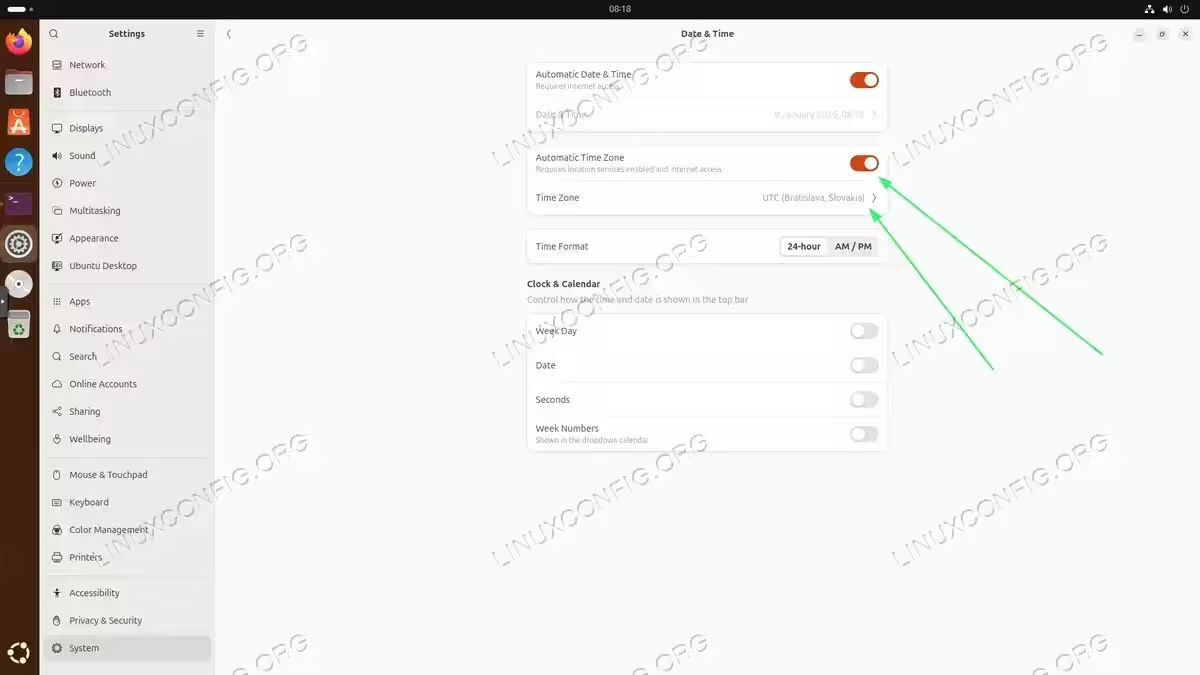
- Navigate to Date & Time: In the Settings window, scroll down the left sidebar and click “Date & Time” under the System section.
- Configure timezone: If “Automatic Time Zone” is enabled, Ubuntu uses your network location to set the timezone automatically. To set it manually, toggle off the automatic option and click the “Time Zone” field to open the timezone selector. Click your location on the world map or type your city name to select the appropriate timezone.
INSTALLATION TIPS
The automatic timezone feature requires an active network connection and location services. For servers or systems without these services, use the command line method instead.
Verify Timezone Change
After setting a new timezone, verify the configuration took effect correctly. Multiple verification methods ensure your system operates with the intended time settings.
- Using timedatectl: The most comprehensive verification method:
$ timedatectl
Check that the “Time zone” line matches your intended setting and that “Local time” displays the correct current time for that zone.
- Using the date command: Quick verification of the current time and timezone abbreviation:
$ date
The output includes the timezone abbreviation (e.g., EST, PST, UTC) confirming the active timezone.
- Checking the symbolic link: Examine the
/etc/localtimesymlink:$ ls -l /etc/localtime
This symlink points to the timezone data file in
/usr/share/zoneinfo/corresponding to your configured timezone.
For additional timezone configuration options and advanced scenarios, including handling timezone changes in containerized environments, consult the timedatectl manual page.
Conclusion
You have learned how to timezone set Ubuntu 26.04 using both command line and graphical methods. The timedatectl command provides the most reliable approach for servers and desktops alike, while GNOME Settings offers a convenient GUI alternative for desktop users. Regular verification ensures your system maintains accurate time settings, which is essential for log analysis, scheduled tasks, and system security. For command line timezone configuration, the timedatectl utility remains the preferred tool on modern Ubuntu systems.
Frequently Asked Questions
- Does changing the timezone require a system reboot? No, timezone changes made with
timedatectl set-timezonetake effect immediately. Running applications inherit the new timezone setting, though some may need to be restarted to display updated times. - What timezone should I use for a server? Using UTC is recommended for servers, especially those in distributed environments. UTC avoids daylight saving time complications and provides consistent timestamps across geographic regions, simplifying log correlation and troubleshooting.
- Why does my system show the wrong time after setting the timezone correctly? If the timezone is correct but the time is wrong, your system may not be synchronized with an NTP time server. Check NTP status with
timedatectland ensure “NTP service” shows as active. If disabled, enable it withsudo timedatectl set-ntp true. - How do I revert to the default timezone? Ubuntu 26.04 defaults to UTC during installation unless otherwise configured. To revert, run
sudo timedatectl set-timezone UTCor select your preferred timezone using any method described in this guide.