
X is one of the most common and popular display servers for Linux. GUI applications rely on X and some type of window manager (such as Wayland) and desktop environment (such as GNOME) in order to display a graphical interface as a series of windows, title bars, etc. – think about Firefox for an easy example. But did you know that it is not strictly necessary to run a desktop environment or window manager just to open a GUI application? All we really need is the X server and our command line interface.
In this tutorial, you will see how to run X applications without a desktop environment or window manager on a Linux system. This only has its niche uses, but can be handy on an extremely lightweight or kiosk system, for example, or some users may just find it interesting to run GUI applications from their command line only systems. Let’s see how to do it!
In this tutorial you will learn:
- How to X server on all major linux distros
- How to configure the
.xinitrcfile to launch apps - How to open X applications from command line without a desktop
| Category | Requirements, Conventions or Software Version Used |
|---|---|
| System | Any Linux distribution |
| Software | X window server |
| Other | Privileged access to your Linux system as root or via the sudo command. |
| Conventions |
# – requires given linux commands to be executed with root privileges either directly as a root user or by use of sudo command$ – requires given linux commands to be executed as a regular non-privileged user |
Installation of X Window Server
X, sometimes called X11 or Xorg, will need to be installed on our system in order to open the GUI applications. X provides the interface in which your computer can map mouse clicks and other interactions with the window manager, the desktop environment, and subsequently the GUI applications. In this case, we will bypass the window manager and desktop environment, but still need X to act as the middle man between our system and the applications we want to run.
You can use the appropriate command below to install an X server with your system’s package manager.
To install the X server on Ubuntu, Debian, and Linux Mint:
$ sudo apt update
$ sudo apt install xorg
To install the X server on Fedora, CentOS, AlmaLinux, Rocky Linux, and Red Hat:
$ sudo dnf install @base-x
To install the X server on Arch Linux and Manjaro Linux:
$ sudo pacman -S xorg
Running X Applications Without Desktop
Now that we have our X server installed, follow along with the steps below to use it to run a GUI application from your terminal system:
- When starting the X server, we use the
startxcommand. This will execute the~/.xinitrcconfiguration file. So, we need to put the applications we wish to run inside of the file. Let’s see how to do that with an example application, like xeyes. First, open the.xinitrcfile for editing:$ nano ~/.xinitrc
- Then, we put the name of our application preceded by the
execcommand. As a quick test, we will try to launch xeyes:
exec xeyes
Close this file once you have made the changes.
- Then, start the X server:
$ startx
You should see the xeyes application appear.
- Closing applications can be a little trickier. Keep in mind we do not have a window manager installed, which is responsible for providing the functions like closing windows, resizing them, moving them, etc. You can try the following to close an application:
- Use the
Ctrl + Ckeyboard combo to close the application – does not always work - Use
Alt + F4which should close out of a seleted application – again, does not always work - Kill the process manually with the kill command
In the case of the
killcommand, you can first get the name of the process by executing:$ ps aux | grep xeyes
And then get rid of the running process:
$ kill [process ID number]
- Use the
- We can also open more complex and full fledged GUI applications, like Firefox. We would put this line inside of the
~/.xinitrcfile:exec firefox
An application such as an internet browser is naturally much better suited for a desktop environment, because we are missing some expected functions like the ability to close or move the window. However, for embedded systems, touch screen kiosks, or other niche situations, this could be useful.
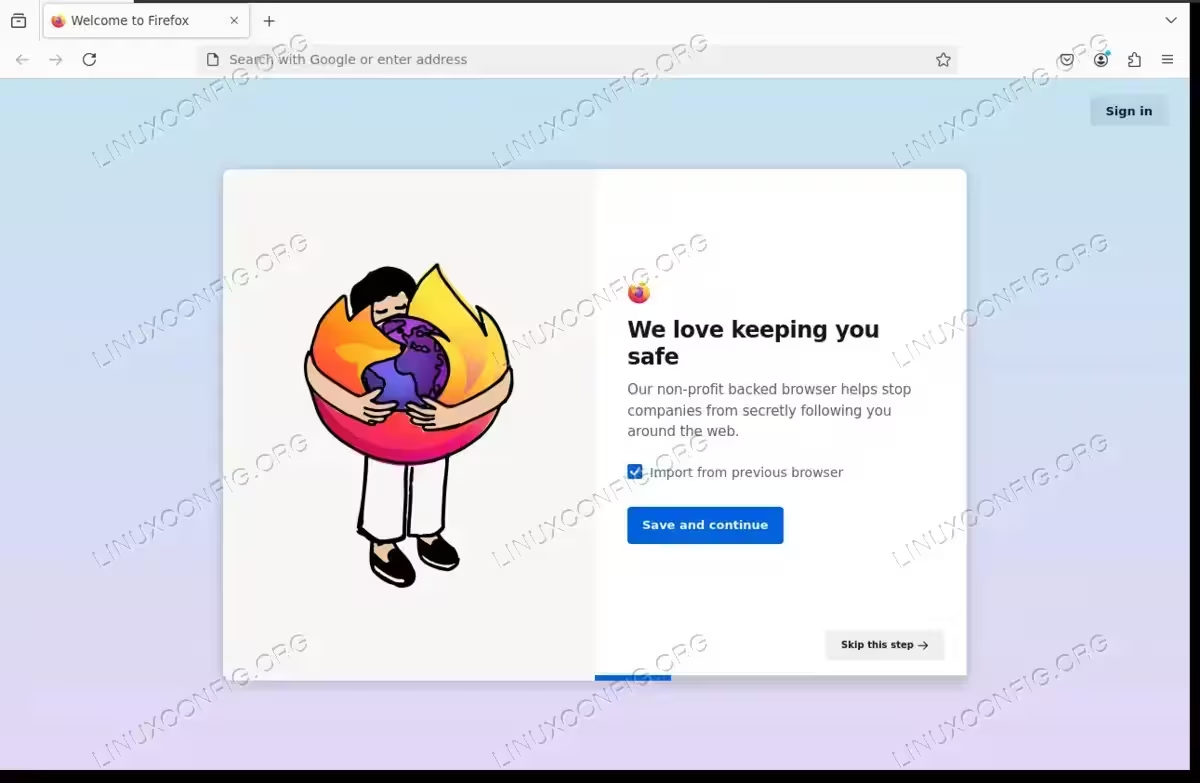
Opening Firefox with nothing but an X display server - Note that numerous applications can be opened simultaneously by running some in the background with an
&ersand, and letting one application be in the foreground withexec. For example:xeyes & exec firefox
The configuration above would launch two applications simultaenously.
DID YOU KNOW?
At least one of your lines should feature theexeccommand, otherwise the X session will fail to start up.
Closing Thoughts
In this tutorial, we saw how to run X applications without a desktop environment or window manager on a Linux system. The X server is capable of running GUI applications, but they are not typically not as useful without the staples provided by a window manager like minimize, maximize, and exit buttons. In rare situations where you absolutely need to open an application and can’t install a GUI, this is a very useful workaround.
