
Python 2 reached end-of-life on January 1, 2020, and Ubuntu 26.04 has completely removed it from the official repositories. However, some legacy applications and scripts still require Python 2 to function. This guide explains how to install Python2 on Ubuntu 26.04 using two tested methods: pyenv and compiling from source.
Table of Contents
In this tutorial you will learn:
- Why Python 2 is not available in Ubuntu 26.04 repositories
- How to install Python 2.7 using pyenv
- How to compile Python 2.7 from source
- How to resolve C23 compilation errors on Ubuntu 26.04
- How to install pip for Python 2
- Security precautions for legacy Python 2 environments
Software Requirements
| Category | Requirements, Conventions or Software Version Used |
|---|---|
| System | Ubuntu 26.04 Resolute Raccoon |
| Software | Python 2.7.18, pyenv (optional), build-essential |
| Other | Privileged access to your Linux system as root or via the sudo command. |
| Conventions | # – requires given linux commands to be executed with root privileges either directly as a root user or by use of sudo command$ – requires given linux commands to be executed as a regular non-privileged user |
| Step | Command/Action |
|---|---|
| 1. Install dependencies | sudo apt install build-essential libssl-dev zlib1g-dev libbz2-dev libreadline-dev libsqlite3-dev curl git libncursesw5-dev xz-utils tk-dev libffi-dev liblzma-dev |
| 2. Install pyenv | curl https://pyenv.run | bash |
| 3. Install Python 2.7.18 | CFLAGS="-std=c11" pyenv install 2.7.18 |
SECURITY WARNING
Python 2 is end-of-life and poses significant security risks. Python 2 has not received security patches since January 2020. Running Python 2 applications exposes your system to known vulnerabilities that will never be fixed. Before installing Python 2, consider the following precautions:
- Isolate Python 2 environments: Use virtual environments or containers to prevent Python 2 dependencies from affecting your system.
- Never expose Python 2 applications to the internet: Run legacy scripts only in isolated, internal environments.
- Plan for migration: Treat Python 2 as a temporary solution while actively porting code to Python 3.
- Audit dependencies: Python 2 packages on PyPI may contain unpatched vulnerabilities.
- Avoid processing untrusted input: Python 2’s input handling has known security issues.
If your use case allows, strongly consider migrating to Python 3 instead.
Why Python 2 Is Not Available on Ubuntu 26.04
Python 2’s official support ended on January 1, 2020, after multiple deadline extensions. Starting with Ubuntu 24.04, Canonical completely removed Python 2 packages from the official repositories, including the popular deadsnakes PPA. This means you cannot install Python 2 using apt install python2 on Ubuntu 26.04.
Attempting to install Python 2 from the repositories produces the following error:
$ sudo apt install python2
Package python2 is not available, but is referred to by another package.
This may mean that the package is missing, has been obsoleted, or
is only available from another source
Error: Package 'python2' has no installation candidate
Consequently, to install Python 2 on Ubuntu 26.04, you must either use a version manager like pyenv or compile Python from source. Both methods require compiling Python 2.7.18 from source code, which introduces a compatibility challenge with Ubuntu 26.04’s modern compiler.
Ubuntu 26.04 C23 Compilation Issue
Ubuntu 26.04 ships with GCC that defaults to the C23 standard. Python 2.7.18 was written before C23 existed and uses false, true, and bool as custom type definitions. In C23, these are reserved keywords, causing compilation to fail with the following error:
Include/asdl.h:9:15: error: cannot use keyword 'false' as enumeration constant
    9 | typedef enum {false, true} bool;
      |               ^~~~~
Include/asdl.h:9:15: note: 'false' is a keyword with '-std=c23' onwards
Include/asdl.h:9:28: error: expected ';', identifier or '(' before 'bool'
    9 | typedef enum {false, true} bool;
      |                            ^~~~
The solution is to force the compiler to use the C11 standard instead by setting CFLAGS="-std=c11" during compilation. Both installation methods described below include this fix.
Method 1: Install Python 2 with pyenv
The pyenv tool provides the cleanest way to install and manage multiple Python versions. It handles downloading, patching, and compiling Python automatically, and keeps installations isolated in your home directory. This is the recommended method to install Python 2 on Ubuntu 26.04.
- Install build dependencies: First, install the libraries and tools required to compile Python from source.
$ sudo apt update
$ sudo apt install -y build-essential libssl-dev zlib1g-dev libbz2-dev \
  libreadline-dev libsqlite3-dev wget curl libncursesw5-dev \
  xz-utils tk-dev libffi-dev liblzma-dev git
These packages provide the compilers, headers, and libraries needed for the build process.
- Install pyenv: Run the official pyenv installer script.
$ curl https://pyenv.run | bash
The installer clones pyenv and its plugins to
~/.pyenv. - Fix readlink compatibility: Ubuntu 26.04 ships uutils coreutils (a Rust rewrite) instead of GNU coreutils. The uutils
readlinkdoes not support bare filename arguments, which causes pyenv’s init scripts to fail withreadlink: pyenv: Invalid argumenterrors. Create a wrapper script to restore the expected behavior:$ cat << 'EOF' | sudo tee /usr/local/bin/readlink #!/bin/bash if [ $# -eq 1 ] && [ ! "${1:0:1}" = "-" ]; then exec /usr/bin/readlink -- "$1" 2>/dev/null || true else exec /usr/bin/readlink "$@" fi EOF $ sudo chmod +x /usr/local/bin/readlinkThe wrapper intercepts single-argument calls and passes them with
--to uutils, which makes it accept bare filenames. All other calls pass through unchanged. - Configure your shell: Add pyenv to your shell configuration. Add the following lines to
~/.bashrc:export PYENV_ROOT="$HOME/.pyenv" [[ -d $PYENV_ROOT/bin ]] && export PATH="$PYENV_ROOT/bin:$PATH" eval "$(pyenv init - bash)"
Then reload your shell configuration:
$ source ~/.bashrc
- Install Python 2.7.18 with C11 flag: Use the CFLAGS environment variable to force C11 standard compilation.
$ CFLAGS="-std=c11" pyenv install 2.7.18
The compilation process takes several minutes. Once complete, Python 2.7.18 is installed to
~/.pyenv/versions/2.7.18/. - Verify the installation: Confirm Python 2 is working correctly.
$ ~/.pyenv/versions/2.7.18/bin/python --version
Python 2.7.18
- Set Python 2.7.18 as available: Register the installed version with pyenv so that the
python2command is available in your shell.$ pyenv global 2.7.18
- Verify the installation: Confirm Python 2 is working correctly.
$ python2 --version
Python 2.7.18
NOTE
With pyenv, you can set Python 2 as the default for specific directories using pyenv local 2.7.18 or globally using pyenv global 2.7.18. This allows seamless switching between Python versions without affecting system tools.
Method 2: Compile Python 2 from Source
If you prefer not to use pyenv, you can compile Python 2 directly from the official source tarball. This method installs Python 2 system-wide to /usr/local/python2.7.
- Install build dependencies: Install the required development packages.
$ sudo apt update
$ sudo apt install -y build-essential libssl-dev zlib1g-dev libbz2-dev \
  libreadline-dev libsqlite3-dev wget curl libncursesw5-dev \
  xz-utils tk-dev libffi-dev liblzma-dev
- Download Python 2.7.18 source code: Retrieve the source tarball from the official Python website.
$ cd /tmp
$ wget https://www.python.org/ftp/python/2.7.18/Python-2.7.18.tgz
$ tar -xzf Python-2.7.18.tgz
$ cd Python-2.7.18
- Configure with C11 flag: Run the configure script with the C11 standard flag to avoid compilation errors.
$ ./configure --prefix=/usr/local/python2.7 --enable-optimizations CFLAGS="-std=c11"
The
--prefixoption installs Python to a dedicated directory, avoiding conflicts with system Python. The--enable-optimizationsflag enables profile-guided optimization for better performance but increases compile time. - Compile Python: Build Python from source. This process takes several minutes.
$ make
You may see warnings about optional modules that could not be built:
Python build finished, but the necessary bits to build these modules were not found:
_bsddb             _hashlib           bsddb185
dbm                dl                 gdbm
imageop            nis                sunaudiodev
These warnings are normal and do not affect core Python functionality. The missing modules are obsolete or rarely used.
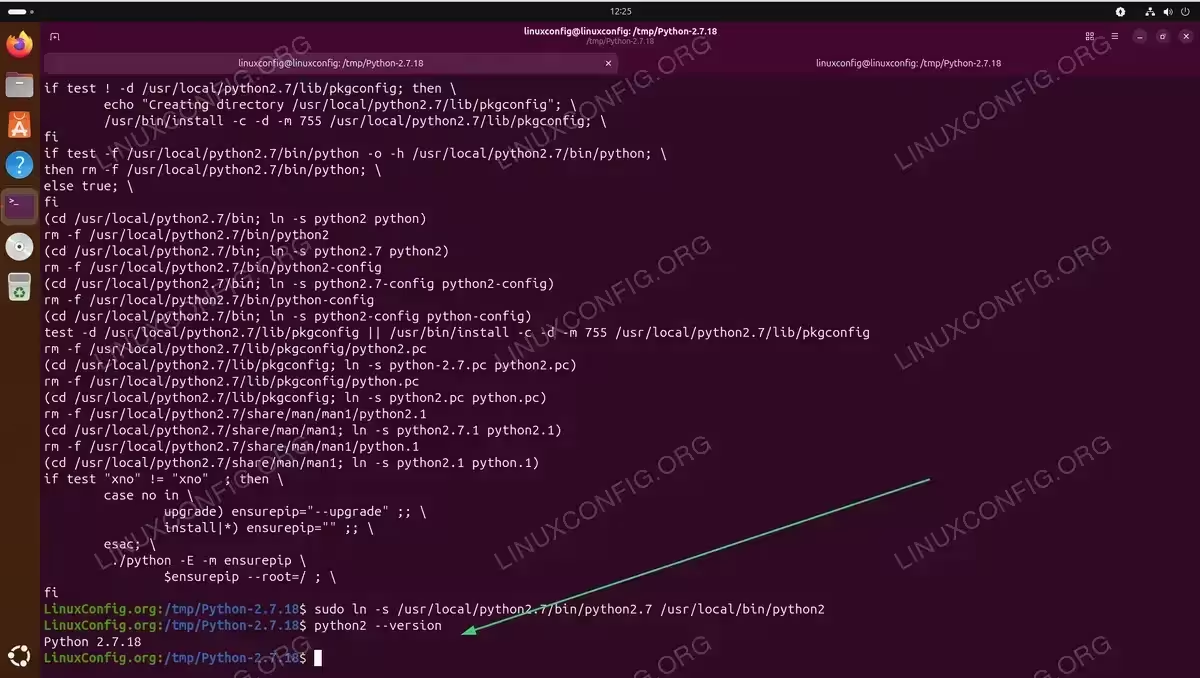
- Install Python: Install the compiled Python to the specified prefix directory.
$ sudo make install
- Create a symlink: Create a symbolic link so you can invoke Python 2 using the
python2command.$ sudo ln -s /usr/local/python2.7/bin/python2.7 /usr/local/bin/python2
- Verify the installation: Confirm Python 2 is accessible.
$ python2 --version
Python 2.7.18
Install pip for Python 2
The pip package manager for Python 2 must be installed manually using the bootstrap script. This allows you to install pip for managing Python 2 packages.
- Download the pip bootstrap script: Retrieve the legacy get-pip.py script that supports Python 2.
$ curl https://bootstrap.pypa.io/pip/2.7/get-pip.py -o get-pip.py
- Run the installer with Python 2: Execute the script using the Python 2 interpreter.
$ python2 get-pip.py
The installer displays a deprecation warning and installs pip, setuptools, and wheel to your user directory:
DEPRECATION: Python 2.7 reached the end of its life on January 1st, 2020.
Defaulting to user installation because normal site-packages is not writeable
Collecting pip<21.0
  Downloading pip-20.3.4-py2.py3-none-any.whl (1.5 MB)
Successfully installed pip-20.3.4 setuptools-44.1.1 wheel-0.37.1
- Add pip2 to your PATH: The pip2 command is installed to
~/.local/bin, which may not be in your PATH. Add it permanently to your shell configuration:$ echo 'export PATH="$HOME/.local/bin:$PATH"' >> ~/.bashrc $ source ~/.bashrc
- Verify pip2 installation: Confirm that pip for Python 2 is working.
$ pip2 --version
pip 20.3.4 from /home/linuxconfig/.local/lib/python2.7/site-packages/pip (python 2.7)
WARNING
Many Python packages have dropped Python 2 support. When using pip2, you may need to specify older package versions that still support Python 2. For example: pip2 install 'requests<2.28'
Best Practices for Python 2 Environments
When working with Python 2 on Ubuntu 26.04, follow these practices to minimize security risks and maintain system stability:
Use virtual environments: Create isolated Python 2 environments for each project to prevent dependency conflicts and contain potential security issues:
$ pip2 install virtualenv
$ virtualenv -p python2 ~/legacy-project-env
$ source ~/legacy-project-env/bin/activate
Consider containerization: For better isolation, run Python 2 applications in Docker containers. This approach completely separates the legacy runtime from your host system.
Plan migration: Use tools like 2to3 to analyze and convert Python 2 code to Python 3. The tool automates many syntax conversions and identifies code that requires manual attention.
Conclusion
You have successfully learned how to install Python 2 on Ubuntu 26.04 using either pyenv or source compilation. Since Python 2 is no longer available in Ubuntu’s repositories, both methods require compiling from source with the CFLAGS="-std=c11" flag to work around C23 compatibility issues. Remember that Python 2 poses security risks and should only be used when absolutely necessary for legacy applications.
Frequently Asked Questions
- Why can’t I install Python 2 with apt on Ubuntu 26.04? Ubuntu completely removed Python 2 packages starting with version 24.04. The
python2package no longer exists in the official repositories or the deadsnakes PPA, so you must compile Python 2 from source. - What causes the “cannot use keyword ‘false’ as enumeration constant” error? Ubuntu 26.04’s GCC compiler defaults to the C23 standard, where
false,true, andboolare reserved keywords. Python 2.7.18 uses these as custom definitions, causing conflicts. The fix is to compile withCFLAGS="-std=c11"to use the older C11 standard. - Is it safe to use Python 2 on Ubuntu 26.04? Python 2 has not received security updates since January 2020 and should not be used for production applications, especially those handling sensitive data or exposed to the internet. Use it only for isolated legacy applications while planning migration to Python 3.
- Which installation method should I choose: pyenv or source compilation? pyenv is recommended for most users because it provides clean version management, easy installation and removal, and keeps Python 2 isolated in your home directory. Source compilation is suitable if you need system-wide installation or prefer not to use additional tools.
- Can I have both Python 2 and Python 3 installed simultaneously? Yes, both installation methods install Python 2 separately from the system Python 3. Use
python2andpython3commands to explicitly invoke the desired version. - What do the “modules not found” warnings during compilation mean? During source compilation, you may see warnings about modules like
_bsddb,gdbm, ornisnot being built. These are optional modules that require additional libraries. They are obsolete or rarely used and do not affect core Python 2 functionality.