
The NVIDIA Driver is a program needed for your NVIDIA Graphics GPU to function with better performance. It communicates between your Linux operating system, in this case Fedora, and your hardware, the NVIDIA Graphics GPU.
The NVIDIA drivers can be installed by using the bash command after stopping the GUI and disabling the nouveau driver by modifying the GRUB boot menu.
To install Nvidia driver on other Linux distributions, follow our Nvidia Linux Driver guide.
In this NVIDIA Drivers installation guide you will learn:
- How to install NVIDIA graphic driver automatically using RPM Fusion and Manually using the official NVIDIA driver from nvidia.com.
- How to identify your NVIDIA graphic card model on your operating system.
- Where to download the NVIDIA driver package for Fedora.
- How to install prerequisites for a successful Nvidia Driver compilation and installation on Fedora.
- How to disable the
nouveaudriver. - How to successfully install NVIDIA Drivers on your Fedora Linux operating system.
Software Requirements and Conventions Used
| Criteria | Requirements |
|---|---|
| Operating System | Fedora Linux |
| Software | Existing Desktop installation such as GNOME. |
| Other | Privileged access to your Linux system as root or via the sudo command. |
| Conventions | # – requires given linux commands to be executed with root privileges either directly as a root user or by use of sudo command$ – requires given linux commands to be executed as a regular non-privileged user |
How to install the NVIDIA drivers on Fedora Workstation step by step instructions
Install Nvidia Driver using RPMFusion
Installing the Nvidia driver on fedora linux using RPM Fusion is the easiest and recommended way since you do not have to deal with driver re-compiling every-time there is a new kernel update.
- Open up the terminal and identify your Nvidia graphic card model by executing:
$ lspci -vnn | grep VGA
06:10.0 VGA compatible controller [0300]: NVIDIA Corporation GA102 [GeForce RTX 3080] [10de:2206] (rev a1) (prog-if 00 [VGA controller])
- Fully update your system.
$ sudo dnf update
ATTENTION
Failing to fully update your system may result in a kernel version mismatch producing the “NVIDIA kernel module missing. Falling back to nouveau.” error message after the nvidia driver installation and system reboot. - Enable RPM fusion:
$ sudo dnf install https://download1.rpmfusion.org/free/fedora/rpmfusion-free-release-$(rpm -E %fedora).noarch.rpm
$ sudo dnf install https://download1.rpmfusion.org/nonfree/fedora/rpmfusion-nonfree-release-$(rpm -E %fedora).noarch.rpm
- Lastly install a relevant Nvidia driver package by selecting one of the following options:
For recent GeForce/Quadro/Tesla execute:
$ sudo dnf install akmod-nvidia
For Legacy GeForce 400/500 execute:
$ sudo dnf install xorg-x11-drv-nvidia-390xx akmod-nvidia-390xx
For Legacy GeForce 8/9/200/300 execute:
$ sudo dnf install xorg-x11-drv-nvidia-340xx akmod-nvidia-340xx
- All done. Reboot your system:
$ sudo reboot
Install Nvidia Driver manually
- In case from some reason the installation of Nvidia Driver using RPM fusion fails or you simply wish to have the latest Nvidia driver version which may not be available via RPM fusion channel you might attempt the Nvidia driver manual install.
- Open up the terminal and identify your Nvidia graphic card model by executing:
$ lspci -vnn | grep VGA
06:10.0 VGA compatible controller [0300]: NVIDIA Corporation GA102 [GeForce RTX 3080] [10de:2206] (rev a1) (prog-if 00 [VGA controller])
- Fully update your system.
$ sudo dnf update
ATTENTION
Failing to fully update your system may result in a kernel version mismatch producing the: NVIDIA kernel module missing. Errors may inlcude: ERROR: Unable to find the kernel source tree for the currently running kernel. Please make sure you have installed the kernel source files for your kernel and that they are properly configured; on Red Hat Linux systems, for example, be sure you have the ‘kernel-source’ or ‘kernel-devel’ RPM installed. If you know the correct kernel source files are installed, you may specify the kernel source path with the ‘–kernel-source-path’ command line option. - Download the Nvidia driver package from nvidia.com using search criteria based on your Nvidia card model and the Linux operating system.
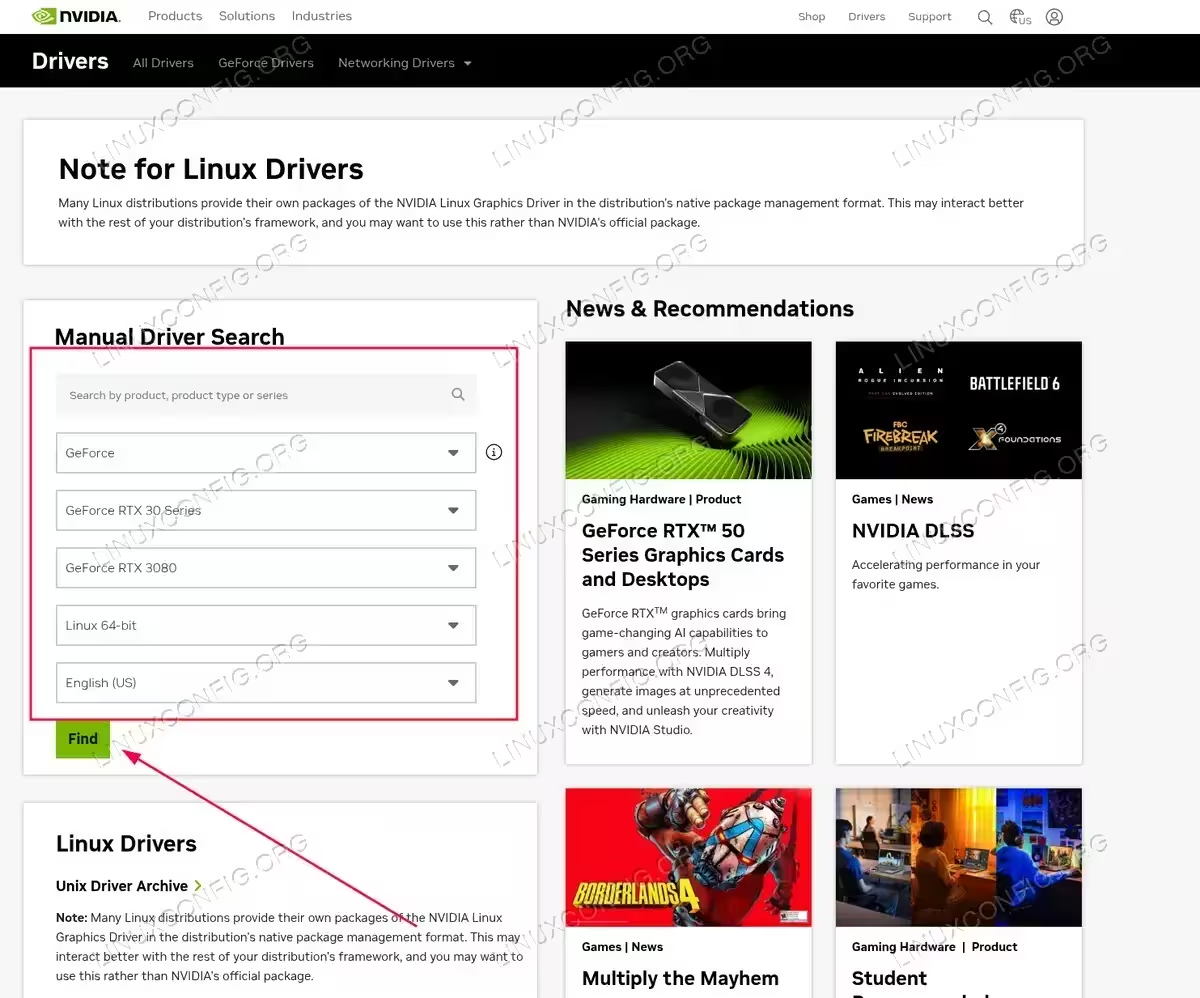
Use the NVIDIA driver download page to find the appropriate driver for your graphics card Download the driver directly from the Nvidia Linux driver list. Once ready you should end up with a file similar to the one shown below:
$ ls NVIDIA-Linux-x86_64-*
NVIDIA-Linux-x86_64-580.95.05.run
- Next, install package prerequisites for a successful Nvidia driver compilation and installation.
$ sudo dnf install @development-tools
$ sudo dnf install libglvnd-devel
- Permanently disable the
nouveaudriver by modifying the GRUB boot menu:sudo grubby --update-kernel=ALL --args="modprobe.blacklist=nouveau"
- Reboot your Fedora Desktop:
$ sudo reboot
WARNING
Depending on your Nvidia VGA model your system might misbehave. At this stage be ready to get your hands dirty. After the reboot you may end up without GUI at all. Be sure that you have the SSH Server enabled on your system to be able login remotely or useCTRL+ALT+F2to switch TTY console and continue with the installation. - Install the Nvidia driver by executing the following command via TTY console or remote ssh login:
$ sudo bash NVIDIA-Linux-x86_64-*
LOW DISK SPACE DURING INSTALLATION
If installation fails with “No space left on device”, create ~/tmp and run: sudo TMPDIR=~/tmp bash NVIDIA-Linux-*.run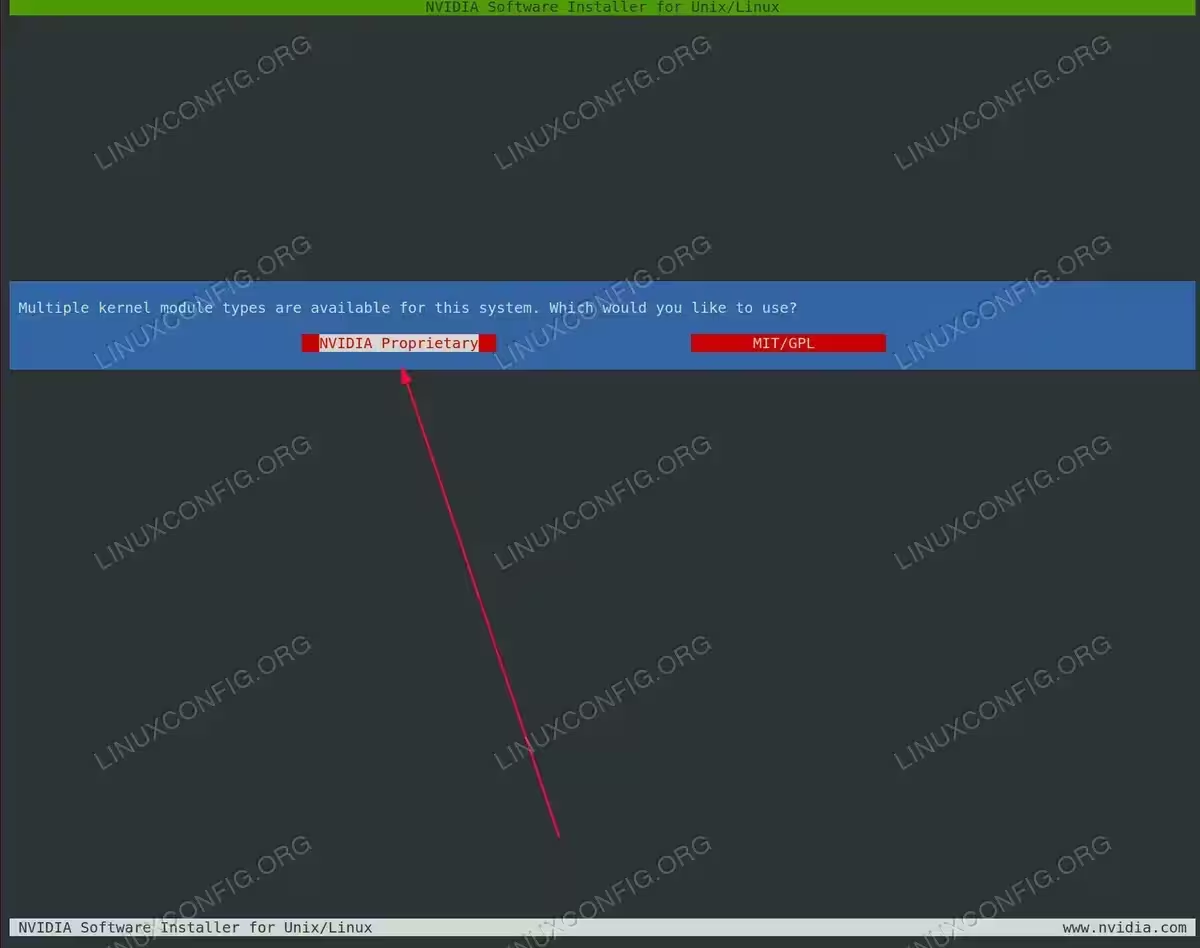
Select NVIDIA Proprietary kernel module during the driver installation process 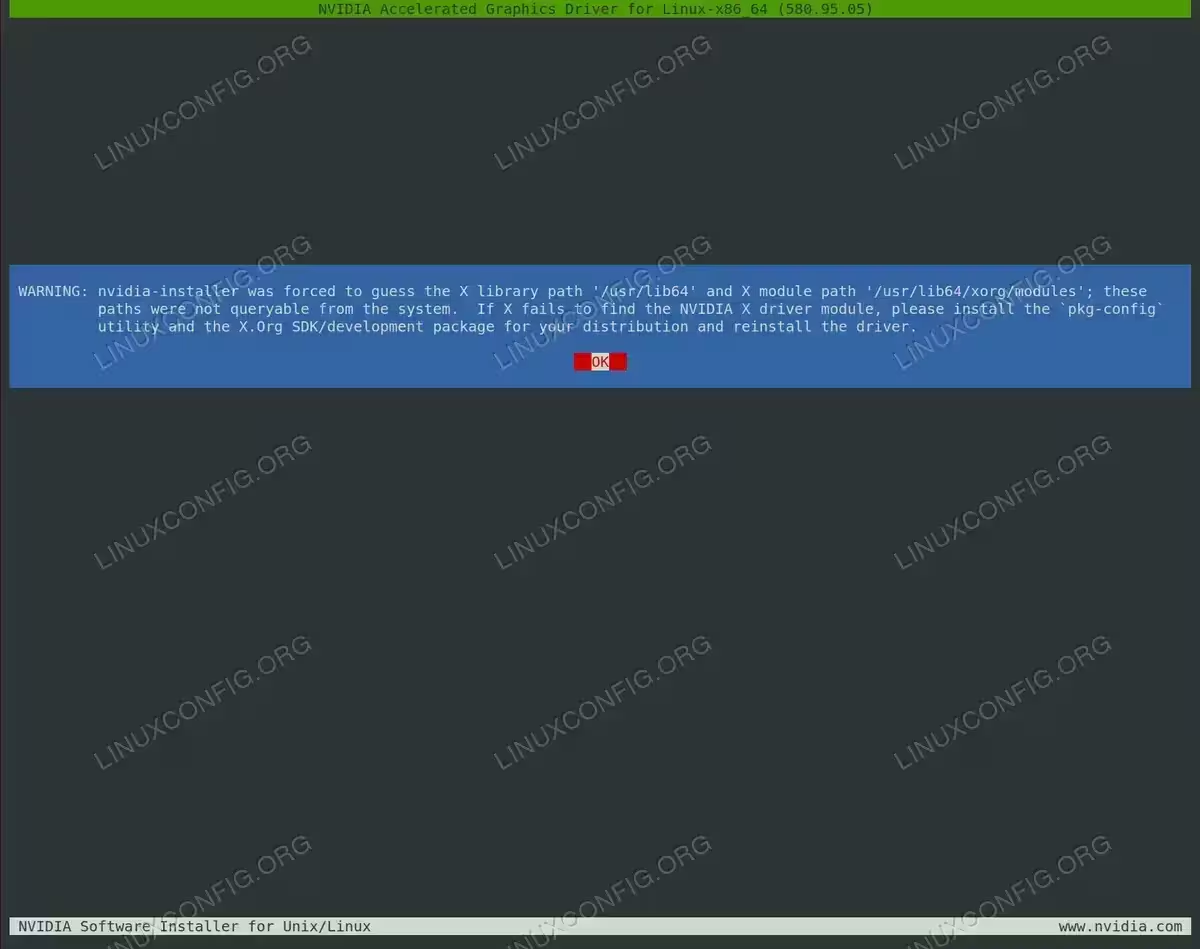
Click OK to acknowledge the X library path warning and continue with the NVIDIA driver installation 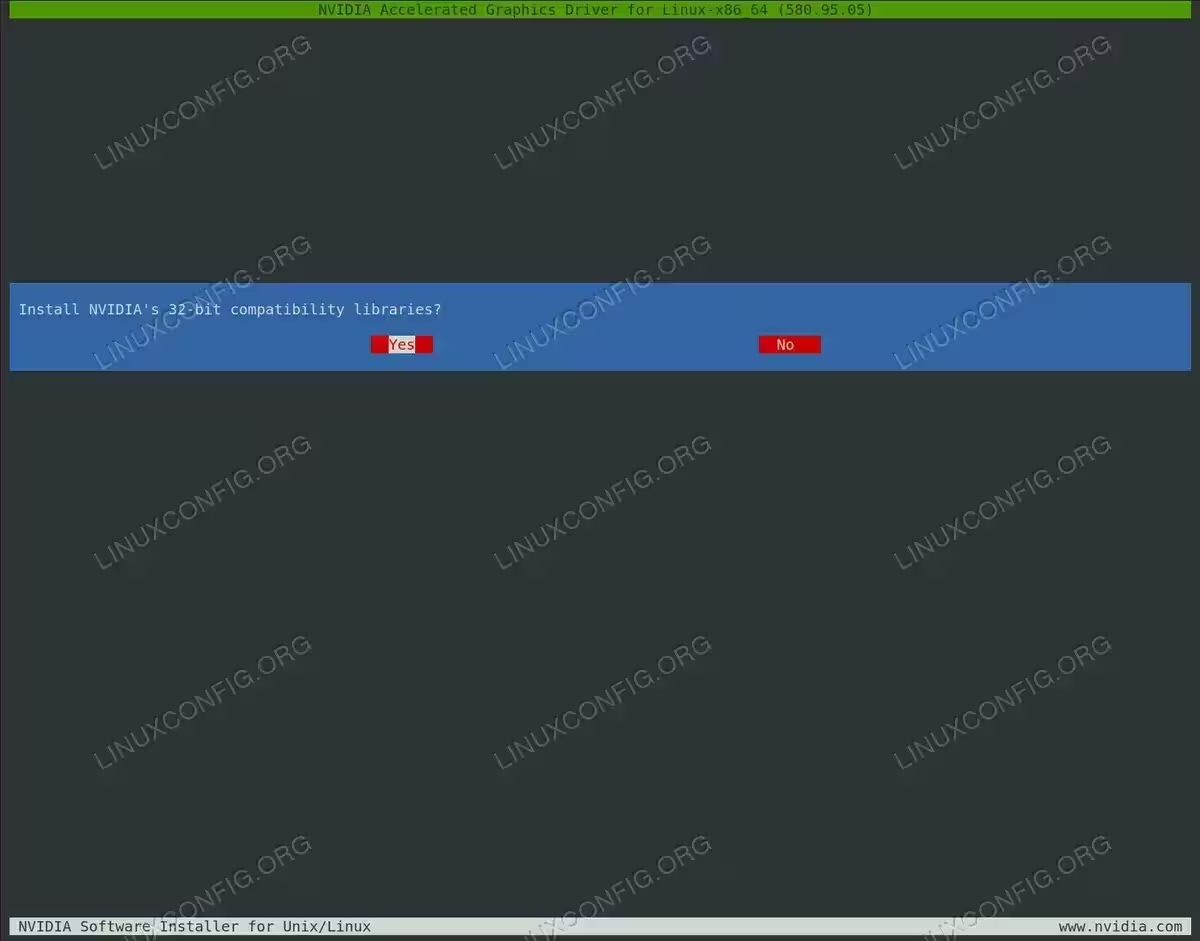
Select Yes to install NVIDIA’s 32-bit compatibility libraries for better application support, or No if you only need 64-bit driver support on your Fedora system 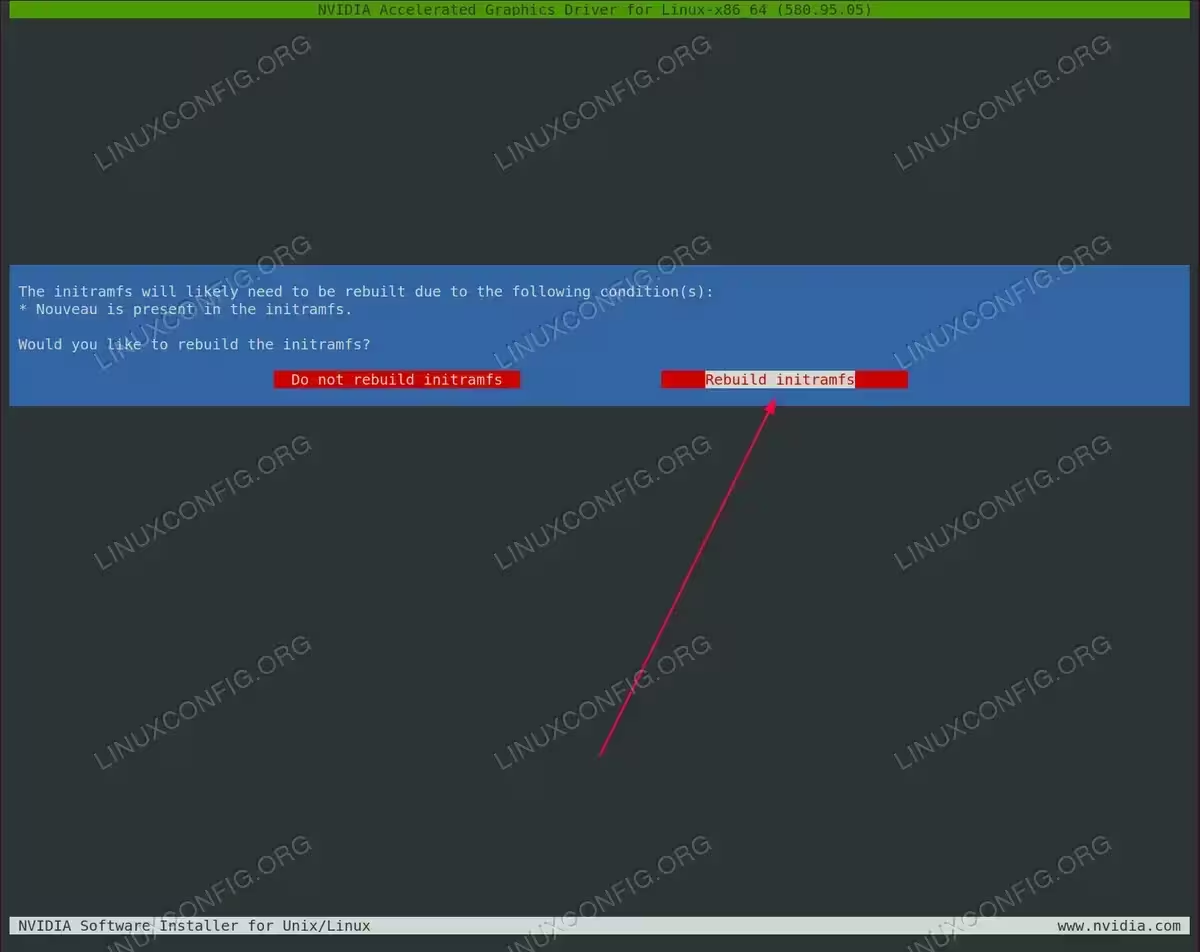
Select “Rebuild initramfs” to allow the NVIDIA installer to rebuild the initial RAM filesystem, which is necessary because the nouveau driver is present in the current initramfs 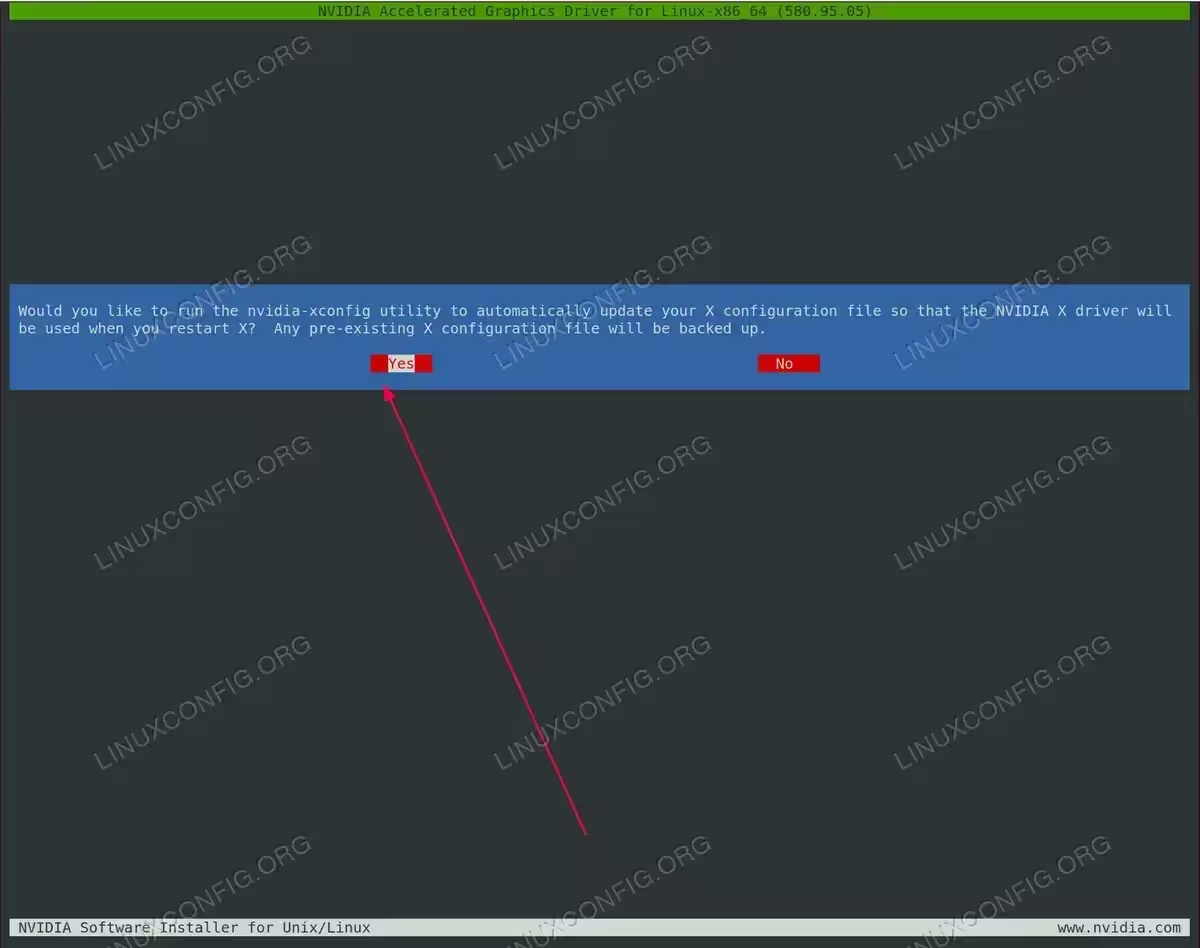
Select “Yes” to allow nvidia-xconfig utility to automatically update your X configuration file so the NVIDIA driver will be used after reboot, with existing configuration backed up 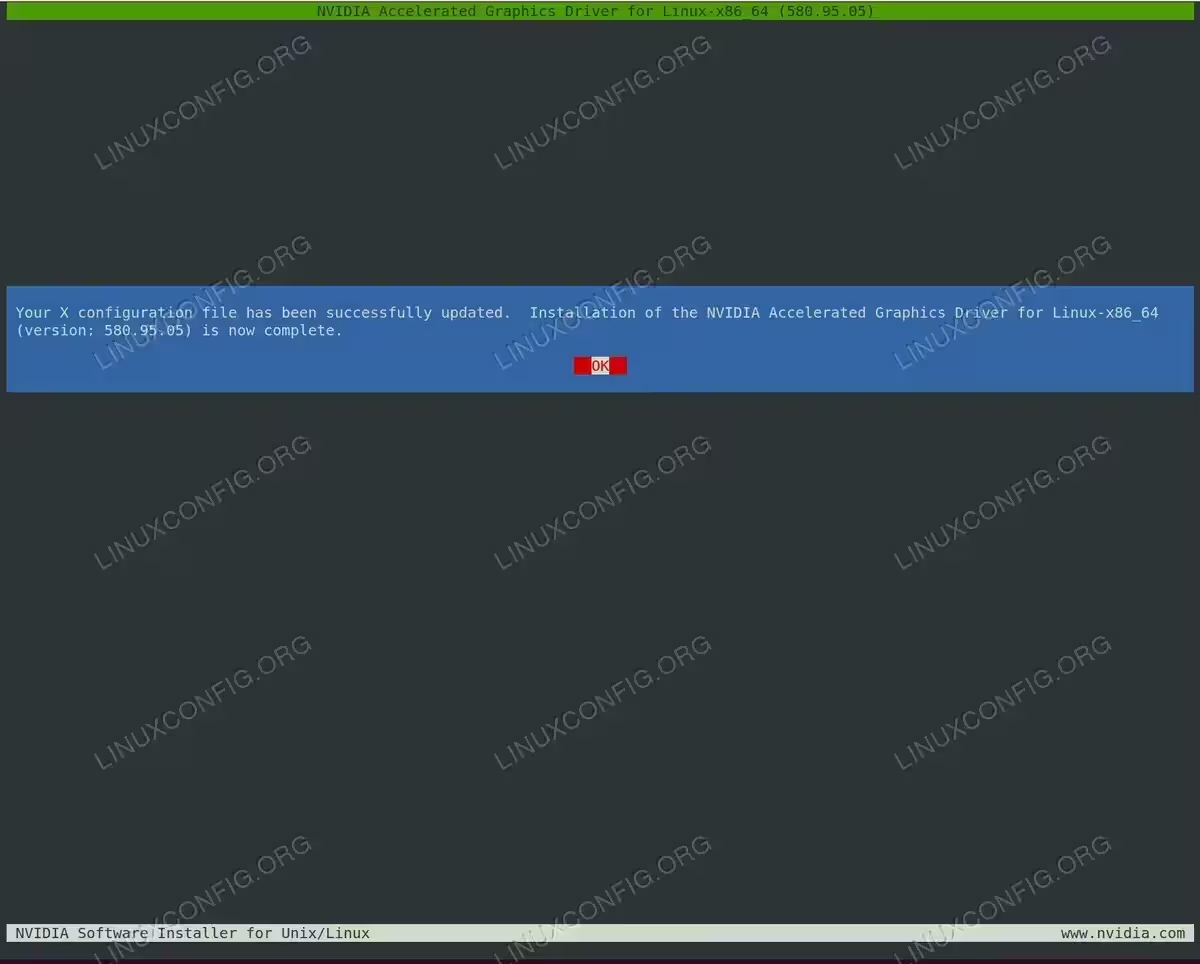
Click OK to finish the installation process – the X configuration file has been updated and NVIDIA driver installation is complete on your Fedora system NOTE
ERROR: Unable to find the kernel source tree for the currently running kernel
In case you receive the above error message during the execution of the above command, follow the kernel source instructions on how to install kernel source on CentOS / RHEL Linux system. - Reboot your system one more time.
$ sudo reboot
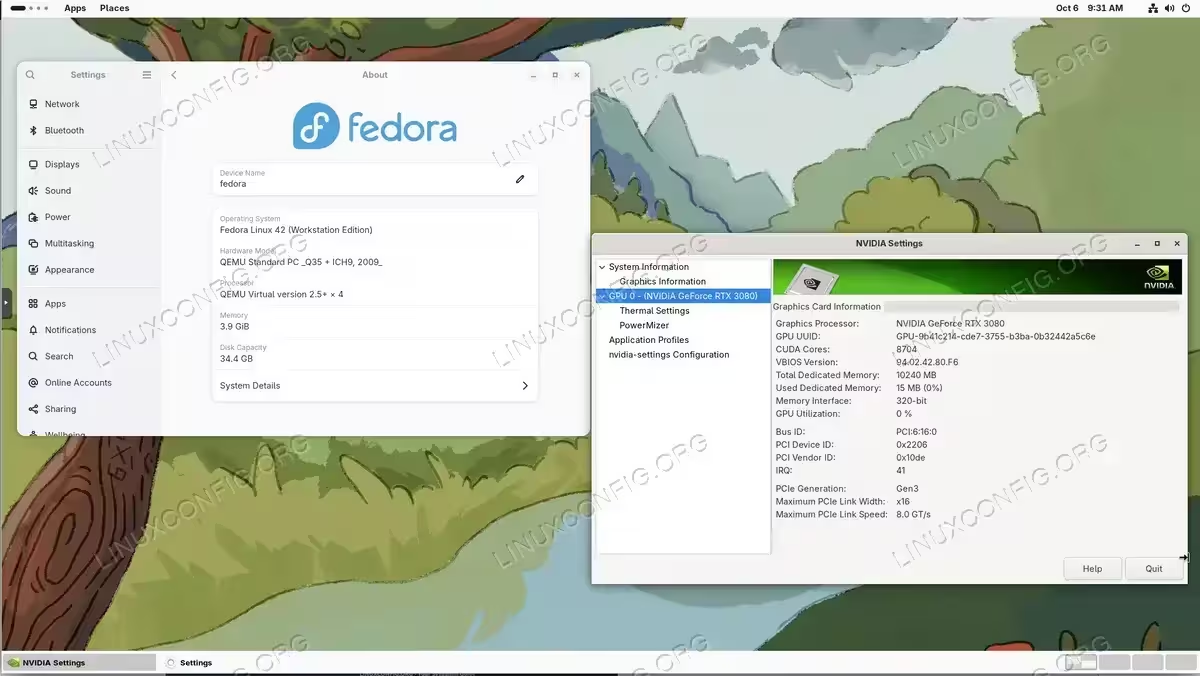
All done. The Nvidia driver should now be installed on your Fedora Desktop. Reboot your system now, login and run
nvidia-settingsto further configure your Nvidia graphic card settings.
Conclusion
Installing NVIDIA drivers on Fedora Linux can be accomplished through two methods: the RPM Fusion repository method or manual installation from NVIDIA’s official package. The RPM Fusion approach is strongly recommended for most users as it provides automatic driver updates with kernel changes and requires minimal maintenance. Manual installation offers access to the latest driver versions but requires reinstallation after each kernel update.
Whichever method you choose, ensure your system is fully updated before beginning the installation process to avoid kernel version mismatches. Remember to disable Secure Boot or properly configure MOK key enrollment if you need to keep it enabled. After successful installation, verify the driver is working by running nvidia-smi or nvidia-settings to confirm your NVIDIA GPU is properly recognized and functioning.
Troubleshooting
Error: NVIDIA kernel module missing. Falling back to nouveau
Symptom: After installation and reboot, the system displays an error message stating “NVIDIA kernel module missing. Falling back to nouveau.”
Cause: This error typically occurs due to a kernel version mismatch between the installed kernel and the kernel headers used during driver compilation.
Solution: Ensure your system is fully updated before installing the NVIDIA driver:
$ sudo dnf update
$ sudo reboot
After rebooting, reinstall the NVIDIA driver following the installation steps in this guide.
Error: Unable to find the kernel source tree for the currently running kernel
Symptom: During manual installation, you encounter the error: “ERROR: Unable to find the kernel source tree for the currently running kernel.”
Cause: The kernel development files required for driver compilation are missing.
Solution: Install the kernel development packages:
$ sudo dnf install kernel-devel kernel-headers
$ sudo dnf install gcc make dkms
Ensure the kernel-devel version matches your running kernel:
$ uname -r
$ rpm -qa kernel-devel
If versions don’t match, update your system and reboot before attempting installation again.
Black screen after user login with GDM
Symptom: GDM on Xorg server does not start after user login and you end up with a black screen. The Xorg log (/var/log/Xorg.0.log) contains errors including “[dix] couldn’t enable device” messages.
Cause: The systemd-logind service may have issues managing device access for the NVIDIA driver.
Solution: Restart the systemd-logind service:
$ sudo systemctl restart systemd-logind
If the issue persists after restart, try rebooting the system:
$ sudo reboot
X server fails to start after driver installation
Symptom: The graphical interface doesn’t start after installing the NVIDIA driver, leaving you at a text console or login screen.
Cause: The X configuration may not be properly set up for the NVIDIA driver, or the nouveau driver is still active.
Solution:
First, verify that nouveau is properly disabled:
$ lsmod | grep nouveau
If nouveau appears in the output, ensure the blacklist is in place:
$ sudo grubby --update-kernel=ALL --args="modprobe.blacklist=nouveau"
$ sudo dracut --force
$ sudo reboot
If nouveau is disabled but X still won’t start, manually run nvidia-xconfig:
$ sudo nvidia-xconfig
$ sudo reboot
No GUI after reboot following manual installation
Symptom: After manual driver installation and reboot, the system boots to a text console instead of the graphical desktop.
Cause: The display manager may not have started, or the system is still in multi-user text mode.
Solution: Switch back to graphical mode:
$ sudo systemctl isolate graphical.target
To set graphical mode as the default boot target:
$ sudo systemctl set-default graphical.target
Secure Boot preventing NVIDIA driver from loading
Symptom: System displays “NVIDIA kernel module missing. Falling back to nouveau” message even after successful driver installation. This often occurs on systems with Secure Boot enabled.
Cause: Secure Boot requires kernel modules to be signed with a trusted key. The NVIDIA driver module is not signed or the MOK (Machine Owner Key) has not been enrolled.
Solution: For RPM Fusion installations with Secure Boot:
$ sudo kmodgenca -a
$ sudo mokutil --import /etc/pki/akmods/certs/public_key.der
Enter a password when prompted. Reboot the system and you will see the MOK Manager blue screen. Select “Enroll MOK”, then “Continue”, enter the password you set, and select “Reboot”.
Alternatively, disable Secure Boot in your BIOS/UEFI settings if it’s not required for your use case.
Error: modinfo ERROR Module nvidia not found
Symptom: Running modinfo -F version nvidia returns “modinfo: ERROR: Module nvidia not found.”
Cause: The NVIDIA kernel module was not properly compiled or installed for the current kernel.
Solution: Rebuild the NVIDIA kernel module:
$ sudo akmods --force
$ sudo dracut --force
Wait for the module to build (this may take several minutes), then reboot:
$ sudo reboot
If using manual installation, reinstall the driver following the manual installation steps.
Driver reinstallation needed after kernel update
Symptom: After a Fedora kernel update, the NVIDIA driver stops working and the system falls back to nouveau.
Cause: Manual driver installations require recompilation for each new kernel version.
Solution: For RPM Fusion installations (recommended), the akmod system should automatically rebuild drivers:
$ sudo akmods --force
$ sudo dracut --force
$ sudo reboot
For manual installations, you must reinstall the driver by following the manual installation steps again with the new kernel.
To avoid this issue in the future, use the RPM Fusion method which automatically handles kernel updates.
Error: nvidia-settings could not find the registry key file
Symptom: Running nvidia-settings shows error: “ERROR: nvidia-settings could not find the registry key file or the X server is not accessible.”
Cause: The NVIDIA driver is not properly loaded or the X server is not running with the NVIDIA driver.
Solution: Verify the NVIDIA driver is loaded:
$ lsmod | grep nvidia
$ nvidia-smi
If nvidia-smi works but nvidia-settings doesn’t, ensure you’re running it in a graphical session with the NVIDIA driver active. If the driver is not loaded, check earlier troubleshooting steps for driver installation issues.