
Ubuntu is one of the most popular Linux distributions, well known for its ease of use and wide range of available software. In some cases, software comes in the form of .deb packages that need to be installed on your system. When faced with multiple .deb packages, especially when they have dependencies, installing them one by one can be time-consuming. Fortunately, there are efficient ways to install multiple .deb packages in Ubuntu, both through the command line and graphical interface (GUI).
In this tutorial you will learn:
- How to install multiple
.debpackages using the dpkg command - How to use the
gdebitool for batch.debinstallation - How to install multiple
.debpackages via the graphical user interface (GUI)

| Category | Requirements, Conventions or Software Version Used |
|---|---|
| System | Ubuntu (any recent version) |
| Software | dpkg, gdebi, Ubuntu Software Center |
| Other | Access to a terminal or GUI |
| Conventions | # – requires given linux commands to be executed with root privileges either directly as a root user or by use of sudo command$ – requires given linux commands to be executed as a regular non-privileged user |
Methods to Install Multiple Deb Packages on Ubuntu
In the sections below, we’ll explore three primary methods to install multiple .deb packages on Ubuntu: using the dpkg command, utilizing the gdebi tool, and leveraging the graphical Ubuntu Software Center. Each method offers its own advantages depending on your comfort level with the command line or GUI, as well as the complexity of package dependencies.
- Method 1: Installing Multiple Deb Packages via dpkg: The
dpkgtool is a basic yet powerful package manager for Debian-based systems like Ubuntu. It’s particularly useful for offline installations or when dealing with multiple.debfiles. Here’s how to use it to install several packages at once:$ sudo dpkg -i *.deb
This command installs all
.debfiles in the current directory. However, if there are missing dependencies, the installation may fail. To resolve this, follow up with the command below to install missing dependencies:$ sudo apt-get install -f
The
-foption fixes any dependency issues by automatically fetching the required packages from the repositories.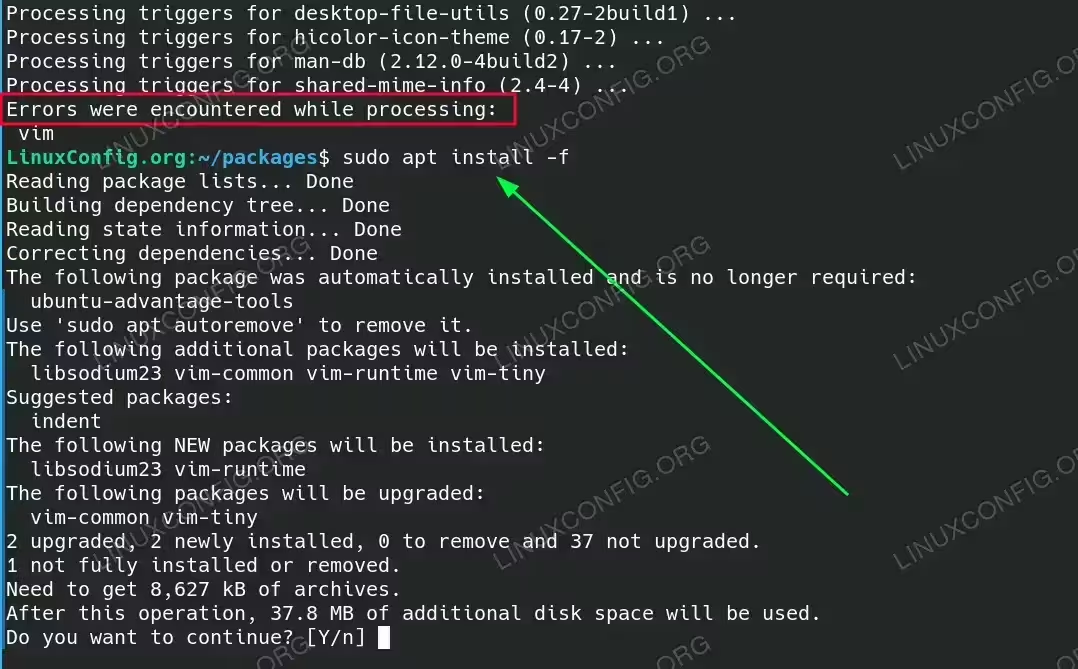
Installation of multiple deb packages and fixing dependencies with apt install -f - Method 2: Using gdebi to Install Multiple Deb Packages:
gdebiis a lightweight command-line tool designed to handle.debpackages with better dependency resolution thandpkg. If you have several.debpackages,gdebiis a handy option. First, installgdebiif you don’t have it:$ sudo apt-get install gdebi
To install multiple
.debpackages, run the following command:$ sudo gdebi *.deb
Unlike
dpkg,gdebiwill automatically handle and install any dependencies, making it more user-friendly when dealing with complex packages. - Installing Multiple Deb Packages via Ubuntu Software Center (GUI): For users who prefer a graphical interface, the Ubuntu Software Center provides a convenient way to install
.debpackages without touching the command line. Follow these steps:- Select all the
.debfiles you wish to install by holding down the Ctrl key and clicking each file. - Right-click the selected files and choose Open with Ubuntu Software Center.
- The Software Center will open, and you’ll be able to click
Installfor each package. Dependencies are automatically handled.
While the GUI method might be slower for batch installs, it’s ideal for users unfamiliar with the command line or dealing with simpler packages.
- Select all the
Conclusion
Installing multiple .deb packages on Ubuntu can be done in several ways depending on your preferences and the package complexity. The dpkg method is fast but may require additional steps for dependencies. gdebi offers a more streamlined approach with better dependency resolution. Lastly, the Ubuntu Software Center provides a user-friendly GUI for those who prefer visual interfaces. By using the method that best suits your needs, you can manage .deb packages more efficiently and get your system up and running with new software quickly.
