
Vim is a powerful, highly configurable text editor used primarily in Linux, macOS, and other Unix-based systems. Despite its widespread use, one of the most infamous challenges, especially for beginners, is figuring out how to exit Vim after editing a file. Unlike more modern text editors, Vim relies on keyboard commands rather than menus or buttons, which can be a hurdle for those unfamiliar with it. This comprehensive guide aims to explain the most reliable methods to exit Vim, whether you’re saving changes, discarding them, or forcing Vim to close when it refuses to quit. By the end of this article, you will be equipped to exit Vim confidently in any situation.
In this tutorial you will learn:
- How to exit Vim while saving changes
- How to exit Vim without saving changes
- How to force Vim to exit
| Category | Requirements, Conventions or Software Version Used |
|---|---|
| System | Linux, macOS, or any Unix-based system |
| Software | Vim text editor (version 8.0+ recommended) |
| Other | Basic knowledge of the command line |
| Conventions | # – requires given linux commands to be executed with root privileges either directly as a root user or by use of sudo command$ – requires given linux commands to be executed as a regular non-privileged user |
Common Methods to Exit Vim
Vim operates in different modes, primarily “normal” and “insert” modes. When trying to exit Vim, it’s crucial to ensure you’re in normal mode. To do this, press the ESC key. If you’re in insert mode (the mode where you can type text), pressing ESC will bring you back to normal mode, where you can execute commands to save or quit. Below, we will go over three core methods that you can use to exit Vim based on your specific needs.
- Exiting and Saving Your Work:
If you have made changes to a file and you want to save those changes before exiting Vim, you can use this method. Once you’re ready to save and exit, make sure you are in normal mode by pressingESC. After ensuring you are in the right mode, type the following command::wq
Here, the command breaks down into two parts: the
wstands for “write,” which tells Vim to save your changes, and theqstands for “quit,” instructing Vim to close after saving. Essentially, the:wqcommand allows you to save your work and exit Vim in one step. This is the most common and safest method to use if you want to ensure your changes are saved before quitting the editor. If you’ve been editing a file and want to make sure that nothing is lost, this command should always be your go-to.There’s also a shorthand for this method, which is:
:x
Using
:xwill achieve the same result as:wq, making it a quicker alternative for those who frequently need to save and quit. However, some users prefer:wqfor clarity, especially when learning Vim.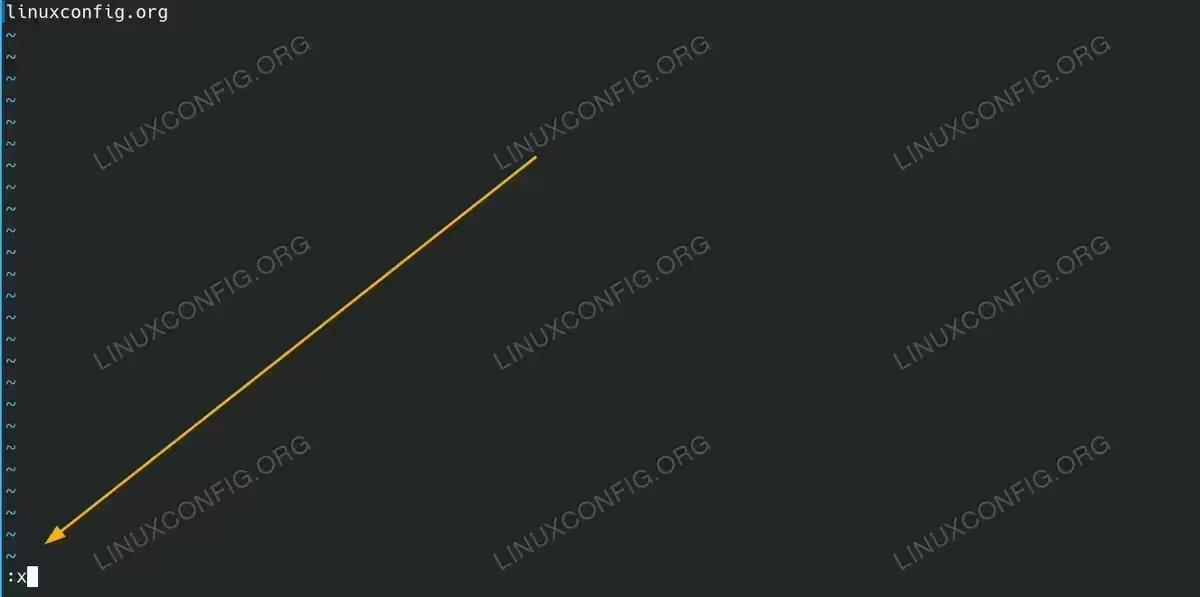
Exit vim with shortcut to save and exit at the same time - Exiting Without Saving Changes:
There are many scenarios where you may decide that the changes you’ve made are unnecessary, and you want to exit Vim without saving them. If that is the case, you can quit without saving any changes by using a simple command. As always, make sure you’re in normal mode by pressingESC. Once you’re in normal mode, type::q!
The
qis the standard “quit” command, which tells Vim you want to exit. The!indicates force, instructing Vim to quit and discard any unsaved changes.By using
:q!, you can quit Vim without saving any modifications, even if changes have been made to the file. This is particularly useful if you open a file by mistake or experiment with changes you don’t want to keep. In these cases,:q!lets you exit without worrying about losing important changes, as it forces Vim to quit without saving anything. - Forcing Vim to Exit:
There are times when Vim may refuse to quit, especially when multiple files are open or if unsaved changes exist. In these cases, you can force Vim to exit by using a slightly more powerful command. First, pressESCto enter normal mode, and then type the following command::qa!
The
qacommand quits all open files, and the!forces Vim to close without saving any changes. The:qa!command is essential when you’re working with multiple files in Vim and want to close everything without saving changes. It ensures that Vim terminates all open buffers and exits immediately. This method is especially helpful in situations where Vim becomes unresponsive or refuses to close certain files.
DID YOU KNOW?
You can exit Vim with SHIFT + ZZ, which saves your changes and quits, similar to :wq. This shortcut is often quicker and less commonly known among new users.
Additional Methods and Tips for Exiting Vim
While the above three methods cover the most common ways to exit Vim, there are additional options that can be useful in certain situations. For example, if you only want to save changes to a file without quitting Vim, you can use the :w command. This command writes (saves) the file without closing the editor. It’s useful if you plan to continue editing but want to ensure your changes are saved periodically.
If you’ve made changes to a file and want to confirm what those changes are before deciding whether to save or quit, you can use the :dif command. This shows the differences between the current buffer and the file on disk, allowing you to review your modifications.
For advanced users, configuring a customized V~/.vimrc file can help streamline your workflow, including setting up shortcuts for frequently used exit commands. For example, adding a line like:
noremap <leader>q :wq<CR>
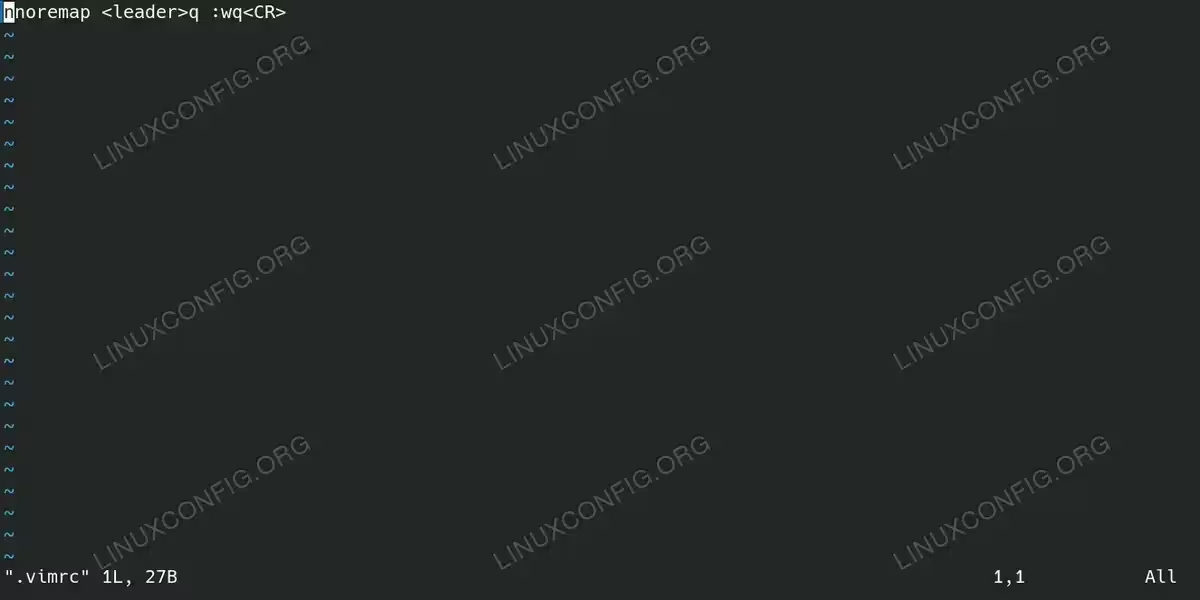
With this mapping, pressing the key combination `q` (which is typically mapped to `\q` unless otherwise set) will allow you to save and quit Vim quickly. This approach can greatly speed up the workflow for those who use Vim frequently.
Conclusion
Learning how to exit Vim is an essential skill for anyone using the editor, whether you’re working on software development, system administration, or personal projects. The three methods covered—saving and exiting with :wq, quitting without saving using :q!, and forcing all files to close with :qa! are the most important commands you’ll need to master. Additionally, keeping these commands in mind will help avoid the frustration often experienced by new Vim users.
Vim’s steep learning curve can be intimidating, but with practice, it becomes a highly efficient tool for text editing. By understanding how to exit the editor under various conditions, you’ll gain the confidence needed to navigate Vim efficiently and effectively.
