
Installing Go (Golang) on Ubuntu 26.04 is straightforward whether you use the Ubuntu repository for convenience or the official tarball for the latest version. This guide walks you through both methods, covers GOPATH configuration, and verifies your setup with a simple Go program.
Table of Contents
In this tutorial you will learn:
- How to install Go on Ubuntu 26.04 from the default repository
- How to install Go as a snap package from Canonical
- How to install the latest Go version from the official tarball
- How to configure GOPATH and Go environment variables
- How to write and run a basic Go program
- How to upgrade and remove Go installations

Software Requirements
| Category | Requirements, Conventions or Software Version Used |
|---|---|
| System | Ubuntu 26.04 Resolute Raccoon |
| Software | Go (Golang) 1.26+ (repository or official tarball) |
| Other | Privileged access to your Linux system as root or via the sudo command. Internet connection for downloading packages. |
| Conventions | # – requires given linux commands to be executed with root privileges either directly as a root user or by use of sudo command$ – requires given linux commands to be executed as a regular non-privileged user |
apt, or download the official tarball for the latest version.
| Step | Command/Action |
|---|---|
| 1. Install from repository | $ sudo apt install golang-go |
| 2. Or install as a snap | $ sudo snap install go --classic |
| 3. Or install from tarball | $ sudo tar -C /usr/local -xzf go1.26.1.linux-amd64.tar.gz |
| 4. Set PATH (tarball method) | export PATH=$PATH:/usr/local/go/bin in ~/.profile |
| 5. Verify installation | $ go version |
Understanding Go Installation Methods on Ubuntu 26.04
Before you install Go (Golang) on Ubuntu 26.04, it is important to understand the three main installation methods available. Each approach has distinct advantages depending on your needs.
The Ubuntu repository method uses apt to install Go from the official Ubuntu 26.04 package archive. This is the simplest approach and integrates with your system’s package management. However, the repository version may lag behind the latest upstream release.
The snap method installs Go as a snap package maintained by Canonical. This provides a recent Go version with automatic background updates and works on any Linux distribution that supports snap. Since Ubuntu 26.04 ships with snap support out of the box, this is a convenient middle ground between the repository and tarball methods.
The official tarball method downloads Go directly from go.dev. This gives you access to the newest Go release and is the method recommended by the Go project itself. Consequently, this is the preferred choice for developers who need a specific version or want full manual control.
WHICH METHOD TO CHOOSE
Use the snap for the easiest path to a current Go version with automatic updates. Choose the official tarball if you need a specific release or want full manual control. The repository method is suitable if you prefer apt for all package management.
Installing Go from Ubuntu Repository
The fastest way to install Go on Ubuntu 26.04 is through the default package repository. This method requires minimal effort and keeps Go updated alongside your other system packages.
- Update the package index: Start by refreshing your package lists to ensure you get the latest available version:
$ sudo apt update
- Install Go: Use
aptto install thegolang-gopackage. You can use the sudo command to gain the necessary privileges:$ sudo apt install golang-go
- Verify the installation: Confirm that Go is installed correctly by checking its version:
$ go version
You should see output similar to:
go version go1.26.x linux/amd64
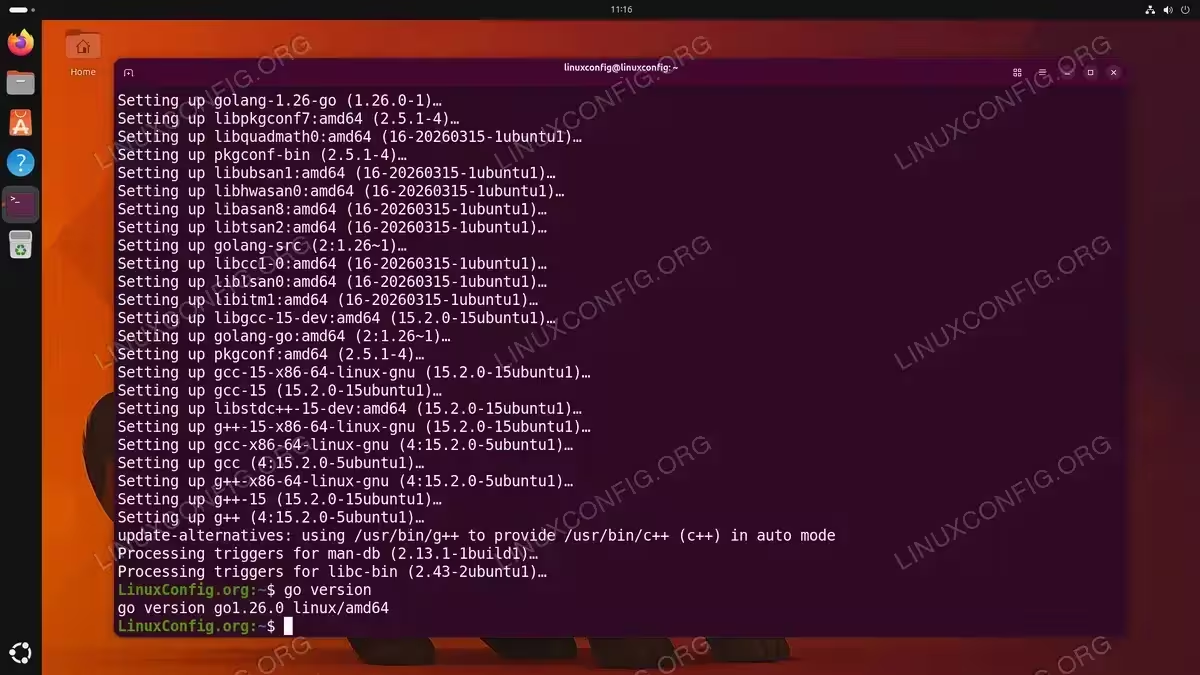
That is all you need for the repository method. Go is ready to use immediately, and your PATH is configured automatically.
Installing Go as a Snap Package
The snap package provides a convenient way to install Go on Ubuntu 26.04 with a single command. The Go snap is maintained by Canonical and receives automatic updates.
- Install the Go snap: The
--classicflag is required because Go needs access to system resources outside the snap sandbox:$ sudo snap install go --classic
Once complete, you should see confirmation output:
go 1.26.1 from Canonical✓ installed
- Verify the installation: Check that the snap-installed Go is accessible:
$ go version
Expected output:
go version go1.26.1 linux/amd64
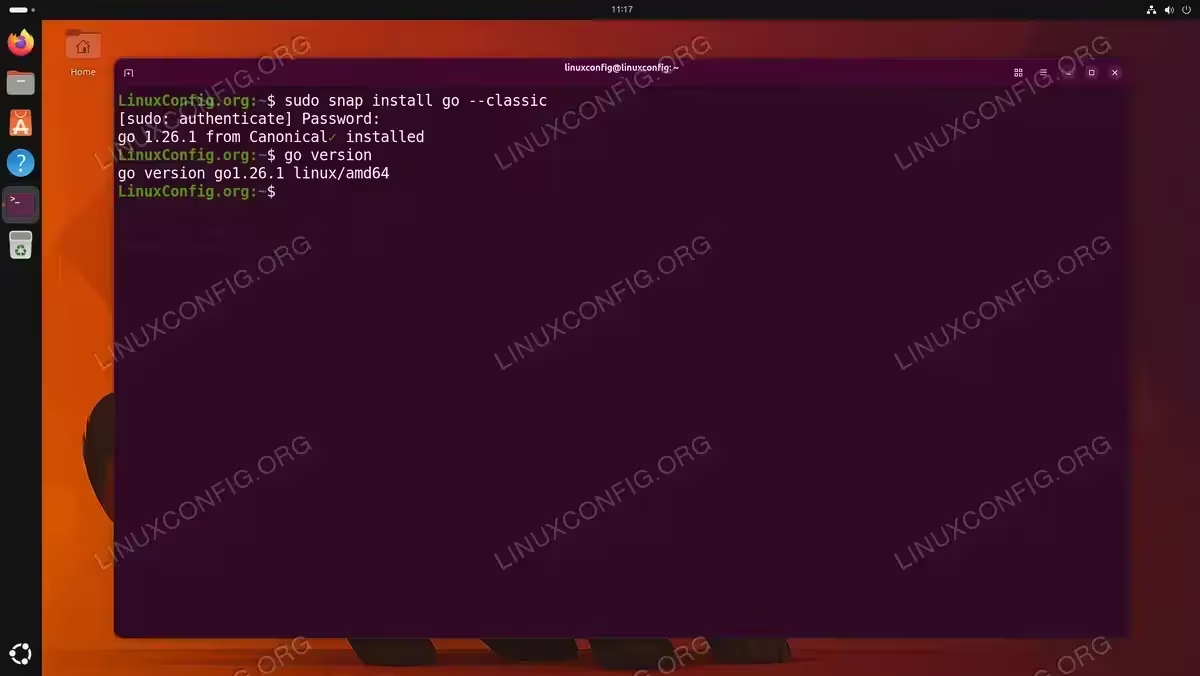
The snap method automatically manages PATH configuration, so Go is ready to use right away. Additionally, snap handles version updates in the background without any manual intervention.
Installing Go from Official Tarball on Ubuntu 26.04
For the latest Go release, download the official tarball directly from the Go project. This method gives you full control over which version is installed.
- Remove any existing Go installation: If you previously installed Go from a tarball or another source, remove it first to avoid conflicts:
$ sudo rm -rf /usr/local/go
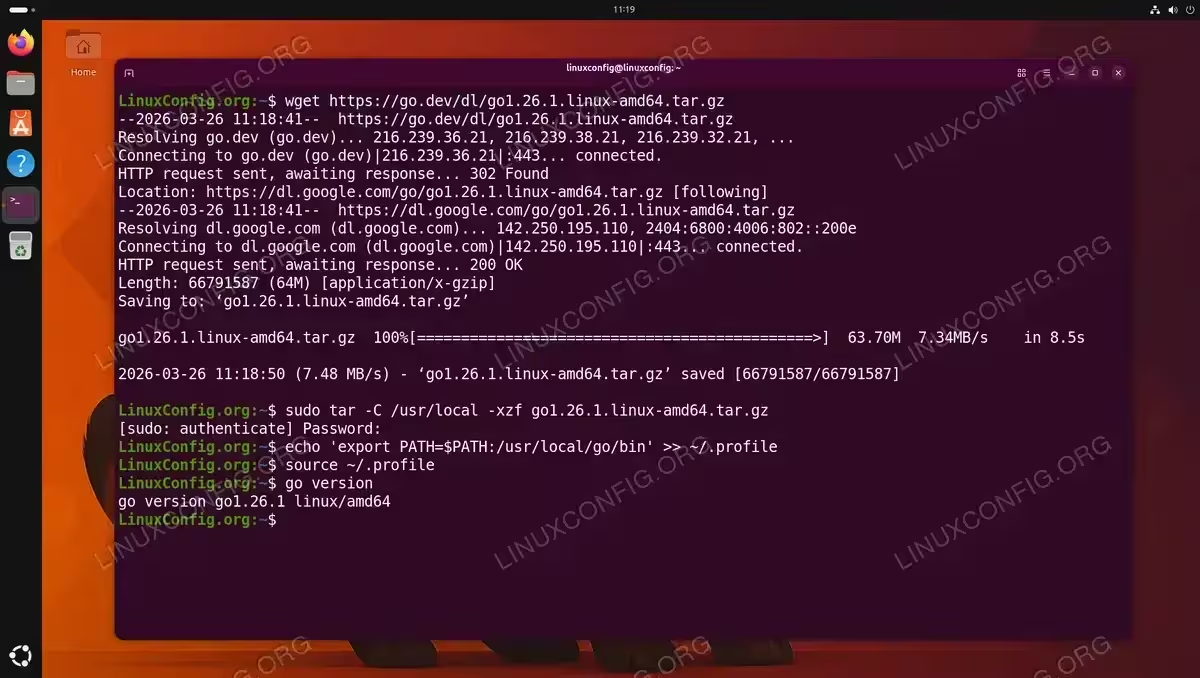
- Download the latest Go tarball: Visit go.dev/dl to find the latest version. Then download it using
wget:$ wget https://go.dev/dl/go1.26.1.linux-amd64.tar.gz
Replace
go1.26.1with the latest version number shown on the download page. - Extract the tarball to
/usr/local: This is the standard location for manually installed Go:$ sudo tar -C /usr/local -xzf go1.26.1.linux-amd64.tar.gz
This creates the
/usr/local/godirectory containing the entire Go distribution. - Add Go to your PATH: Open your
~/.profilefile and add the Go binary path:$ echo 'export PATH=$PATH:/usr/local/go/bin' >> ~/.profile
- Apply the changes: Load the updated profile in your current session:
$ source ~/.profile
- Verify the installation: Confirm the tarball version is active:
$ go version
Expected output:
go version go1.26.1 linux/amd64
IMPORTANT
Do not extract the tarball into an existing /usr/local/go directory. Always remove the previous installation first with sudo rm -rf /usr/local/go before extracting a new version. Overlapping files can produce a broken installation.
Configuring Your Go Environment
Go on Ubuntu 26.04 works out of the box with sensible defaults. You can inspect the key environment variables with:
$ go env | grep -E 'GOPATH|GOROOT|GOBIN'
GOBIN=''
GOPATH='/home/linuxconfig/go'
GOROOT='/usr/local/go'
GOROOT points to the Go installation directory, and GOPATH (~/go by default) is where Go stores downloaded modules and compiled binaries. GOBIN is empty, which means Go places binaries in $GOPATH/bin.
The one thing Go does not do automatically is add $GOPATH/bin to your shell PATH. This matters as soon as you install Go tools with go install. Here is a practical example using goimports, a popular tool that automatically manages import statements in Go source files:
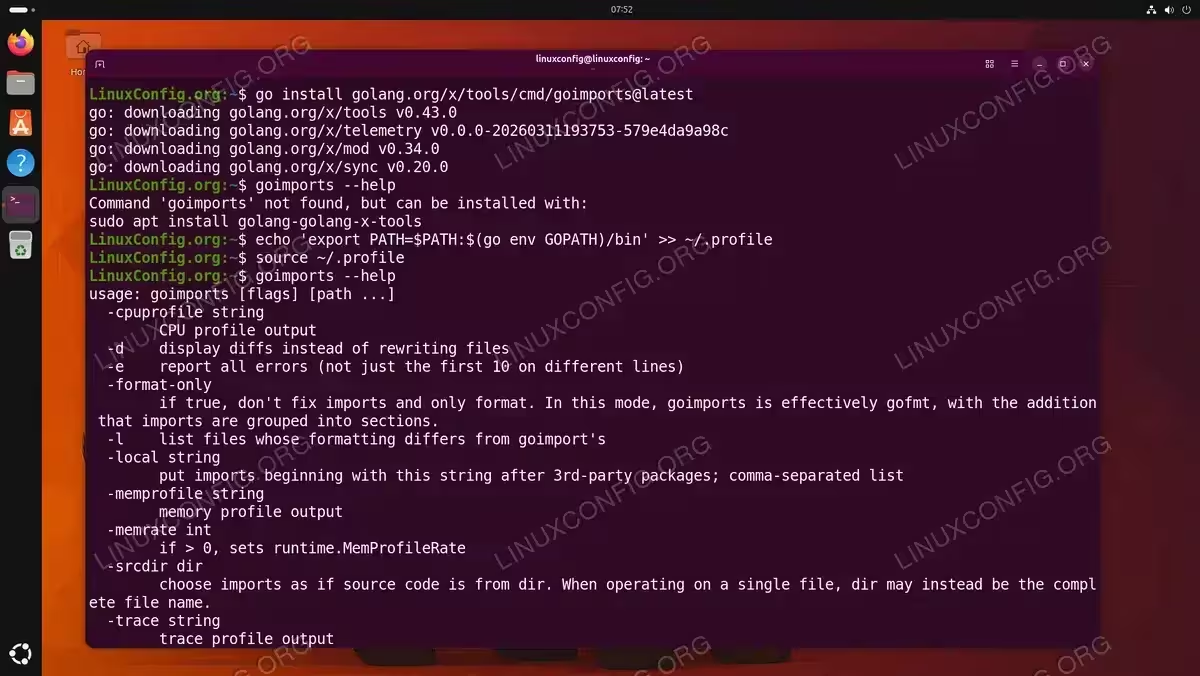
- Install a Go tool: Use
go installto download and compilegoimports:$ go install golang.org/x/tools/cmd/goimports@latest
The binary is placed in
$GOPATH/bin, but your shell does not know about that directory yet. - Attempt to run the tool: Try running the newly installed tool:
$ goimports --help
Command 'goimports' not found, but can be installed with:
sudo apt install golang-golang-x-tools
The command fails because
$GOPATH/binis not in your PATH. Ignore theaptsuggestion since you already have the tool installed. - Add GOPATH bin to your PATH: Append the GOPATH bin directory to your
~/.profileand reload it:$ echo 'export PATH=$PATH:$(go env GOPATH)/bin' >> ~/.profile $ source ~/.profile
- Run the tool again: The command now works as expected:
$ goimports --help
usage: goimports [flags] [path ...]
  -d    display diffs instead of rewriting files
  -e    report all errors (not just the first 10 on different lines)
  -format-only
        if true, don't fix imports and only format...
DID YOU KNOW
Since Go 1.16, module mode is enabled by default. You no longer need to work inside GOPATH/src. You can create projects anywhere on your filesystem and use go mod init to manage dependencies.
Writing and Running Your First Go Program
With Go installed and configured on your Ubuntu 26.04 system, verify everything works by creating a simple Go program.
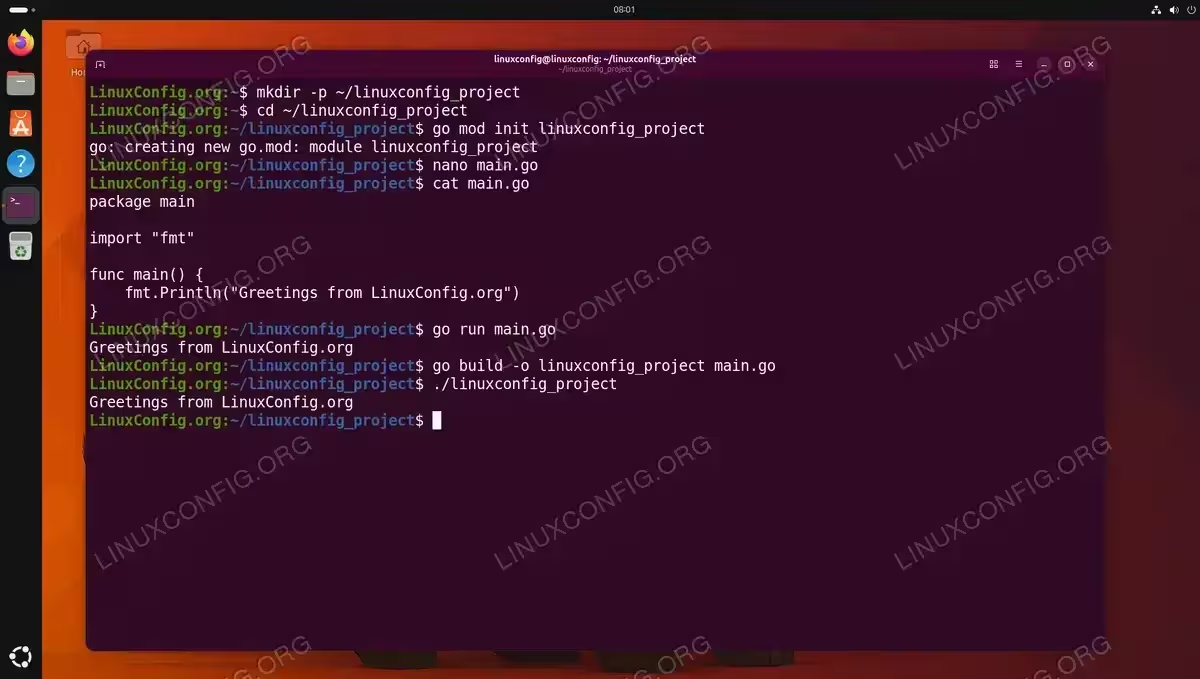
- Create a project directory: Make a new directory for your first Go project:
$ mkdir -p ~/linuxconfig_project
$ cd ~/linuxconfig_project
- Initialize a Go module: Every Go project uses modules for dependency management. Initialize one now:
$ go mod init linuxconfig_project
This creates a
go.modfile in your project directory. - Create the Go source file: Use your preferred text editor to create
main.go:package main import "fmt" func main() { fmt.Println("Greetings from LinuxConfig.org") } - Run the program: Execute the program directly with
go run:$ go run main.go Greetings from LinuxConfig.org
- Build a compiled binary: Alternatively, compile the program into a standalone executable:
$ go build -o linuxconfig_project main.go
$ ./linuxconfig_project
Greetings from LinuxConfig.org
The
go buildcommand produces a statically linked binary that you can distribute without requiring Go on the target machine.
Managing Go Versions
Over time you may need to upgrade Go or remove it from your Ubuntu 26.04 system. The process depends on which installation method you used.
Upgrading a Repository Installation
If you installed Go through apt, upgrading is handled by the system package manager:
$ sudo apt update && sudo apt upgrade golang-go
Keep in mind that repository updates depend on the Ubuntu package maintainers. Therefore, the latest upstream Go release may not be available immediately.
Upgrading a Snap Installation
The Go snap updates automatically in the background. To trigger a manual refresh:
$ sudo snap refresh go
Upgrading a Tarball Installation
To upgrade a tarball-based installation, remove the old version and extract the new one:
$ sudo rm -rf /usr/local/go
$ wget https://go.dev/dl/go1.XX.X.linux-amd64.tar.gz
$ sudo tar -C /usr/local -xzf go1.XX.X.linux-amd64.tar.gz
Replace go1.XX.X with the desired version number. Your PATH configuration remains unchanged, so the new version is active immediately.
Removing Go Completely
To remove a repository installation:
$ sudo apt remove golang-go && sudo apt autoremove
To remove a snap installation:
$ sudo snap remove go
To remove a tarball installation:
$ sudo rm -rf /usr/local/go
Additionally, remove the PATH entries you added to ~/.profile and optionally delete the Go workspace:
$ rm -rf ~/go
Conclusion
You have successfully installed Go (Golang) on Ubuntu 26.04 and configured your development environment. Whether you chose the Ubuntu repository for its simplicity, the snap for automatic updates, or the official tarball for full version control, your system is now ready for Go development. You created a Go module, wrote your first program, and learned how to manage Go versions going forward. Additionally, you can install Git to start using version control with your Go projects right away.
Frequently Asked Questions
- What is the difference between
golang-goand the official Go tarball on Ubuntu 26.04? Thegolang-gopackage comes from the Ubuntu repository and is managed byapt. It may be slightly behind the latest release. The official tarball from go.dev always provides the newest stable version and is maintained by the Go team. - Can I have both repository and tarball Go installations at the same time? This is not recommended because having two Go versions in your PATH causes confusion. If you want to switch methods, remove the existing installation first before installing with the other method.
- Where should I set the Go PATH –
~/.profileor~/.bashrc? Use~/.profilefor login shells, which covers most use cases including terminal emulators on the Ubuntu 26.04 desktop. If you use a different shell such as Zsh, add the export to~/.zshrcinstead. - Do I need to set GOPATH manually? No. Since Go 1.8, the default GOPATH is
~/go, and since Go 1.16, module mode is the standard. You only need to set GOPATH if you want to change the default workspace location. - How do I check which Go version I am running? Run
go versionin your terminal. This displays the installed Go version, the operating system, and the architecture.