
Automating tasks to run during system startup is essential in many server environments. This guide covers setting up a systemd service unit to execute a custom shell script at boot time for tasks such as starting services, checking disk space, or creating backups.
In this tutorial you will learn:
- How to create a systemd service unit
- How to write a shell script for checking disk space
- How to configure and enable the systemd service to run at boot time

| Category | Requirements, Conventions or Software Version Used |
|---|---|
| System | Any Linux distribution with systemd |
| Software | Systemd, Bash shell |
| Other | Access to root privileges |
| Conventions | # – requires given linux commands to be executed with root privileges either directly as a root user or by use of sudo command$ – requires given linux commands to be executed as a regular non-privileged user |
Systemd Service Unit
- Create the Systemd Service File: Start by creating the systemd service unit file. Store the service file as
/etc/systemd/system/disk-space-check.service.[Unit] Description=Check Disk Space on /home directory at Startup After=mysql.service [Service] ExecStart=/usr/local/bin/disk-space-check.sh [Install] WantedBy=default.target
This script sets up a service that will execute after the MySQL service has started, running a script to check disk space.
- Write the Shell Script: Write the shell script that the systemd service will execute. Store the scrip as
/usr/local/bin/disk-space-check.sh.#!/bin/bash echo "Checking disk space on /home directory:" date > /root/disk_space_report.txt du -sh /home/ >> /root/disk_space_report.txtThis script writes the current date to a file and appends the disk space usage of the /home directory to it.
- Set Permissions and Enable Service: Set the necessary permissions and enable the systemd service to run at boot.
$ sudo chmod 744 /usr/local/bin/disk-space-check.sh
$ sudo chmod 664 /etc/systemd/system/disk-space-check.service
$ sudo systemctl daemon-reload
$ sudo systemctl enable disk-space-check.service
These commands make the script executable, set appropriate permissions for the service file, reload the systemd manager configuration, and enable the service to start at boot.
- Test the Systemd Service: Verify that the script works by manually starting the service.
$ sudo systemctl start disk-space-check.service
$ sudo cat /root/disk_space_report.txt
Execute the service manually using the
systemctl startcommand. After running the service, check the contents of the disk space report by viewing thedisk_space_report.txtfile located in the/root/directory. This file should contain the date and the disk space usage of the/home/directory, confirming that the script executed successfully.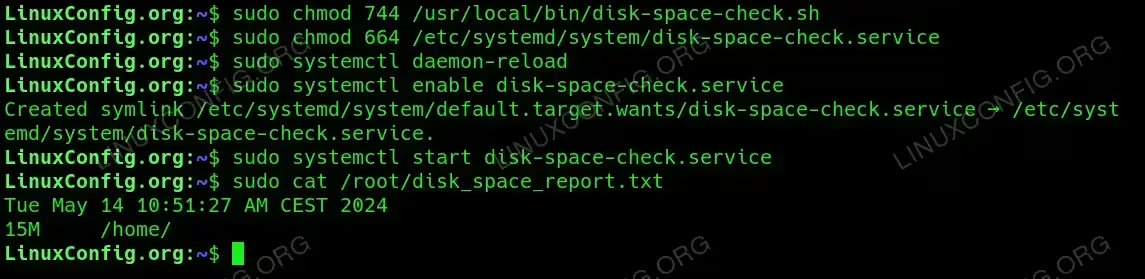
Testing custom systemd script service
Conclusion
By following these steps, your Linux system will automatically perform the specified checks at boot time, facilitating automated maintenance and monitoring without requiring manual intervention.
