
Managing user group membership is a fundamental system administration task on Ubuntu 26.04. Adding a user to a group grants access to shared resources, devices, or application-specific permissions without modifying individual file ownership. This guide demonstrates how to user add ubuntu 26.04 using the usermod command, verify group membership, and apply changes immediately with newgrp.
Table of Contents
In this tutorial you will learn:
- How to add a user to a group with usermod
- The difference between primary and secondary groups
- How to activate group membership with newgrp
- Methods to verify group membership
- Practical examples with Docker and libvirt

Software Requirements
| Category | Requirements, Conventions or Software Version Used |
|---|---|
| System | Ubuntu 26.04 Resolute Raccoon |
| Software | util-linux-extra (for newgrp), members (optional), libuser (optional) |
| Other | Privileged access to your Linux system as root or via the sudo command. |
| Conventions | # – requires given linux commands to be executed with root privileges either directly as a root user or by use of sudo command$ – requires given linux commands to be executed as a regular non-privileged user |
sudo usermod -aG groupname username to add a user to a group on Ubuntu 26.04. The -a flag appends the group without removing existing memberships, and -G specifies the supplementary group.
| Step | Command/Action |
|---|---|
| 1. Add user to group | sudo usermod -aG docker linuxconfig |
| 2. Activate without logout | newgrp docker |
| 3. Verify membership | groups |
Understanding Groups on Ubuntu
Linux systems use groups to organize users and control access to files, directories, and system resources. Every user on Ubuntu 26.04 belongs to at least one group, with two distinct types of group membership:
Primary Group: Each user has exactly one primary group, typically created with the same name as the username. When a user creates new files, they are owned by this primary group by default. You can list users and their primary groups using the /etc/passwd file.
Secondary Groups: Users can belong to multiple secondary (supplementary) groups simultaneously. These groups grant additional permissions without changing file ownership defaults. For example, adding a user to the docker group allows running containers without sudo, while adding to sudo grants administrative privileges.
Group information is stored in /etc/group, where each line contains the group name, password placeholder, GID (Group ID), and comma-separated list of member usernames. Understanding this structure helps when troubleshooting group membership issues.
Adding User to a Group on Ubuntu 26.04
The usermod command is the standard method to user add ubuntu 26.04 to existing groups. The command modifies user account properties, including group membership.
- Install the newgrp utility: The
newgrpcommand is required to activate group membership without logging out. Install it with:$ sudo apt install util-linux-extra
- Add user to a single group: Use the
-aGflags together to append a supplementary group:$ sudo usermod -aG groupname username
For example, to add user
linuxconfigto thedockergroup:$ sudo usermod -aG docker linuxconfig
- Add user to multiple groups: Specify multiple groups as a comma-separated list without spaces:
$ sudo usermod -aG docker,libvirt linuxconfig
This adds
linuxconfigto bothdockerandlibvirtgroups in a single command. - Activate the new group membership: Group changes do not take effect until the session is refreshed. Use
newgrpto activate immediately:$ newgrp docker
This spawns a subshell where the
dockergroup is active. Alternatively, log out and log back in to refresh all group memberships across all terminals.
CRITICAL WARNING
Always use the -a (append) flag with -G. Running usermod -G groupname username without -a removes the user from all other supplementary groups, leaving only the specified group. This can lock you out of sudo access if you accidentally remove yourself from the sudo group.
Verifying Group Membership
After adding a user to a group, verify the change was successful using one of these methods:
- Using the groups command: Display all groups for the current user:
$ groups
Or check groups for a specific user:
$ groups linuxconfig
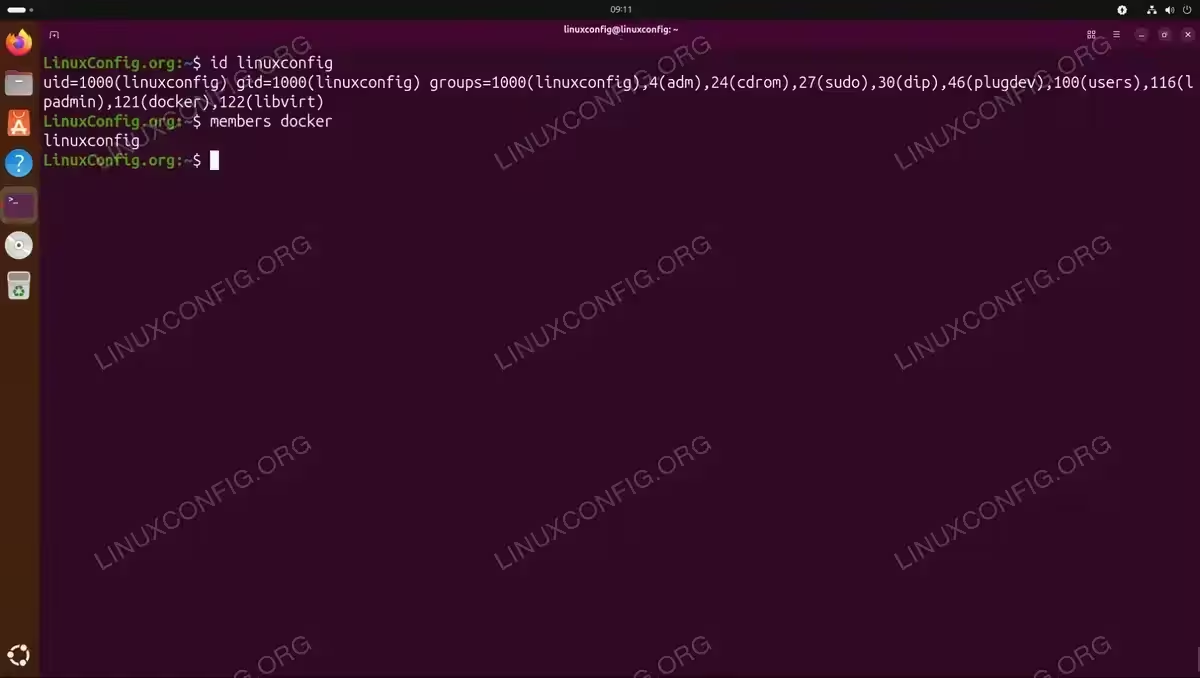
- Using the id command: Provides detailed information including UID, GID, and all group memberships with their numeric IDs:
$ id linuxconfig
- Using the members command: View all users belonging to a specific group. First install the package:
$ sudo apt install members
Then list members of a group:
$ members docker
This is useful for auditing group membership from the group’s perspective rather than the user’s.
Practical Examples
The following examples demonstrate common scenarios where adding users to groups provides necessary permissions on Ubuntu 26.04.
Docker: Run Containers Without Sudo
By default, the Docker daemon binds to a Unix socket owned by the docker group. Users must belong to this group to run Docker commands without sudo:
- Add user to docker group:
$ sudo usermod -aG docker linuxconfig
- Activate and verify Docker access:
$ newgrp docker
$ docker ps
If successful, this displays the list of running containers (empty if none are running) without requiring
sudo.
Libvirt: Manage Virtual Machines
The libvirt group grants permission to manage virtual machines through libvirt tools like virsh and Virtual Machine Manager:
- Add user to libvirt group:
$ sudo usermod -aG libvirt linuxconfig
- Activate and verify libvirt access:
$ newgrp libvirt
$ virsh list --all
This lists all virtual machines without requiring elevated privileges.
For more advanced user permission management, you can add user to sudoers to grant full administrative access, or change username if account restructuring is needed.
Alternative Method: libuser
The libuser package provides an alternative set of user and group management tools. While usermod is the standard approach, lgroupmod from libuser offers similar functionality with a different syntax:
- Install libuser:
$ sudo apt install libuser
- Add user to group with lgroupmod:
$ sudo lgroupmod -M linuxconfig docker
The
-Mflag sets the group members.
WARNING
Unlike usermod -aG, the lgroupmod -M command replaces the entire member list, so use with caution.
For most use cases, usermod -aG remains the recommended method due to its append behavior and wider documentation. The libuser tools are primarily useful in environments that require its specific features or where system policies mandate its use. See the lgroupmod manual page for complete documentation.
Conclusion
Adding a user to a group on Ubuntu 26.04 is straightforward with the usermod -aG command. Remember to always include the -a flag to append rather than replace group memberships. After modifying groups, either log out and back in, or use newgrp to activate changes immediately. Verify your changes with the groups, id, or members commands to confirm successful membership.
Frequently Asked Questions
- Why does usermod -G remove me from other groups? The
-Gflag alone sets the complete list of supplementary groups, replacing all existing memberships. Always combine it with-a(append) asusermod -aGto add a group while preserving existing memberships. - Why do I need to log out after adding myself to a group? Group membership is evaluated when a user logs in. Active sessions retain the original group list until refreshed. You can avoid logging out by running
newgrp groupnameto start a new shell with the updated group membership. - How do I remove a user from a group? Use
sudo gpasswd -d username groupnameto remove a user from a specific group. Alternatively, you can usesudo deluser username groupnamewhich provides the same functionality. - Can I add a user to a group that does not exist yet? No, the group must exist before adding users to it. Create the group first with
sudo groupadd groupname, then add users withusermod -aG. - What is the difference between primary and secondary groups? A user has exactly one primary group that determines default ownership of newly created files. Secondary (supplementary) groups provide additional permissions without affecting file ownership. The
usermod -aGcommand modifies secondary group membership.