
Safari, a popular web browser developed by Apple, is designed primarily for macOS and iOS devices. However, Linux users may want to experience Safari for testing purposes or simply out of curiosity. While Safari is not officially available for Linux, it can still be installed using tools like playonlinux and Wine. This guide walks you through the steps to install Safari on your Linux system.
Fedora
Enable Amarok MP3 support on Fedora Linux
By default a fedora linux does not support playing MP3 files. The same must then apply also for an Amarok music player. To enable MP3 support a user needs to install non-free codec. First add rmpfusion repositories:
NOTE: the command below will enable both free and non-free rmpfusion repositories
$ su -c 'yum localinstall --nogpgcheck \
http://download1.rpmfusion.org/free/fedora/rpmfusion-free-release-stable.noarch.rpm \
http://download1.rpmfusion.org/nonfree/fedora/rpmfusion-nonfree-release-stable.noarch.rpm'
How to install Brave on Linux
Brave is a free and open source web browser focused on providing a privacy-oriented setup by default. It is released under the Mozilla Public License Version 2.0, and it is based on chromium, which is also the open source foundation upon Google Chrome is built. Brave comes with useful built-in features such an ad-blocker, a private search engine, an integrated VPN, and Tor support.
How to install and use snaps on Fedora
Developed by Canonical, the company behind Ubuntu, and originally meant to be used on the latter, the Snappy package manager is a free and open source software used to install and manage snap packages. The purpose of Snap packages, just like flatpaks, is to distribute sandboxed and self-contained applications (applications are packaged together with their dependencies).
How to install Adobe Flash Player on Fedora Linux with Firefox
The following config will demonstrate how to install Adobe Flash player on fedora linux. The following linux commands are separated into two sections to show Adobe Flash player installation for 32-bit and 64-bit architectures.
Adobe Flash player installation on Fedora Linux 32-bit
# rpm -ivh http://linuxdownload.adobe.com/adobe-release/adobe-release-i386-1.0-1.noarch.rpm
# rpm –import /etc/pki/rpm-gpg/RPM-GPG-KEY-adobe-linux
# yum -y install flash-plugin
How to install KDE plasma Desktop on Fedora Linux
By default, the Fedora Linux distribution sports the GNOME desktop environment, although others are available in “Spin” downloads. If you would like to change things up and install KDE Plasma instead, the GUI can be downloaded and installed directly from Fedora’s default package repositories.
C development on Linux – Packaging for Debian and Fedora – XI.
Introduction
You’re already in the know regarding the C programming language. You got the taste of it and felt like you want to go further and write your own. Or maybe help the community and package that favorite software of yours for the distribution you like and use. Regardless of the situation, this part of the C development series will show you how to create packages for two of the most popular distributions, Debian and Fedora. If you read our articles so far and you have some solid knowledge of the command line, and you can say that you know your distro of choice, you’re ready.
Before we go further…
Let’s get some concepts and general ideas out of the way, just so we make sure we are on the same page. What we are about to outline here is available regardless of the project you decide to package (or contribute) for, be it Arch, NetBSD or OpenSolaris. The idea is: be careful. Check the code, whether it’s yours or not, and make sure you remember that perhaps lots of people will use your code. You have a responsibility on your hands, and a pretty big one at that. If you doubt this, reverse places for a second: a package maintainer isn’t careful when inspecting code and some sneaky, but grave bug makes his way installed on your computer. It’s sneaky, as it only manifests itself on certain hardware and in certain situations, but it’s grave enough to delete all the files resident inside your home folder. You happen to have that exact combination of hardware and mayhem ensues, as you forgot to write to DVD those pictures from your holiday. You get angry, your first reaction is to manifest negative feeling towards the operating system (or distribution) and so, following your decision to change distributions immediatley, that distro loses one user, all because one person’s lack of attention and thoroughness.
Debian
Given Debian’s excellent documentation, we won’t be able to cover all the things one needs to become a developer. After all, this is not what we wanted. What we wanted is to show you basically how to get from a tarball to a .deb. Becoming a Debian developer takes lots of time and involves you helping out the community via IRC or mailing lists, reporting and helping fixing bugs, and so on, so that is not the object of our article. Have a look at the documentation the project provides for more insight. The Debian policy, New maintainer’s guide and the Developer’s reference are more than important for starting up, they must be like some kind of a book you sleep under the pillow with.
Your first stop should be, as outlined above, the policy, where you MUST acquaint yourself with the filesystem hierarchy, the archives, the fields in a control file and specific items to be remembered regarding diferent categories of software: binaries, libraries, source, games, documentation, … Remember that a .deb file is nothing more than an archive, and it’s made of two parts: the control part, with the control file and the install/ uninstall scripts, and the payload, where the files to be installed reside. It’s not as hard as one would think it is. It’s a very good idea that you download a .deb file, even better if it’s packing some software you are familiar with, and start looking inside to see what’s what. [HINT] – You can use the control file to create your own, as long as you’re careful. As an example, let’s take vim. deb files are nothing but ar(1) archives, so they can simply be unpacked by using the following linux command:
$ ar vx vim-nox_7.3.547-5_amd64.deb
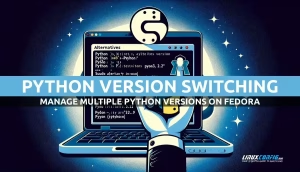
How to Switch Between Python Versions on Fedora Linux
Switching between different versions of Python on fedora linux can be essential for various development environments and projects. With multiple versions of Python available, it’s important to manage them effectively to ensure compatibility and functionality across different projects. This guide will walk you through the process of switching between Python versions on Fedora Linux in a detailed, step-by-step manner.

Fedora 41 released. Here is what’s new
The latest stable version of fedora linux, often regarded as the best Linux distro for polished and professional use, has been released a couple of hours ago, and is available for download. Sponsored by Red Hat, Fedora has a release cycle of approximately 6 months; it provides up-to-date versions of the most used free and open source software, and one of the best (if not the best), available “vanilla” GNOME desktop experience. In this article, we take a look at Fedora 41, and at some of the major changes it comes with.
How to Install MakeMKV On Fedora Linux
MakeMKV is a powerful tool for working with DVDs and Blu-Ray. In fact, it is probably the most reliable way to work with and play Blu-Ray on a Linux system. MakeMKV is partially open source and partially proprietary. It is not distributed in Fedora’s repositories, which makes it a bit trickier to install it than some other applications.
Installation of KeePassX Password Manager on Fedora Linux
KeePassX is a cross platform password manager to allow users to store and organize passwords by keeping them safe using advanced encryption techniques. It allows you to create a database in which your passwords will be stored and protected by one master password. This database can then be backed up or trasferred to a new system as necessary. You can also import that databsae into another instance of KeePassX.
How to disable Plymouth on Linux
Plymouth is an application originally developed by Red Hat and later adopted basically by all the most commonly used Linux distributions. The software runs very early in the boot process, and provides eye-candy animations which accompany the user until he is prompted to login into the system. When Plymouth is used, boot messages are hidden, although they can be visualized simply by clicking the esc key. Some users, however, may prefer to visualize boot messages by default, and avoid any animation.