
If you ever get bored of your ordinary, default Ubuntu desktop or you feel that you do not utilize your video card the way you should, you could enable the 3D cube effect to give your desktop an extra spark. This effect is provided by Wayfire, a 3D compositor for Wayland. Wayfire also provides a slew of other graphics features, some that are simply cool visuals and aesthetics, and some that can actually prove very useful for your workflow.
In this tutorial, you will learn how to install Wayfire on Ubuntu Linux and enable the 3D cube effect.
NOTE
The original cube effect was popularized by Compiz, which no longer seems to work on modern systems. You may remember this effect from a few years ago and wondered where it went. Wayfire now carries the torch and implements a 3D cube effect that you are sure to appreciate.
In this tutorial you will learn:
- How to install Wayfire on Ubuntu Linux
- How to use the 3D cube effect
| Category | Requirements, Conventions or Software Version Used |
|---|---|
| System | Ubuntu Linux |
| Software | Wayfire, Wayland |
| Other | Privileged access to your Linux system as root or via the sudo command. |
| Conventions |
# – requires given linux commands to be executed with root privileges either directly as a root user or by use of sudo command$ – requires given linux commands to be executed as a regular non-privileged user |
How to Install and Use Wayfire on Ubuntu
Wayfire is a 3D compositor for Wayland. It is an open source project which you can view on GitHub. One of the many features that it implements is the 3D cube effect.
It is possible to install Wayfire with the Ubuntu package manager by executing sudo apt install wayfire but we ran into some problems with this method. For this reason, we recommend using the installer script written by the Wayfire developers on GitHub. We will show you how to do that below:
- The first step is to install all of the package dependencies. If you haven’t already, you’ll need to sudo apt install git along with many other packages. Many of these are common, so your system may already have most of them. The following list of packages comes from the official GitHub page, as well as a few extra packages that we noticed are required during build time. Execute the following commands to install all of the required software dependencies:
$ sudo apt update
$ sudo apt install git meson python3-pip pkg-config libwayland-dev autoconf libtool libffi-dev libxml2-dev libegl1-mesa-dev libgles2-mesa-dev libgbm-dev libinput-dev libxkbcommon-dev libpixman-1-dev xutils-dev xcb-proto python3-xcbgen libcairo2-dev libglm-dev libjpeg-dev libgtkmm-3.0-dev xwayland libdrm-dev libgirepository1.0-dev libsystemd-dev policykit-1 libx11-xcb-dev libxcb-xinput-dev libxcb-composite0-dev xwayland libasound2-dev libpulse-dev libseat-dev valac libdbusmenu-gtk3-dev libxkbregistry-dev libdisplay-info-dev hwdata gcc cmake build-essential
- Next, clone the Wayfire repo onto your system:
$ git clone https://github.com/WayfireWM/wf-install
- And then run the install script:
$ cd wf-install
$ ./install.sh --prefix /opt/wayfire --stream 0.8.x
Note:
0.8.xis the current version, but this could change in the future. Check the README section of this page to confirm the correct version to use. - After installation, we can load into Wayfire through the login menu:
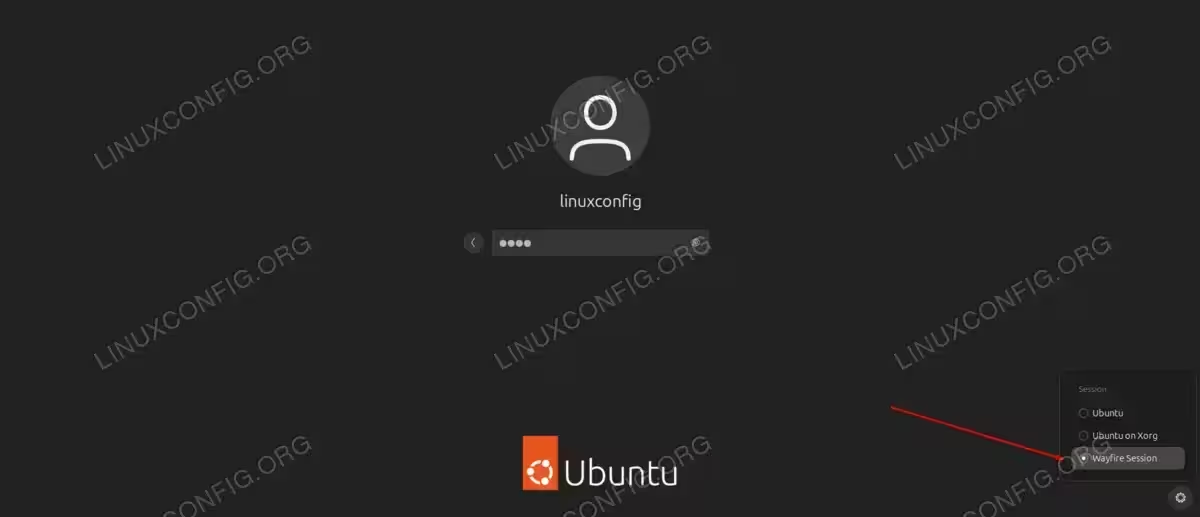
Loading into Wayfire compositor from the Ubuntu login menu
- Alternatively, you can start a Wayfire session via terminal. This command should work if you accepted the default installation path:
$ /opt/wayfire/bin/startwayfire
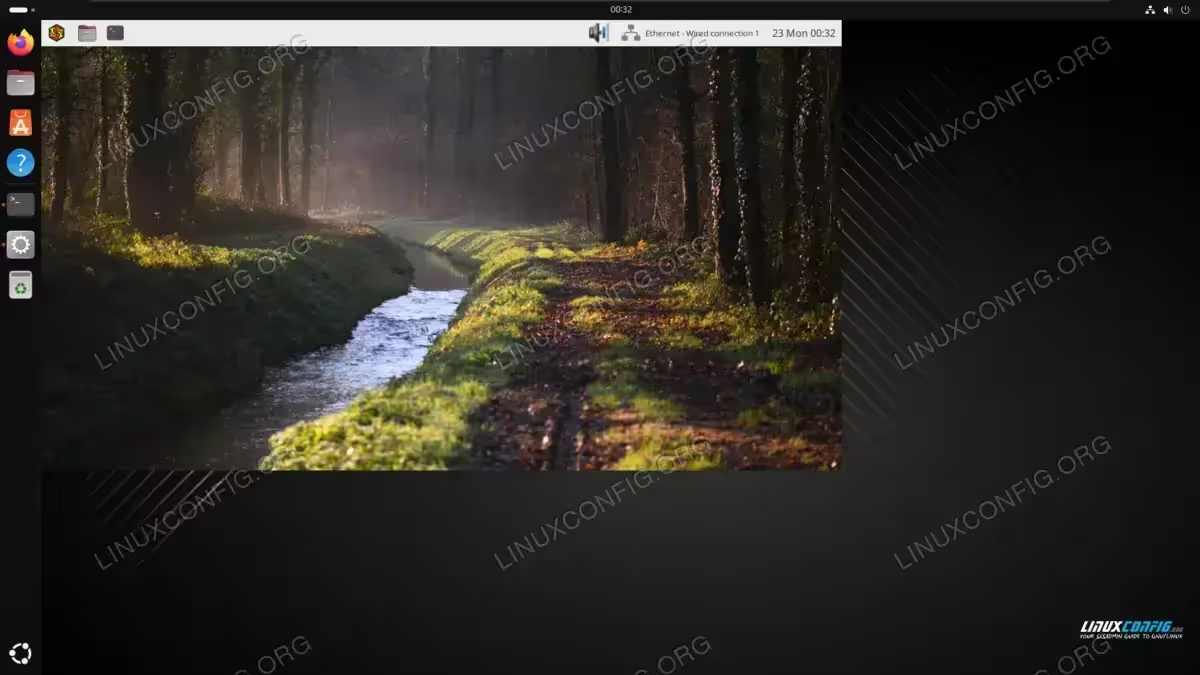
Running a Wayfire session within the current desktop environment
How to Use 3D Desktop Cube Effect
By default, the key binds to activate the desktop cube are CTRL plus ALT and Left Mouse Button. Then, while continuing to depress all three keys, you can move the mouse around to rotate the desktop.
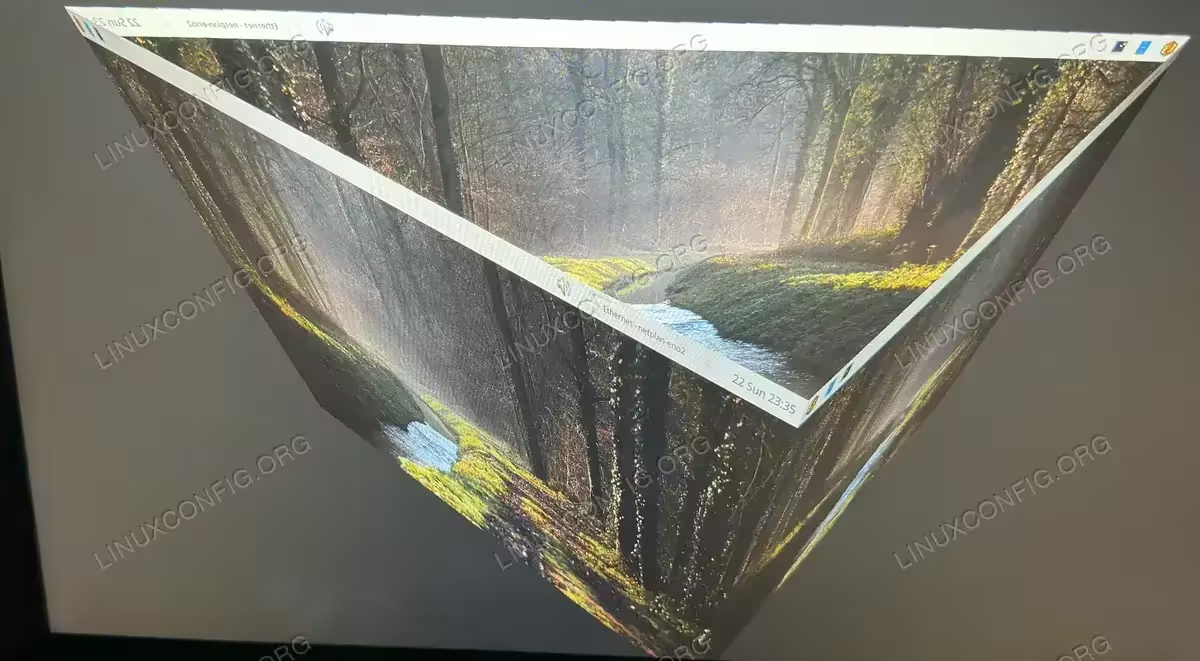
You can also use the scroll wheel to make the cube bigger or smaller – even giving you the ability to go inside of the cube, which offers an extremely unique view of your desktop workspaces.
If you need to edit the Wayfire settings, such as changing the keys that control the cube effect, you can edit this file:
$ nano ~/.config/wayfire.ini
And look for this section:
# Show the current workspace row as a cube.
[cube]
activate = <ctrl> <alt> BTN_LEFT
# Switch to the next or previous workspace.
rotate_left = <super> <ctrl> KEY_H
rotate_right = <super> <ctrl> KEY_L
There are many other features to Wayfire and tricks that you can do. Reading through the rest of this file will help you get familiar with activating them.
To see other Cube settings that can be configured, check out the configuration page on GitHub. Some examples are:
cube.speed_spin_horiz– Setting the speed of horizontal spinningcube.speed_zoom– Change the speed at which you can zoom in or out of the cubecube.deform– Control the deformation as none, cylinder, or star
These values and many others can also be configured by editing the ~/.config/wayfire.ini file mentioned earlier.
Closing Thoughts
In this tutorial, we saw how to install Wayfire on an Ubuntu Linux system. We also learned how to enable the 3D desktop cube effect. Although popularized by Compiz years ago, the cube effect is now best implemented by using Wayfire on modern systems. Wayfire also offers a plethora of other graphics features that are a ton of fun to play with.