
Docker Compose simplifies multi-container application management on Ubuntu 26.04, allowing you to define and run complex services with a single configuration file. This guide covers how to install Docker Compose on Ubuntu 26.04 using the most stable method via the Ubuntu repository, with an alternative approach for users requiring newer versions.
- How to install Docker Compose V2 (with Docker) from Ubuntu repositories
- How to install the latest Docker Compose from Docker’s official repository
- How to verify your Docker Compose installation
- How to create and run a basic multi-container application
- How to troubleshoot Docker permission errors
Software Requirements
| Category | Requirements, Conventions or Software Version Used |
|---|---|
| System | Ubuntu 26.04 Resolute Raccoon |
| Software | Docker Engine, Docker Compose V2 |
| Other | Privileged access to your Linux system as root or via the sudo command. |
| Conventions | # – requires given linux commands to be executed with root privileges either directly as a root user or by use of sudo command$ – requires given linux commands to be executed as a regular non-privileged user |
sudo apt install docker-compose-v2.
| Step | Command/Action |
|---|---|
| 1. Update package index | sudo apt update |
| 2. Install Docker Compose V2 | sudo apt install docker-compose-v2 |
| 3. Verify installation | docker compose version |
Install Docker Compose from Ubuntu Repository (Recommended)
The most stable method to install Docker Compose on Ubuntu 26.04 is through the official Ubuntu repositories. This approach provides a tested and integrated package that receives security updates through the standard system update mechanism. Additionally, the docker-compose-v2 package automatically installs Docker Engine (docker.io) as a dependency, making this a single-command installation.
- Update the package index: Ensure your system has the latest package information.
$ sudo apt update
- Install Docker Compose V2: Install the docker-compose-v2 package from Ubuntu repositories.
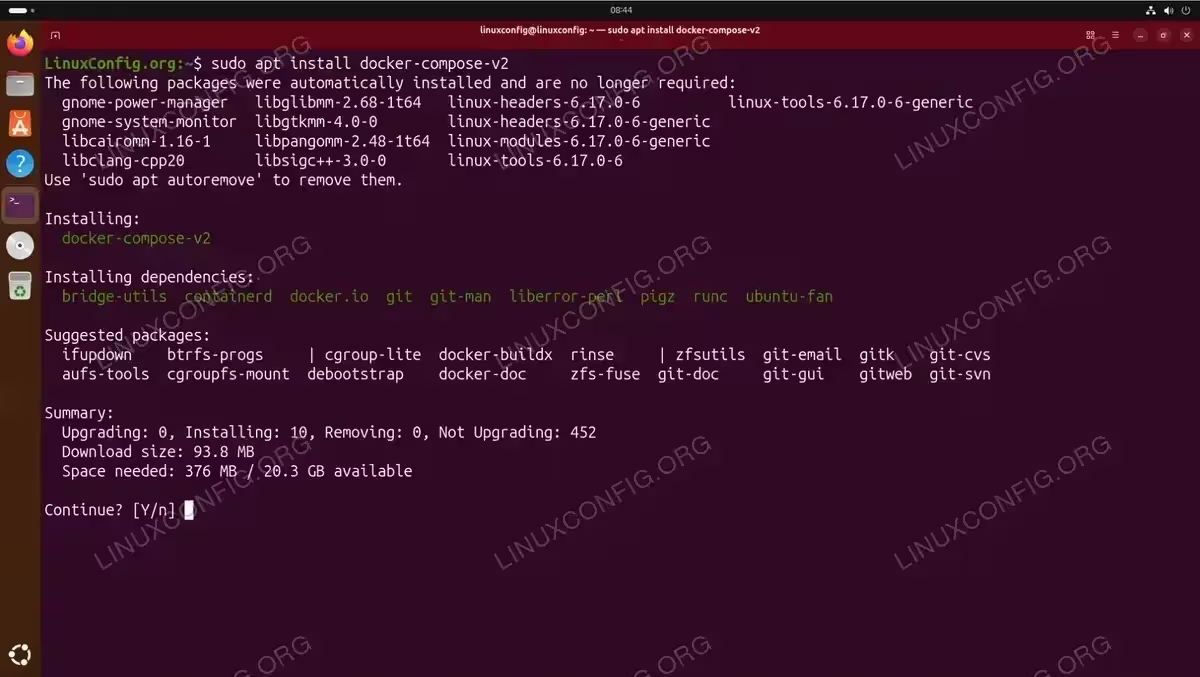
$ sudo apt install docker-compose-v2
Ubuntu 26.04 automatically selects the
docker-compose-v2package when you requestdocker-compose. The installation pulls indocker.io(Docker Engine),containerd, and other required dependencies automatically. For more details on getting started with Docker, see our dedicated guide.
IMPORTANT
If Docker was not previously installed on your system, you need to add your user to the docker group to run Docker commands without sudo. Run sudo usermod -aG docker $USER followed by newgrp docker to apply the change immediately, or log out and back in.
The Ubuntu repository method is recommended for most users because it provides stability, automatic security updates, and seamless integration with your system’s package management.
Install Docker Compose from Docker Repository (Latest Version)
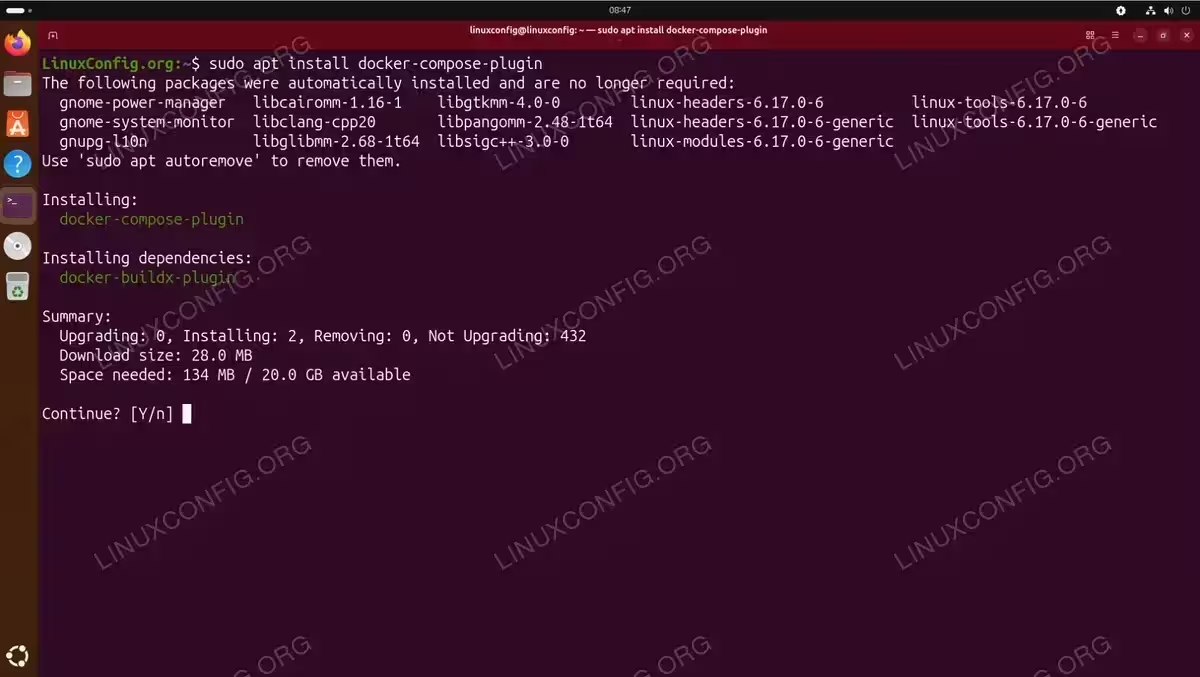
If you require a newer version of Docker Compose than what the Ubuntu repository provides, you can install it directly from Docker’s official APT repository. This method gives you access to the latest features and updates. Note that the Docker repository only provides the Compose plugin, so Docker Engine must be installed separately.
IMPORTANT
Only use this method if you specifically need features from a newer Docker Compose version. The Ubuntu repository version is sufficient for most use cases and offers better stability.
- Install Docker Engine: The Docker repository provides only the Compose plugin, not Docker itself. Install Docker Engine from Ubuntu repositories first.
$ sudo apt install docker.io
- Add your user to the docker group: Allow running Docker commands without sudo.
$ sudo usermod -aG docker $USER
$ newgrp docker
Alternatively, log out and back in for the group change to take effect.
- Install prerequisite packages: Add packages required for downloading over HTTPS.
$ sudo apt install ca-certificates curl gnupg
- Add Docker’s official GPG key: Download and store Docker’s signing key.
$ sudo install -m 0755 -d /etc/apt/keyrings
$ curl -fsSL https://download.docker.com/linux/ubuntu/gpg | sudo gpg --dearmor -o /etc/apt/keyrings/docker.gpg
$ sudo chmod a+r /etc/apt/keyrings/docker.gpg
- Add Docker repository: Configure the Docker APT repository for Ubuntu 26.04.
$ echo \
  "deb [arch=$(dpkg --print-architecture) signed-by=/etc/apt/keyrings/docker.gpg] https://download.docker.com/linux/ubuntu \
  $(. /etc/os-release && echo "$VERSION_CODENAME") stable" | \
  sudo tee /etc/apt/sources.list.d/docker.list > /dev/null
- Update and install: Refresh the package index and install Docker Compose plugin.
$ sudo apt update
$ sudo apt install docker-compose-plugin
For comprehensive documentation on Docker’s installation options, consult the official Docker Compose installation guide.
Verify Docker Compose Installation on Ubuntu 26.04
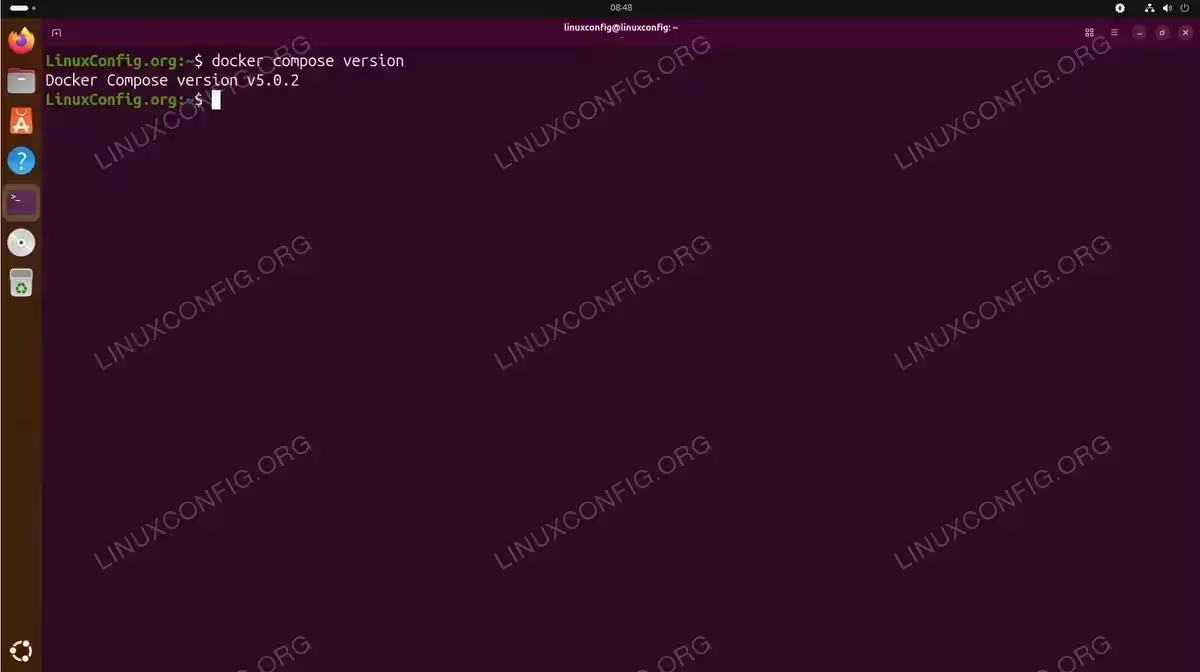
After installation, verify that Docker Compose is properly installed and accessible. Docker Compose V2 integrates as a Docker CLI plugin, meaning you invoke it using docker compose (with a space) rather than the legacy docker-compose command.
$ docker compose version
The version number may differ depending on whether you installed from Ubuntu repositories or Docker’s repository. Both methods provide fully functional Docker Compose V2 installations.
Basic Docker Compose Usage Example
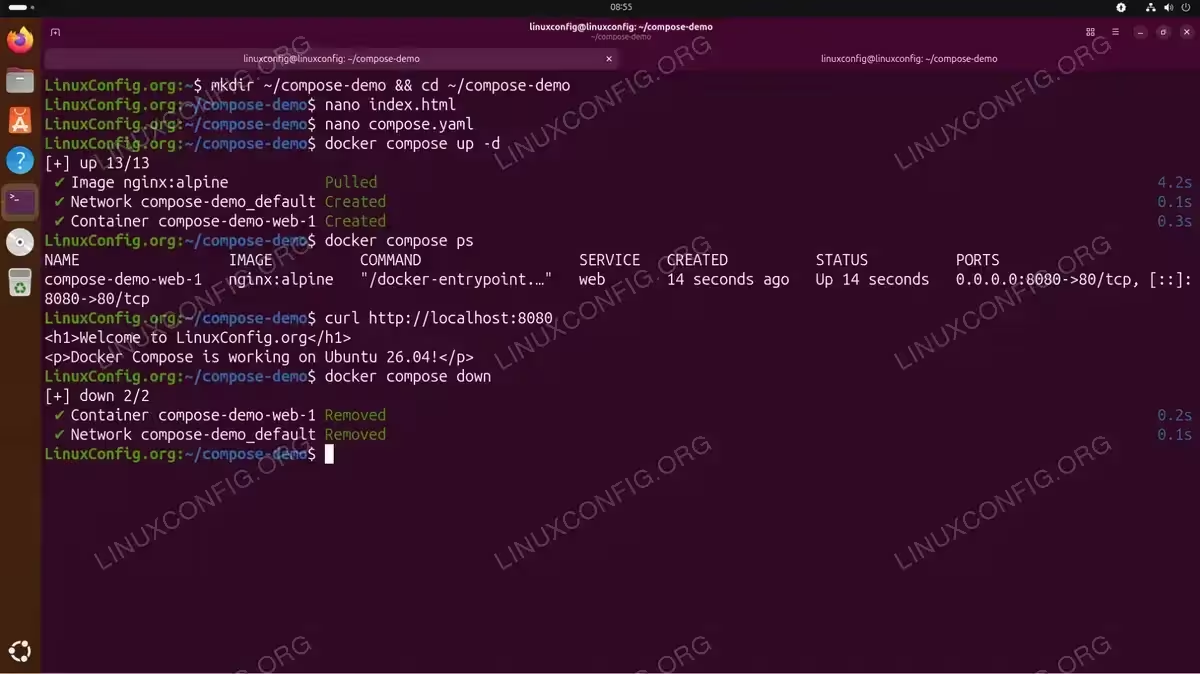
To demonstrate Docker Compose functionality, create a simple web server displaying a branded page. This example illustrates volume mounting and service configuration in a Docker Compose YAML file.
- Create a project directory: Set up a dedicated folder for your Docker Compose project.
$ mkdir ~/compose-demo && cd ~/compose-demo
- Create an index.html file: Create a simple HTML page to be served by the web server.
$ nano index.html
Add the following content:
<h1>Welcome to LinuxConfig.org</h1>
<p>Docker Compose is working on Ubuntu 26.04!</p>
- Create a compose.yaml file: Define the web service in a Docker Compose configuration file.
$ nano compose.yaml
Add the following content:
services: web: image: nginx:alpine ports: - "8080:80" volumes: - ./index.html:/usr/share/nginx/html/index.html:ro - Start the service: Launch the container in detached mode.
$ docker compose up -d
Docker Compose pulls the required Docker images and starts the container according to your configuration.
- Test the web server: Open a browser and navigate to
http://localhost:8080or use curl.$ curl http://localhost:8080
- Stop and remove containers: When finished, clean up the running services.
$ docker compose down
For more advanced Docker Compose workflows, including restarting Docker services and working with Docker Hub, explore our related tutorials.
Troubleshooting
Permission Denied Error
If you encounter the following error when running Docker commands:
$ docker ps
permission denied while trying to connect to the Docker daemon socket at unix:///var/run/docker.sock
This indicates your user is not a member of the docker group. Resolve this by adding your user to the group:
$ sudo usermod -aG docker $USER
$ newgrp docker
The newgrp docker command activates the group membership in your current session. Alternatively, log out and back in for the change to take effect permanently across all terminal sessions.
Conclusion
You have successfully installed Docker Compose on Ubuntu 26.04. The recommended approach using sudo apt install docker-compose-v2 provides a stable, well-maintained installation suitable for most deployment scenarios. For users requiring cutting-edge features, the Docker repository method offers access to the latest versions. With Docker Compose configured, you can now efficiently manage multi-container applications using declarative YAML configuration files.
Frequently Asked Questions
- What is the difference between docker-compose and docker compose? Docker Compose V1 used a standalone
docker-composebinary (with hyphen), while Docker Compose V2 integrates as a Docker CLI plugin invoked withdocker compose(with space). Ubuntu 26.04 ships Docker Compose V2, which is the current standard. The functionality is essentially identical, but V2 offers better performance and tighter Docker integration. - Can I use both Ubuntu repository and Docker repository versions simultaneously? No, you should choose one installation method. Installing from both sources creates package conflicts and version inconsistencies. If you need to switch methods, first remove the existing installation before proceeding with the alternative approach.
- How do I update Docker Compose installed from Ubuntu repositories? Docker Compose updates automatically with your regular system updates. Run
sudo apt update && sudo apt upgradeto receive the latest version available in Ubuntu repositories. For Docker repository installations, the same commands apply but pull updates from Docker’s repository instead. - Do I need to install Docker Desktop to use Docker Compose on Ubuntu 26.04? No, Docker Desktop is optional. Docker Compose works perfectly with Docker Engine alone. Docker Desktop provides a graphical interface and additional features but is not required for command-line Docker Compose usage.