
Knowing how to list users on Ubuntu 26.04 is essential for system administration tasks. Whether you need to audit user accounts, verify group memberships, or troubleshoot access issues, Ubuntu provides several commands to retrieve user information. This guide covers multiple methods to user list Ubuntu 26.04 systems, from simple commands to advanced filtering techniques.
Table of Contents
In this tutorial you will learn:
- How to list all users from /etc/passwd
- How to use getent for user enumeration
- How to list only usernames with compgen
- How to identify users with sudo privileges
- How to view currently logged-in users

Software Requirements
| Category | Requirements, Conventions or Software Version Used |
|---|---|
| System | Ubuntu 26.04 Resolute Raccoon |
| Software | Core utilities (pre-installed) |
| Other | Privileged access to your Linux system as root or via the sudo command. |
| Conventions | # – requires given linux commands to be executed with root privileges either directly as a root user or by use of sudo command$ – requires given linux commands to be executed as a regular non-privileged user |
cat /etc/passwd or getent passwd. For usernames only, use compgen -u.
| Step | Command/Action |
|---|---|
| 1. List all users with details | getent passwd |
| 2. List usernames only | compgen -u |
| 3. List sudo users | getent group sudo |
| 4. List logged-in users | w |
List Users Using /etc/passwd on Ubuntu 26.04
The /etc/passwd file contains information about all user accounts on your Ubuntu 26.04 system. Each line represents one user account with fields separated by colons. This method provides the most detailed view of user accounts, including system users.
To display the complete contents of the passwd file, run:
$ cat /etc/passwd
The output shows each user on a separate line with seven colon-separated fields: username, password placeholder, UID, GID, comment (GECOS), home directory, and login shell. System accounts typically have UIDs below 1000, while regular user accounts start at UID 1000.
To extract only the usernames from this file, use the cut command:
$ cut -d: -f1 /etc/passwd
This command uses the colon as a delimiter (-d:) and extracts the first field (-f1), which contains the username.
For a more readable format that shows only human users (UID 1000 and above), combine awk with the passwd file:
$ awk -F: '$3 >= 1000 && $3 < 65534 {print $1}' /etc/passwd
This filters users by UID range, excluding system accounts and the nobody user.
List Users Using getent on Ubuntu 26.04
The getent command queries system databases configured in /etc/nsswitch.conf. This makes it particularly useful on systems that use LDAP, NIS, or other network-based user directories, as it retrieves users from all configured sources.
To list all users from all configured databases:
$ getent passwd
The output format is identical to /etc/passwd. However, getent also includes users from network directories if configured. This command is therefore more comprehensive on enterprise systems.
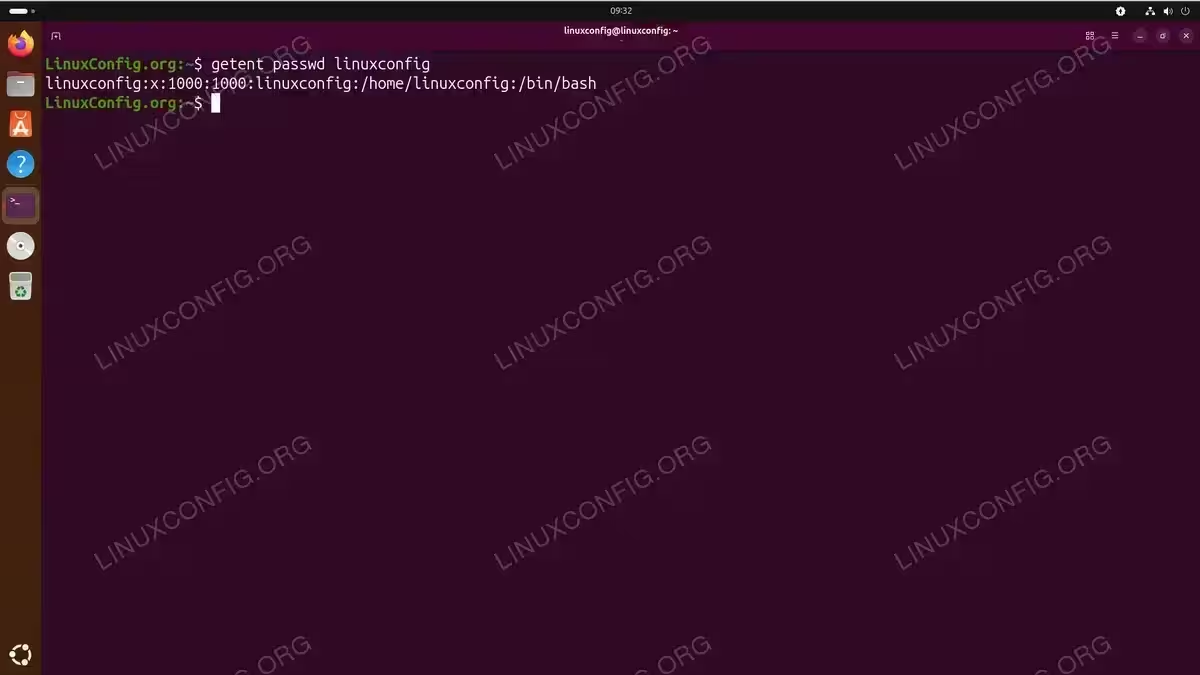
To look up a specific user, append the username:
$ getent passwd linuxconfig
This returns only the entry for the specified user, which is useful for verifying whether a particular account exists. If you need to change a username later, first verify the current account details with this command.
To count the total number of users on your system:
$ getent passwd | wc -l
List Users Using compgen on Ubuntu 26.04
The compgen built-in bash command provides the cleanest output when you need only usernames. It queries the same sources as getent but outputs one username per line without additional details.
To list all usernames:
$ compgen -u
This command is particularly useful in scripts where you need to iterate over user accounts. The output contains no extra formatting, making it easy to process programmatically.
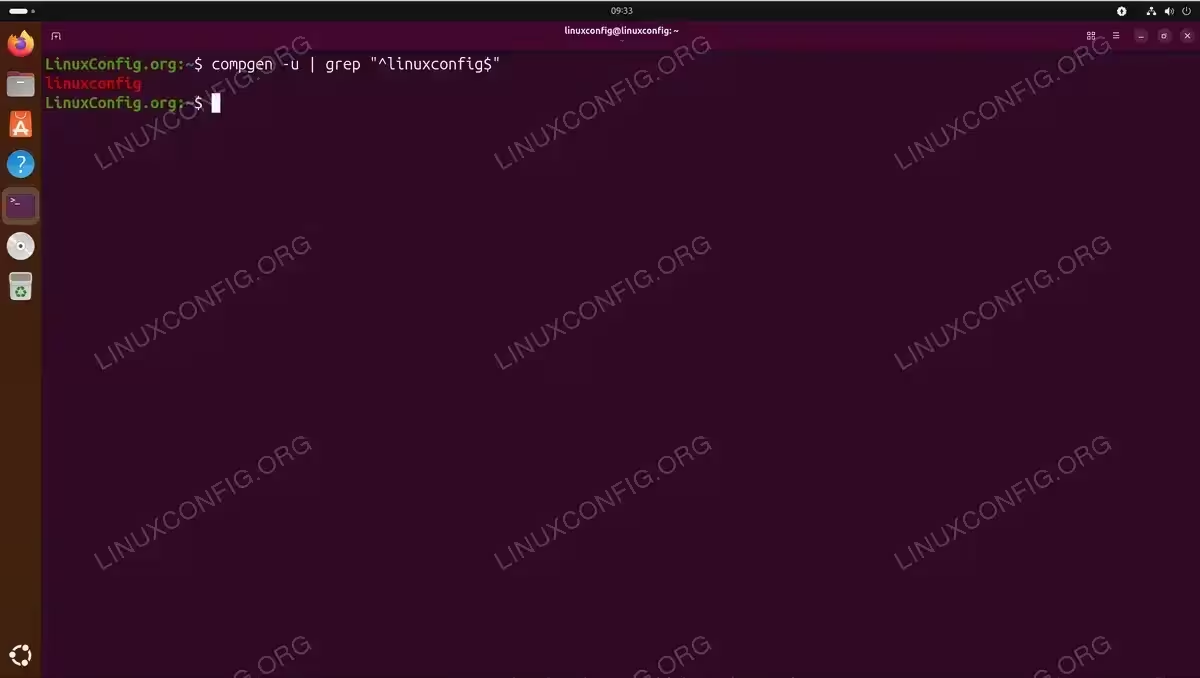
To check if a specific user exists, combine compgen with grep:
$ compgen -u | grep "^linuxconfig$"
The anchors (^ and $) ensure an exact match rather than a partial match.
List Sudo Users on Ubuntu 26.04
Identifying which users have administrative privileges is crucial for security auditing. On Ubuntu 26.04, users with sudo access belong to the sudo group.
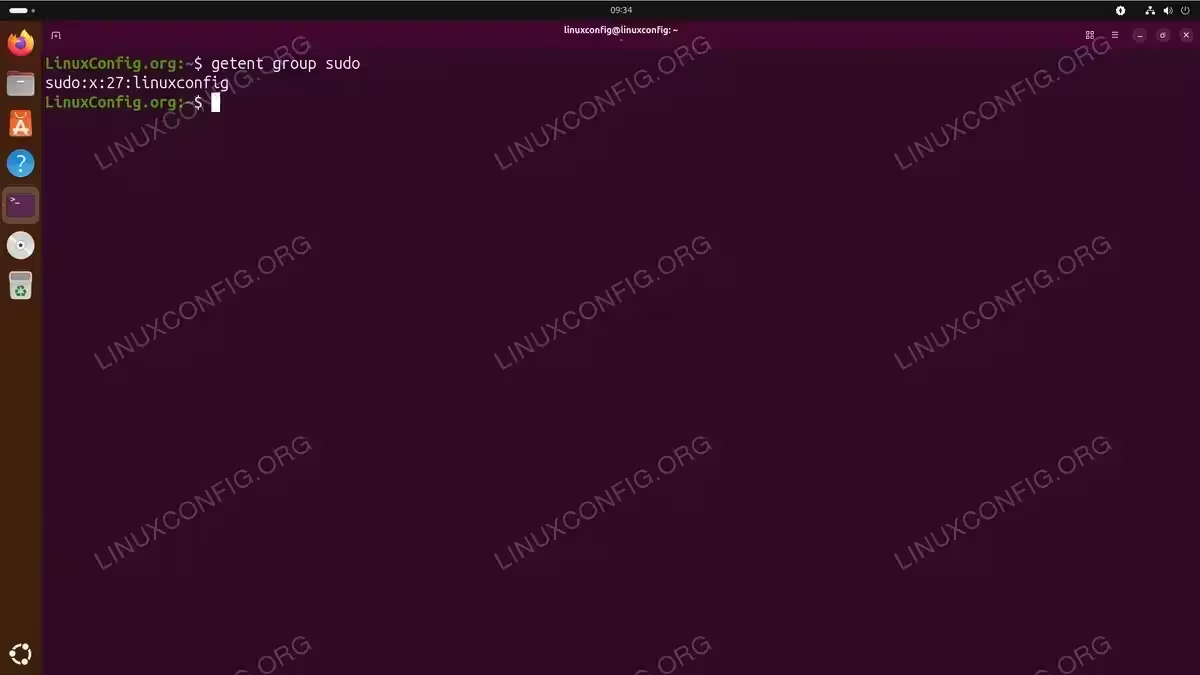
To list all members of the sudo group:
$ getent group sudo
The output shows the group name, password placeholder, GID, and a comma-separated list of group members. Only the users listed here can execute commands with elevated privileges using sudo.
Alternatively, use the members command for cleaner output (requires installation):
$ sudo apt install members
$ members sudo
For a more detailed view showing each sudo user on a separate line:
$ grep -Po '^sudo.+:\K.*$' /etc/group | tr ',' '\n'
This extracts the member list and displays each user on its own line.
SECURITY TIP
Regularly audit sudo group membership to ensure only authorized users have administrative access. Users who no longer need elevated privileges should be removed from the sudo group. If you need to add a user to a group, use the usermod command.
To check if a specific user has sudo privileges:
$ groups linuxconfig | grep -qw sudo && echo "Has sudo access" || echo "No sudo access"
Some configurations allow running sudo without password prompts. Review /etc/sudoers and files in /etc/sudoers.d/ for such configurations.
List Currently Logged-In Users on Ubuntu 26.04
Monitoring active user sessions helps with system administration and security. Ubuntu 26.04 has transitioned from the traditional utmp/wtmp system to wtmpdb, a database-backed login tracking system. This change affects how some commands work.
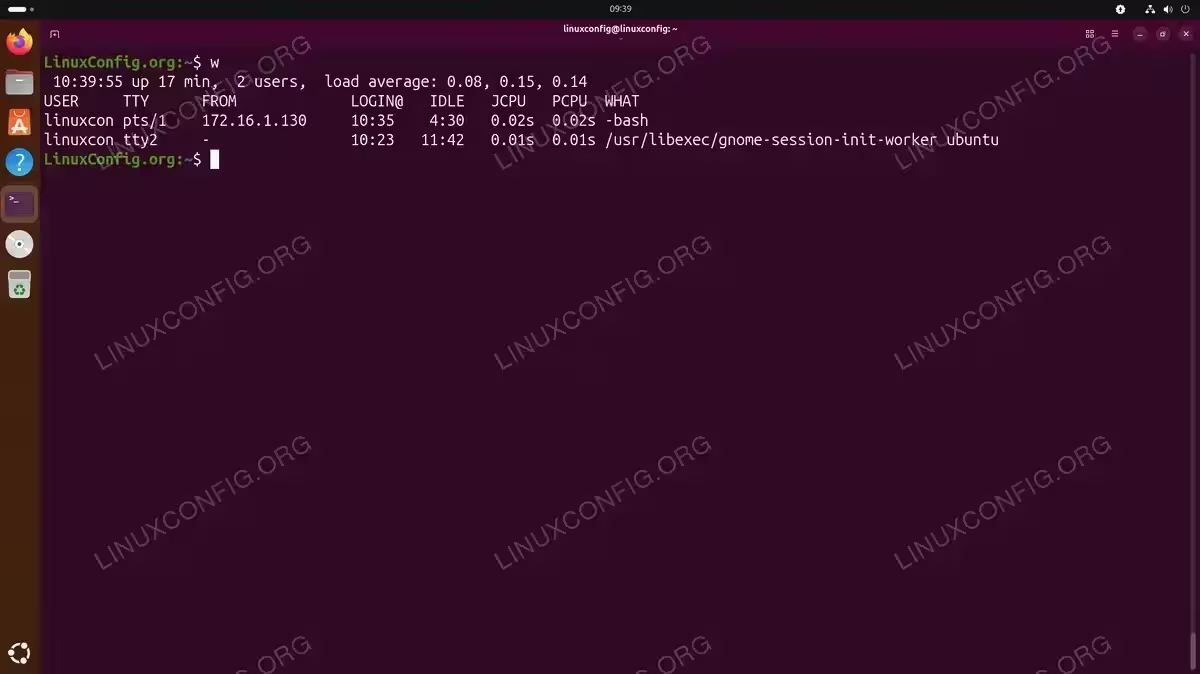
The w command is the most reliable way to view logged-in users on Ubuntu 26.04:
$ w
This command displays logged-in users along with system uptime, load average, and what each user is currently doing. The IDLE column shows how long since the user last interacted with their terminal.
IMPORTANT
The traditional who command may return empty output on Ubuntu 26.04 because the utmp file is no longer populated by default. Use w instead for reliable results. Note that w truncates usernames longer than 8 characters in its output.
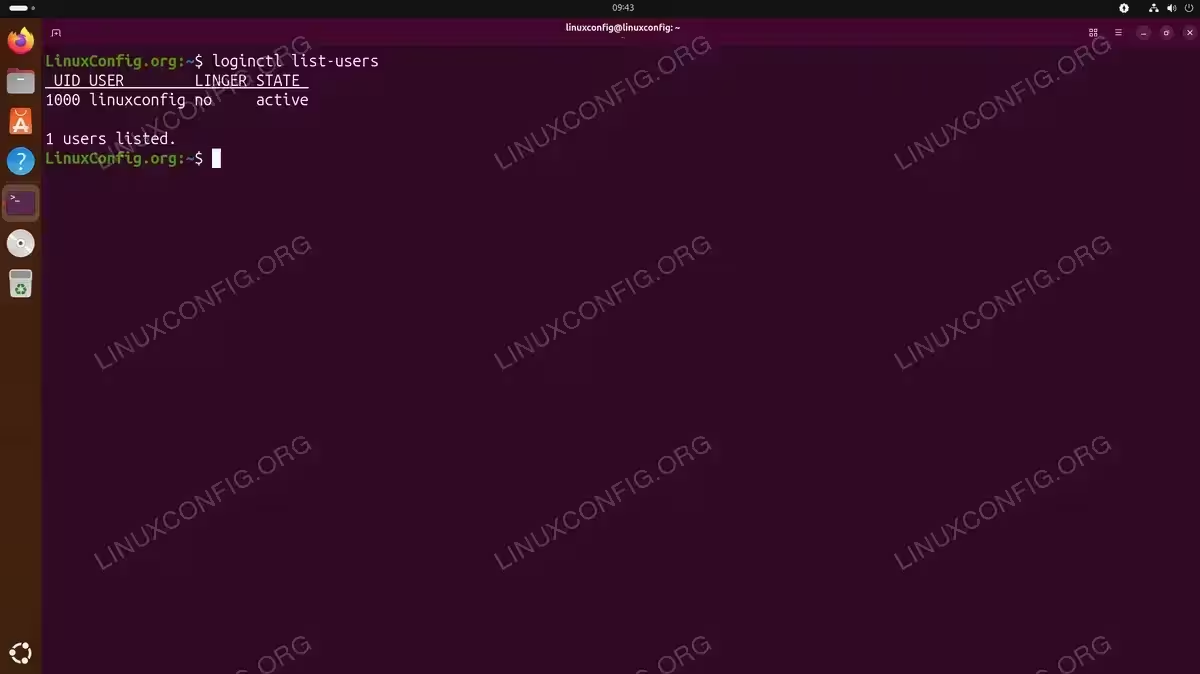
For a clean list of logged-in users with full usernames, use the loginctl command:
$ loginctl list-users
To view login history, install the wtmpdb package:
$ sudo apt install wtmpdb
After installation, use the last command to display recent logins:
$ last
This displays recent logins including the terminal, remote host, and session duration. The information is now stored in a SQLite database rather than the traditional /var/log/wtmp file.
Conclusion
You now have multiple methods to list users on Ubuntu 26.04. The /etc/passwd file and getent passwd command provide detailed user information, while compgen -u offers clean username-only output. For security auditing, checking sudo group membership identifies privileged users. Note that Ubuntu 26.04 uses wtmpdb instead of the traditional utmp/wtmp system, so use the w command rather than who to view currently active sessions. Choose the appropriate method based on whether you need detailed information, clean output for scripting, or real-time session data. For more information on user management, refer to the Ubuntu passwd manual page.
Frequently Asked Questions
- What is the difference between system users and regular users on Ubuntu 26.04? System users have UIDs below 1000 and are created for running services and daemons. They typically have no login shell (set to /usr/sbin/nologin or /bin/false) and no home directory. Regular users have UIDs starting at 1000 and are human users with interactive login capabilities.
- How can I list only users who can actually log in? Filter users by their login shell. Run
getent passwd | grep -v '/nologin\|/false' | cut -d: -f1to show only users with valid login shells. This excludes system accounts that cannot be used for interactive login. - Why does getent show more users than /etc/passwd? The
getentcommand queries all configured name service sources, including LDAP, NIS, or SSSD if configured. The/etc/passwdfile contains only local users. On standalone systems without network user directories, both commands return identical results. - Why does the who command show no output on Ubuntu 26.04? Ubuntu 26.04 has transitioned from the traditional utmp/wtmp system to wtmpdb, a database-backed login tracking system. The
whocommand relies on/var/run/utmp, which is no longer populated by default. Usewinstead to view currently logged-in users reliably. - How do I find when a user account was created? Ubuntu does not store account creation dates directly. However, you can check the home directory creation time with
stat /home/usernameor examine/var/log/auth.logfor useradd entries if logs have not been rotated.