
Ubuntu 26.04 uses UFW (Uncomplicated Firewall) as its default firewall management tool. While keeping your firewall enabled is recommended for security, there are situations where you may need to temporarily disable it for troubleshooting network issues or testing applications. This guide shows you how to perform ufw disable on Ubuntu 26.04 and how to re-enable it when finished.
Table of Contents
In this tutorial you will learn:
- How to check UFW firewall status
- How to disable the firewall temporarily
- How to re-enable UFW when troubleshooting is complete

Software Requirements
| Category | Requirements, Conventions or Software Version Used |
|---|---|
| System | Ubuntu 26.04 Resolute Raccoon |
| Software | UFW (pre-installed) |
| Other | Privileged access to your Linux system as root or via the sudo command. |
| Conventions | # – requires given linux commands to be executed with root privileges either directly as a root user or by use of sudo command$ – requires given linux commands to be executed as a regular non-privileged user |
sudo ufw disable to turn off the firewall and sudo ufw enable to turn it back on.
| Step | Command/Action |
|---|---|
| 1. Check current status | sudo ufw status |
| 2. Disable firewall | sudo ufw disable |
| 3. Re-enable firewall | sudo ufw enable |
Check UFW Firewall Status on Ubuntu 26.04
Before disabling the firewall, verify its current state. This helps you confirm whether UFW is active and shows your existing rules that will be preserved when you re-enable it.
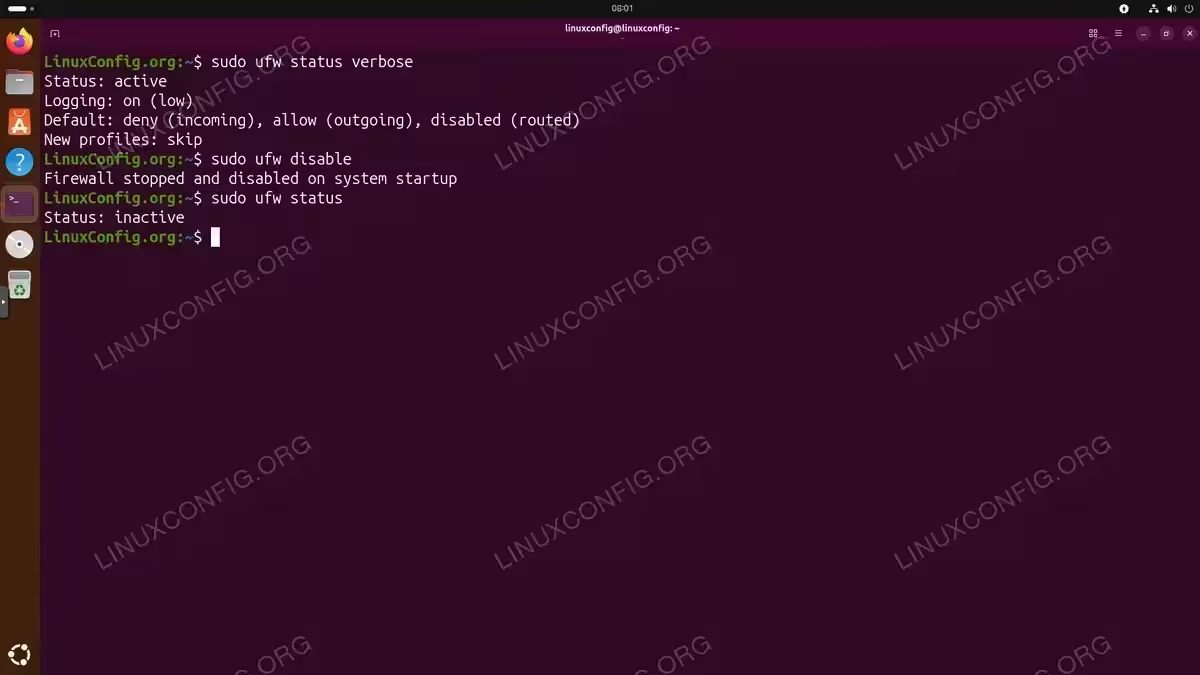
$ sudo ufw status
If the firewall is active, you will see output showing “Status: active” along with any configured rules. For more detailed information including firewall settings and default policies, use:
$ sudo ufw status verbose
IMPORTANT
Your firewall rules are preserved when you disable UFW. They will be automatically restored when you re-enable the firewall.
How to Disable UFW Firewall on Ubuntu 26.04
To disable the UFW firewall on Ubuntu 26.04, run the following command:
$ sudo ufw disable
The system will confirm with the message: “Firewall stopped and disabled on system startup.” This means the firewall is now inactive and will remain disabled even after a reboot.
To verify the firewall has been disabled, check the firewall status again:
$ sudo ufw status
The output should now show “Status: inactive”.
SECURITY ALERT
Disabling the firewall exposes all network ports on your system. Only disable UFW temporarily for troubleshooting and re-enable it as soon as possible.
How to Re-Enable UFW Firewall on Ubuntu 26.04
Once you have completed your troubleshooting or testing, re-enable the firewall immediately:
$ sudo ufw enable
You will see a warning that this may disrupt existing SSH connections. Type y to confirm. The system responds with: “Firewall is active and enabled on system startup.”
Verify the firewall is running:
$ sudo ufw status
All your previous firewall rules are automatically restored. If you need to allow specific ports or modify rules, you can do so while the firewall is active.
COMPLETED
Your firewall is now active again with all previously configured rules intact.
Conclusion
Disabling the UFW firewall on Ubuntu 26.04 is straightforward with the sudo ufw disable command. However, you should only disable the firewall temporarily for troubleshooting purposes. Always re-enable UFW with sudo ufw enable to maintain your system’s security posture. For more advanced firewall management, refer to the official Ubuntu UFW documentation.
If you encounter issues with UFW commands, see our guide on fixing ufw command not found errors.
Frequently Asked Questions
- Does disabling UFW delete my firewall rules? No, your rules are preserved. When you re-enable UFW, all previously configured rules are automatically restored.
- Will the firewall stay disabled after a reboot? Yes, when you run
sudo ufw disable, the firewall remains disabled across reboots until you explicitly enable it again. - Is there a way to temporarily disable UFW without affecting the startup setting? UFW does not have a built-in temporary disable option. However, you can use
sudo ufw disableand then immediately re-enable it withsudo ufw enableafter testing.
