
When using Docker to create portable and easy reproducible development environments, we need to found a way to make changes to our codebase, immediately effective inside containers, without the need to re-build them each time. A possible solution consists into mounting host directories directly inside containers; this, however, requires breaking containers isolation and portability, since they become dependant on the host directory structure. To solve this problem, we can use docker-compose watch.
In this tutorial, we will learn how to use docker-compose watch to keep host files synchronized inside containers.
In this tutorial you will learn:
- What is the difference between volumes and bind-mounts
- How to use docker-compose watch to keep files in sync between host system and containers
| Category | Requirements, Conventions or Software Version Used |
|---|---|
| System | Distribution-agnostic |
| Software | docker-compose |
| Other | Being familiar with Docker and docker-compose |
| Conventions | # – requires given linux-commands to be executed with root privileges either directly as a root user or by use of sudo command$ – requires given linux-commands to be executed as a regular non-privileged user |
Docker volumes vs. bind mounts
Data inside containers is not persistent: this means that if a container is destroyed, all data inside of it, is lost. To achieve data persistence when using Docker, we basically have two ways: we can either use volumes or bind mounts. Each solution has its pro and cons: lets summarized them.
Docker Volumes
We can distinguish between anonymous and named volumes. Their behavior is almost identical, except for one case we will see in a moment.
Anonymous or randomly-named volumes, are typically created when the VOLUME instruction is used in a Dockerfile or when the
docker volume create command is invoked without providing a volume name as argument. Named volumes, instead, as their name suggests, are volumes to which we explicitly assign a name.
In the example below, we run a container based on the official “httpd” image, and we specify we want to create a named volume (we call it “httpd_data”), to persist data in the /usr/local/apache2/htdocs/ container directory:
$ docker run -v httpd_data:/usr/local/apache2/htdocs httpd
When a container is started, if a volume is empty, data existing in the container target directory (/usr/local/apache2/htdocs, in this case), is copied inside the volume. If the volume is not empty, instead, data inside the container obfuscates the content of the target directory, just like when we mount a filesystem inside an existing directory with the mnt command.
Normally, when a container is removed, volumes used by it are preserved. One exception is when a container is created by running the docker run command with the --rm option, which causes the automatic removal of the container when it exists. In this special case, unlike named volumes, contextually created anonymous volumes, are automatically removed together with the container.
Volumes are generally the preferred solution to achieve data persistence when distributing an application with Docker, since they are created and managed by Docker itself. They are not, however, an ideal solution during development, since any change to a codebase, to be reflected inside a container, would require a rebuild of the latter.
Bind mounts
Bind mounts are often discouraged, but they represent a possible solution to the problem mentioned above. By using bind mounts, we can make a host directory directly accessible inside a container. In the example below, we bind mount the src directory on the host, on the /usr/local/apache2/htdocs directory inside the httpd container:
$ sudo docker run -v $(pwd)/src:/usr/local/apache2/htdocs httpd
This strategy had the advantage of providing a way to immediately reflect code changes inside containers, but has two main disadvantages:
- It breaks the container isolation and portability (the container becomes dependent on the host directory structure)
- A more difficult management of permissions, especially if additional security measures like SELinux are used on the host system
Here is a typical example: suppose, on the host system, we have our source files stored in the src directory, owned by our user and its own user group, and not writable by other users. If we bind mount this directory inside the container, we must ensure the corresponding service runs with the same UID our user has on the host machine, otherwise it won’t be able to create or remove files in the directory. If said service runs as root, it will be able to create files inside the directory, but we won’t be able to modify them with our unprivileged user on the host machine. This can even get more messy when using rootless docker, since UIDs are shifted inside containers.
Using docker-compose watch
Docker-compose watch is not a feature of the Docker engine, so it is not, strictly speaking, a new way to achieve data persistence or share data between the host system and containers: it is a feature available since the release 2.22 of docker-compose, a tool used to easily run multi-container applications.
By using docker-compose watch, we can preserve containers isolation, and at the same time, see changes we perform to our codebase immediately reflected inside a container. This is achieved by monotoring specified paths on the host for changes: when a change is spotted in a file, for example, that file is automatically and transparently syncronized inside the container.
Let’s see an example. Suppose we have an “index.html” file inside the src directory on the host. The content of the file is the following:
<h1>Hello world!</h1>
To copy the content of the src directory to the target directory inside the container when the latter is created, we need to extend the original Dockerfile of the service we want to run (httpd, in this case):
FROM httpd:latest
COPY src/ /usr/local/apache2/htdocs
Now, in the same directory, let’s create the docker-compose file containing instructions about building the container and watch the content of the src directory for changes:
 services:
    httpd:
      build:
        dockerfile: Dockerfile
      ports:
        - 8080:80
      develop:
        watch:
          - action: sync
            path: ./src
            target: /usr/local/apache2/htdocs
We provide “watch” instructions via the watch attribute inside the docker-compose file. We specify an action (sync, in this case), a path relative to the docker-compose file to be monitored for changes (./src), and a target, which controls where changes are reflected inside the container. Additionally, we can use the ignore field to exclude certain files from being monitored: the exclusion patterns are considered as relative to path. Suppose, for example we want to exclude the ./src/node-modules directory, we would write:
 services:
    httpd:
      build:
        dockerfile: Dockerfile
      ports:
        - 127.0.0.1:8080:80
      develop:
        watch:
          - action: sync
            path: ./src
            target: /usr/local/apache2/htdocs
            ignore:
              - node_modules/
Now, we can run the docker-compose up command. To enable file monitoring, we use the --watch option:
$ docker-compose up --watch
Once our custom image is built, and the container is started, we can take a look at the logs to confirm the watch is established:
STEP 1/3: FROM httpd:latest
STEP 2/3: COPY src/ /usr/local/apache2/htdocs
--> a03c7ea1c705
STEP 3/3: LABEL "com.docker.compose.image.builder"="classic"
COMMIT docker.io/library/test-httpd
--> 01c475f85dc8
Successfully tagged docker.io/library/test-httpd:latest
01c475f85dc840ceb98e9257142257c27037fe8c4df31db423c90bf6430e0eb6
Successfully built 01c475f85dc8
Successfully tagged test-httpd
[+] Running 2/1
 ✔ Network test_default    Created                                                                                                                                                           0.0s
 ✔ Container test-httpd-1  Created                                                                                                                                                           0.1s
        ⦿ Watch enabled
Attaching to httpd-1
httpd-1  | AH00558: httpd: Could not reliably determine the server's fully qualified domain name, using 10.89.4.2. Set the 'ServerName' directive globally to suppress this message
httpd-1  | AH00558: httpd: Could not reliably determine the server's fully qualified domain name, using 10.89.4.2. Set the 'ServerName' directive globally to suppress this message
httpd-1  | [Fri Feb 28 14:15:07.472766 2025] [mpm_event:notice] [pid 1:tid 1] AH00489: Apache/2.4.63 (Unix) configured -- resuming normal operations
httpd-1  | [Fri Feb 28 14:15:07.473037 2025] [core:notice] [pid 1:tid 1] AH00094: Command line: 'httpd -D FOREGROUND'
Since we bounded port 8080 on the host to port 80 inside the container, by navigating to http://localhost:8080, we should be able to visualize the content of the index.html file inside the source directory:

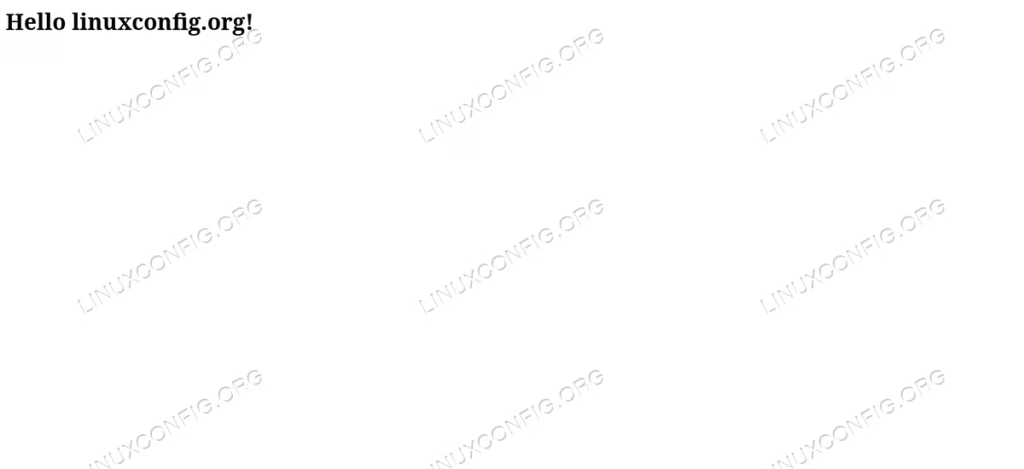
Now, let’s modify the content of the index.html file to:
<h1>Hello linuxconfig.org!</h1>
As soon as we save the changes, by reading the logs, we can confirm the file has been synchronized:
⦿ Syncing service "httpd" after 1 changes were detected
Indeed, if we navigate to http://localhost:8080, again, we should see the changes reflected inside the container:
It goes by itself that, in order to docker-compose watch to work, the USER inside the container must be able to write to the target directory.
As you can desume from the content of the docker-compose file, “sync” is not the only available watch action: the other ones are sync+restart and rebuild. When the former is used, changes to specified files on the host are synchronized to target directory inside the container, and additionally, the service container is restarted. This is useful, for example when synchronizing configuration files, which requires a restart of a service to be reflected. When the rebuild action is used, instead, changes to specified files will trigger a rebuild of the image and the replacement of the running service container.
Conclusions
In this tutorial we learned how to use docker-compose watch to automatically keep host files in sync inside a container. Altough docker-compose watch is not meant to replace bind-mounts in every situation, it is an ideal solution during development, since allow us to see changes we perform to our codebase immediately reflected inside the container, without the need to break containers isolation and portability.
