
Running into a “Permission Denied” error while attempting to execute a bash script can be frustrating, but it’s a common issue on Linux and Unix-based systems. This error typically occurs due to insufficient permissions, ownership issues, or improper script setup. Understanding why this happens and how to resolve it is crucial, especially when you’re managing scripts or developing automation tools.
In this tutorial you will learn:
- Why you get the “Permission Denied” error on a bash script
- How to modify permissions using
chmod - How to change file ownership using chown
- How to ensure proper directory permissions
- How to set the correct shell for script execution
| Category | Requirements, Conventions or Software Version Used |
|---|---|
| System | Linux/Unix-based operating system |
| Software | Bash Shell, chmod, chown |
| Other | Correct file permissions and user roles |
| Conventions | # – requires given linux commands to be executed with root privileges either directly as a root user or by use of sudo command.$ – requires given linux commands to be executed as a regular non-privileged user. |
Why Am I Getting “Permission denied” on My Bash Script?
The “Permission Denied” error occurs when the system does not allow the script to execute due to improper file permissions, incorrect ownership, or limitations in the directory where the script is stored. This could happen for several reasons, such as the script lacking execute permissions, or being stored in a directory that prevents execution by the user. Fortunately, there are several solutions to address these issues.

- Check and Modify File Permissions:
The most frequent cause of the “Permission Denied” error is the lack of execute permission on the bash script. You can inspect the permissions of your script using the following command:$ ls -l script.sh
The output shows the permissions, with the “x” representing execute permission. If your script does not have the “x” permission, you can add it with:
$ chmod +x script.sh
After this command, the script should have the proper execute permission, and you should be able to run it without encountering the error.
Alternatively, if you prefer not to modify the file’s permissions, you can execute the script directly with Bash without needing the “x” bit set by using the following command:
$ bash script.sh
This method allows you to run the script without changing its permissions.
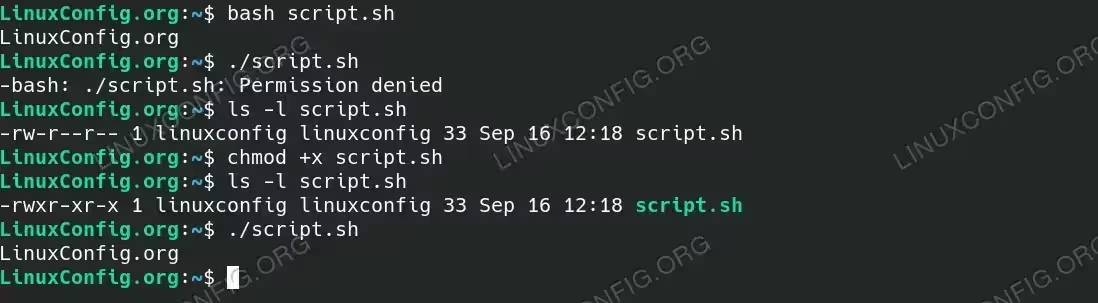
Fixing Permission Denied with bash script by changing permissions or directly invoking bash interpreter. - Change Ownership of the Script:
Another reason for the “Permission Denied” error could be that the script is owned by another user, and you don’t have the necessary permissions. To check ownership, run:$ ls -l script.sh
If the script is owned by a different user, you can change ownership using:
$ sudo chown your_username:your_username script.sh
This ensures that you have full control over the file, allowing you to execute it.
- Check and Modify Directory Permissions:
Even if the script itself has the correct permissions, the directory it is stored in may not allow execution. To check the directory permissions, run:$ ls -ld /path/to/directory
If the directory lacks execute permissions (indicated by the absence of an “x” in the permission list), you can add them with:
$ chmod +x /path/to/directory
This command allows you to execute scripts within the directory.
- Use the Correct Shell:
Sometimes, the script may throw a “Permission Denied” error if it’s being run with the wrong shell. Ensure that the correct shell is specified at the beginning of the script using a shebang line. For bash, use:#!/bin/bash
This line tells the system to use the Bash shell to interpret the script, avoiding potential compatibility issues with other shells.
Conclusion
The “Permission Denied” error is a common issue when working with bash scripts, but the solutions are straightforward. By understanding file permissions, ownership, and the correct environment for script execution, you can quickly resolve this issue and run your scripts without hindrance. Whether it’s adding execute permission with chmod or ensuring the correct shell with a shebang, the steps in this guide will help you overcome permission-related errors in no time.
