
Looking for the best torrent clients for Ubuntu? The BitTorrent protocol is used for peer to peer file sharing and it’s an extremely efficient way of downloading and sharing files with groups of people. While file sharing with BitTorrent is normally associated with video files like movies or TV episodes, it’s also common for Linux developers to offer a torrent download of their distribution.
Torrents are great for downloading large files because they are split into smaller chunks and downloaded from multiple peers in the torrent “swarm.” Being able to download from a lot of different sources simultaneously should mean that your download bandwidth is completely saturated, resulting in a very quick download of large files. When all of the file chunks are done downloading, the file is reconstructed automatically.
In order to download something via BitTorrent, you need to have a torrent client installed on your system. On Ubuntu, there are quite a few options to choose from – we cover the best torrent clients for Ubuntu in this guide. Some have a graphical interface and some only work on the command line, like aria2, but they all have their advantages and quirks. In this article, we’ll go over some top picks for torrent clients to help you choose the right one for your needs. We’ll also show how to install each of them and open up a .torrent file.
In this tutorial you will learn:
- How to install and use various torrent clients
| Category | Requirements, Conventions or Software Version Used |
|---|---|
| System | Ubuntu (all versions) |
| Software | Transmission, Deluge, Ktorrent, qBittorrent, Fragments, WebTorrent Desktop, Tixati, Aria2, Transmission-CLI, rTorrent |
| Other | Privileged access to your Linux system as root or via the sudo command. |
| Conventions | # – requires given linux commands to be executed with root privileges either directly as a root user or by use of sudo command$ – requires given linux commands to be executed as a regular non-privileged user |
Best Torrent Clients for Ubuntu – Graphical User Interface Options
We’ll first cover a list of torrent clients for Ubuntu with a graphical interface front end. If you’re more interested in command line options, scroll down to the next section.
Transmission
Transmission is the default torrent client installed with the GNOME desktop environment on Ubuntu. Chances are that you already have Transmission installed, unless you opted for a minimal install or you use a different desktop environment. Either way, you can install or update Transmission on your PC by open a command line terminal and typing the following command:
$ sudo apt install transmission
Once it’s installed, you can open it from the application launcher or just type this command in terminal:
$ transmission-gtk

The advantages of Transmission are that you probably already have it installed and it’s a simple, no-frills torrent client. If you’re just looking to occasionally download a torrent, this client is a good choice.

Deluge
Deluge is another GUI torrent client for Ubuntu. It has a lot of features, and therefore is definitely a bulkier install than Transmission. Still, it maintains a clean looking interface. If you’re looking for a lot of customization and fine tuned control, Deluge is a good call. You can install it with the following command:
$ sudo apt install deluge
When it’s done installing, find the program in Ubuntu’s application launcher or type this command in terminal to open it:
$ deluge

Deluge has a lot of options in the preferences menu. It’s definitely geared towards users who torrent files on a regular basis.

Ktorrent – KDE Plasma Ubuntu Torrent Client
Ktorrent is the default torrent client for the KDE plasma desktop environment. If you already use KDE desktop, then you should see Ktorrent in the app menu. However, you can still use Ktorrent on GNOME or any other desktop environment – but note that there will be a lot of dependencies and extra packages installed on these other environments when you install Ktorrent.
It has a nice looking interface and is pretty intuitive to use. I’d put it somewhere between Transmission and Deluge. You can install it from terminal with the following command:
$ sudo apt install ktorrent
After it’s installed, open it from the application launcher or execute the following command in terminal to open it:
$ ktorrent


qBittorrent
qBittorrent is yet another torrent client available from the Ubuntu software repository. It’s a notch or two behind Deluge in the features department, but it’s a lightweight install with a sleek and simple interface. qBittorrent is a great compromise between feature rich and lightweight. To install it, open a terminal and execute the following command:
$ sudo apt install qbittorrent
Use your start menu to launch the qBittorrent client or run the command:
$ qbittorrent

Though not the most feature rich of all the torrent clients, qBittorrent still offers a lot in the way of customization and control:

Fragments
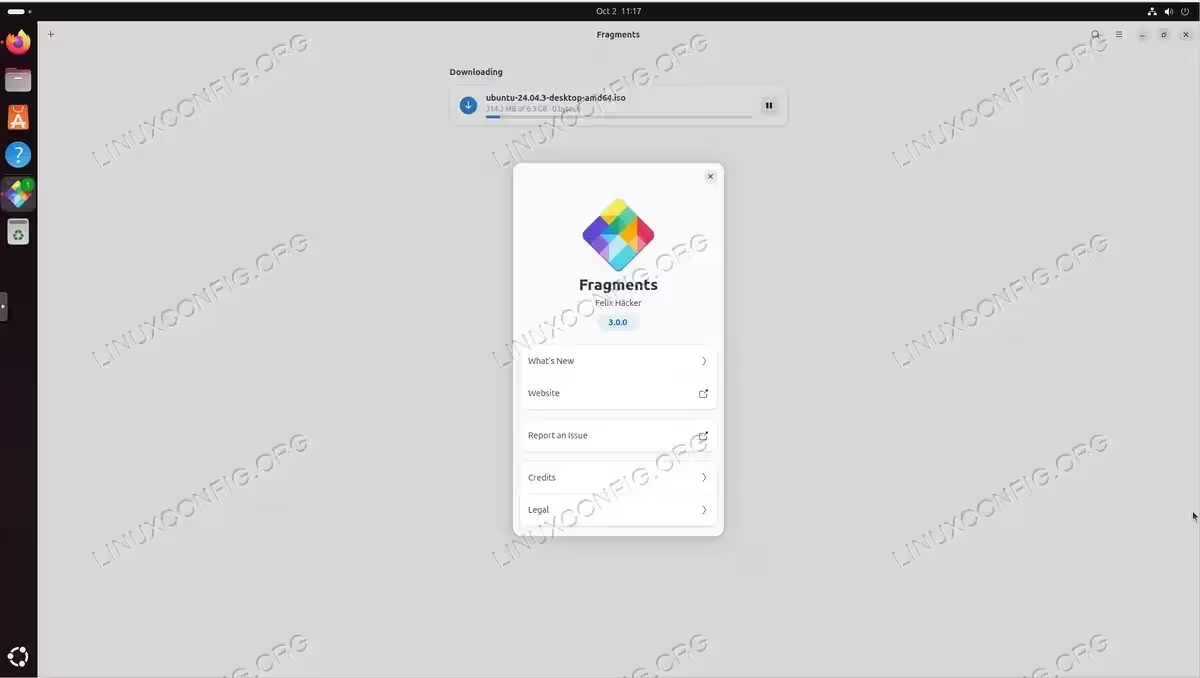
Fragments is a modern, lightweight torrent client built specifically for the GNOME desktop environment. Built with GTK4 and libadwaita, it offers a clean, minimalist interface that perfectly integrates with Ubuntu’s default desktop. Fragments is based on Transmission’s backend, providing solid reliability while maintaining a simple user experience.
The client supports all essential features including magnet links, torrent scheduling, download/upload speed limits, and the ability to remotely control other Fragments or Transmission sessions. It’s perfect for users who want a streamlined torrenting experience without the complexity of feature-heavy clients.
To install Fragments, you’ll need to use Flatpak:
$ sudo apt install flatpak
$ flatpak remote-add --if-not-exists flathub https://flathub.org/repo/flathub.flatpakrepo
$ flatpak install flathub de.haeckerfelix.Fragments
Launch Fragments with:
$ flatpak run de.haeckerfelix.Fragments
WebTorrent Desktop
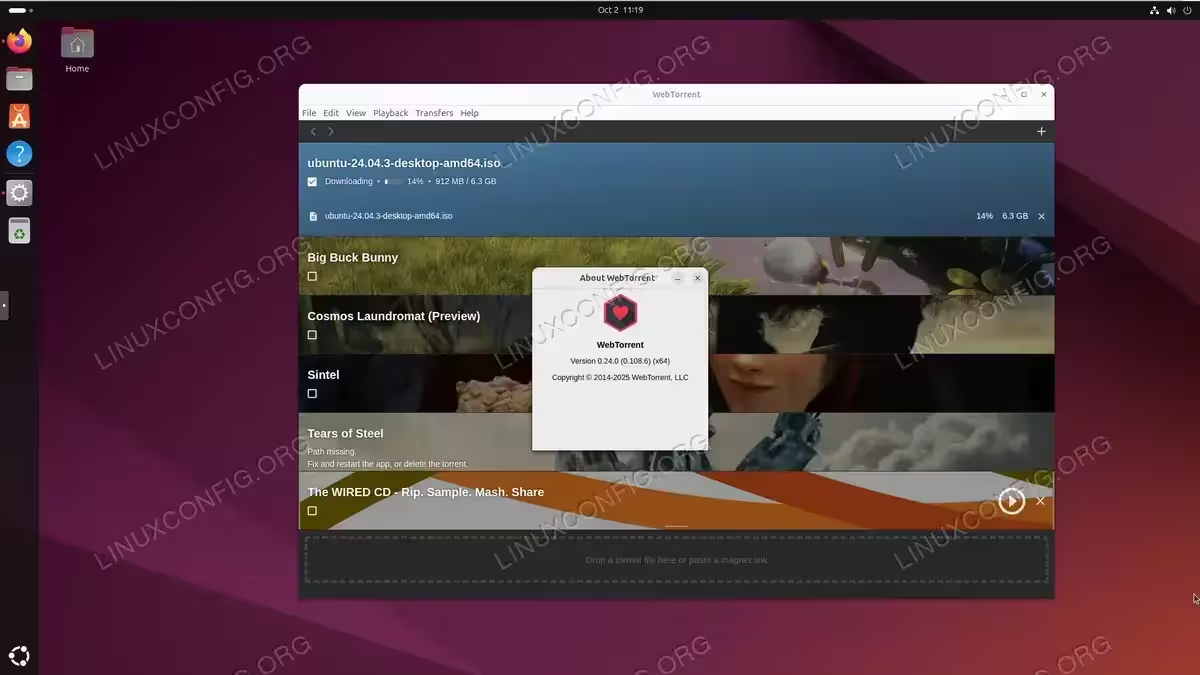
WebTorrent Desktop is a unique torrent client that focuses on streaming torrents while they download. This makes it ideal for watching videos without waiting for the complete download to finish. It supports both standard BitTorrent and WebTorrent protocols, offering a modern approach to torrenting.
The interface is clean and straightforward, with drag-and-drop support for torrent files and magnet links. WebTorrent Desktop can also cast to devices like Chromecast and Apple TV, making it excellent for media consumption.
To install WebTorrent Desktop, download the latest .deb package from the official website. Please update the below link to the latest version:
$ wget https://github.com/webtorrent/webtorrent-desktop/releases/download/v0.24.0/webtorrent-desktop_0.24.0_amd64.deb
$ sudo apt install ./webtorrent-desktop_*.deb
Tixati – Advanced Ubuntu BitTorrent Client
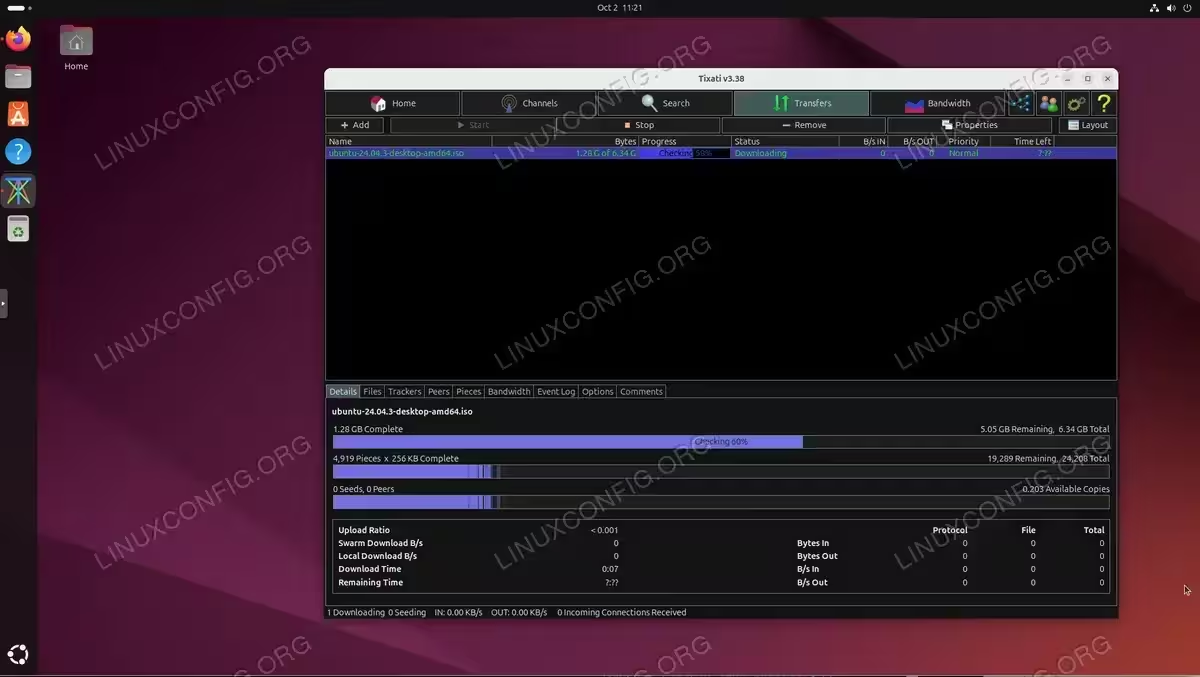
Tixati is a feature-rich torrent client that provides detailed views of peers, pieces, and trackers with visual graphs and charts. It’s designed for power users who want comprehensive control and monitoring of their torrents. Despite being closed-source, Tixati has gained popularity for its performance and extensive feature set.
Key features include bandwidth throttling, customizable event logs, detailed transfer statistics, and a powerful built-in scheduler. The interface is highly customizable with multiple layout options and color themes. Tixati supports DHT, PEX, magnet links, and provides advanced filtering options.
To install Tixati on Ubuntu.
Please update the below link to the latest version:
$ wget https://www.tixati.com/download/tixati_3.28-1_amd64.deb
$ sudo apt install ./tixati_*.deb
Launch Tixati from your application menu or with:
$ tixati
Command Line Torrent Clients for Ubuntu
Just because you don’t have a GUI doesn’t mean you can’t run torrent clients for Ubuntu. Even if you do have a GUI on your system, some Ubuntu users may still prefer a command line client for their extremely low overhead. Check out our top three picks below.
rTorrent
rTorrent is first on our list of command line torrent clients, and there’s a reason for that. I’ve worked with it personally and have seen it run thousands of torrents simultaneously without a hitch. It’s a great torrent client. If you’ve come this far down the article to the command line clients, chances are that you’re relatively serious about torrenting. If that’s the case, this is the one you want.
The other great thing about rTorrent is that you can easily install a web based front end for it with the rtpg-www package. So, you really get the best of both worlds: you get the efficiency of using a command line client but still have the option to interact with a GUI, should you choose.
You can install rTorrent in terminal with the following command:
$ sudo apt install rtorrent
To open a torrent file with rtorrent, use the rtorrent command on a torrent file in terminal:
$ rtorrent ubuntu-desktop-amd64.iso.torrent

You can close rTorrent with the CTRL + q key combination on your keyboard. Normally though, you’d run rTorrent (and other command line torrent clients) from within a screen session, and detach from that screen so that the client continues running when the terminal is closed.
Aria2
Aria2 is another command line torrent client. It’s easy to use and gives you a very simple terminal output. This makes it very easy to monitor download progress, even for the uninitiated. To install Aria2 on Ubuntu, type the following command in console:
$ sudo apt install aria2
Once it’s installed, you can begin torrenting by issuing the aria2c command on a .torrent file. For detailed instructions on using aria2c, you can follow this example:
$ aria2c ubuntu-desktop-amd64.iso.torrent

The terminal output from Aria2 is delightfully simple and straight forward, as you can see above.
Transmission-CLI – Command Line Ubuntu Torrent Client
Transmission-CLI is the command line version of the Transmission-GTK client that we covered above in the GUI section. Like its GUI counterpart, it’s extremely easy to use. You can install it from the terminal with this command:
$ sudo apt install transmission-cli
After it’s installed, open a torrent with the transmission-cli command and specify the torrent file in the command:
$ transmission-cli ubuntu-desktop-amd64.iso.torrent
Transmission-CLI has some basic but very helpful options that can be seen with this command:
$ transmission-cli --help

Closing Thoughts
In this tutorial, we went over the basics of multiple graphical and command line torrent client options for Ubuntu. Each of them have their pros and cons, and the best one for you will depend on your situation.
For users that download a lot of torrents on a regular basis, Deluge is a great GUI client and rTorrent is an excellent command line option. For casual use, Transmission will almost always suffice. Fragments is perfect for GNOME users who want a modern, minimalist experience, while WebTorrent Desktop excels at streaming media. Tixati offers power users detailed control and monitoring capabilities. But it really depends on you and your preferences. Hopefully this article has helped you make an informed decision about which one to use.