
The conventional way used to change the runlevel with /etc/inittab has become obsolete with Red Hat Enterprise Linux version 7. As a result, any Linux system using systemd system management daemon now relies on the systemctl command to change runlevel – or, to be more precise, to change the target. Therefore any edits to the /etc/inittab file will not take effect on RHEL 7.
rhel
Initiate Redhat installation remotely via VNC
Apart of the regular local Redhat’s installation, the Redhat system allows admin to modify boot options to temporarily setup network interface and instruct the installation program Anaconda to initiate installation via VNC. In this article we will modify default Redhat’s boot options to initiate remote installation using VNC.
First insert installation image and boot into a Redhat’s boot options screen as show below:
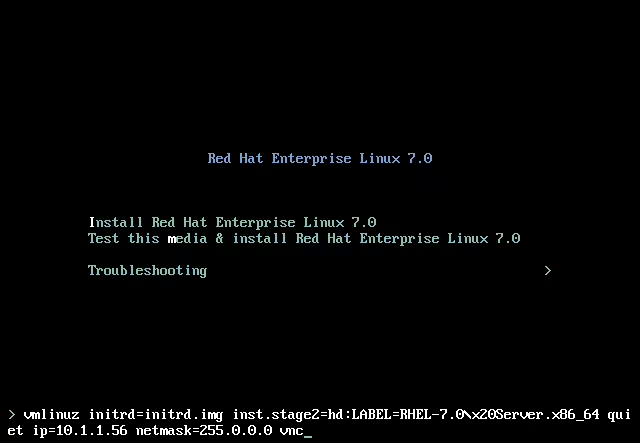
On this screen we need to modify boot options to instruct the installation program Anaconda to provide us with VNC interface after the end of the boot sequence. Depending whether you use DHCP on your network you can either set static address or do not include any network options for dynamic IP address assignment. In the above screen we have included the following options after pressing “TAB” on the main ( first ) boot option:
ip=10.1.1.56 - optional
netmask=255.0.0.0 - optional
vnc - required
Configure systems to mount file systems at boot by universally unique ID (UUID) or label – RHCSA Objective Preparation
While in the desktop world we rarely change our hard drive – and that mostly indicated by hardware failure – in the server world it isn’t uncommon for the underlying storage environment to change over time.
In a SAN (Storage Area Network) environment, for High Availability, a server can reach it’s storage trough many paths, in reality distributed and mirrored to multiple disks in the storage network. If some paths change, the server needs to identify the “disk” again. That’s why it is recommended to use special identifiers set on the device, and mount by these identifiers, not by device name which may change. In this part of RHCSA exam preparation tutorial, we’ll add a new disk to our test machine, and configure mounting by UUID (Universally Unique IDentifier) and by label.
In this tutorial you will learn:
- How to get UUID of a given device
- How to get and set label of a device
- How to mount device by UUID
- How to mount device by label
RHEL 8 / CentOS 8 change hostname
A hostname is the label or name linked to a device on a network. Its main purpose is to recognize a device on a specific network or over the internet. To change hostname on your system, you should understand the three different hostname types:
- Static – Most of the time you will be interested in this type of hostname which is defined by user and the
/etc/hostnameconfiguration file. - Transient – This type of hostname is defined within kernel space and by default it is set to be the same as the static hostname. Transient hostnames can be set/updated by DHCP or mDNS at runtime.
- Pretty – Pretty hostname allows for additional characters as per UTF8 character set hence serving rather only for presentation purposes. The pretty hostname also allows to include spaces.
This article will explain how to change or set hostname on RHEL 8 / CentOS 8 Linux server or workstation. To change hostname you will use the hostnamectl command.
In this tutorial you will learn:
- How to change the static hostname.
- How to change the transient hostname.
- How to change the pretty hostname.
- How to check the current hostname.
How to configure NTP server on RHEL 8 / CentOS 8 Linux
Chrony is a default NTP client as well as an NTP server on RHEL 8 / CentOS 8. This article will provide you with an information on how to install ntp and perform basic configuration of an NTP server or client on RHEL 8.
In this tutorial you will learn:
- How to install NTP server on RHEL 8 / CentOS 8.
- How to install NTP client on RHEL 8 / CentOS 8.
- How to open firewall to incoming NTP requests.
- How to configure Chrony as NTP server.
- How to configure Chrony as NTP client.
How to install Webmin on RHEL 8 / CentOS 8
Webmin is web-based administrator’s tool that can manage many aspects of the system. After installation, we can manage our machine’s resources, the server applications running on it, set up cronjobs, just to name a few. It comes with it’s own http server, no additional container or webserver required. The rich function set is accessible trough a web interface, so all we need is a browser to manage our system remotely.
In this tutorial we will install Webmin on RHEL 8 / CentOS 8, add the necessary service file for easy management, and log in to the WUI (Web User Interface).
In this tutorial you will learn:
- How to install Webmin from tarball
- How to add and test systemd service file
- How to access the web interface
How to check Linux Version
The common scenario is that you have been given an access to a Linux system physically or via remote login and you have no idea what Linux version is installed on this particular system. Given that many of the today’s Linux Distributions have implemented systemd as part of their core design, to check for a Linux version is in many cases relatively simple procedure.
The simplest way to check Linux version is by using the hostnamectl command without any arguments. For example the below hostnamectl command will return the Linux distribution name, version and codename in use along with the currently loaded Linux kernel version:
$ hostnamectl
   Static hostname: x220
         Icon name: computer-laptop
           Chassis: laptop
        Machine ID: 2d4efda5efb0430faeb2087d0a335c6b
           Boot ID: f8c4a3a776a74d42878347efc2c00634
  Operating System: Debian GNU/Linux 10 (buster)
            Kernel: Linux 4.9.0-9-amd64
      Architecture: x86-64
It is a common mistake to refer to the entire GNU/Linux operating system simply as Linux. The important note here is that the so called Linux is actually only the Kernel part of the system whereas GNU is the actual system as in collection of pre-compiled binaries, libraries and system tools. Both GNU and Linux kernel must function in tandem in order for the operating system to actually work.
Hence, one cannot exists without the other, so next time when you talk about your operating system and you wish to be technically correct, refer to it as GNU/Linux or simply as Lignux.
In this tutorial you will learn:
- Basic introduction to Linux package
- How to check system architecture and Linux kernel version
- How to check CPU architecture
- How to check CentOS, Redhat, Debian, Ubuntu, Mint, Arch, fedora linux system version
How to change a hostname on Redhat 7 Linux
The hostname of your Red Hat Enterprise Linux system is important because it’s used to identify the device on a network. The hostname is also shown in other prominent places, such as in the terminal prompt. If you have not bothered to change the hostname yet, your system probably bears the default localhost.localdomain name, which is not very helpful.
How to Install Xdebug on RHEL 8 / CentOS 8 Linux
Xdebug is great for debugging your PHP code in real time. There are a few ways to install it on RHEL 8 / CentOS 8, but the simplest and most straightforward one utilizes packages found right in RHEL’s repos.
In this tutorial you will learn:
- How to Install the Dependencies
- How to Install Xdebug with PECL
- How to Configure PHP to Use Xdebug
- How to Make Sure Xdebug is Loaded
How to Install Matomo (Piwik) on RHEL 8 Linux
This article covers an installation of Matomo (Piwik), an all-in-one premium web analytics platform, on RHEL 8 Linux Server. In this instance the installation is based on the well-know LAMP stack comprising the RHEL 8, MariaDB, PHP and Apache webserver.
In this tutorial you will learn:
- How to Install LAMP Stack on RHEL 8.
- How to configure MariaDB database.
- How to install Matomo (Piwik) on RHEL 8.
- How to open HTTP and HTTPS firewall ports.
How to install asterisk on RHEL 8 / CentOS 8 Linux
This article will describe how to install the open source communication software Asterisk on RHEL 8 / CentOS 8; due to the fact that Asterisk and other important dependencies are not available as RPM packages from the repositories, it is needed to compile them from sources.
In this tutorial you will learn:
- Which are the pre-requisites to install Asterisk
- How to compile Asterisk from sources
- How to start Asterisk
- How to reconfigure or remove Asterisk
- How to access Asterisk command line interface
How to stop/start firewall on RHEL 8 / CentOS 8
The firewall on RHEL 8 / CentOS 8 Linux system is enabled by default allowing for only few services to receive incoming traffic. FirewallD is the default daemon responsible for firewall security feature onRHEL 8 / CentOS 8 Server.
The nftables framework replaces iptables as a default network packet filtering feature on RHEL 8.
The following is a list of default firewall opened ports and configured settings on RHEL 8 / CentOS 8 Linux system using the firewalld dynamic firewall daemon:
# firewall-cmd --list-all
public (active)
  target: default
  icmp-block-inversion: no
  interfaces: enp0s3
  sources:
  services: cockpit dhcpv6-client ssh
  ports:
  protocols:
  masquerade: no
  forward-ports:
  source-ports:
  icmp-blocks:
  rich rules:
In this tutorial you will learn:
- How to check the firewall status onRHEL 8 / CentOS 8.
- How to stop firewall on RHEL 8 / CentOS 8.
- How to start firewall on RHEL 8 / CentOS 8.
- How to permanently disable firewall on RHEL 8 / CentOS 8.
- How to enable firewall to start after reboot.