
How to enable SSH on Almalinux

SSH is the primary method of remote access and administration on Linux systems. SSH is a client-server service providing secure, encrypted connections over a network connection. After installing AlmaLinux or migrating from CentOS to AlmaLinux, it will probably be one of the first things you want to configure.

In this guide, we’ll go over the step by step instructions to install and configure SSH on AlmaLinux. This will help you whether you just want to connect to remote systems via SSH or you want your own system to accept incoming connections as well.

In this tutorial you will learn:

  • How to install SSH
  • How to start and stop the SSH service
  • How to allow SSH through system firewall
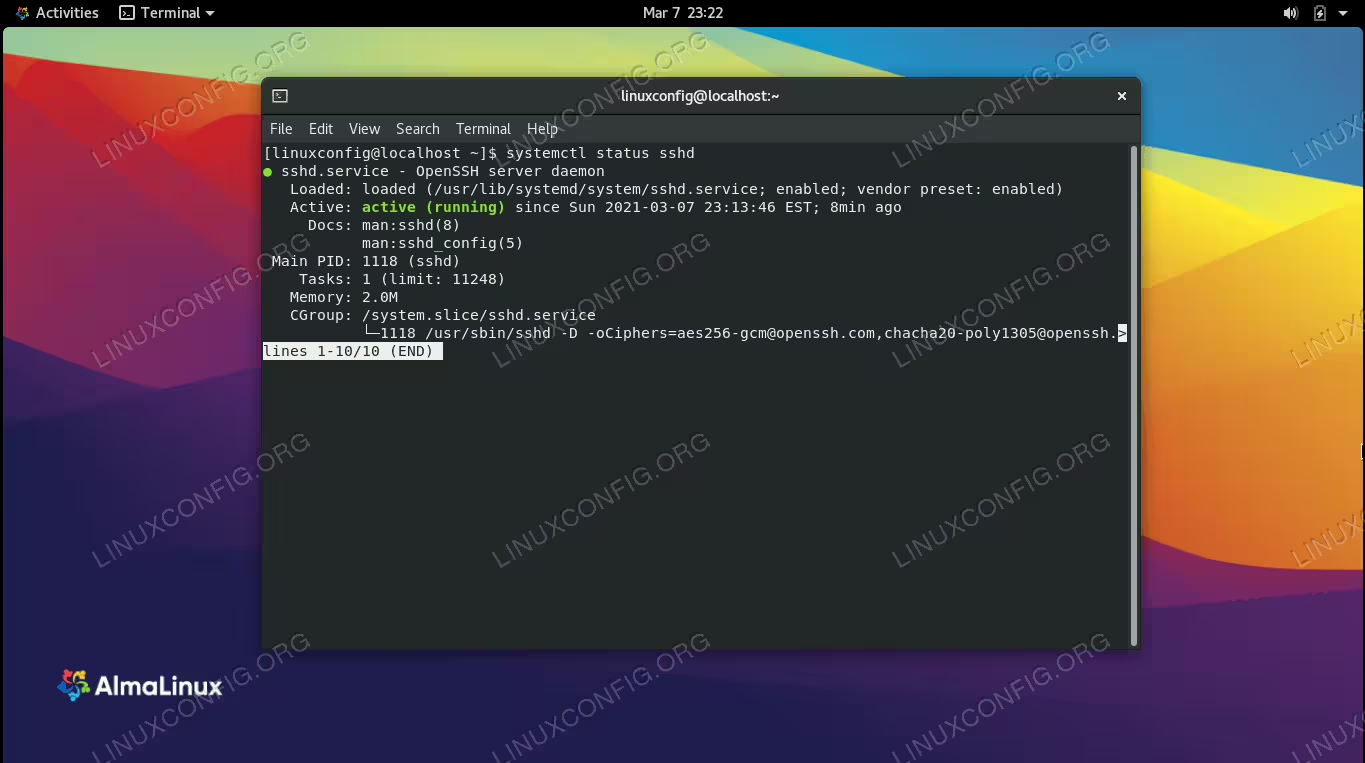
SSH server enabled and running on AlmaLinux
SSH server enabled and running on AlmaLinux

Read more

Configuring VNC Server Access on a Redhat Linux

Most of the time as a Linux system administrator you are managing your servers over the network. It is very rare that you will need to have a physical access to any of your managed servers. In most cases all you need is to ssh remotely to do your administration tasks. In this article we will configure a GUI alternative to a remote access to your RHEL server, which is VNC. VNC allows you to open a remote GUI session to your server and thus providing you with a full graphical interface accessible from any remote location.

In this tutorial you will learn:

  • How to install required VNC packages
  • How to setup and start the VNC server on RHEL
  • How to connect to a graphical session remotely
  • How to run graphical programs in the xterm session

Read more

Unifying custom scripts system-wide with rpm on Red Hat/CentOS

Objective

Our goal is to build rpm packages with custom content, unifying scripts across any number of systems, including versioning, deployment and undeployment.

Operating System and Software Versions

  • Operating system: Red Hat Enterprise Linux 7.5
  • Software: rpm-build 4.11.3+

Requirements

Privileged access to the system for install, normal access for build.

Difficulty

MEDIUM

Conventions

  • # – requires given linux commands to be executed with root privileges either directly as a root user or by use of sudo command
  • $ – given linux commands to be executed as a regular non-privileged user

Introduction

One of the core feature of any Linux system is that they are built for automation. If a task may need to be executed more than one time – even with some part of it changing on next run – a sysadmin is provided with countless tools to automate it, from simple shell scripts run by hand on demand (thus eliminating typo errors, or only save some keyboard hits) to complex scripted systems where tasks run from cron at a specified time, interacting with each other, working with the result of another script, maybe controlled by a central management system etc.

Read more

Install Let’s Encrypt on Centos 8

SSL encryption for your website is extremely important. It prevents man in the middle attacks, helps your page’s SEO, and browsers like Firefox won’t warn users that your site is insecure.

Best of all, you can get all these advantages for just a few minutes of your time. In this guide, we’ll show you how to install Let’s Encrypt on Centos 8, and how to use it to configure SSL encryption for your website. In a few steps, your site will become accessible via HTTPS, with HTTP links (optionally) redirecting to the secure protocol as well.

In this tutorial you will learn:

  • How to install Let’s Encrypt
  • How to configure Let’s Encrypt SSL

Read more

How to change runlevel on RHEL 7 Linux

The conventional way used to change the runlevel with /etc/inittab has become obsolete with Red Hat Enterprise Linux version 7. As a result, any Linux system using systemd system management daemon now relies on the systemctl command to change runlevel – or, to be more precise, to change the target. Therefore any edits to the /etc/inittab file will not take effect on RHEL 7.

Read more

Initiate Redhat installation remotely via VNC

Apart of the regular local Redhat’s installation, the Redhat system allows admin to modify boot options to temporarily setup network interface and instruct the installation program Anaconda to initiate installation via VNC. In this article we will modify default Redhat’s boot options to initiate remote installation using VNC.

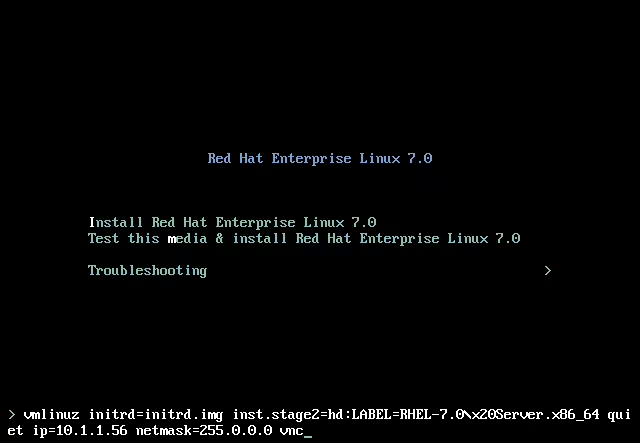
First insert installation image and boot into a Redhat’s boot options screen as show below:

Redhat 7 boot screen - enter vnc and network options

On this screen we need to modify boot options to instruct the installation program Anaconda to provide us with VNC interface after the end of the boot sequence. Depending whether you use DHCP on your network you can either set static address or do not include any network options for dynamic IP address assignment. In the above screen we have included the following options after pressing “TAB” on the main ( first ) boot option:

ip=10.1.1.56 - optional
netmask=255.0.0.0 - optional
vnc - required

Read more

How to debootstrap on CentOS Linux

debootstrap is Debian GNU/Linux bootstrapper which allows you to install Debian base systems such as Debian or Ubuntu into a directory of your currently running system. This config is a getting started guide on how to debbootstrap on CentOS/RHEL. The debootstrap package is not available in a standard CentOS repository. To make it available we first need to enable EPEL repository. Download EPEL repository package:

# wget http://dl.fedoraproject.org/pub/epel/7/x86_64/e/epel-release-7-5.noarch.rpm

and install it using RPM command:

# rpm -Uvh epel-release-7-5.noarch.rpm

The EPEL repository should now be enabled. To confirm run:

# yum repolist | grep epel                                                                                  
 * epel: epel.mirror.digitalpacific.com.au

Read more

Configure systems to mount file systems at boot by universally unique ID (UUID) or label – RHCSA Objective Preparation

While in the desktop world we rarely change our hard drive – and that mostly indicated by hardware failure – in the server world it isn’t uncommon for the underlying storage environment to change over time.

In a SAN (Storage Area Network) environment, for High Availability, a server can reach it’s storage trough many paths, in reality distributed and mirrored to multiple disks in the storage network. If some paths change, the server needs to identify the “disk” again. That’s why it is recommended to use special identifiers set on the device, and mount by these identifiers, not by device name which may change. In this part of RHCSA exam preparation tutorial, we’ll add a new disk to our test machine, and configure mounting by UUID (Universally Unique IDentifier) and by label.

In this tutorial you will learn:

  • How to get UUID of a given device
  • How to get and set label of a device
  • How to mount device by UUID
  • How to mount device by label

Read more

How to set the primary display on CentOS/RHEL 7 with dual monitors and GNOME

This article will describe a way on how to change/set a primary display on CentOS/RHEL 7 with dual monitors and GNOME. The easiest and perhaps recommended way is to use GUI and navigate to Applications->System Tools->Settings->Displays.

show current primary display redhat/centos


The current primary screen is highlighted by a black top bar. To change you primary display simply drag-n-drop the black top bar from one screen to another:

change primary display redhat/centos
. Another alternative is to you command line tool xrandr. First get all your connected screens:

$ xrandr | grep -w connected
DVI-D-1 connected 1680x1050+0+0 (normal left inverted right x axis y axis) 474mm x 296mm
HDMI-1 connected primary 1920x1080+1680+0 (normal left inverted right x axis y axis) 598mm x 336mm

Read more

RHEL 8 / CentOS 8 change hostname

A hostname is the label or name linked to a device on a network. Its main purpose is to recognize a device on a specific network or over the internet. To change hostname on your system, you should understand the three different hostname types:

  • Static – Most of the time you will be interested in this type of hostname which is defined by user and the /etc/hostname configuration file.
  • Transient – This type of hostname is defined within kernel space and by default it is set to be the same as the static hostname. Transient hostnames can be set/updated by DHCP or mDNS at runtime.
  • Pretty – Pretty hostname allows for additional characters as per UTF8 character set hence serving rather only for presentation purposes. The pretty hostname also allows to include spaces.

This article will explain how to change or set hostname on RHEL 8 / CentOS 8 Linux server or workstation. To change hostname you will use the hostnamectl command.

In this tutorial you will learn:

  • How to change the static hostname.
  • How to change the transient hostname.
  • How to change the pretty hostname.
  • How to check the current hostname.

Read more

Install firewalld on CentOS Linux system

firewalld is a front-end for the built in netfilter firewall on Linux systems. The main advantage of firewalld over using raw nftables/iptables commands is that it’s easier to use, especially for more complex firewall features like timed rules. In this regard, it’s similar to the uncomplicated firewall (ufw) that comes installed by default on Ubuntu systems.

On CentOS, firewalld is the default firewall interface and should already be installed on your system. In this guide, we’ll take you through the installation of firewalld on CentOS, which includes some basic usage commands so you can get started managing the firewall.

In this tutorial you will learn:

  • How to install and update firewalld
  • firewalld basic usage commands

Read more

Running RHEL 8.0 in a virtual machine allows you to test the distribution before installing it

How To Install RHEL 8 On VMware Workstation

Virtualization and emulation software is big these days. With cheaper RAM memory comes the possibility to ditch dual-booting and install several operating systems in QEMU or VMWare and use them alternatively whenever you feel like it. Since Red Hat Enterprise Linux 8.0 is fresh you might want to test it in VMWare before installing it on its own partition. So here is a guide to do just that.

In this tutorial you will learn:

  • How to configure a virtual machine in VMWare Workstation 15
  • How to prepare the partition for Red Hat Linux 8.0
  • How to install Red Hat Enterprise Linux 8.0 in VMWare Workstation 15

Read more