
In this tutorial we will perform an installation of Oracle Java SE Development Kit on Ubuntu 20.04 Focal Fossa Desktop/Server.
Follow our tutorial on how to install OpenJDK java on Ubuntu 20.04 Focal Fossa.
In this tutorial you will learn:
- How to download Oracle Java
- How to install Oracle Java
- How to set path to Java executable by using the
update-alternativestool - How to check Oracle Java version
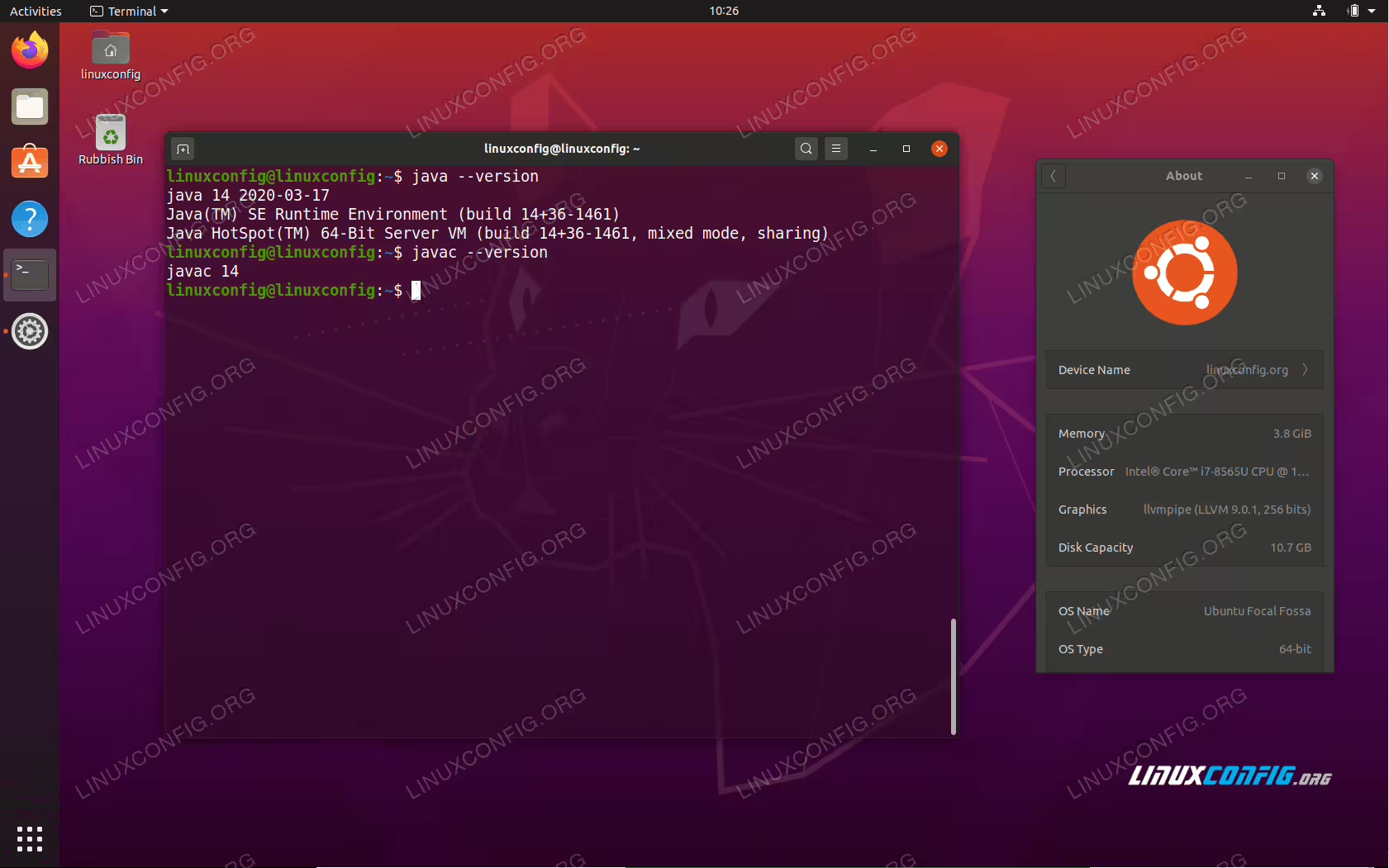
Oracle Java SE Development Kit on Ubuntu 20.04 Focal Fossa Desktop/Server
Software Requirements and Conventions Used
| Category | Requirements, Conventions or Software Version Used |
|---|---|
| System | Installed or upgraded Ubuntu 20.04 Focal Fossa |
| Software | Oracle Java SE Development Kit |
| Other | Privileged access to your Linux system as root or via the sudo command. |
| Conventions |
# – requires given linux commands to be executed with root privileges either directly as a root user or by use of sudo command$ – requires given linux commands to be executed as a regular non-privileged user |
Oracle Java installation on Ubuntu 20.04 step by step instructions
- Download the appropriate Oracle Java SE Development Kit version.
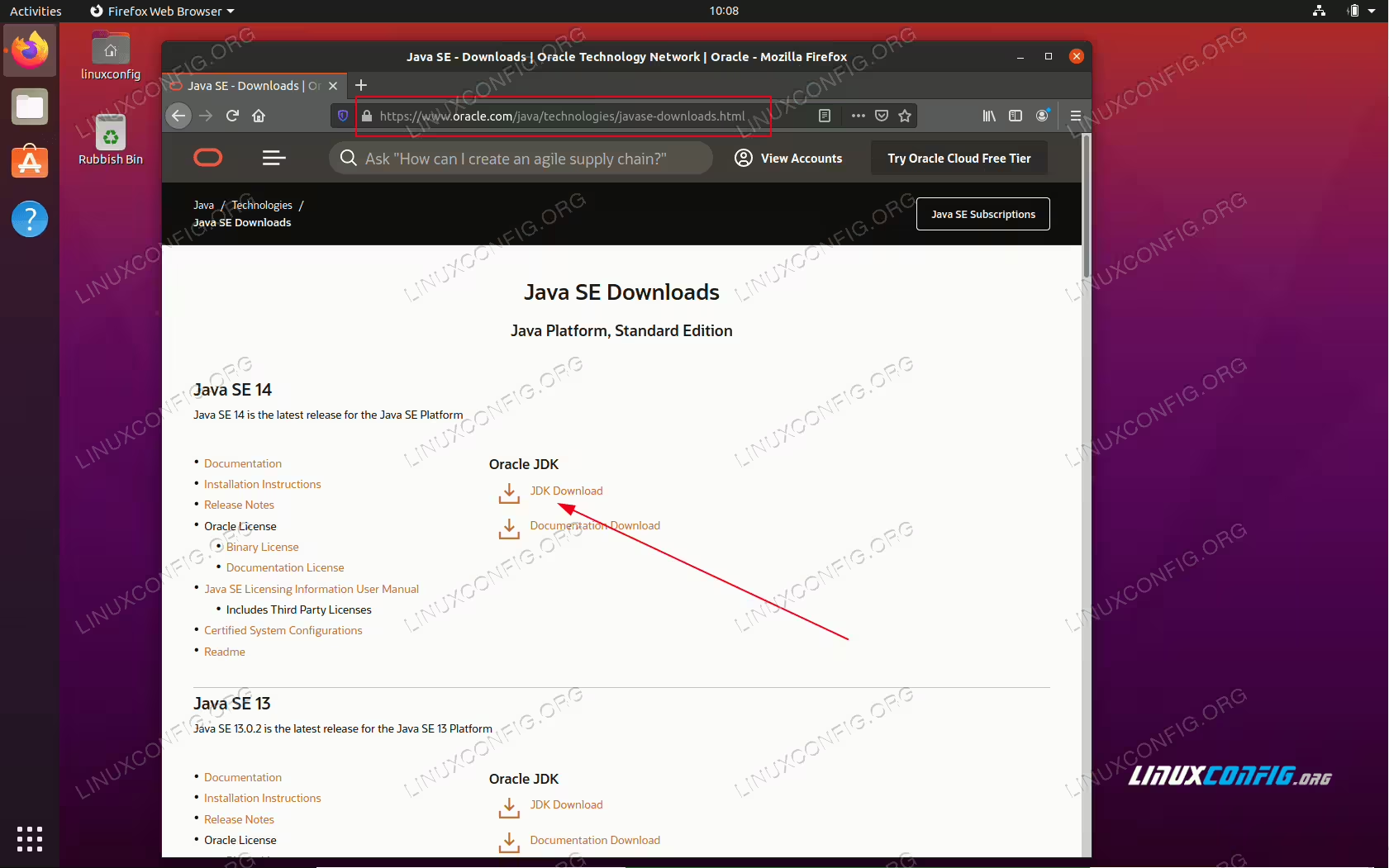 Navigate your browser to the offcial Oracle Java download page and select JDK version you wish to install.
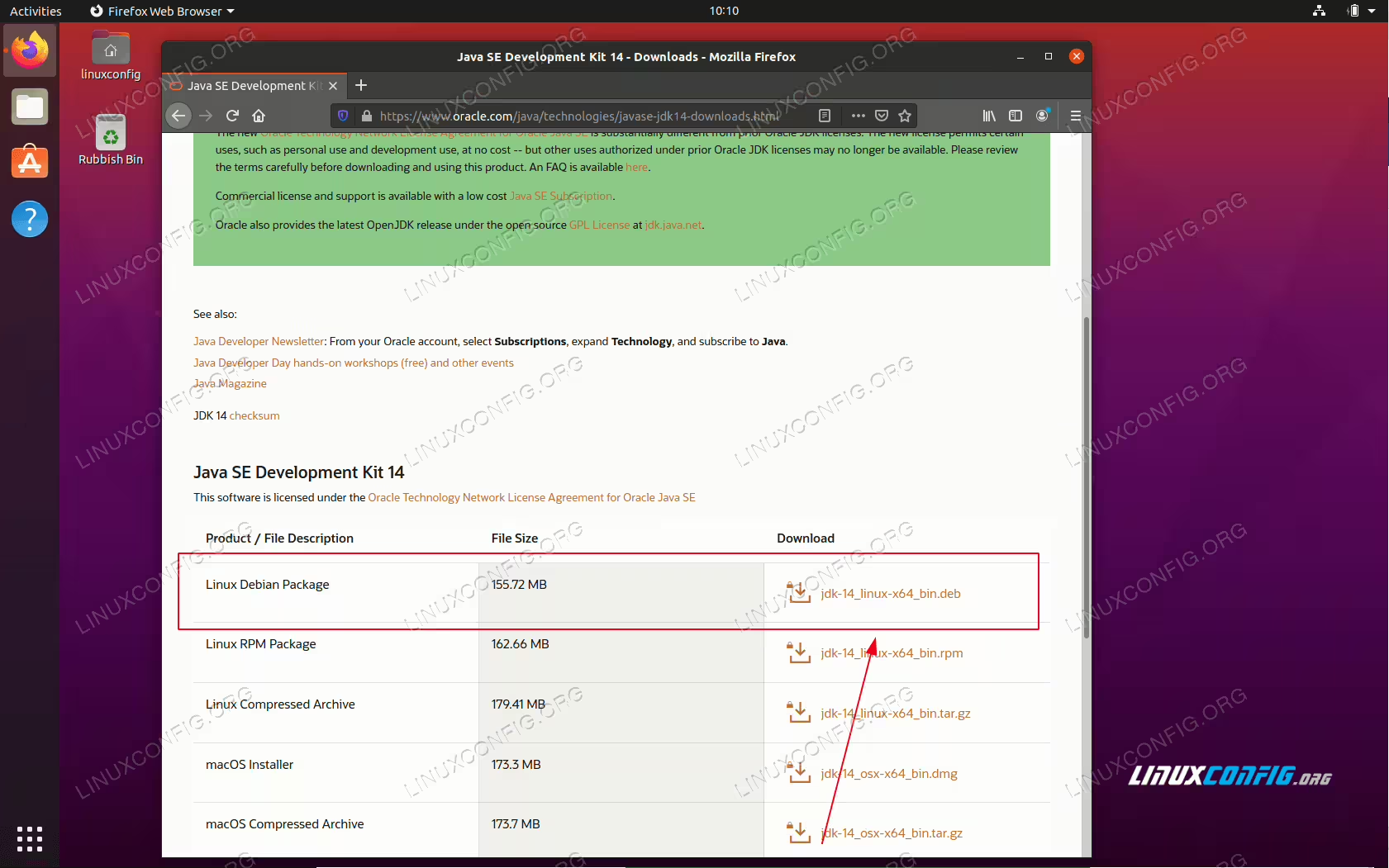 Select and download the Linux Debian Package into your
Downloadsdirectory. - Execute the dpkg command to install the Oracle Java package. Update the java package version of the bellow command where appropriate:
$ sudo dpkg -i jdk-14_linux-x64_bin.deb
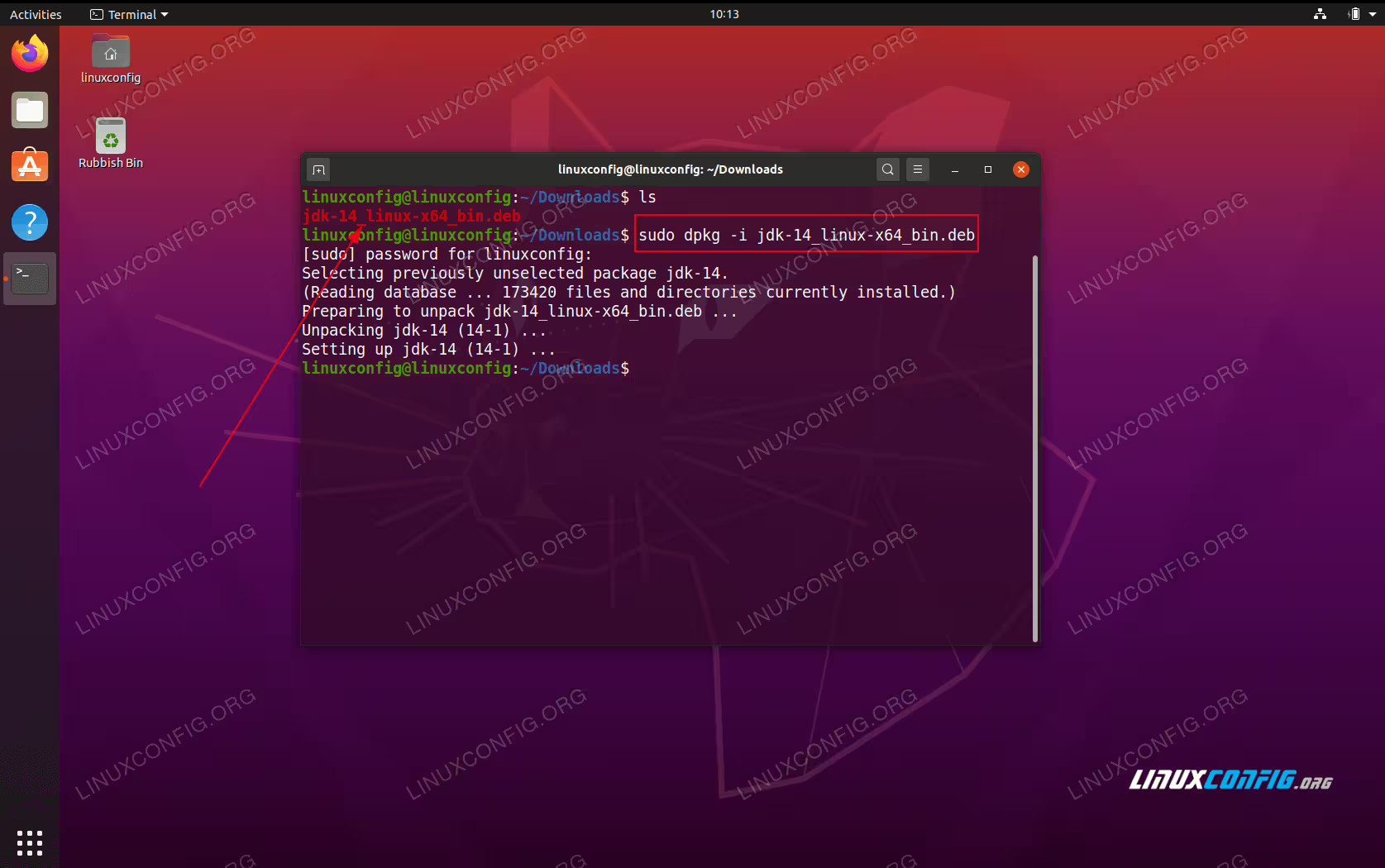 Install Oracle Java package using the dpkg command.
 - Use the
update-alternativescommand to set the path to the Oracle Java executable:$ sudo update-alternatives --install /usr/bin/java java /usr/lib/jvm/jdk-14/bin/java 1 $ sudo update-alternatives --install /usr/bin/javac javac /usr/lib/jvm/jdk-14/bin/javac 1
Confirm the Oracle Java installation:
$ java --version
java 14 2020-03-17
Java(TM) SE Runtime Environment (build 14+36-1461)
Java HotSpot(TM) 64-Bit Server VM (build 14+36-1461, mixed mode, sharing)
$ javac --version
javac 14
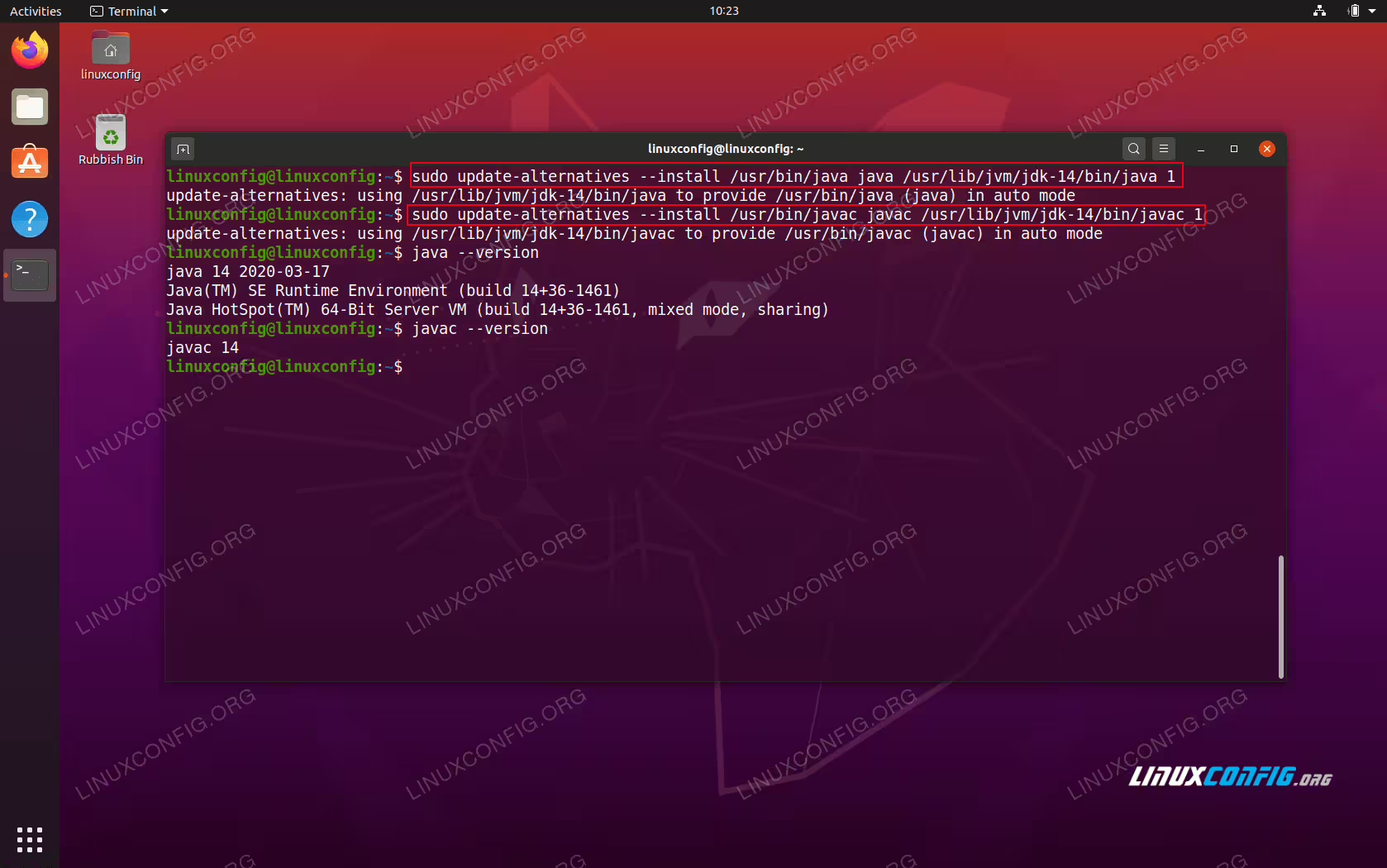 Set path to Oracle Java binary and check Java version