
The inxi Linux command can be used to see various system information and other handy bits of data right from your terminal. The command is ordinarily not installed by default. However, it is a small software package that provides access to the command, and it proves especially useful to system administrators and power users.
In this tutorial, you will learn how to install inxi on debian and ubuntu based Linux systems. Then, we will take you through some example usage of inxi so you can learn some handy options and syntax for the program.
In this tutorial you will learn:
- How to install
inxion Debian and Ubuntu - How to use
inxicommand through usage examples
| Category | Requirements, Conventions or Software Version Used |
|---|---|
| System | Ubuntu and Debian |
| Software | inxi |
| Other | Privileged access to your Linux system as root or via the sudo command. |
| Conventions |
# – requires given linux commands to be executed with root privileges either directly as a root user or by use of sudo command$ – requires given linux commands to be executed as a regular non-privileged user |
inxi Installation Instructions
You can use the commands below to install
inxi with your system’s package manager.
To install inxi on Ubuntu, Debian, and Linux Mint, and other Debian-based systems:
$ sudo apt update
$ sudo apt install inxi
After the short installation, you can move on to the usage examples below and try some of them out in your own terminal.
inxi Command Usage Examples
- The
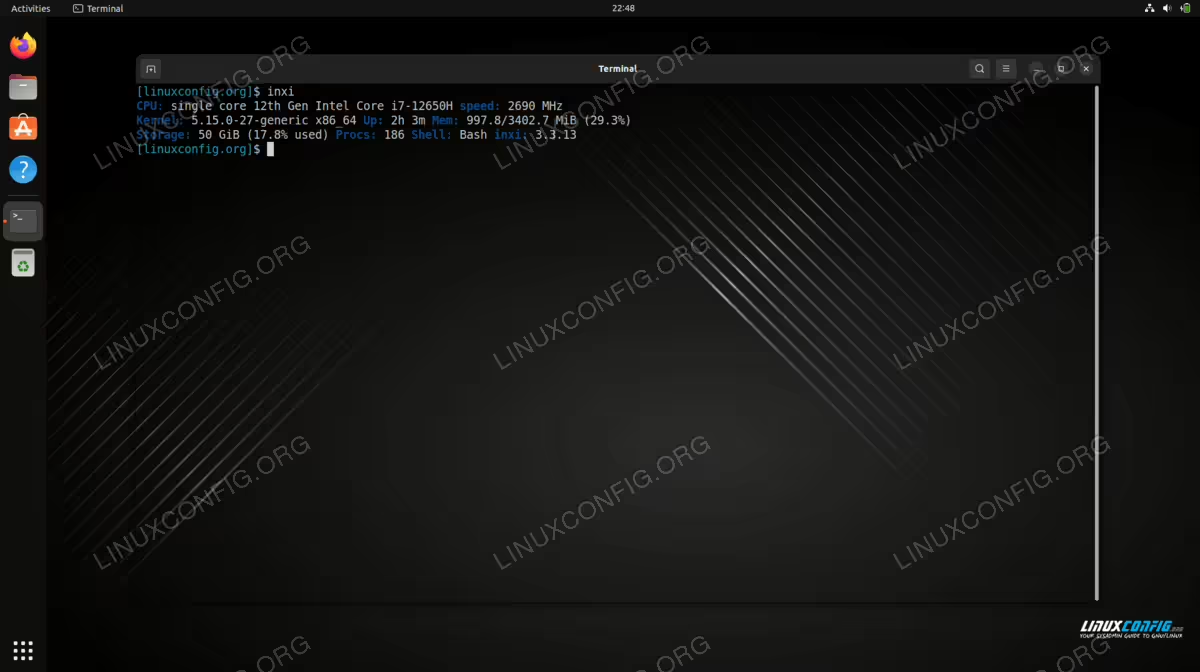
inxicommand with no further options will output some basic information about our system hardware, Linux kernel, the number of processes currently running, and our shell.$ inxi

Basic system specs as output by inxi command - To see more detailed information about your system, you can append the
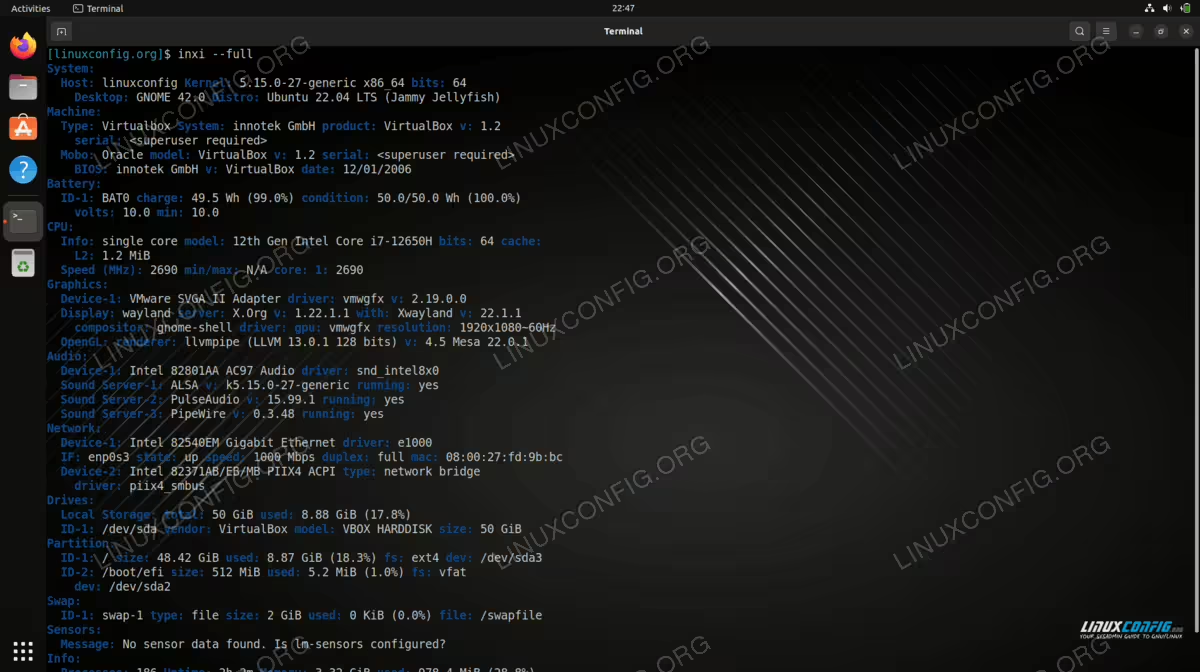
--fulloption.$ inxi --full
Fully detailed system specs as output by inxi - There are certain options that can be used if you only want to see information about a specific hardware category. For example,
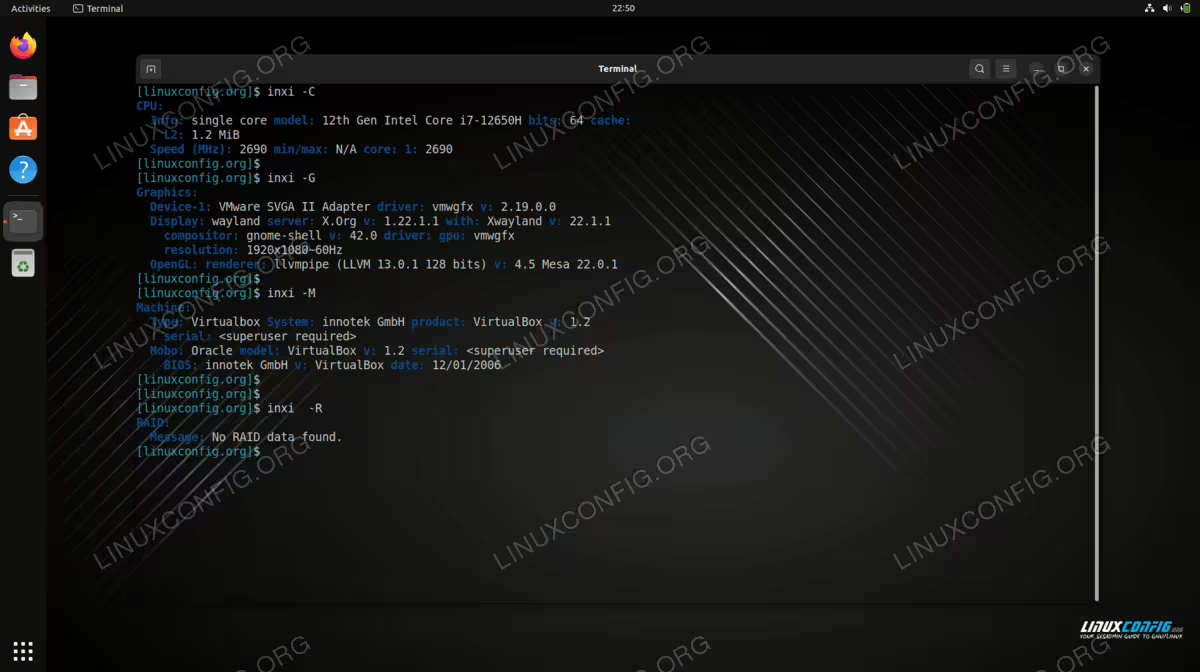
-Cwill show CPU information and-Gwill show graphics information.
$ inxi -C
$ inxi -G
Showing info about specific system components See the man page for what other flags can be used to display information about a particular component.
- Another interesting feature offered by
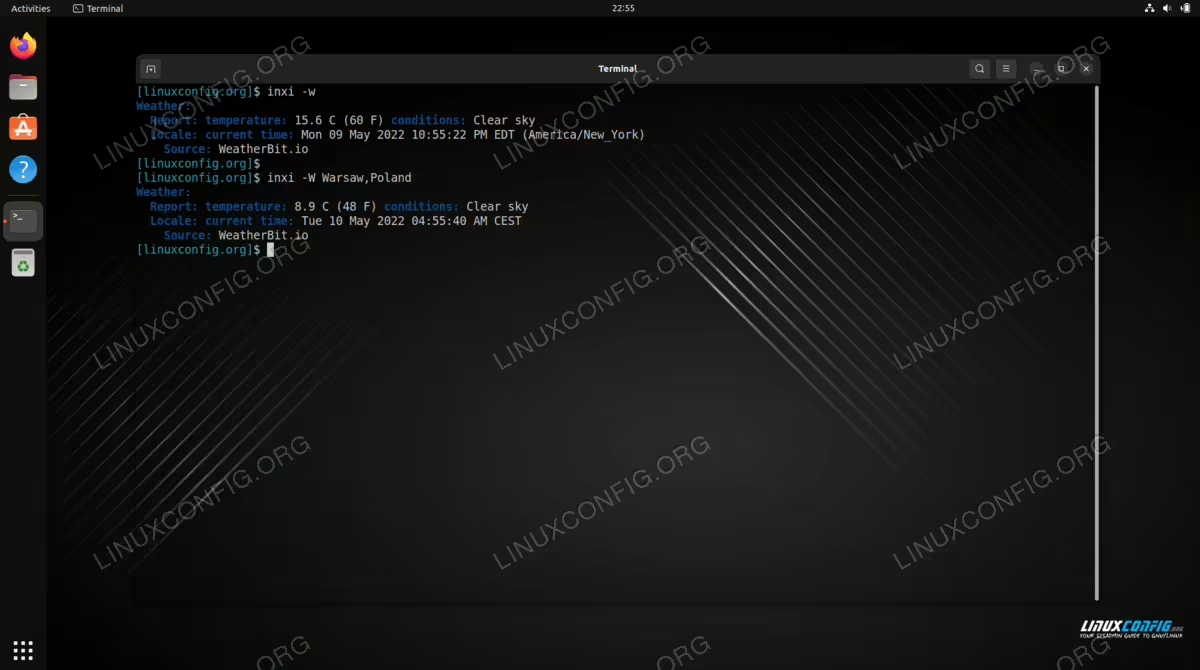
inxiis the ability to retrieve weather information from your command line. This can be accomplished with the-woption.$ inxi -w
Or specify a location to retrieve weather information for with the
-Woption and entering the location.$ inxi -W Warsaw,Poland

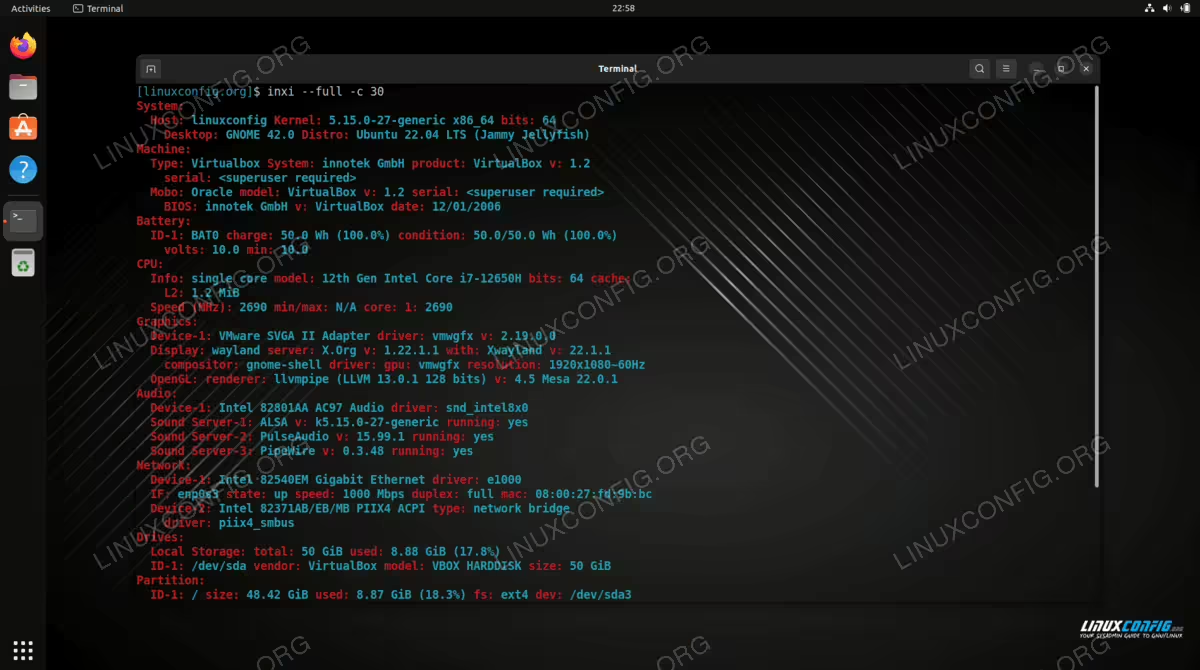
Retrieving weather information via command line with inxi inxihas various formatting options, if you would like to make the output look different. Use the-coption and a number to try different color options. You can try and number 0 through 42. For example, the following command will output full system information in a red and cyan theme.$ inxi --full -c 30
Changing the color output of inxi command - inxi works in user space so it will be available also for non-privileged users. You may want to check whether you can improve inxi’s output information by running:
$ inxi --recommends
Closing Thoughts
In this tutorial, we saw how to install inxi and subsequently use the command on a Debian or Ubuntu based Linux system. inxi proves very useful for outputting system information quickly and with a basic command syntax. It also packs a few handy surprises under the hood, like the ability to retrieve a weather forecast. You are sure to get a lot of use from it when it comes to checking system specs or other bits of information.