
The GRUB boot loader plays a critical role in booting Linux systems, serving as the first program executed when the computer starts. Securing GRUB with a password can prevent unauthorized users from tampering with boot parameters or gaining root access to the system. This is especially important for systems that require heightened security.
In this tutorial you will learn:
- How to set a secure password for GRUB
- How to update GRUB configuration to enforce password protection

| Category | Requirements, Conventions or Software Version Used |
|---|---|
| System | A Linux-based system using GRUB (e.g., Ubuntu, Debian) |
| Software | GRUB bootloader |
| Other | Administrative/root privileges |
| Conventions | # – requires given Linux commands to be executed with root privileges either directly as a root user or by use of sudo command$ – requires given Linux commands to be executed as a regular non-privileged user |
How to Secure GRUB with a Password
Video
Follow these detailed steps to secure the GRUB bootloader with a password and protect your system’s boot parameters from unauthorized access.
- Generate a GRUB Password: First, create a secure password hash that will be used for authentication by GRUB.
sudo grub-mkpasswd-pbkdf2
After running the above command, you will be prompted to enter and confirm a password. The command will then output a hashed version of your password of your current user, which looks something like this:
PBKDF2 hash of your password is grub.pbkdf2.sha512.10000.xxxxxxxxxxxxxxxxxxx
Copy the entire hash, as it will be required in the next step.
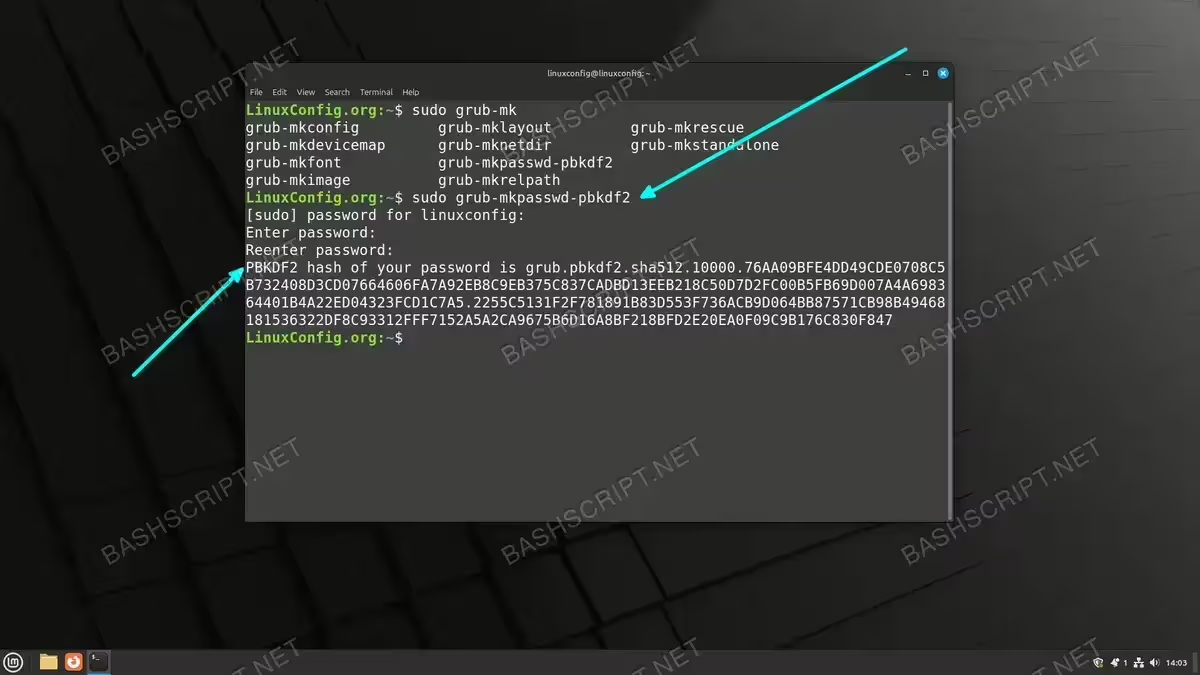
Generate a GRUB Password - Edit GRUB Configuration: Next, update the GRUB configuration to include the new password. This involves modifying the custom GRUB settings file.
sudo nano /etc/grub.d/40_custom
Add the following lines to the file, replacing
your_usernamewith your desired username and the password hash generated in the previous step:set superusers="your_username" password_pbkdf2 your_username [your_generated_hash]
Save and exit the file by pressing
CTRL+O, followed byCTRL+X.
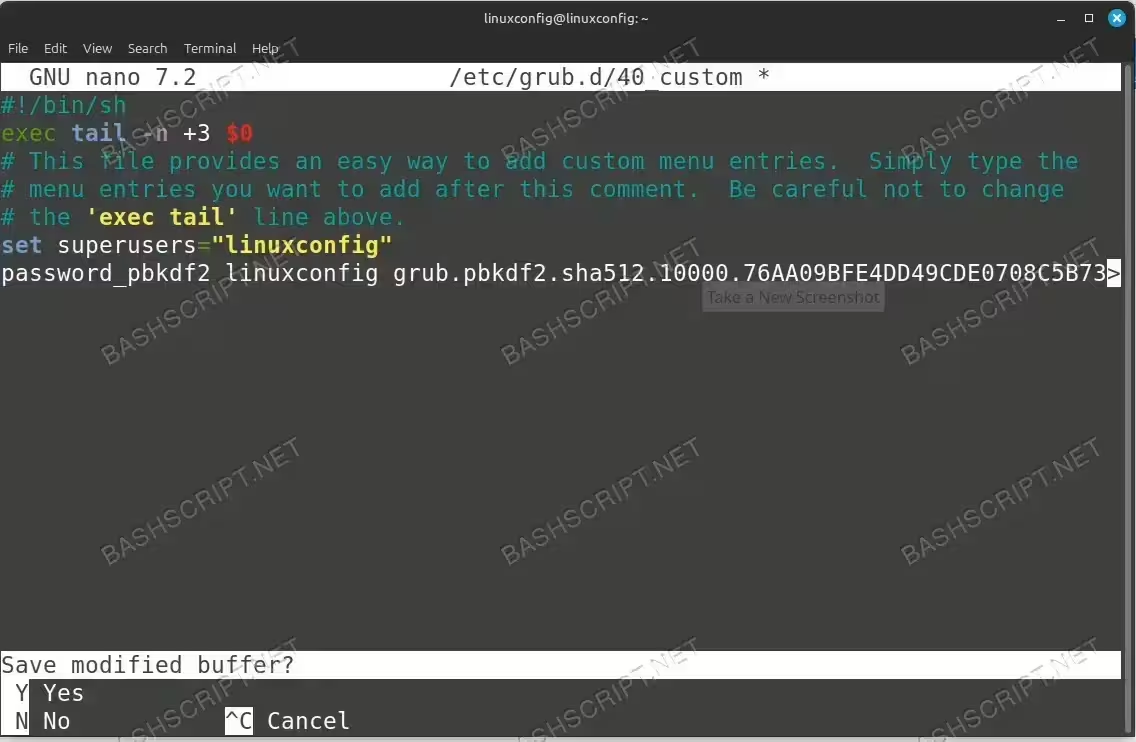
Edit GRUB configuration with a password - Update GRUB: To apply the changes made to the configuration, update GRUB by running the following command:
sudo update-grub
This command ensures that the new password settings are included in the GRUB configuration. Once complete, your GRUB bootloader is secured with a password. Confirm the new GRUB password protection settings by rebooting your Linux system.
Conclusion
By following these steps, you have successfully secured your GRUB bootloader with a password. This additional layer of security helps prevent unauthorized access to boot parameters and protects your system from potential misuse. Always remember to keep your GRUB password secure, as losing it could complicate access to your system.
