
In this article, we will explore how to clone permissions from one file or directory to another on a Linux system. This is a common task that can save time and ensure consistency across your file system. By using a few simple commands, you can easily duplicate the permissions of any file or directory to another, maintaining the desired access control settings.
In this tutorial you will learn:
- How to view file and directory permissions
- How to clone permissions using the `chmod` command

| Category | Requirements, Conventions or Software Version Used |
|---|---|
| System | Linux-based operating system |
| Software | chmod, stat |
| Other | Basic understanding of file permissions in Linux |
| Conventions | # – requires given linux commands to be executed with root privileges either directly as a root user or by use of sudo command$ – requires given linux commands to be executed as a regular non-privileged user |
Example Methods for Replicating Permissions
In Linux, every file and directory has a set of permissions that determine who can read, write, or execute the file. These permissions are crucial for maintaining the security and integrity of the file system. Sometimes, you may need to replicate the permissions from one file or directory to another to ensure consistency or to apply a standard set of permissions across multiple files and directories. This can be efficiently done using the `chmod` and `stat` commands.
- Viewing Current Permissions: Before cloning permissions, it’s important to view the current permissions of the source file or directory. This can be done using the `stat` command.
$ stat source_file
This command provides detailed information about the file, including its permissions in both symbolic and numeric forms. For example, the output might include:
  File: source_file
  Size: 1234            Blocks: 8          IO Block: 4096   regular file
Device: 801h/2049d      Inode: 12345678    Links: 1
Access: (0644/-rw-r--r--)  Uid: ( 1000/ user)   Gid: ( 1000/ user)
The `Access` line shows the current permissions. In this example, the file has read and write permissions for the owner, and read-only permissions for the group and others.
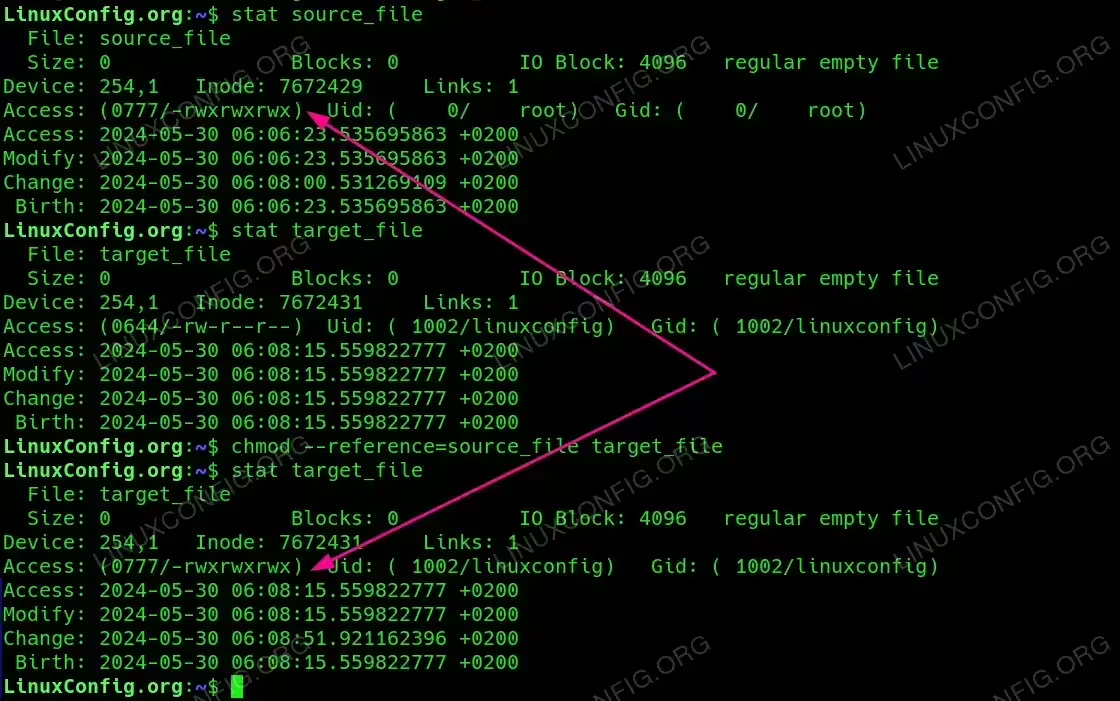
- Cloning Permissions Using chmod: Once you have viewed the permissions of the source file, you can clone these permissions to another file using the `chmod` command.
$ chmod --reference=source_file target_file
This command sets the permissions of
target_fileto match those ofsource_file. For example, ifsource_filehas permissions0644, thentarget_filewill be updated to have the same permissions. This is particularly useful when you need to ensure that multiple files have the same access settings. - Cloning Permissions for a Directory: The process for cloning permissions for a directory is similar to that for a file. You can use the
chmodcommand with the--referenceoption to clone the permissions of a source directory to a target directory.$ chmod --reference=source_directory target_directory
This command ensures that the target directory has the same permissions as the source directory. This is useful when you need to replicate directory structures with identical permissions.
- Recursively Cloning Permissions: If you need to clone permissions for all files and subdirectories within a directory, you can use the
-R(recursive) option with thechmodcommand.$ chmod -R --reference=source_directory target_directory
This command applies the permissions of
source_directorytotarget_directoryand all of its contents. This is particularly helpful when duplicating entire directory trees with specific permission settings. - Cloning Permissions Using
getfaclandsetfacl: Thegetfaclandsetfaclcommands are used to get and set file access control lists (ACLs), which provide a more detailed and flexible permission mechanism.getfacl -p source_file | setfacl --set-file=- target_file
Here,
getfacl -p source_fileretrieves the ACLs ofsource_file. The output is then piped tosetfacl --set-file=- target_file, which applies these ACLs totarget_file. This method is especially useful for complex permission setups. - Verifying Cloned Permissions: After cloning permissions, it is important to verify that the target file or directory has the correct permissions. You can use the
statcommand to check the permissions.$ stat target_file
or
$ stat target_directory
By comparing the output to that of the source file or directory, you can confirm that the permissions have been successfully cloned.

Cloning file permissions from a source to target file using chmod command
Conclusion
Cloning permissions from one file or directory to another in Linux is a straightforward process that can save time and ensure consistency across your file system. By using the `stat` and `chmod` commands, you can easily view and replicate permissions, maintaining the desired access control settings. This tutorial has covered the steps needed to clone permissions effectively, providing you with the knowledge to manage file permissions in a Linux environment efficiently.
