
Changing a Linux account’s username is one of those user management tasks that can seem confusing or tricky at first, as it is not something that we need to do every day. Since so many settings are tied directly to an account’s username, it is generally not recommended to ever change it. But, if we find ourselves in a situation where the the username of an account absolutely needs to be changed, then we are not completely out of options.
In this tutorial, we will go over the step by step instructions to change the username of an account on a Linux system. We will specifically look at a GUI method to accomplish this. We have previously covered changing username and home directory via command line in a previous tutorial, in case you prefer to use the terminal instead.
In this tutorial you will learn:
- How to install the
gnome-system-toolssoftware package - How to change account name via GUI
- How to use
usermodto change username

| Category | Requirements, Conventions or Software Version Used |
|---|---|
| System | Any Linux distro |
| Software | gnome-system-tools |
| Other | Privileged access to your Linux system as root or via the sudo command. |
| Conventions |
# – requires given linux commands to be executed with root privileges either directly as a root user or by use of sudo command$ – requires given linux commands to be executed as a regular non-privileged user |
Installing Gnome System Tools
There are a few different GUI programs that have the ability to change an account username in Linux. The one we will be focusing on in this tutorial is GNOME System Tools. So, the first thing we will need to do is install this software package.
You can use the appropriate command below to install GNOME System Tools with your system’s package manager.
To install GNOME System Tools on Ubuntu, Debian, and Linux Mint:
$ sudo apt install gnome-system-tools
To install GNOME System Tools on Fedora, CentOS, AlmaLinux, and Red Hat:
$ sudo dnf install gnome-system-tools
To install GNOME System Tools on Arch Linux and Manjaro:
$ sudo pacman -S gnome-system-tools
Change Username in Linux
- After installation of the package above, you can open it by searching for “Users and Groups” in your GUI launcher:
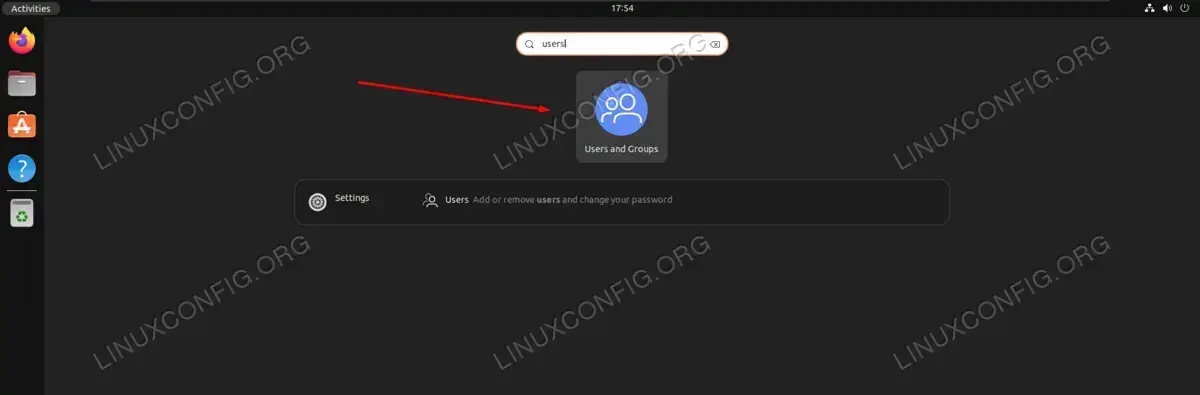
Open the Users and Groups application
- In the User Settings menu, highlight the user whose name you want to change, then click on the first ‘Change’ option next to the name.
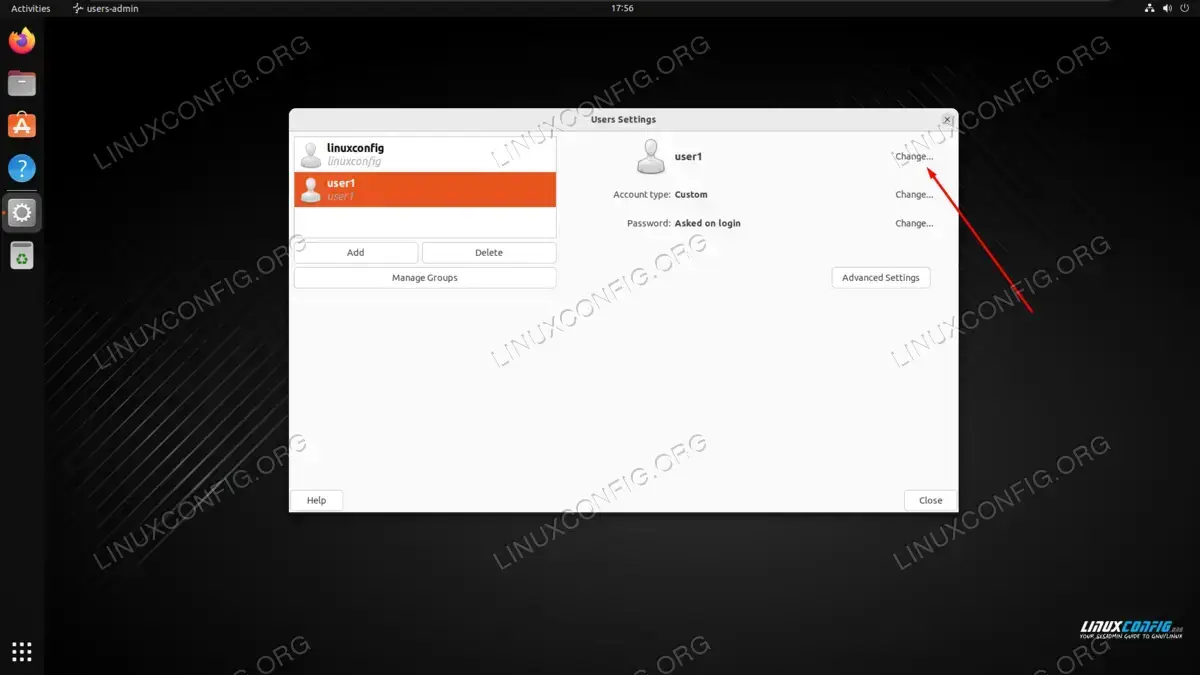
Click on ‘Change’ to get started with changing the name - You will need administrator privileges to proceed, so type in the root password for authentication.
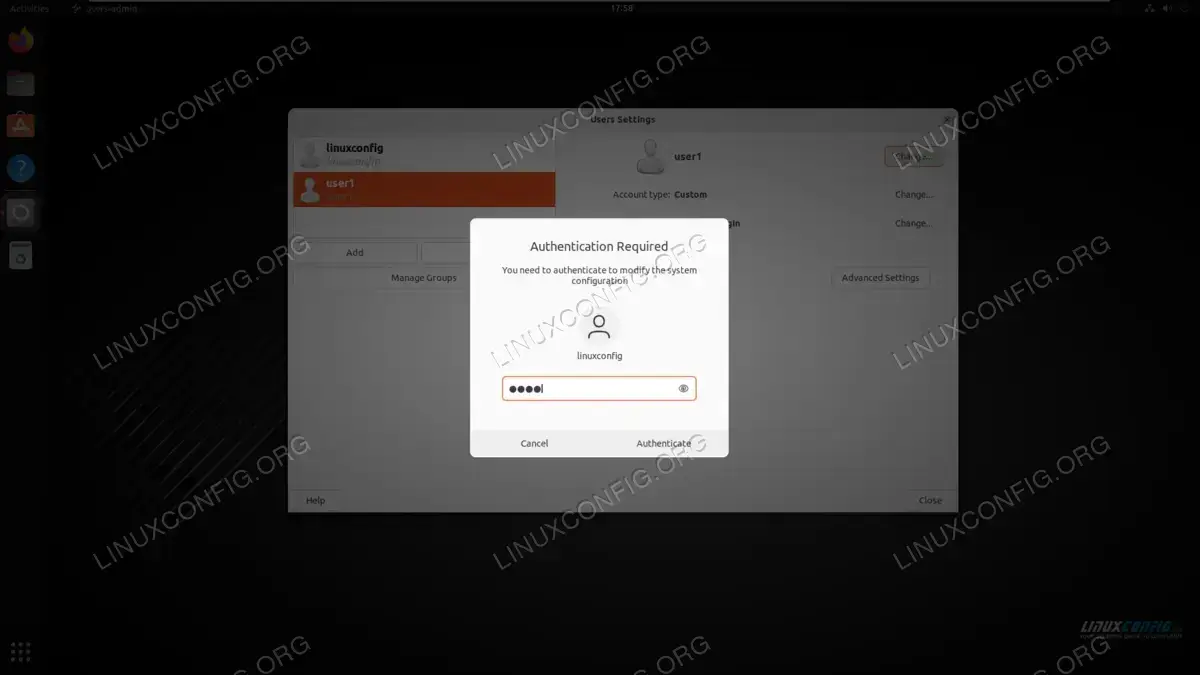
Authenticating with the User and Groups application - Type in the new name that you want to give to the user account. We will simply change
user1touser2in this example.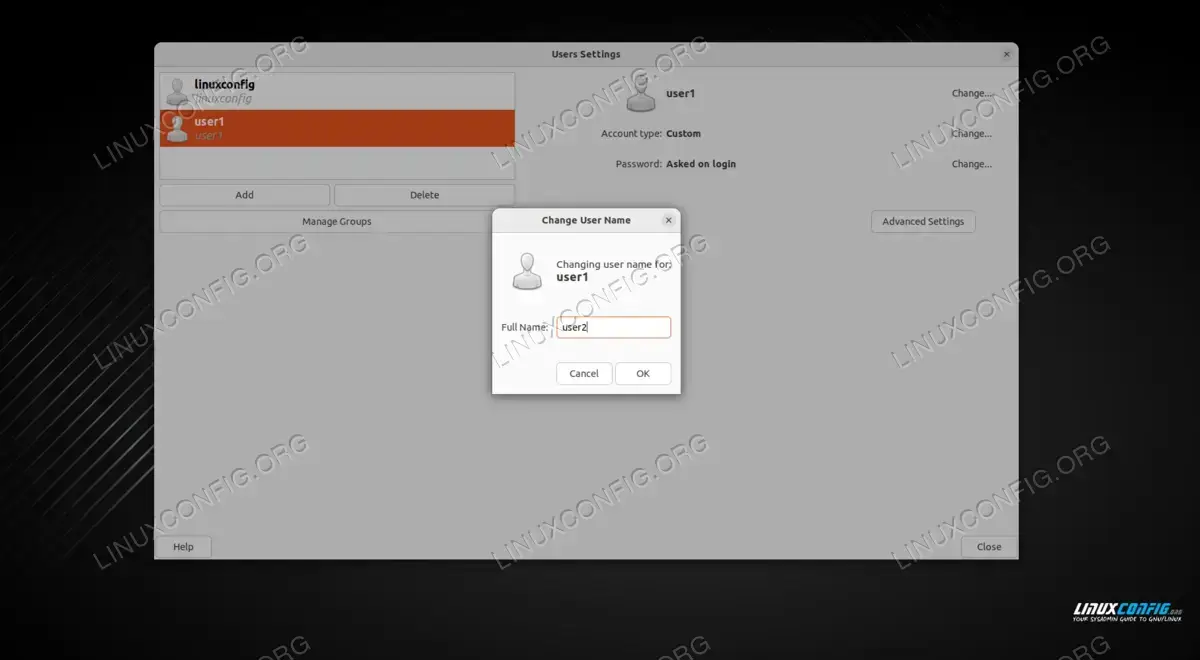
Changing name for a user account in Linux - After clicking OK, the process is complete. But keep in mind that this only changed the name of the user, and not the account username itself. In most cases, this is probably all you will need to do. But, if you also want the username itself to be changed, it will be necessary to use the usermod command in terminal. Here is how to finish the job:
$ sudo usermod -l user2 user1
The syntax above will change the account username for
user1touser2.WARNING
Do not use the command above lightly. Changing the system username for an account can have unexpected consequences, since some settings and applications will reference the username of an account directly. Before proceeding with the command, make sure you have a full system backup in case things go awry. - The other major reference to your username’s old name will be the home directory. Although it may be customized, so you should check first, ordinarily the home directory follows the path syntax of
/home/user1in our example’s case. We would need to change the home directory by executing:$ sudo usermod -d /home/user2 -m user2
- And, lastly, in case some files have hard coded your old home directory in their configuration, we can create a symbolic link from the old home directory to the new one. This will ensure that everything remains compatible.
$ sudo ln -s /home/user2 /home/user1
- For all of the changes to take effect, it will be necessary to reboot the system:
$ reboot
Closing Thoughts
In this tutorial, we saw how to change the username on a Linux system via GUI method. GUI tools only allow us to change the name of an account, without actually affecting the username. Therefore, to finish the job, we must use the usermod command in terminal. Keep in mind that changing the user’s name, and not the account name, can usually give us the desired result, and changing the account username itself should be a last resort.
