
Encrypting and decrypting files and directories securely is essential for protecting sensitive data. OpenSSL, a powerful open-source tool, provides robust encryption and decryption capabilities that can handle files of any size, from small text files to large binaries, and even entire directories. This tutorial will walk you through the process of encrypting and decrypting files and directories using OpenSSL on Linux systems such as Redhat, Ubuntu, Debian, CentOS, and Fedora.
In this tutorial you will learn:
- How to create a sample file or directory
- How to generate an RSA public and private key pair
- How to encrypt a file or directory using OpenSSL
- How to decrypt the encrypted file or directory back to its original state
| Category | Requirements, Conventions, or Software Version Used |
|---|---|
| System | Linux-based system (e.g., Redhat, Ubuntu, Debian, CentOS, Fedora) |
| Software | OpenSSL |
| Other | None |
| Conventions | # – requires given linux commands to be executed with root privileges either directly as a root user or by use of sudo command$ – requires given linux commands to be executed as a regular non-privileged user |
Creating a Sample File or Directory and Generating RSA Keys
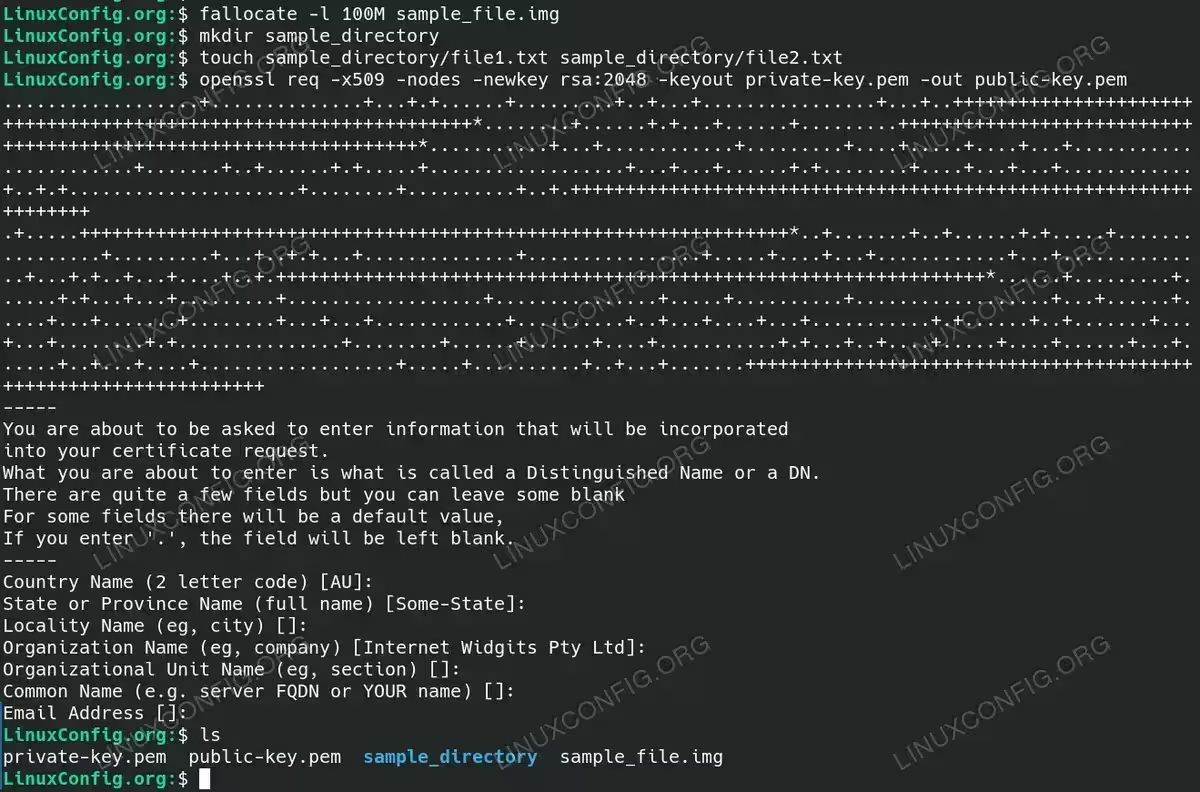
To start, you will need a file or directory that you want to encrypt. For demonstration purposes, let’s create a sample file or directory and generate an RSA key pair.
- Create a Sample File or Directory: You can create a file or a directory depending on what you want to encrypt. Here are the commands for both:For a file:
$ fallocate -l 100M sample_file.img
This command creates a file named
sample_file.imgof size 100MB.For a directory:
$ mkdir sample_directory
$ touch sample_directory/file1.txt sample_directory/file2.txt
This creates a directory named
sample_directorycontaining two text files. - Generate an RSA Public and Private Key Pair: Now, generate a public and private key pair using the OpenSSL command:
$ openssl req -x509 -nodes -newkey rsa:2048 -keyout private-key.pem -out public-key.pem
This command creates a 2048-bit RSA key pair. The private key is stored in
private-key.pem, and the public key is stored inpublic-key.pem. During this process, you will be prompted for certificate details, but you can skip these by pressingENTER.$ ls -l *.pem
Ensure that the private key is kept secure, as losing it will prevent you from decrypting your files or directories.

Generate RSA Keys and create sample file and directory
Encrypting a File or Directory Using OpenSSL
Now that we have the keys and sample file or directory, let’s proceed with encryption.
- Encrypt the File or Directory: Depending on whether you’re encrypting a file or a directory, the process is slightly different.For a file:
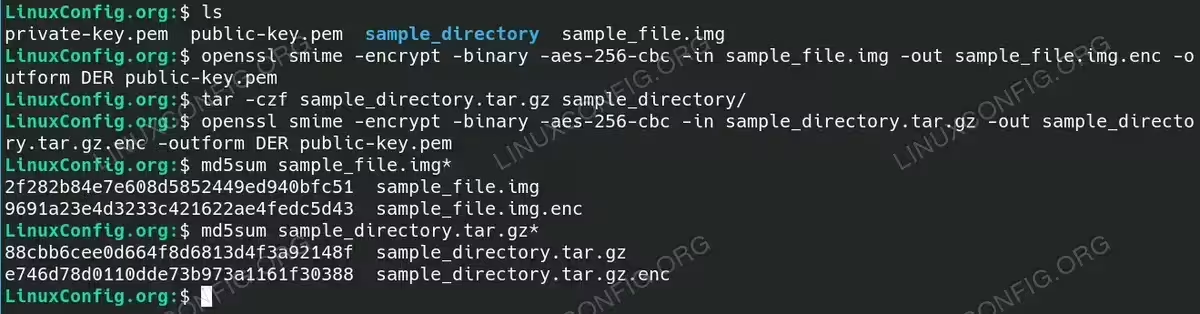
$ openssl smime -encrypt -binary -aes-256-cbc -in sample_file.img -out sample_file.img.enc -outform DER public-key.pem
This command encrypts
sample_file.imgusing AES-256-CBC and stores the encrypted output assample_file.img.enc.For a directory:
First, compress the directory into a tarball:$ tar -czf sample_directory.tar.gz sample_directory/
Then, encrypt the tarball:
$ openssl smime -encrypt -binary -aes-256-cbc -in sample_directory.tar.gz -out sample_directory.tar.gz.enc -outform DER public-key.pem
This command encrypts
sample_directory.tar.gzand stores the encrypted output assample_directory.tar.gz.enc. - Verify the Encryption: To ensure the encryption process was successful, generate the MD5 checksum of both the original and encrypted files or directories for comparison.For a file:
$ md5sum sample_file.img*
For a directory:
$ md5sum sample_directory.tar.gz*
The checksums should be different, confirming that the file or directory has been encrypted.

Encrypting a File or Directory Using OpenSSL
Decrypting a File or Directory Using OpenSSL
Once your file or directory is encrypted, you’ll need to know how to decrypt it.
- Decrypt the Encrypted File or Directory: Depending on whether you’re decrypting a file or a directory, use the following commands.For a file:
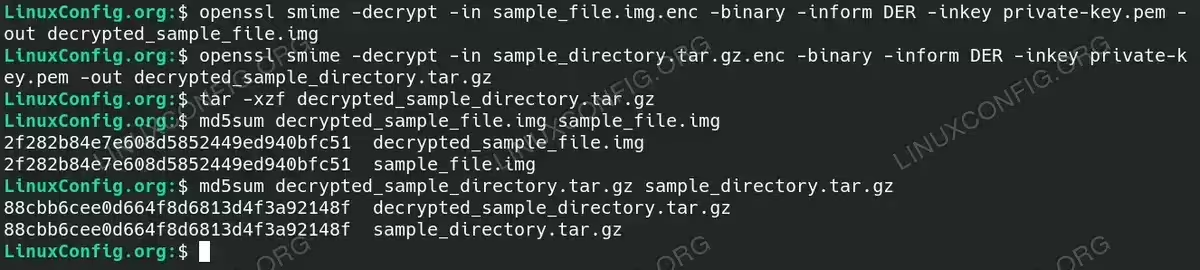
$ openssl smime -decrypt -in sample_file.img.enc -binary -inform DER -inkey private-key.pem -out decrypted_sample_file.img
This command decrypts
sample_file.img.encand stores the result asdecrypted_sample_file.img.For a directory:
First, decrypt the tarball:$ openssl smime -decrypt -in sample_directory.tar.gz.enc -binary -inform DER -inkey private-key.pem -out decrypted_sample_directory.tar.gz
Then, extract the directory:
$ tar -xzf decrypted_sample_directory.tar.gz
This command restores the original
sample_directory. - Verify the Decryption: To verify that the decryption was successful, generate the MD5 checksum of the decrypted file or directory and compare it with the original file or directory’s checksum.For a file:
$ md5sum decrypted_sample_file.img sample_file.img
For a directory:
$ md5sum decrypted_sample_directory.tar.gz sample_directory.tar.gz
The checksums of the original and decrypted files or directories should match, indicating that the decryption was successful.

Decrypting a File or Directory Using OpenSSL
Conclusion
By following the steps outlined in this tutorial, you can easily encrypt and decrypt files and directories using OpenSSL on Linux. Whether you are dealing with small files, large files, or entire directories, OpenSSL provides a reliable and efficient method for securing your data. Always remember to keep your private key secure, as it is essential for decrypting your files or directories.
