
Installing software on Ubuntu 26.04 typically involves the APT package manager pulling packages from official repositories. However, there are times when you need to install a .deb package file directly, whether it is a proprietary application from a vendor’s website, a locally built package, or software not available in the default repositories. This guide covers every method to install .deb packages on Ubuntu 26.04 Resolute Raccoon, including dependency resolution and troubleshooting.
Table of Contents
In this tutorial you will learn:
- What a .deb package is and when you need to install one manually
- How to install .deb files using
aptwith automatic dependency resolution - How to use
dpkgfor low-level .deb package installation - How to install .deb packages graphically with GDebi
- How to verify, list, and remove packages installed from .deb files
- How to troubleshoot common .deb installation errors
Software Requirements
| Category | Requirements, Conventions or Software Version Used |
|---|---|
| System | Ubuntu 26.04 Resolute Raccoon |
| Software | APT 3.1, dpkg (pre-installed), GDebi (optional) |
| Other | Privileged access to your Linux system as root or via the sudo command. |
| Conventions | # – requires given linux commands to be executed with root privileges either directly as a root user or by use of sudo command$ – requires given linux commands to be executed as a regular non-privileged user |
PREREQUISITE
This tutorial assumes you are familiar with APT package management on Ubuntu 26.04. Refer to that guide for foundational knowledge of how APT handles packages and repositories.
.deb package on Ubuntu 26.04 is with apt install ./package.deb, which automatically resolves dependencies. Use dpkg -i for low-level control, or install GDebi for a graphical option.
| Step | Command/Action |
|---|---|
| 1. Install with apt (preferred) | $ sudo apt install ./linuxconfig-hello_1.0_all.deb |
| 2. Or install with dpkg | $ sudo dpkg -i linuxconfig-hello_1.0_all.deb |
| 3. Fix missing dependencies | $ sudo apt --fix-broken install |
What Is a .deb Package?
A .deb file is the Debian package format used by Ubuntu and all Debian-based distributions. Each .deb file is an archive that contains the compiled application binaries, configuration files, documentation, and metadata describing the package’s dependencies, version, and maintainer information.
Most of the time, you install software through APT and the official Ubuntu repositories. However, you may need to install a standalone .deb file in several situations:
- The software vendor distributes their application as a
.debdownload (for example, Google Chrome, Visual Studio Code, or Zoom). - You have built a package locally from source.
- You need a specific version of a package that is not available in the current repositories.
- You are installing software on a system without internet access using previously downloaded packages.
Regardless of the reason, Ubuntu 26.04 provides several tools to handle .deb package installation, each with different strengths.
SANDBOX PACKAGE
Throughout this tutorial we use a custom sandbox package called linuxconfig-hello_1.0_all.deb to demonstrate each installation method. Replace this filename with the name of the .deb package you want to install on your system.
Installing .deb Packages with apt on Ubuntu 26.04
The apt install command is the preferred method for installing .deb packages on Ubuntu 26.04 because it automatically resolves and installs any missing dependencies from the configured repositories. This is the single most important advantage over using dpkg directly.
- Navigate to the directory containing the .deb file: Change to the directory where you downloaded the package. For most users this will be the
~/Downloadsdirectory:$ cd ~/Downloads
- Install the .deb package with apt: Use
apt installwith the./prefix to indicate a local file path rather than a package name from the repository:$ sudo apt install ./linuxconfig-hello_1.0_all.deb
The leading
./is essential. Without it, APT interprets the argument as a package name to search for in the repositories rather than a local file. - Verify the installation: Confirm the package was installed correctly by running the newly installed command:
$ linuxconfig-hello
Greetings from LinuxConfig.org!
You can also check the package status:
$ apt show linuxconfig-hello
APT will display a summary of the package to be installed along with any additional dependencies it needs to pull from the repositories. Review the list and confirm with Y when prompted. If a dependency cannot be satisfied from the configured repositories, APT will report an error and abort the installation cleanly without leaving the system in a broken state.
IMPORTANT
Always prefer apt install ./package.deb over dpkg -i when you have an active internet connection. APT handles the entire dependency chain in a single step, whereas dpkg requires manual dependency resolution.
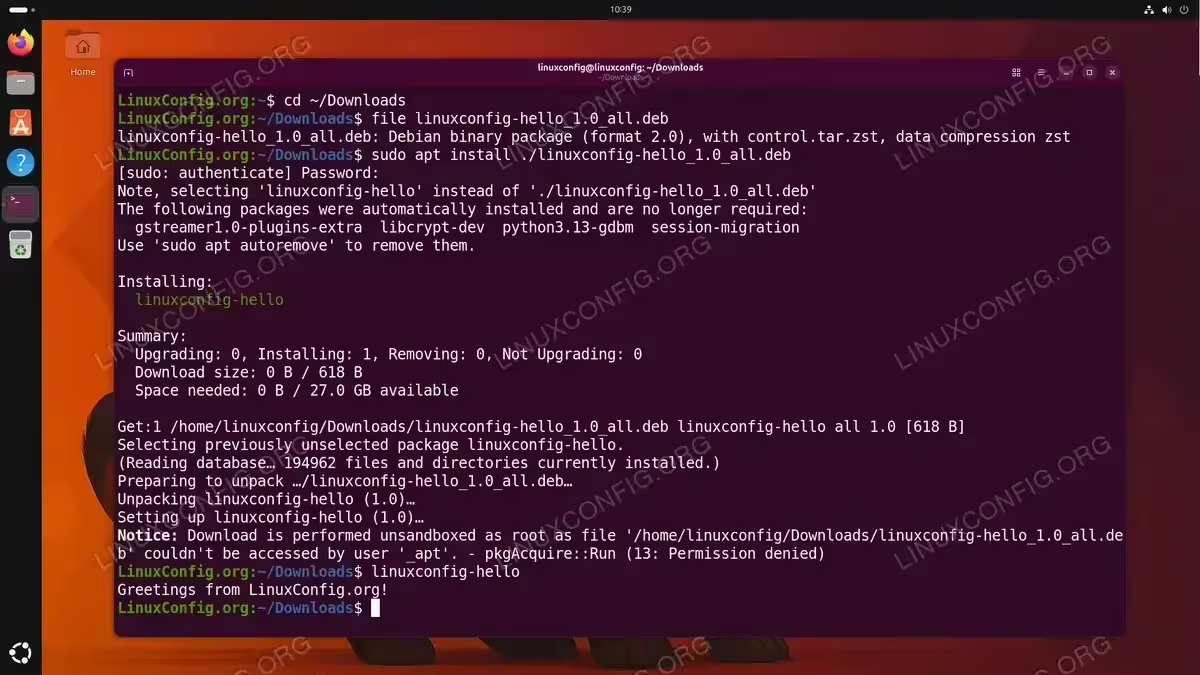
You may notice the following message at the end of the installation output:
Notice: Download is performed unsandboxed as root as file
'/home/linuxconfig/Downloads/linuxconfig-hello_1.0_all.deb' couldn't be
accessed by user '_apt'. - pkgAcquire::Run (13: Permission denied)
This notice is harmless. APT normally drops privileges to the unprivileged _apt user when processing packages as a security measure. When the .deb file resides in your home directory, the _apt user does not have permission to read it, so APT falls back to processing the file as root instead. The package still installs correctly. If you want to avoid the notice, move the .deb file to a world-readable location such as /tmp before installing:
$ sudo apt install /tmp/linuxconfig-hello_1.0_all.deb
Installing .deb Packages with dpkg
The dpkg command is the low-level package manager that underpins APT. While it can install .deb files directly, it does not resolve dependencies automatically. This makes dpkg useful in specific scenarios such as offline installations or when you need to force an installation, but it requires extra steps to handle missing dependencies.
- Install the .deb package with dpkg: Run the following command to install the package:
$ sudo dpkg -i linuxconfig-hello_1.0_all.deb
If all dependencies are already satisfied on your system, the installation will complete successfully.
- Resolve missing dependencies: If
dpkgreports unmet dependency errors, use APT to fetch and install the missing packages:$ sudo apt --fix-broken install
This command reads the dependency information left by the failed
dpkginstallation and downloads the required packages from the repositories. Once the dependencies are satisfied, it completes the installation of your original package as well. - Verify the package is installed:
$ dpkg -l | grep linuxconfig-hello
A status of
iiin the first column confirms the package is fully installed and configured.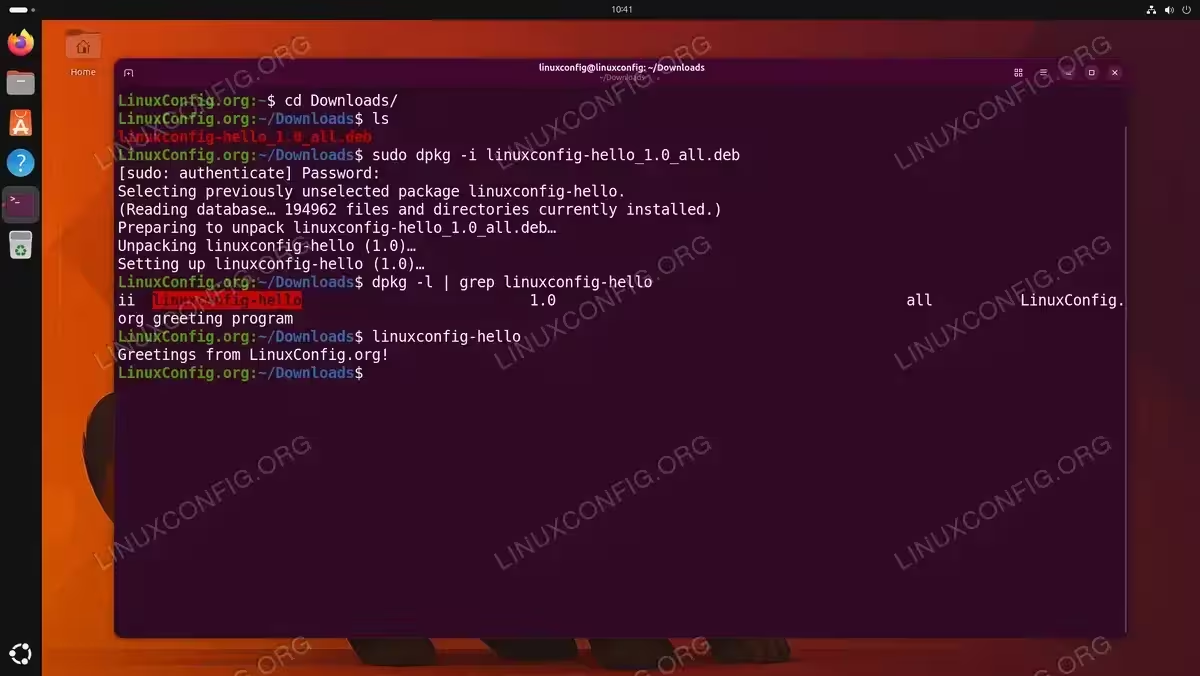
Installing the linuxconfig-hello .deb package using dpkg -i and verifying with dpkg -l and linuxconfig-hello command
Installing Multiple .deb Files at Once
If you have several .deb files to install, you can pass them all to dpkg in a single command:
$ sudo dpkg -i package1.deb package2.deb package3.deb
Alternatively, install all .deb files in a directory:
$ sudo dpkg -i /path/to/debs/*.deb
Follow up with sudo apt --fix-broken install to resolve any dependency issues across all packages.
Installing .deb Packages with GDebi
GDebi is a lightweight tool that combines the simplicity of a graphical interface with automatic dependency resolution. It is particularly useful for desktop users who prefer not to use the terminal. Additionally, GDebi provides a command-line interface through gdebi-core that serves as a convenient alternative to the dpkg plus apt --fix-broken workflow.
- Install GDebi: GDebi is not installed by default on Ubuntu 26.04. Install it from the repositories:
$ sudo apt install gdebi-core
This installs the command-line version. If you also want the graphical interface, install the full package:
$ sudo apt install gdebi
- Install a .deb package using GDebi CLI: Use the
gdebicommand followed by the path to the.debfile:$ sudo gdebi linuxconfig-hello_1.0_all.deb
GDebi will display the package description and list any required dependencies before asking for confirmation. It then downloads and installs the dependencies and the package in one step.
- Install a .deb package using GDebi GUI: If you installed the graphical version, you can right-click a
.debfile in the file manager and select “Open With GDebi Package Installer.” The GDebi window shows the package details, dependencies, and an “Install Package” button.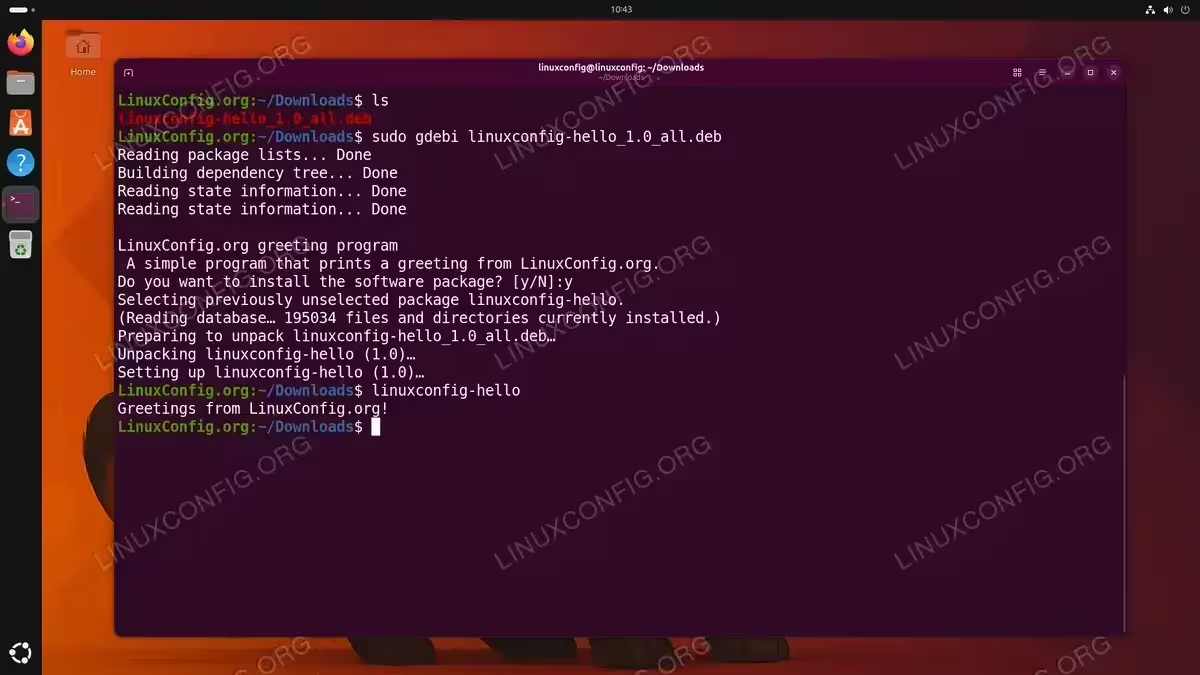
Installing the linuxconfig-hello .deb package using sudo gdebi and verifying with the linuxconfig-hello command
Verifying and Managing Installed .deb Packages
Once you have installed a .deb package, Ubuntu treats it the same as any package installed from the repositories. You can query, update, and remove it using standard tools.
Checking Package Information
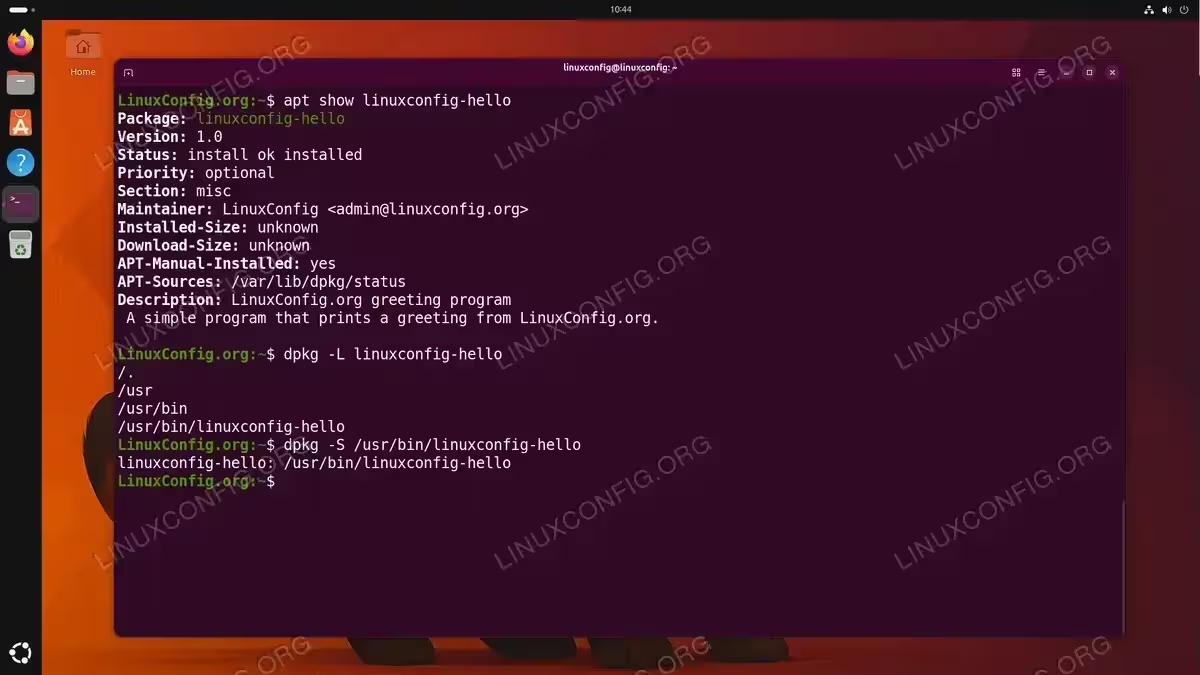
To display detailed information about an installed package:
$ apt show linuxconfig-hello
To list all files installed by a package:
$ dpkg -L linuxconfig-hello
To check whether a specific file belongs to a package:
$ dpkg -S /usr/bin/linuxconfig-hello
Removing a Package
Remove a package while keeping its configuration files:
$ sudo apt remove linuxconfig-hello
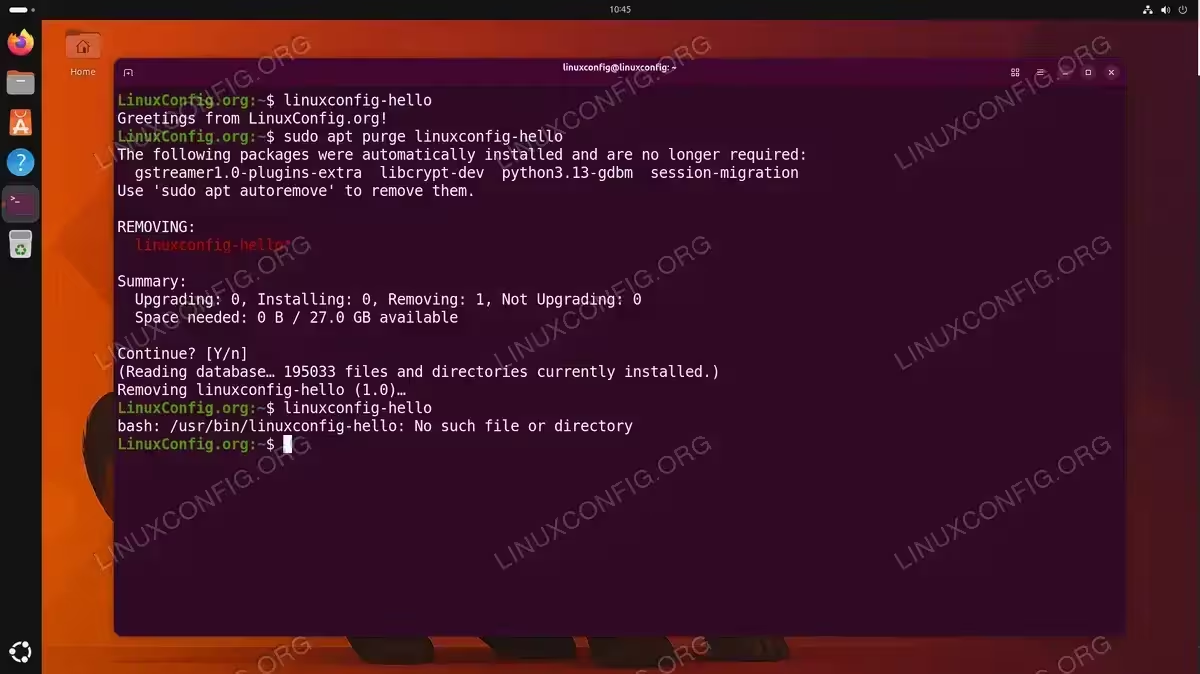
Remove a package along with its configuration files:
$ sudo apt purge linuxconfig-hello
After removing a package, clean up any orphaned dependencies:
$ sudo apt autoremove
Troubleshooting .deb Package Installation on Ubuntu 26.04
Dependency Errors
The most common issue when installing .deb packages is unmet dependencies. If dpkg -i fails with dependency errors, run:
$ sudo apt --fix-broken install
If the required dependencies are not available in your configured repositories, you may need to add the appropriate repository or download the dependency .deb files manually.
Architecture Mismatch
If you attempt to install a package built for a different architecture (for example, installing an i386 package on a pure amd64 system), dpkg will refuse the installation. First, verify the architecture of your system:
$ dpkg --print-architecture
If you need to install packages for a foreign architecture, enable multiarch support:
$ sudo dpkg --add-architecture i386
$ sudo apt update
Then retry the installation.
File Conflicts
If a new package attempts to overwrite a file owned by another package, dpkg will abort with an error. To investigate which package owns the conflicting file:
$ dpkg -S /path/to/conflicting/file
You may need to remove the conflicting package first, or if you are certain the overwrite is safe, you can force the installation:
$ sudo dpkg -i --force-overwrite linuxconfig-hello_1.0_all.deb
FORCE INSTALL WARNING
Use --force-overwrite and other dpkg force options with extreme caution. Overwriting files from other packages can break your system. Always verify the conflict before forcing an installation.
Permission Denied Errors
If you encounter permission denied errors during installation, ensure you are using sudo with the installation command. Package installation requires root privileges to write to system directories.
Conclusion
Installing .deb packages on Ubuntu 26.04 is straightforward once you understand the available tools. Use apt install ./package.deb as your default method for its automatic dependency handling. Fall back to dpkg -i when you need low-level control or are working offline, and pair it with apt --fix-broken install to resolve dependencies afterward. For desktop users, GDebi offers a convenient graphical alternative. Regardless of which method you choose, always verify the source of any .deb file before installing it, as packages from untrusted sources can compromise your system’s security.
Frequently Asked Questions
- What is the difference between apt install ./package.deb and dpkg -i package.deb? The key difference is dependency handling. The
apt install ./package.debcommand automatically downloads and installs any missing dependencies from the repositories, whiledpkg -iinstalls only the specified package and fails if dependencies are missing. Withdpkg, you must manually runsudo apt --fix-broken installafterward to resolve dependencies. - Why does apt install require the ./ prefix for local .deb files? The
./prefix tells APT that you are specifying a file path rather than a package name. Without it, APT searches the repository index for a package matching the given name. The./signals that the argument is a path to a local file in the current directory. - Can I install a .deb package without an internet connection? Yes. Use
dpkg -i package.debfor offline installation. However, if the package has dependencies that are not already installed on the system, you will need to provide those dependency.debfiles as well and install them together. You can pre-download all dependencies on a connected system usingapt downloadand then transfer them to the offline machine. - Is it safe to install .deb packages from third-party websites? Only install
.debpackages from sources you trust, such as official vendor download pages. Third-party.debfiles are not reviewed by the Ubuntu security team and could contain malicious software. When possible, verify the package checksum or GPG signature provided by the vendor. - How do I check which .deb packages I have installed manually? There is no built-in command that distinguishes manually installed
.debfiles from repository packages. However, packages installed from local.debfiles that do not match any repository will appear with a status oflocalwhen you runapt list --installed. You can also check the APT history log at/var/log/apt/history.logfor records of local installations.